
Learning how to replace CMOS battery on a desktop motherboard is one of the simplest hardware fixes a PC owner can tackle, and it solves a surprisingly annoying problem: a computer that forgets the date, time, and BIOS settings every time it loses power. The whole job usually takes less than fifteen minutes with the right coin cell battery and a bit of care around static electricity.
Key Takeaways
- Most desktop motherboards use a common CR2032 coin cell battery, which is inexpensive and widely available.
- Symptoms of a dying CMOS battery include an incorrect system clock, lost BIOS settings, boot delays, and CMOS checksum errors.
- The replacement process only requires powering down the system, unplugging it, and swapping the old battery for a new one of the same type.
- After replacement, BIOS settings return to factory defaults and need to be reconfigured, including boot order and the system clock.
- The task is beginner-friendly, but static precautions and careful handling of the motherboard are still important.
Before You Start
A little prep work keeps this task safe for both the technician and the motherboard. None of it takes long, but skipping it is where most avoidable mistakes happen.
Safety Steps
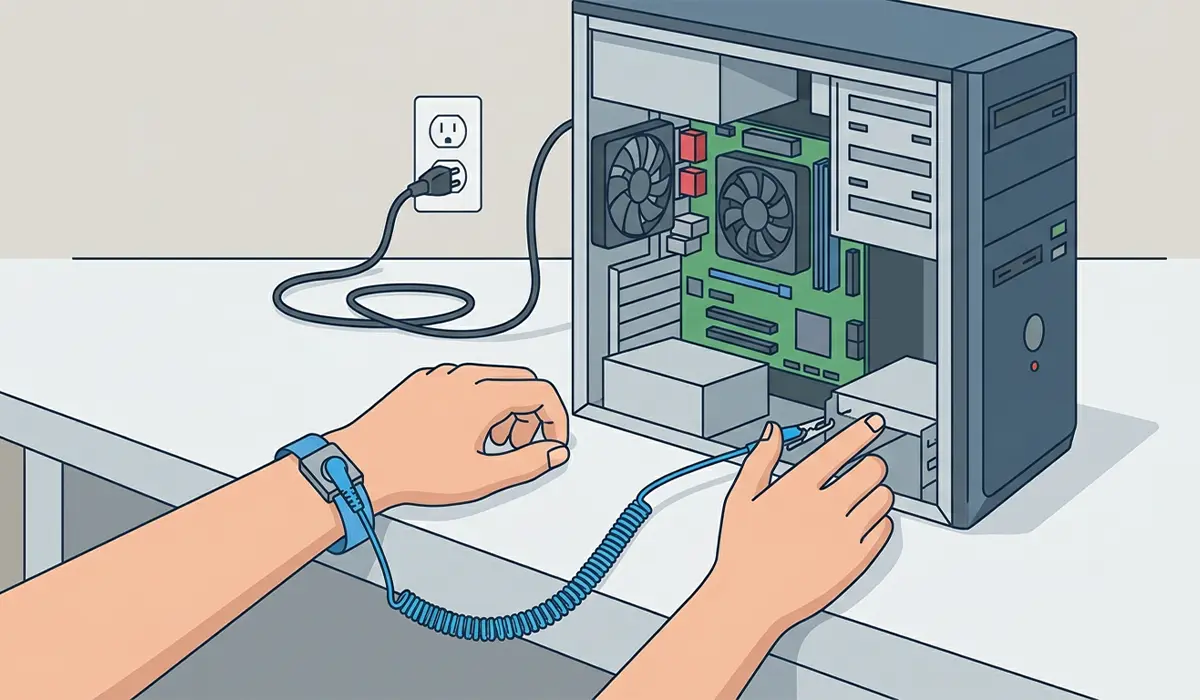
- Shut down the computer completely and unplug the power cable from the wall or the power supply unit.
- Press the power button once or twice after unplugging to release any residual electricity stored in the system.
- Ground hands by touching a bare metal part of the case, or use an anti-static wrist strap for extra protection.
- Let the system sit for a few minutes if it was running hot, since some components near the battery socket can retain heat.
Tools and Materials Needed
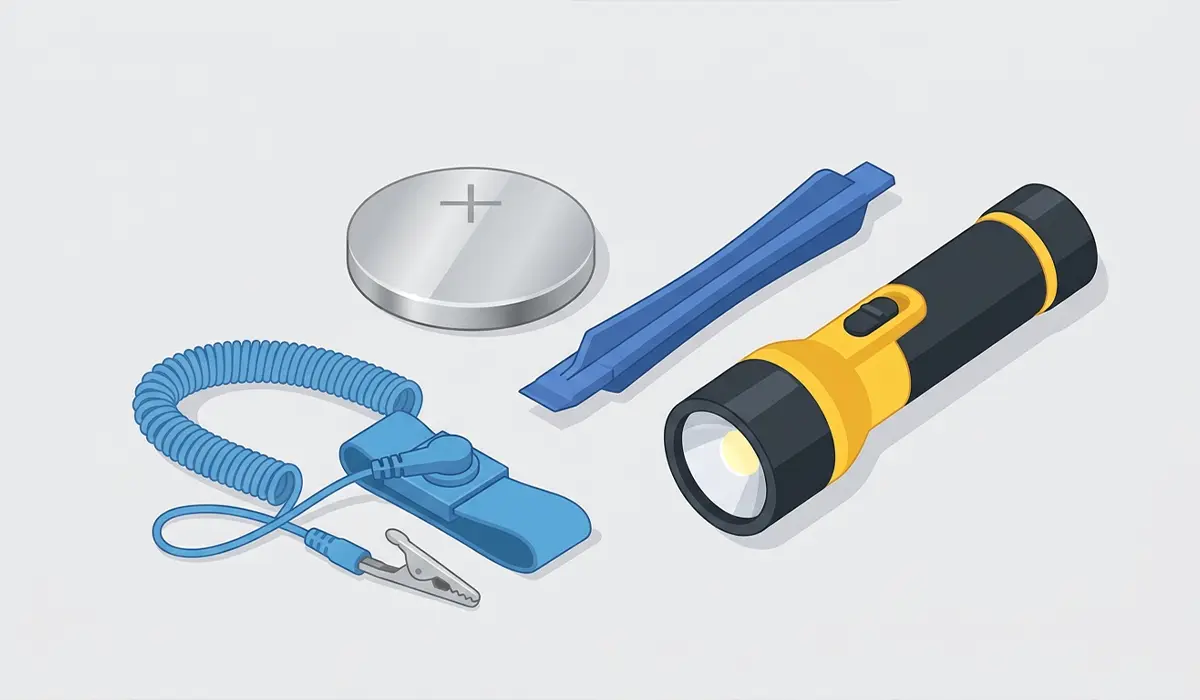
- A new CR2032 lithium coin cell battery, matched to the label on the existing battery.
- A plastic pry tool or a fingernail for popping the old battery loose.
- A flashlight, since the battery socket is often tucked below expansion cards or near the bottom edge of the board.
- An anti-static wrist strap, if one is available.
Tip: Take a quick photo of the CMOS battery and its surrounding area with a phone camera before removing anything. It makes reseating the battery in the correct orientation much easier.
Step-by-Step: How to Replace CMOS Battery on Desktop Motherboard
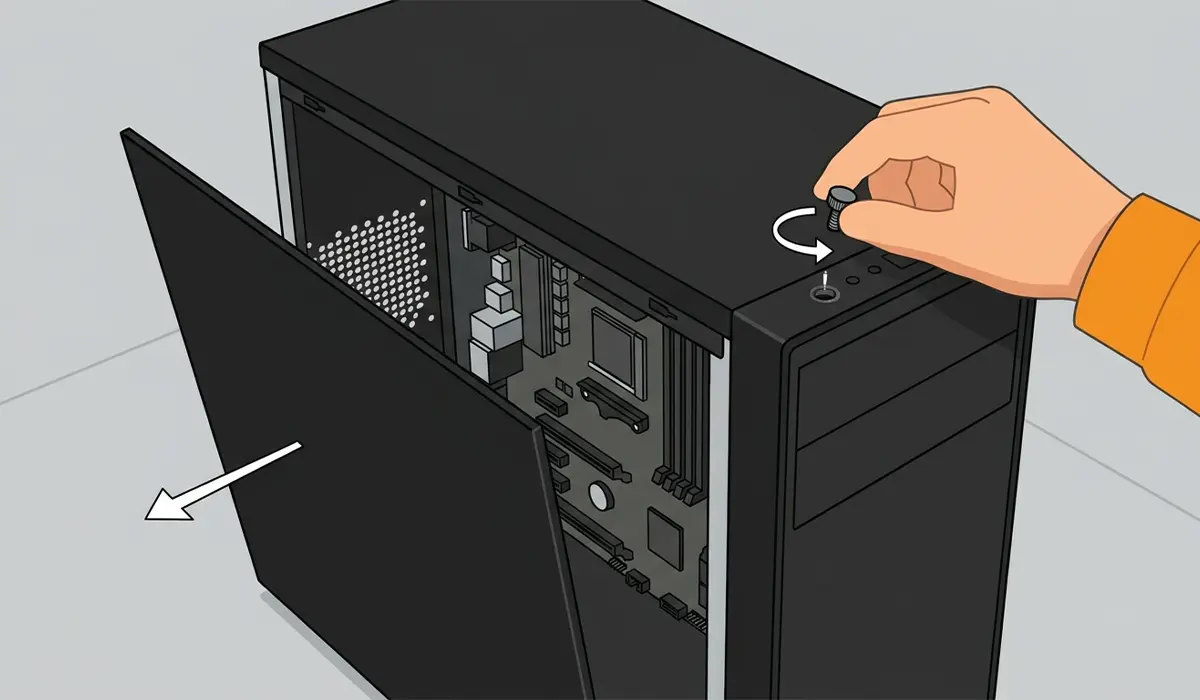
- Step 1: Open the computer case by removing the side panel screws or thumbscrews, then slide or lift the panel away from the chassis.
- Step 2: Locate the CMOS battery on the motherboard. It looks like a small, round, silver coin cell, usually near the PCIe slots or along the lower edge of the board.
- Step 3: Check for any cables, GPU brackets, or expansion cards blocking access. If a graphics card sits directly over the battery, it may need to be unclipped and gently moved aside without fully disconnecting it.
- Step 4: Identify the small retaining clip holding the battery in its socket. Gently press or slide this clip to the side using a plastic pry tool or a fingernail.
- Step 5: The battery should pop up slightly once the clip releases. Lift it straight out of the socket, noting which side faced up (the positive side, marked with a plus sign, typically faces outward).
- Step 6: Insert the new CR2032 battery into the socket in the same orientation as the old one, positive side facing the same direction.
- Step 7: Press down gently until the retaining clip snaps back into place and the battery sits flush in the socket.
- Step 8: Reposition any cards or cables that were moved, then reassemble the case panel.
- Step 9: Reconnect the power cable, boot the system, and enter the BIOS or UEFI setup screen (commonly by pressing Delete, F2, or F10 during startup).
- Step 10: Reset the system date and time, then check settings like boot order, since these typically revert to factory defaults after a CMOS battery swap.
Tip: If the new battery does not hold a charge or the clock keeps resetting immediately after replacement, double check that the battery is seated firmly and facing the correct direction, since a loose connection is a common oversight.
Common Problems and Fixes
Motherboard Won’t Recognize the New Battery
This usually points to the battery being inserted backward or not clicking fully into the retaining clip. Remove it, confirm the positive side is facing the correct way based on the earlier reference photo, and reseat it firmly until it clicks.
Clock Keeps Resetting After Replacement
If the date and time still reset after a fresh battery is installed, the battery itself may be a dud from a low-quality batch, or the motherboard’s CMOS circuitry could have a deeper fault. Try a different CR2032 from a known reliable brand before assuming a motherboard issue.
PC Won’t Boot After Reinstalling the Battery
This is often related to a card or cable that was not reseated properly during reassembly. Reopen the case and confirm the GPU, RAM sticks, and power connectors are fully seated in their slots.
BIOS Settings Won’t Save
If custom BIOS settings refuse to stick even after entering them again, the battery may be too weak to hold the CMOS memory once the system is powered down. Confirm the replacement battery is fresh and not an old spare pulled from a drawer.
Long POST Delays or CMOS Checksum Errors Persist
Occasionally a checksum error appears once after the swap simply because the BIOS is loading defaults for the first time. Entering the BIOS, saving settings, and rebooting once usually clears it. If the error keeps returning, it is worth having a professional check the motherboard for a deeper fault.
Frequently Asked Questions
What does the CMOS battery actually do?
The CMOS battery keeps the motherboard’s BIOS settings and system clock powered while the computer is unplugged or turned off, so the date, time, and hardware configuration are preserved between sessions.
How often does a CMOS battery need to be replaced?
Most CMOS batteries last several years, often five years or longer, depending on usage patterns. A desktop that stays plugged in most of the time typically sees an even longer battery lifespan.
What are the signs of a dead or dying CMOS battery?
Common signs include the system clock resetting to an incorrect date and time, BIOS settings reverting to defaults, longer boot times, and occasional CMOS checksum error messages during startup.
What type of battery do most desktop motherboards use?
The vast majority of desktop motherboards use a CR2032 lithium coin cell battery. Checking the existing battery’s label before buying a replacement confirms the exact model needed.
Is it safe to replace the CMOS battery without professional help?
Yes, for most desktop users this is a low-risk task that only involves handling a small battery and its socket. If the motherboard shows signs of damage, corrosion, or the socket itself looks broken, it is safer to consult a professional.
Will replacing the CMOS battery erase personal files or data?
No, replacing the CMOS battery only resets BIOS and UEFI configuration settings, such as boot order and the system clock. It has no effect on files stored on the hard drive or SSD.
Does removing the CMOS battery affect the computer’s warranty?
Opening a prebuilt desktop case can affect its warranty depending on the manufacturer’s policy, so checking the warranty terms first is a good idea before removing any panel.
What happens if the wrong replacement battery is used?
Using a battery with the wrong voltage or size can prevent the motherboard from holding settings correctly, or it may not fit the socket at all. Matching the exact CR2032 label ensures compatibility.
Can a laptop CMOS battery be replaced the same way?
Laptops often use a CMOS battery connected by a small wire rather than a coin cell that clicks directly into a socket, and the disassembly process is usually more involved than on a desktop.
Why do BIOS settings need to be reconfigured after replacing the battery?
Removing the CMOS battery cuts power to the memory chip that stores custom BIOS settings, so the system reverts to its factory defaults and needs those preferences entered again after the new battery is installed.
