
Quick Answer: On Windows 11, press Windows + I, go to System > Power & battery, and expand Screen, sleep, & hibernate time-outs (labeled Screen and sleep on older builds). On Windows 10, go to Settings > System > Power & sleep. Pick how long to wait before the screen turns off and before the PC sleeps. Changes save instantly, with no restart needed.
A laptop that dies overnight or a screen that goes black halfway through reading something usually has the same cause: power settings that don’t match how the computer is actually used. The good news is that fixing them takes about a minute.
This guide walks through the easiest way first, then the more advanced options for anyone who wants extra control. Every method works on both Windows 11 and Windows 10 unless noted.
Screen Timeout vs Sleep vs Hibernate
Here’s the thing: these three settings do very different jobs, and mixing them up is the most common reason people end up frustrated.
| Setting | What it does |
|---|---|
| Screen timeout | Turns off only the display. The PC keeps running, so downloads and music keep going. |
| Sleep | Pauses everything in a low-power state. Wakes up in a couple of seconds, right where you left off. |
| Hibernate | Saves your open work to the drive and shuts off completely. Uses no power, but takes longer to resume. |
The key is to always set the screen timeout shorter than the sleep timer. That way the display shuts off first and saves power, while the computer stays awake a little longer in case you come back.
Method 1: Change Power and Sleep Settings in Windows 11 Settings
This is the easiest method and the one most people should use.
- Step 1: Press Windows + I to open Settings.
- Step 2: Click System, then click Power & battery (just Power on desktops).
- Step 3: Click Screen, sleep, & hibernate time-outs to expand it. On older Windows 11 builds, it’s called Screen and sleep.
- Step 4: Next to Turn my screen off after, pick a time for On battery and Plugged in.
- Step 5: Next to Make my device sleep after, pick a time for On battery and Plugged in.
- Step 6: If you see Make my device hibernate after, set it longer than the sleep timer, such as 2 to 4 hours.
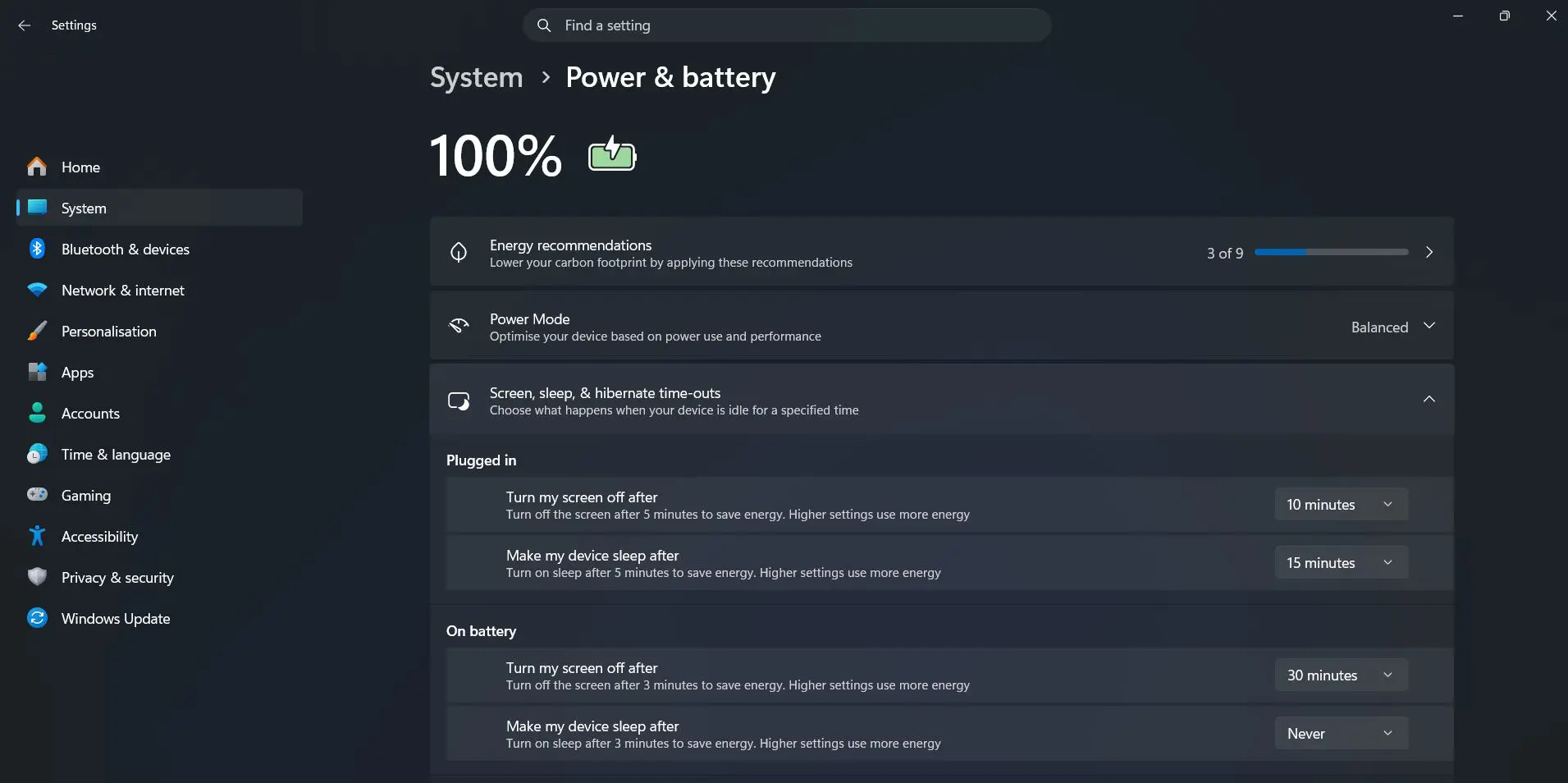
That’s it. There’s no Save button, since Windows applies the change right away. Desktops only show the Plugged in options because there’s no battery.
Windows 10 Settings
Windows 10 keeps everything on one simple page.
- Step 1: Press Windows + I to open Settings.
- Step 2: Click System, then click Power & sleep in the left menu.
- Step 3: Under Screen, choose when the display turns off on battery and when plugged in.
- Step 4: Under Sleep, choose when the PC goes to sleep on battery and when plugged in.
Changes save automatically as soon as you pick an option.
Method 2: Change Power Plan Settings in Control Panel
Control Panel is useful when you want to switch power plans or reach advanced options like USB power saving and wake timers. It works the same way on Windows 11 and Windows 10.
- Step 1: Press Windows + R, type
powercfg.cpl, and press Enter. This opens Power Options directly. - Step 2: Next to your active plan (usually Balanced), click Change plan settings.
- Step 3: Set Turn off the display and Put the computer to sleep for On battery and Plugged in.
- Step 4: Click Save changes.
- Step 5 (optional): For deeper options, click Change advanced power settings, adjust what you need, and click OK.
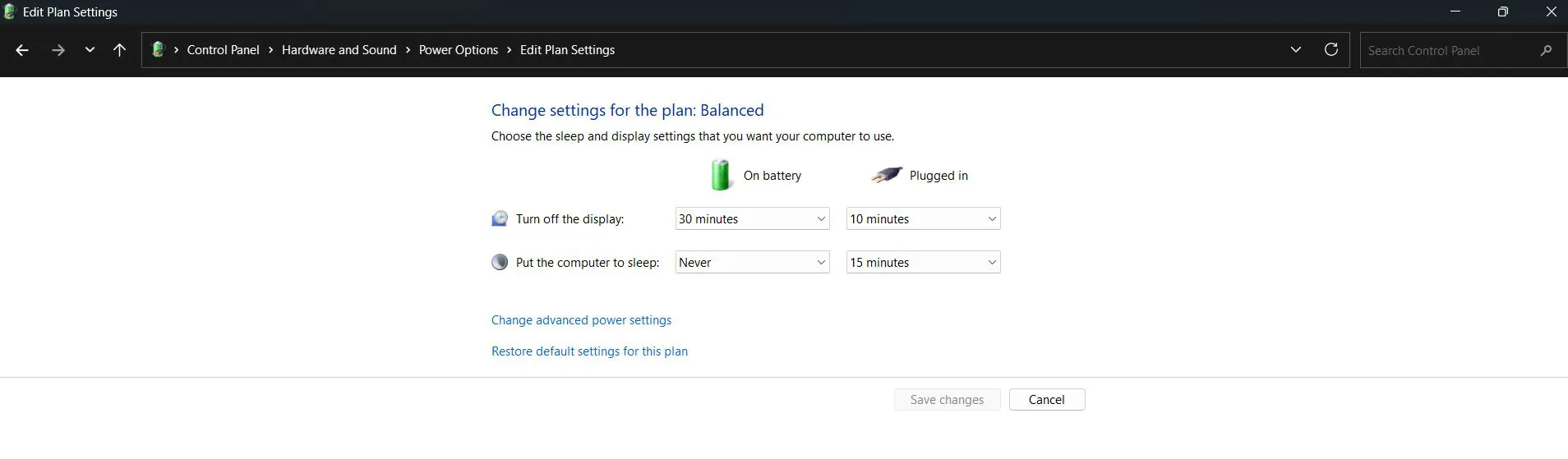
Most people find that Power saver and High performance plans are hidden. Click Show additional plans to see them. On many newer laptops, only Balanced appears, and that’s normal. Those laptops use a newer sleep system called Modern Standby, so stick with Method 1 or 2.
Method 3: Change Power and Sleep Settings with Command Prompt
This option is handy for setting up several computers quickly. Times are in minutes. -ac means plugged in and -dc means on battery.
- Step 1: Right-click the Start button and select Terminal (Windows 11) or Windows PowerShell (Windows 10).
- Step 2: Set the screen timeout by typing each line and pressing Enter:
powercfg /change monitor-timeout-ac 15
powercfg /change monitor-timeout-dc 5 - Step 3: Set the sleep timer the same way:
powercfg /change standby-timeout-ac 30
powercfg /change standby-timeout-dc 15 - Step 4: Use 0 as the number to set any timer to Never.
How to Stop Your PC From Going to Sleep
Big downloads, backups, and long renders need the computer to stay awake.
- Step 1: Open the sleep settings using Method 1 (Windows 11) or Method 2 (Windows 10).
- Step 2: Set the Plugged in sleep option to Never.
- Step 3: Leave the screen timeout at 5 to 10 minutes so the display still turns off and saves power.
On a laptop, avoid setting battery sleep to Never. It can drain the battery completely if the lid gets closed in a bag.
How to Change What the Power Button and Laptop Lid Do
These options live only in Control Panel, on both Windows 11 and Windows 10.
- Step 1: Press Windows + R, type
powercfg.cpl, and press Enter. - Step 2: Click Choose what the power buttons do in the left menu.
- Step 3: Pick Sleep, Hibernate, Shut down, or Do nothing for the power button and lid, separately for battery and plugged in.
- Step 4: Click Save changes.
Setting the lid to Do nothing when plugged in lets a laptop keep running with the lid closed while connected to an external monitor.
To add Hibernate to the Start menu, click Change settings that are currently unavailable on the same page, tick Hibernate, and click Save changes. If the checkbox is missing, open Command Prompt as administrator and run powercfg /hibernate on.
How to Change Power Mode
Power mode controls speed versus battery life. It doesn’t change when the PC sleeps.
- Windows 11: Go to Settings > System > Power & battery and pick Best power efficiency, Balanced, or Best performance from the Power mode dropdown.
- Windows 10: Click the battery icon on the taskbar and drag the slider toward better battery or best performance.
Balanced works well for everyday use. Best performance is the better pick for gaming or video editing while plugged in.
How to Turn On Energy Saver or Battery Saver
Energy Saver (called Battery Saver on Windows 10 and older Windows 11 builds) dims the screen and limits background activity to stretch battery life.
- Step 1: Press Windows + A to open Quick Settings (or Action Center on Windows 10).
- Step 2: Click the Energy saver or Battery saver tile to turn it on or off.
- Step 3: To make it turn on automatically, go to Settings > System > Power & battery (Windows 11) or Settings > System > Battery (Windows 10) and choose a battery percentage. The default is 20%.
Best Power and Sleep Settings by Use
Use these as starting points, then adjust to taste.
| Use | Screen off | Sleep | Power mode |
|---|---|---|---|
| Everyday laptop | 5 min battery, 15 min plugged in | 15 min battery, 30 min plugged in | Balanced |
| Home or office desktop | 15 min | 1 to 2 hours | Balanced |
| Gaming PC | 15 to 30 min | Never | Best performance |
| Downloads or media server | 5 min | Never | Balanced |
| Longest battery life | 3 min | 5 to 10 min | Best power efficiency |
Tips for Better Power and Sleep Settings
- Turn the screen off early. The display uses more power than almost anything else, so a short screen timeout saves the most battery with the least hassle.
- Don’t go too aggressive on battery. Windows often suggests 3 minutes. Most people find 5 minutes for the screen and 10 to 15 minutes for sleep far less annoying.
- Use hibernate for long breaks. Sleep slowly drains a laptop battery. Hibernate uses none, so it’s better for overnight or travel.
- Check settings after big updates. Major Windows updates sometimes reset sleep timers, especially on newer laptops.
- Check battery usage. If the battery still drains fast, look at Battery usage on the Power & battery page to spot apps eating power in the background.
- Work computers may be locked. If your changes keep reverting on a company PC, IT likely controls those settings.
Frequently Asked Questions
How do I change sleep settings in Windows 11?
Press Windows + I, go to System > Power & battery, and expand Screen, sleep, & hibernate time-outs. Choose a time next to Make my device sleep after for battery and plugged in. Changes save instantly.
How do I change sleep settings in Windows 10?
Press Windows + I, go to System > Power & sleep, and pick times under Sleep for battery and plugged in. The changes apply right away.
How do I stop my computer from going to sleep?
Open your sleep settings and set the sleep timer to Never. On a laptop, change only the Plugged in option so the battery doesn’t drain if the lid gets closed.
How do I keep my screen on longer in Windows?
Raise the Turn my screen off after time in Windows 11, or the Screen time in Windows 10 Power & sleep settings. Choose Never to keep it on all the time.
What is the difference between sleep and hibernate?
Sleep keeps your work in memory and wakes in seconds but still uses a little power. Hibernate saves your work to the drive and shuts off fully, using no power but taking longer to start back up.
Does sleep mode stop downloads?
Yes. Sleep pauses downloads, updates, and uploads. Set sleep to Never during big downloads, and keep a short screen timeout to save power.
How do I add hibernate to the Windows Start menu?
Open Control Panel > Power Options > Choose what the power buttons do. Click Change settings that are currently unavailable, tick Hibernate, and save. If it’s missing, run powercfg -hibernate on as administrator.
How do I keep my laptop on when the lid is closed?
Go to Control Panel > Power Options > Choose what closing the lid does. Set the Plugged in option to Do nothing and click Save changes.
Why do I only see the Balanced power plan?
Many newer laptops use Modern Standby, which only supports the Balanced plan. This is normal. Use the Settings app to change screen and sleep times instead.
What are the best power settings for a laptop?
For most people, turn the screen off after 5 minutes on battery and 15 minutes plugged in, sleep after 15 and 30 minutes, and use Balanced power mode.
Why do my power settings keep changing back?
On work computers, company policies often override personal settings. On home PCs, major Windows updates can reset sleep timers, so check them again after updating.
How do I reset power settings to default?
Open Command Prompt as administrator and run powercfg -restoredefaultschemes. This restores all built-in power plans and removes any custom plans.
