
Knowing how to check CPU temperature on Windows is one of the simplest ways to catch cooling problems before they turn into a system crash or permanent damage. Windows does not include a built-in temperature reader, so getting an accurate reading means using a small, trusted monitoring tool. This guide walks through the process from start to finish, with a few practical tips picked up from years of troubleshooting overheating desktops and laptops.
Key Takeaways
- Windows has no native CPU temperature display, so a third-party monitoring tool is required.
- HWMonitor, Core Temp, and HWiNFO are widely trusted, free options for checking CPU temperature on Windows.
- Idle temperatures typically sit well below load temperatures, so check both for a full picture.
- Consistently high idle readings often point to a cooling issue, not a software glitch.
- Some motherboard manufacturers also include their own monitoring software, which works just as well.
How to Check CPU Temperature on Windows Using Free Software
The fastest and most reliable way to check CPU temperature on Windows is to install a lightweight monitoring utility built specifically for reading hardware sensors. These tools pull data directly from the motherboard and CPU sensors, giving a live, accurate number instead of a guess.
Step-by-Step: Reading CPU Temperature
- Step 1: Download a reputable monitoring tool such as Core Temp, HWMonitor, or HWiNFO from its official website. Avoid third-party download sites, since bundled installers sometimes carry unwanted extras.
- Step 2: Install the program using the default settings, then launch it. Most of these tools open directly to a sensor list with no extra configuration required.
- Step 3: Locate the CPU section in the sensor list. Look for labels like ‘CPU Package’, ‘Core 0’, ‘Core 1’, and so on, depending on how many cores the processor has.
- Step 4: Note the temperature at idle, meaning right after the tool opens with no demanding programs running in the background. This gives a baseline reading.
- Step 5: Run a demanding task, such as a game, video export, or a short stress test if the tool includes one, and watch how the numbers climb. This shows how the CPU behaves under real load.
- Step 6: Compare the load temperature against general safe ranges for the specific CPU model, which can usually be found on the manufacturer’s official specification page.
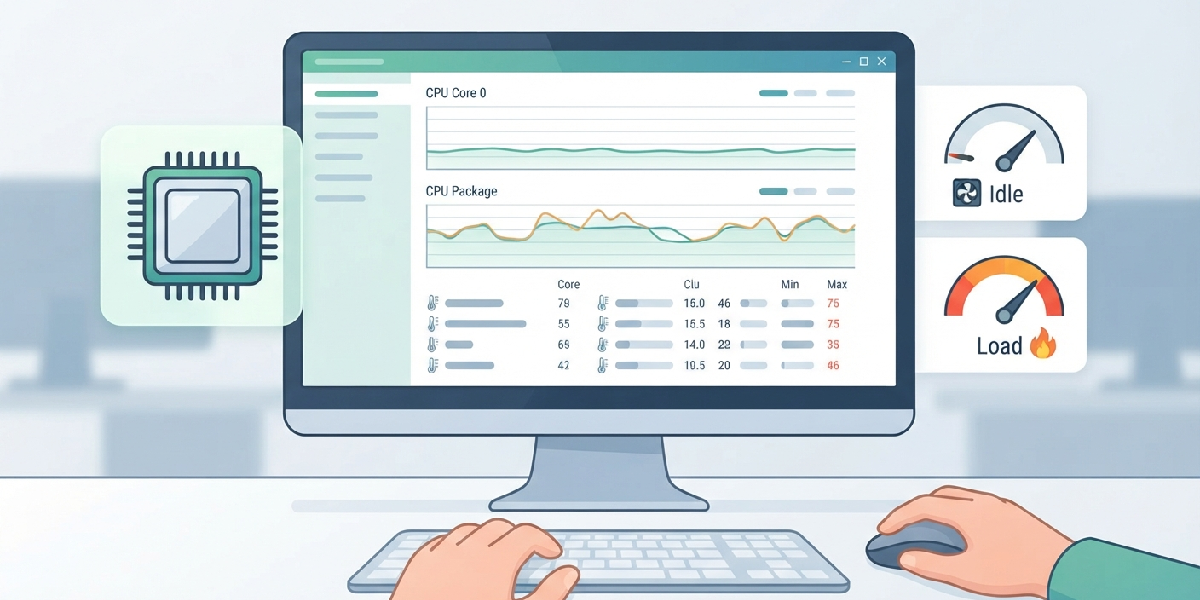
Tip: Let the system sit idle for a minute or two before recording the baseline temperature. A CPU that just finished booting up or closing a heavy program may still be reading warm from that activity, not from a true resting state.
Using Motherboard Manufacturer Software
Many motherboard brands bundle their own monitoring suites, and these work well too since they read the same onboard sensors. A gamer who already has software from their motherboard maker installed for RGB lighting or fan curves often finds a temperature readout built right in, which saves a step. The key is to use whichever tool feels easiest to read at a glance, since the sensor data itself is coming from the same hardware either way.

Checking Temperature in the BIOS
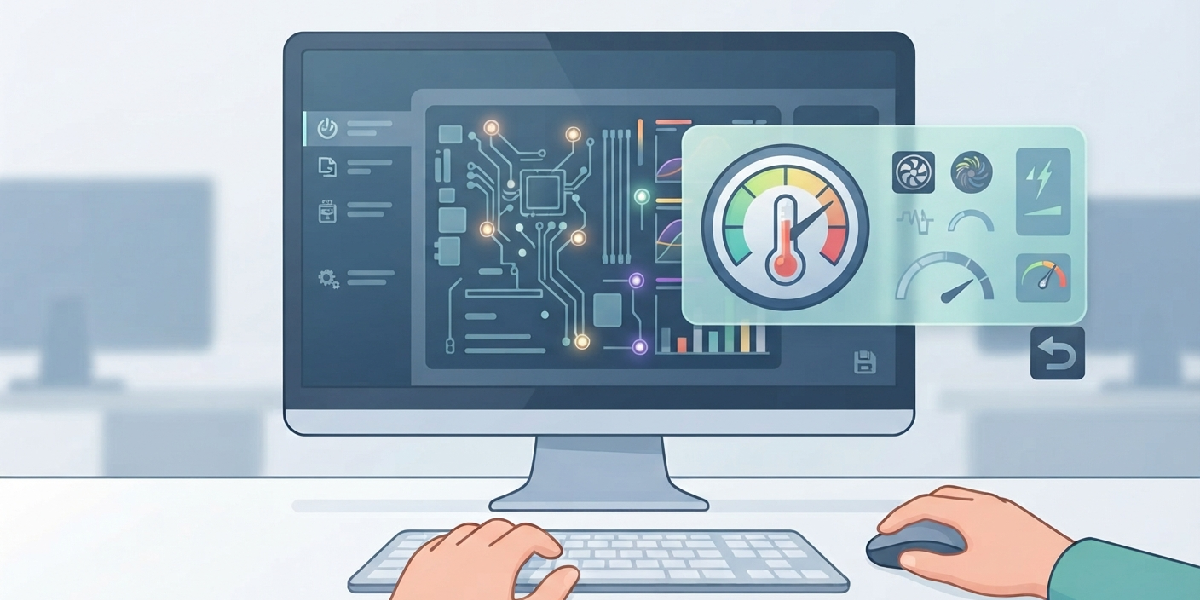
The BIOS or UEFI setup screen also displays CPU temperature, usually on a hardware monitor or PC health status page. This reading reflects a near-idle state since Windows and background apps are not running yet, so it works best as a quick sanity check rather than a way to see load temperatures.
Common Problems and Fixes
Different Tools Show Different Numbers
It is common for two monitoring programs to disagree by a few degrees. This usually comes down to which sensor each tool prioritizes, such as a single hottest core versus an averaged package temperature. Sticking with one trusted tool for consistent tracking avoids confusion over small discrepancies.
Temperature Reads Unusually High at Idle
If idle temperatures seem high even with nothing demanding running, dust buildup in the heatsink fins or a fan that has slowed down are frequent culprits. Cleaning the cooler with compressed air and confirming the CPU fan spins freely often brings idle readings back down.
Software Fails to Detect the CPU Sensor
Occasionally a monitoring tool will show blank or missing values for the CPU. This is often fixed by running the program as an administrator, since sensor access sometimes requires elevated permissions on Windows.
Temperature Spikes During Light Tasks
A CPU that jumps to high temperatures during simple tasks like web browsing can point to background processes consuming more resources than expected. Checking Task Manager for a runaway process is a good first move before assuming a cooling fault.
Frequently Asked Questions
Does Windows have a built-in way to check CPU temperature?
No, Windows does not include a native CPU temperature display in Task Manager or Settings. A third-party monitoring tool or the BIOS screen is needed to see this reading.
What is considered a normal CPU temperature?
Normal ranges vary by CPU model and cooling setup, so checking the manufacturer’s official specifications for that specific processor gives the most accurate reference point.
Is it safe to check CPU temperature while gaming?
Yes, running a monitoring tool in the background while gaming is safe and is actually one of the best ways to see real-world load temperatures.
Which free tool is best for checking CPU temperature?
Core Temp, HWMonitor, and HWiNFO are all well-regarded, free, and widely used, so any of the three works reliably for everyday monitoring.
Why does CPU temperature fluctuate so quickly?
Modern CPUs adjust power and clock speed rapidly based on workload, so temperature can rise and fall within seconds as different tasks start and stop.
Can a laptop’s CPU temperature be checked the same way?
Yes, the same monitoring tools work on laptops, though laptops often run warmer due to tighter cooling systems and less airflow space.
What CPU temperature is too high?
Sustained temperatures near a CPU’s maximum rated limit, listed on the manufacturer’s specification page, are considered too high and worth addressing with better cooling or airflow.
Does checking CPU temperature slow down the computer?
No, lightweight monitoring tools use minimal system resources and have no meaningful impact on performance.
How often should CPU temperature be checked?
Checking periodically, especially after installing new hardware, cleaning the system, or noticing unusual fan noise, helps catch cooling issues early.
