
Clearing Outlook error 0x80070021 usually comes down to one thing: another process is holding a lock on the Outlook data file. The message typically reads ‘The process cannot access the file because another process has locked a portion of the file.’ The steps below start with the quickest fixes and move toward the deeper ones, so stop as soon as the error disappears.
Key Takeaways
- Error 0x80070021 is a file lock problem, most often caused by a second process touching the Outlook data file (OST or PST).
- Ending leftover Outlook processes and starting in Safe Mode fixes many cases in under five minutes.
- Add-ins, antivirus scans, and cloud sync tools like OneDrive are the most common sources of the lock.
- A damaged data file can be repaired with the Inbox Repair Tool or rebuilt by letting Outlook recreate the OST.
- A new Outlook profile is the final fix if nothing else works.
Clearing Outlook Error 0x80070021 Step by Step
Work through these steps in order. Each one is quick to test, and most people find the problem is solved before reaching the last few.
Release the Lock and Test in Safe Mode
- Step 1: Close Outlook, then press Ctrl + Shift + Esc to open Task Manager. Find any entry named Microsoft Outlook or OUTLOOK.EXE, select it, and choose End task. A hidden Outlook process left running in the background is a classic cause of this error, much like a book that someone forgot to return to the shelf while another reader waits for it.
- Step 2: Press Windows + R, type outlook.exe /safe, and press Enter. Choose your profile when prompted. If the error no longer appears in Safe Mode, an add-in or an outside program is the cause, and the next steps will narrow it down.
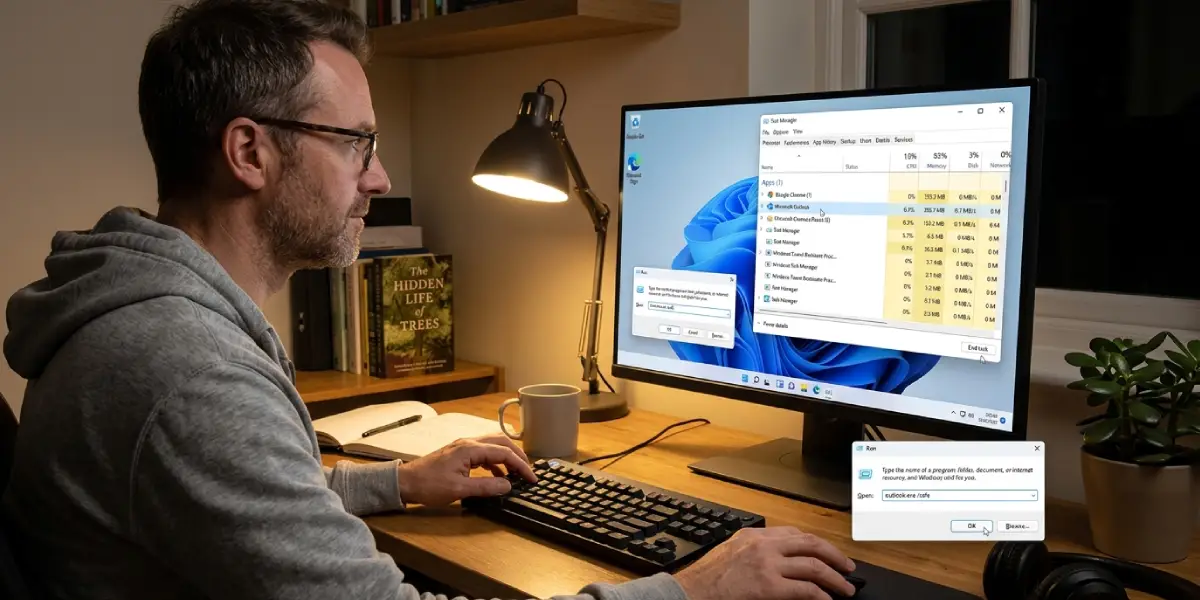
Tip: Safe Mode loads Outlook without add-ins, so it is the fastest way to tell whether the problem lives inside Outlook or in the data file itself.
Disable Add-ins and Check Security Software
- Step 3: Open Outlook normally and go to File, then Options, then Add-ins. At the bottom, set Manage to COM Add-ins and select Go. Clear the checkbox next to every add-in, select OK, and restart Outlook. If the error is gone, re-enable the add-ins one at a time until the error returns. The last one enabled is the culprit.
- Step 4: Open the antivirus or security program on the computer and add the Outlook data file location to its exclusion list. Real-time scanning of an OST or PST file while Outlook is writing to it is a frequent trigger. As a quick test, pause real-time scanning briefly, open Outlook, and see whether the error stays away.
Move the Data File Out of a Synced Folder
- Step 5: In Outlook, go to File, then Account Settings, then Account Settings again, and open the Data Files tab. Select the data file and choose Open File Location. If the folder sits inside OneDrive, Dropbox, or another sync service, close Outlook and move the file to a plain local folder outside the synced area. Reopen Outlook and point it to the new location when prompted. Sync tools lock files while uploading them, and Outlook cannot share the file at that moment.

Tip: PST files stored inside OneDrive-synced folders such as Documents are a very common source of this error. Keeping them in a local folder avoids the conflict.
Repair or Rebuild the Data File
- Step 6: Close Outlook completely. Open the Start menu, search for SCANPST.EXE, and open it. If it does not appear in search, it is normally found in the Office16 folder under Program Files. Select Browse, choose the OST or PST file, and select Start. When the scan finishes, keep the backup option ticked and select Repair. Open Outlook again afterward.
- Step 7: If the file is an OST (used with Microsoft 365, Exchange, Outlook.com, and IMAP accounts), it can simply be rebuilt. Close Outlook, open the folder noted in Step 5, and rename the OST file by changing its ending to .old. Start Outlook, and it recreates the file and downloads the mailbox again. This does not apply to PST files, which hold local data that is not stored on a server, so those should be repaired rather than renamed.
Repair Office and Create a New Profile
- Step 8: Open Windows Settings, go to Apps, then Installed apps, and find Microsoft 365 or Microsoft Office. Select the three dots, choose Modify, then pick Quick Repair and select Repair. If the error remains, run the same process again with Online Repair.
- Step 9: Close Outlook and open Control Panel. Select Mail (Microsoft Outlook), then Show Profiles, and choose Add. Create a new profile, sign in to the email account, and set the new profile as the one to use. A fresh profile removes any damaged settings that survived the earlier fixes.
Common Problems and Fixes
The Inbox Repair Tool Says the File Is in Use
Outlook is still running in the background. Return to Step 1, end every OUTLOOK.EXE process in Task Manager, and run the tool again.
The Error Returns After Every Restart
Something is locking the file each time Outlook starts. Re-check Step 4 and Step 5, since security software and sync tools are the usual repeat offenders. Excluding the data file from scanning and moving it out of a synced folder normally stops the cycle.
Outlook Will Not Open Even in Safe Mode
This points to a damaged data file or profile rather than an add-in. Go straight to the repair tool in Step 6, then try the profile creation in Step 9.
The Mailbox Takes a Long Time to Reload After Renaming the OST
That is expected. Outlook downloads the mailbox again from the server, and large mailboxes can take a while. Leave Outlook open and connected to the internet until the sync finishes.
The Repair Tool Finishes but the Error Still Appears
Repairs fix damage inside the file but do not remove outside locks. Combine the repair with the checks in Steps 3 to 5 to clear whatever is still holding the file.
Frequently Asked Questions
What does Outlook error 0x80070021 mean?
It means that another process has locked part of the file Outlook is trying to use. The file in question is normally the OST or PST data file.
Will clearing Outlook error 0x80070021 delete my emails?
No, not when the steps are followed in order. Ending processes, disabling add-ins, and running the Inbox Repair Tool with its backup option do not remove messages. Renaming an OST file only forces a fresh download of mail stored on the server.
Can antivirus software cause error 0x80070021?
Yes. Real-time scanning can lock the data file while Outlook is trying to read or write it. Adding the data file to the exclusion list usually resolves it.
Does OneDrive cause this error?
It can. When a PST file is stored in a OneDrive-synced folder, the sync process may lock the file while it uploads changes. Moving the file to a local folder outside the synced area removes the conflict.
Where is the Inbox Repair Tool located?
Search for SCANPST.EXE in the Start menu. In most installations it is found in the Office16 folder under Program Files.
Is it safe to rename the OST file?
Yes, for accounts that sync with a server such as Microsoft 365, Exchange, Outlook.com, or IMAP. Outlook builds a new OST and downloads the mailbox again. Do not do this with a PST file, which can hold data that exists nowhere else.
How do I know if an add-in is causing the error?
Start Outlook with outlook.exe /safe. If the error does not appear in Safe Mode, disable all add-ins and turn them back on one at a time until the error returns.
What if none of the steps work?
Create a new Outlook profile through Control Panel under Mail, then Show Profiles. A clean profile removes damaged settings that earlier fixes cannot reach.
