
Knowing how to safely scan downloads before opening them is one of the simplest habits that protects a PC or laptop from malware, ransomware, and data theft. A file that looks like a harmless invoice, driver, or installer can carry a payload that runs the moment it is double-clicked. The good news is that a few built-in tools and one free web service catch most threats in under a minute.
Key Takeaways
- Never double-click a new download right away. Check the source, the file extension, and the file size first.
- Right-click the file and run a scan with Microsoft Defender, or the installed antivirus, before opening it.
- Use VirusTotal as a second opinion for installers and unfamiliar files, keeping in mind that uploaded files are shared with the security community.
- Compare the file hash with the one the publisher lists to prove the file was not altered.
- Scan archives such as ZIP and RAR files before extracting them, and treat password-protected archives with extra suspicion.
Before You Start
Nothing needs to be opened or taken apart for this task, but a little preparation makes the process smoother. Make sure the antivirus is running and its definitions are up to date. On Windows, open Windows Security and check Virus and threat protection. Keep the downloaded file in the Downloads folder and avoid moving it into Documents, the Desktop, or a synced cloud folder until it has been checked.
Tools and resources needed:
- Microsoft Defender or another reputable, up-to-date antivirus program
- A web browser to reach VirusTotal
- Windows PowerShell or Terminal for the optional hash check
- The publisher’s official download page, to compare file names and hashes
How to Safely Scan Downloads Before Opening: Step-by-Step
This process works best when followed in order. The first steps cost nothing and often reveal a problem before any scanner is needed.
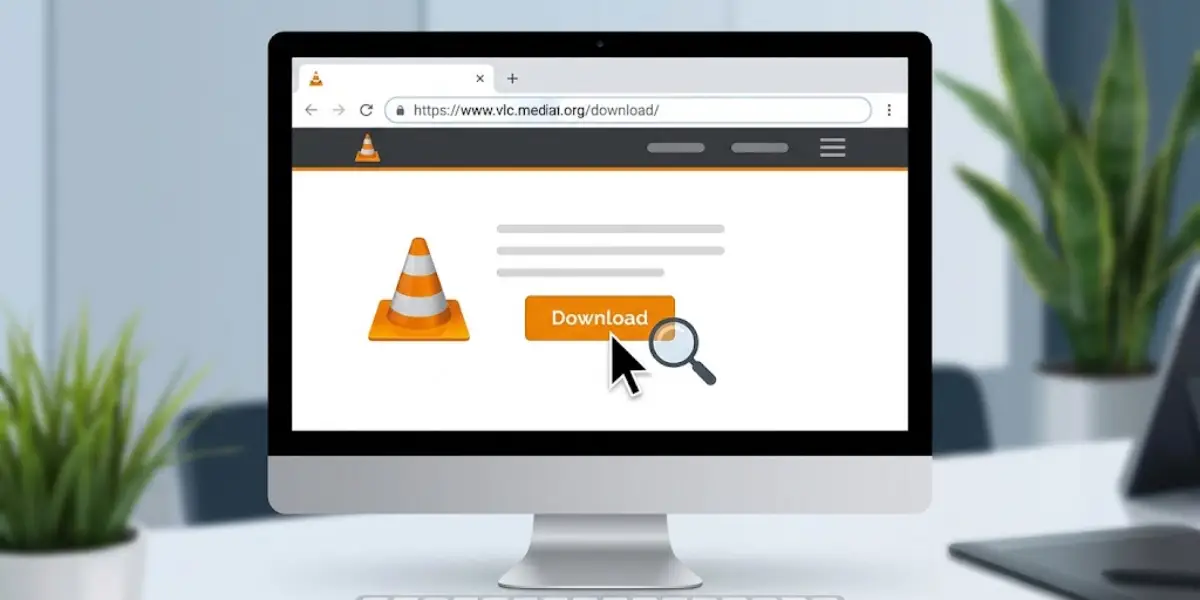
- Step 1: Confirm where the file came from. The safest downloads come directly from the software maker’s official website or an official store such as the Microsoft Store. Be cautious with download buttons on third-party sites, since many are ads disguised as the real link. If a file arrived by email or chat, treat it as untrusted even when the sender looks familiar, because accounts get hijacked.
- Step 2: Let the download finish and leave it unopened. Browsers often warn about uncommon files. A warning in the browser’s download list is a reason to stop and investigate, not to click Keep and move on.
- Step 3: Make file extensions visible. In File Explorer on Windows 11, choose View, then Show, then File name extensions. This exposes tricks like invoice.pdf.exe, where the real type is .exe even though the name looks like a PDF. Documents should not end in .exe, .scr, .bat, .cmd, .js, .vbs, or .msi unless an installer is genuinely expected.
- Step 4: Check that the file size makes sense. A full video editor installer that weighs only a few kilobytes, or a simple PDF that weighs hundreds of megabytes, is a classic sign of a downloader stub or a disguised file.
- Step 5: Scan the file with Microsoft Defender. Right-click the file and choose Scan with Microsoft Defender. On Windows 11 this option may sit under Show more options. Another route is opening Windows Security, selecting Virus and threat protection, choosing Scan options, then Custom scan, and picking the Downloads folder. Users with a different antivirus can use its right-click scan option the same way.
- Step 6: Get a second opinion from VirusTotal. Visit VirusTotal, choose the File tab, and upload the download. The service runs it past dozens of antivirus engines. A single detection from an obscure engine is often a false positive, but several detections from well-known vendors mean the file should be deleted. Skip this step for private documents, since uploaded files can be seen by other security researchers.
- Step 7: Verify the file hash when the publisher provides one. Open PowerShell in the Downloads folder and run Get-FileHash followed by the file name. Compare the result with the checksum on the official download page, usually SHA-256. If even one character differs, the file is not the same as the original and should be deleted.
- Step 8: Scan archives before extracting. ZIP, RAR, and 7z files can hide malicious content inside. Scan the archive first, then extract it and scan the extracted folder as well. An archive that demands a password supplied in an email or on a download page is a red flag, because the password stops scanners from looking inside.
- Step 9: Test unfamiliar software in an isolated environment if doubt remains. Windows Sandbox, available on Windows 11 Pro, Enterprise, and Education, runs a disposable copy of Windows that is wiped when closed. Install or open the file there first and watch for odd behavior.
- Step 10: Open the file only after it has passed every check. Installers should be run normally, and any unexpected permission prompt or request for administrator rights during a simple document open should be treated as a stop sign.
Tip: Think of a download like a package left on the doorstep. A quick look at the label, the weight, and the sender takes seconds, and it is far easier than dealing with whatever is inside after it has been opened.
Scanning Downloads on a Mac
macOS has no right-click antivirus scan built in, but Gatekeeper and XProtect check downloaded apps automatically. The steps above about source, file type, size, hashes, and VirusTotal apply equally. Apps should come from the Mac App Store or a developer’s official site, and any prompt to bypass a Gatekeeper warning should be taken seriously. Users who want on-demand scanning can install a reputable third-party antivirus.
Browser Protections That Help
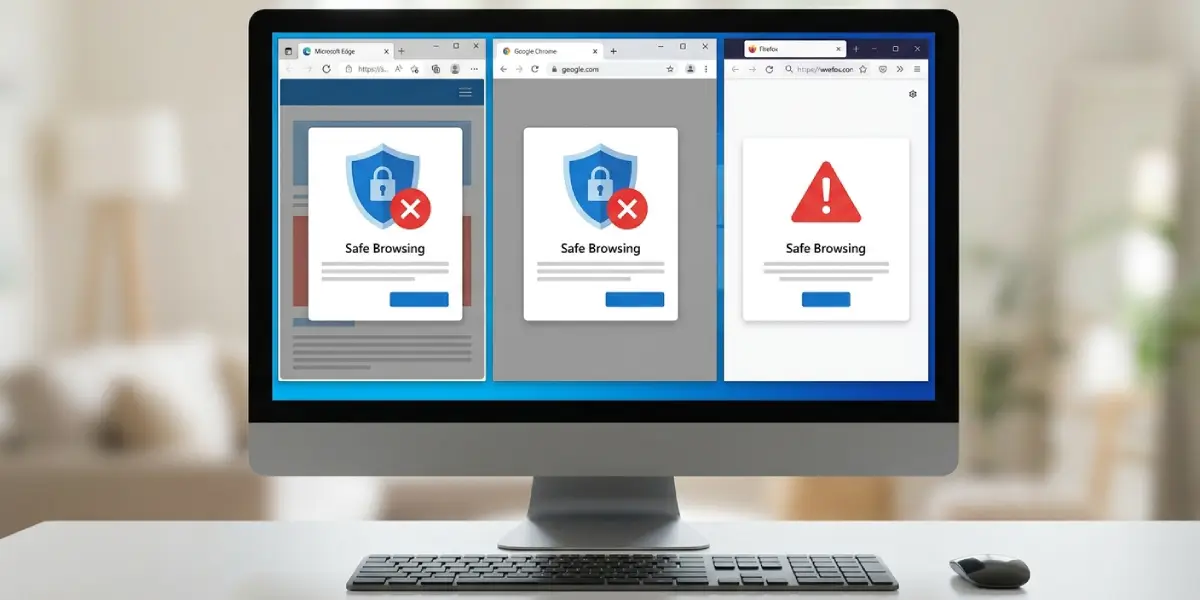
Microsoft Edge with SmartScreen, Google Chrome with Safe Browsing, and Firefox all flag known dangerous downloads. These checks work best as a first filter, not a replacement for scanning. Keeping the browser updated and leaving these protections switched on adds a useful extra layer.
Tip: Turn on the option in the browser that asks where to save each download. It adds a pause that keeps files from landing silently in the Downloads folder.
Common Problems and Fixes
The Scan with Microsoft Defender Option Is Missing
This usually means another antivirus has taken over as the main protection, or Defender is turned off. Open Windows Security and check which program is listed under Virus and threat protection. Use the right-click scan option of the active antivirus, or run a custom scan from within it.
VirusTotal Shows One or Two Detections
A small number of detections from lesser-known engines is often a false positive, especially for cracked tools, game mods, or niche utilities. Check which vendors flagged it, read the detection names, and compare with the official source. When major vendors such as Microsoft, Kaspersky, or ESET also flag it, delete the file.
The File Hash Does Not Match the Publisher’s Hash
A mismatch can come from a corrupted download or from tampering. Delete the file, download it again directly from the official site, and recheck the hash. If the mismatch persists, do not run the file, and report it to the publisher.
The File Is Too Large to Upload to VirusTotal
Very large installers may exceed the size limit of the web upload. In that case, rely on the local antivirus scan plus the hash comparison, and check the file’s hash by searching for it on VirusTotal, which can match hashes that are already known.
Windows Shows a SmartScreen Warning After a Clean Scan
SmartScreen warns about files that are new or rarely downloaded, even when nothing malicious is inside. Confirm the source and the publisher name on the warning screen. When the publisher is unknown and the download came from a questionable site, delete the file. Selecting Run anyway should only happen for software from a trusted, verified source.
Antivirus Flagged a File That Was Already Opened
Disconnect the device from the internet, run a full scan with the installed antivirus, and also run a Microsoft Defender Offline scan from Windows Security. Change important passwords from a different, clean device. If banking or work accounts may be involved, contact a professional or the relevant support team for help.
Frequently Asked Questions
Is it safe to open a download if the antivirus scan comes back clean?
A clean scan lowers the risk but does not remove it. Brand-new malware may not be detected yet, so combining the scan with a source check, extension check, and hash verification gives much stronger protection.
Can a file harm a PC just by being downloaded?
In most cases a file must be opened or run to do damage. Rare browser or system vulnerabilities can cause harm without a click, which is why keeping the browser and operating system updated matters.
Is VirusTotal safe to use?
VirusTotal is a widely used, reputable service from Google. The main caution is privacy, since uploaded files can be accessed by security researchers, so sensitive or personal documents should never be uploaded.
How do I scan a download with Microsoft Defender?
Right-click the file and choose Scan with Microsoft Defender. On Windows 11, the option may appear after selecting Show more options. A custom scan of the Downloads folder can also be started from Windows Security.
What file types are the most dangerous to open?
Executable and script files such as .exe, .scr, .bat, .cmd, .js, .vbs, and .msi carry the highest risk. Office documents with macros, shortcut files ending in .lnk, and disk images such as .iso also deserve extra caution.
How can a file hash show that a download is genuine?
A hash is a unique fingerprint calculated from the file’s contents. If the hash of the downloaded file matches the one the publisher lists, the file is identical to the original and has not been altered.
Should password-protected ZIP files be trusted?
They should be treated with suspicion when the password arrives with the file or was requested by an unknown sender. Encryption prevents scanners from inspecting the contents, which is why attackers use it to slip malware past security tools.
Do Mac users need to scan downloads too?
Yes. macOS has strong built-in protections, but malware for Mac exists. Downloading only from the Mac App Store or official developer sites, and checking suspicious files with VirusTotal, remains good practice.
What should be done with a download that was flagged as dangerous?
Do not open it. Delete the file, empty the Recycle Bin, and run a full antivirus scan to confirm nothing else was affected. If it was already opened, disconnect from the internet and scan the system right away.
