
Common motherboard failure symptoms often get blamed on the wrong part, which sends people chasing a bad graphics card or a dying power supply when the motherboard itself is actually the culprit. Since the motherboard connects every other component, its failures tend to show up as strange, inconsistent problems rather than one obvious sign. Learning to recognize the real pattern saves time, money, and a lot of unnecessary part-swapping.
Key Takeaways
- A motherboard rarely fails with one clean symptom – it usually shows up as several odd, unrelated problems happening around the same time.
- No power, no display despite fans spinning, random reboots, and BIOS settings that will not stick are the most common red flags.
- Visible damage like bulging or leaking capacitors and a burning smell are serious signs that call for immediate shutdown.
- Most symptoms overlap with power supply or RAM issues, so ruling those out first is a necessary step before blaming the board.
- A simple breadboard test outside the case is one of the most reliable ways to confirm the motherboard is actually at fault.
Common Motherboard Failure Symptoms
Motherboard problems tend to build gradually, especially with age or heat exposure, though a power surge or liquid spill can cause sudden failure. The symptoms below are the ones seen most often in real repair situations.

No Power or No POST
The system either does nothing at all when the power button is pressed, or it powers on (fans spin, lights come on) but never reaches POST, meaning no beep code, no manufacturer logo, and no activity on the display. This is one of the clearest signs of a motherboard problem, though it can also point to a dead power supply or a badly seated CPU.

Random Shutdowns or Restarts
A PC that shuts off or reboots unpredictably, especially with no clear pattern tied to load or temperature, often has a motherboard delivering inconsistent power to its components. This is different from thermal shutdowns, which usually happen only under heavy use.
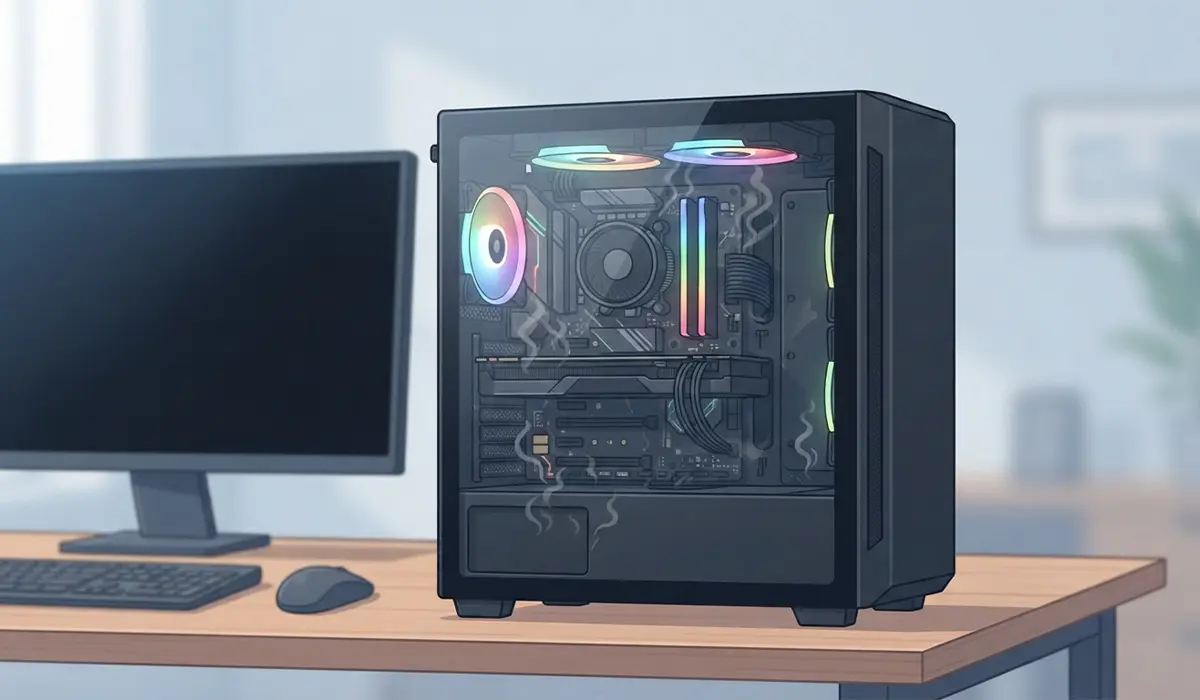
No Display Despite Fans Running
Everything sounds like it is turning on, but the monitor stays black. This points to a breakdown somewhere between the motherboard and the graphics output, whether that is a failed PCIe slot, a dead onboard video circuit, or a memory controller issue on the board itself.
BIOS Settings Not Saving or Clock Resetting
If the system date and time reset every time the PC is powered off, or custom BIOS settings revert on their own, the CMOS battery is the usual first suspect. When a fresh battery does not fix it, the circuitry that holds those settings on the motherboard itself may be failing.
Ports and Onboard Devices Failing Intermittently
USB ports that stop responding, onboard audio that cuts out, or a network adapter that drops randomly can all trace back to motherboard controller chips wearing out or losing a solid connection. This is easy to mistake for a driver problem, so it often gets missed for a while.
Beep Codes or Diagnostic LED Errors
Motherboards with a speaker header or onboard diagnostic LEDs will often signal a failure directly, with a specific beep pattern or lit LED corresponding to a component (RAM, CPU, GPU, or the board itself) that the system is failing to initialize.
Visible Physical Damage
Bulging or leaking capacitors, discoloration around chips, scorch marks, or a burning electrical smell are unmistakable signs of hardware failure. Any of these mean the board should be shut down and unplugged right away.
Freezing or Blue Screens Under Normal Use
Random freezes or blue screens that happen even during light tasks, not just gaming or rendering, can point to a motherboard struggling to communicate reliably with RAM or storage. This symptom overlaps heavily with failing RAM, so it needs to be tested carefully before drawing conclusions.
Before You Start
Diagnosing a suspected motherboard failure means opening the case and handling sensitive components, so a few basic precautions matter here.
- Power off the system completely and unplug it from the wall outlet.
- Press and hold the power button for a few seconds after unplugging to discharge any remaining power in the system.
- Touch a bare metal part of the case, or use an anti-static wrist strap, before touching any internal components.
- Let the system cool down fully if it was just running, especially before touching the CPU area or heatsink.
Tools needed: a Phillips screwdriver, a flashlight, an anti-static wrist strap (optional but recommended), and a can of compressed air for a quick visual inspection. A multimeter is useful if checking power supply voltages directly.
Opening a desktop case is generally safe and does not usually void warranty coverage, but opening a laptop chassis can void the manufacturer’s warranty in some cases. If there is visible fire damage, a strong burning smell, or any doubt about safely handling the hardware, stop and bring the system to a qualified repair technician instead.
How to Confirm a Failing Motherboard
Since so many of these symptoms overlap with other components, a short elimination process makes the diagnosis far more reliable.
- Step 1: Check the power supply first. Swap in a known-good PSU if one is available, or test the current one with a PSU tester, since a failing power supply mimics many motherboard symptoms.
- Step 2: Reseat the RAM and graphics card. Remove each one, check the slot for debris or bent pins, and reinsert firmly until it clicks into place.
- Step 3: Inspect the board visually. Use a flashlight to look closely at the capacitors, the area around the CPU socket, and the expansion slots for bulging, discoloration, or burn marks.
- Step 4: Clear the CMOS. Locate the CMOS battery or clear CMOS jumper, remove power, and reset it according to the motherboard manual to rule out a corrupted BIOS configuration.
- Step 5: Perform a breadboard test. Remove the motherboard from the case and set it on its own box or a non-conductive surface, then connect only the CPU, one stick of RAM, the power supply, and a speaker if available. This isolates the board from any short caused by the case or other components.
- Step 6: Listen and watch for a response. A successful POST with minimal hardware strongly suggests the board is fine and the problem lies elsewhere. No response at all, even in this stripped-down setup, points squarely at the motherboard.
Tip: When testing a suspected board, use only one RAM stick in the slot recommended in the motherboard manual (usually labeled A2 or DIMM 2). Testing with a single stick removes another variable and makes beep codes easier to interpret.
Common Problems and Fixes
System Powers On but Never Displays Anything
Reseat the graphics card and try a different PCIe slot if the motherboard has more than one. If a discrete GPU is installed, test with onboard video instead, if the board supports it, to see if the issue follows the card or stays with the board.
Random Reboots Continue After Swapping the Power Supply
Since a bad PSU is ruled out at this point, run the breadboard test described above. If the system still reboots unexpectedly with minimal hardware connected, the motherboard is the most likely remaining cause.
BIOS Still Will Not Save Settings After a New CMOS Battery
This usually means the battery holder or the surrounding circuitry on the motherboard has failed, not the battery itself. At this point, replacement of the board is typically the more reliable fix.
USB or Audio Ports Work Sometimes but Not Always
Try a different port first to rule out a single failed connector, and check for a BIOS update that addresses onboard controller stability. If the same ports fail consistently across multiple devices and cables, the onboard controller chip is likely wearing out.
No Beep Codes and No Video, Even on Breadboard Test
Double-check that the CPU is fully seated and that the power connectors, including the 24-pin and CPU power connector, are firmly attached. If everything checks out and there is still no response, this is a strong indicator of a failed motherboard.
Frequently Asked Questions
What is the most common symptom of motherboard failure?
No power or no POST is the most frequently reported symptom, though random reboots and no-display issues are also extremely common.
Can a motherboard fail without any visible damage?
Yes. Many motherboard failures happen internally, in circuitry or chips that show no visible sign of damage at all, which is why testing rather than visual inspection alone is important.
How can a bad motherboard be told apart from a bad power supply?
Swapping in a known-good power supply is the fastest way to tell the two apart. If symptoms persist with a different PSU, the motherboard becomes the more likely cause.
Can RAM issues look like motherboard failure?
Yes, freezing, blue screens, and failure to POST can all be caused by faulty RAM as well, which is why testing with a single, known-good stick is a key diagnostic step.
Is it safe to keep using a PC with a suspected motherboard problem?
If there is any burning smell, visible damage, or repeated random shutdowns, it is safer to stop using the system until the cause is confirmed, since continued use risks damaging other components.
Does clearing the CMOS fix motherboard problems?
Clearing the CMOS resolves issues caused by a corrupted or misconfigured BIOS setting, but it will not fix a physically failing motherboard component.
Can a motherboard fail gradually over time?
Yes, aging capacitors and long-term heat exposure often cause a slow decline, with symptoms appearing occasionally at first and becoming more frequent over weeks or months.
What usually causes a motherboard to fail?
Power surges, prolonged heat exposure, aging capacitors, physical damage from static discharge, and liquid spills are the most common causes seen in real-world repairs.
Should a failing motherboard be replaced or repaired?
Replacement is almost always the practical choice for consumer motherboards, since component-level repair requires specialized soldering equipment and expertise that most repair shops do not offer for standard boards.
Can motherboard failure damage other components?
In some cases, yes. A motherboard delivering unstable power can potentially damage the CPU, RAM, or storage drives connected to it, which is another reason to stop using a system once failure is suspected.
