
Need to create an app password for Outlook two-factor accounts so an older email app or device can sign in? A Microsoft account with two-step verification turned on blocks apps that cannot handle verification prompts, and an app password gets around that. The whole process takes a few minutes and happens on your Microsoft account security page.
Key Takeaways
- Two-step verification must be turned on before the app password option appears.
- App passwords are created from the Advanced security options page of your Microsoft account.
- The new password is shown only once, so copy it right away.
- Enter the app password in the app’s password field instead of your regular Outlook password.
How to Create an App Password for Outlook Two-Factor Accounts
Before starting, keep the app or device that needs the password nearby. The generated password appears on screen only one time, so it is best to paste it straight into the app.
- Step 1: Open a browser and go to account.microsoft.com/security. Sign in with the Outlook email address that has two-step verification enabled and approve the verification prompt.
- Step 2: Select Advanced security options. This page lists your sign-in and verification settings.
- Step 3: Check that two-step verification is turned on. If it shows as off, turn it on first, because the App passwords section is not available without it.
- Step 4: Scroll to the App passwords section and select Create a new app password.
- Step 5: Copy the password that Microsoft generates. Think of it like a hotel key card: it is issued once, and if it is lost, the only fix is a fresh one.
- Step 6: Open the app that needs access. Type your full Outlook email address as the username and paste the app password into the password field.
- Step 7: Save the account settings, then send a test message and refresh the inbox to confirm the app signs in.
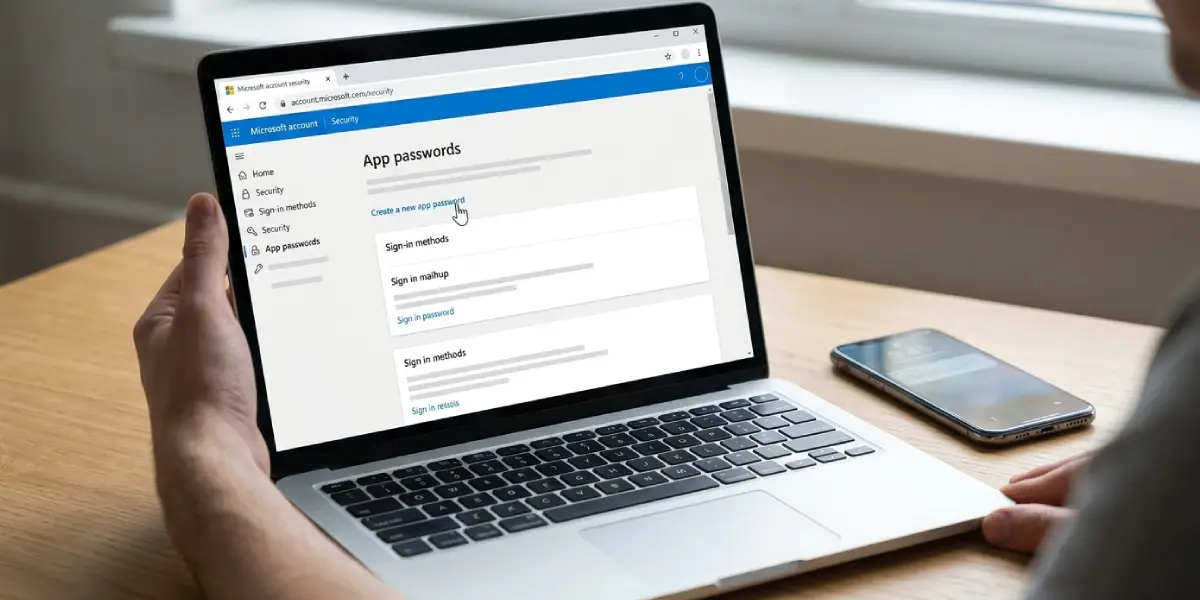
Tip: Paste the password into the app immediately after copying it. Writing it down and typing it later is where most typos and mix-ups happen.
Use a Separate App Password for Each App
Most people find that creating one app password per app or device keeps things tidy. If a phone is lost or an old program is retired, only that one password needs to be removed, and everything else keeps working.

Tip: Label each password in a private note, such as the app name and the date it was created, so it is clear which one to revoke later. The password itself does not need to be stored in that note.
Common Problems and Fixes
The App passwords section is missing
This almost always means two-step verification is not turned on. Return to Advanced security options, turn it on, finish the setup, and reload the page. The App passwords section should then appear.
The app rejects the app password
Check for extra spaces at the start or end of the pasted text and make sure the email address is typed in full. If the error continues, create a new app password and paste that one instead.
The password was closed before it was copied
Microsoft does not show an app password a second time. Select Create a new app password again and copy the new one immediately.
The app worked for a while and then asked for a password again
The app password may have been removed, or two-step verification may have been turned off and on again. Generate a new app password and enter it in the app.
Frequently Asked Questions
Can an app password be created if two-step verification is off?
No. The App passwords section only appears on accounts that have two-step verification turned on. Turn it on first, then return to Advanced security options.
Where is the option to create an app password?
Sign in at account.microsoft.com/security, select Advanced security options, and look for the App passwords section. The Create a new app password button is there.
Can the same app password be viewed again later?
No. Microsoft shows the password only once when it is created. If it was not saved in the app, create a new one.
Where does the app password go in the app?
It goes in the password field, in place of the regular Outlook account password. The username stays as the full Outlook email address.
Will a verification code still be requested when using an app password?
No. The app password is entered on its own and signs the app in without a separate verification code prompt.
Should a separate app password be created for each app?
Yes, that is the cleaner approach. If one device is lost or one app is no longer used, only that password needs to be revoked.
How can an app password be removed?
Return to Advanced security options and use the Remove existing app passwords option in the App passwords section. Any app using an older app password will need a new one to sign in.
Does this process apply to work or school Outlook accounts?
Not in the same way. Work or school accounts manage app passwords through the Security info page at mysignins.microsoft.com, and the option is available only if the organization’s administrator allows it.
