
The Outlook Send Receive error reported unknown error usually shows up as a message like Task ‘Microsoft Exchange’ reported error (0x80040119): Unknown Error, and it stops mail from syncing. It almost always traces back to a damaged data file, a misbehaving add-in, or a corrupted profile. The steps below start with the quickest checks and move to the deeper fixes, so most people are back to normal well before the last step.
Key Takeaways
- Read the exact error code first, because it points to the likely cause.
- Starting Outlook in safe mode quickly shows whether an add-in is behind the problem.
- A damaged PST file is repaired with the Inbox Repair tool, while a damaged OST file is simply rebuilt.
- A fresh Outlook profile fixes most errors that survive every other step.
Steps to Fix the Outlook Send Receive Error Reported: Unknown Error
This guide applies to classic Outlook for Windows. Work through the steps in order and test a Send/Receive after each one. Most people find that the problem clears within the first four steps.
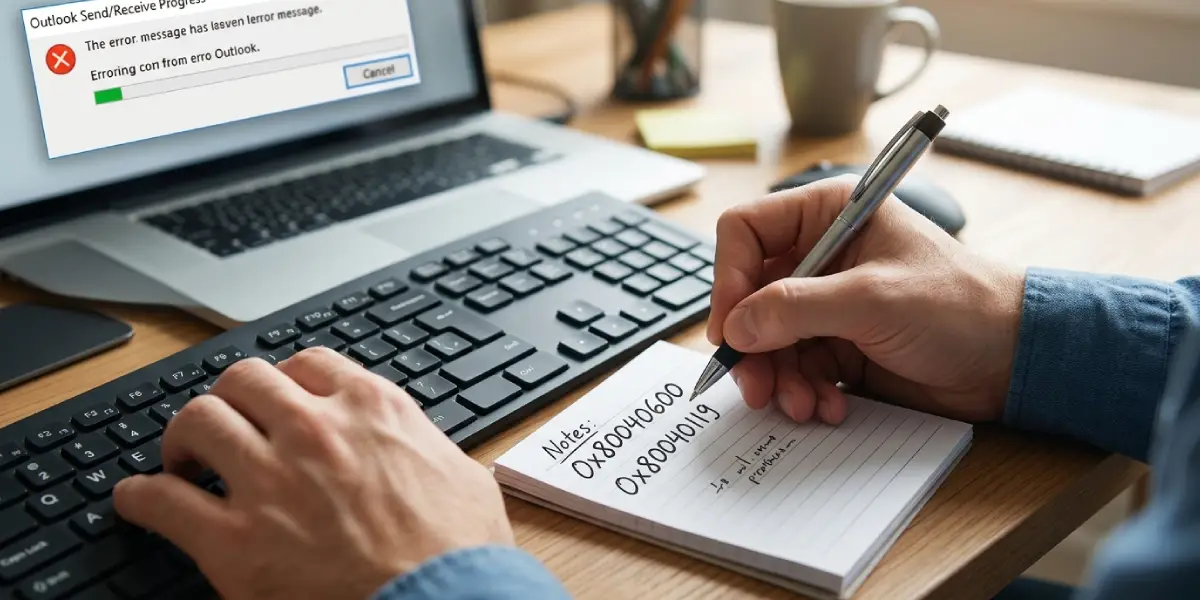
- Step 1: Note the exact error code. Open the Send / Receive tab, select Show Progress, and press F9. The dialog lists the failing task and a code such as 0x80040600 or 0x80040119. Writing it down helps confirm which of the fixes below applies.
- Step 2: Test in safe mode. Close Outlook, press Windows key + R, type outlook.exe /safe, and press Enter. Choose the profile and let Outlook open. Run Send/Receive. If the error is gone, an add-in is the cause, so continue to Step 3. If the error remains, skip to Step 4.
- Step 3: Disable add-ins. In normal mode, go to File > Options > Add-ins. At the bottom, set Manage to COM Add-ins and select Go. Clear the checkbox next to every add-in, select OK, and restart Outlook. Turn the add-ins back on one at a time until the error returns, then leave the culprit off or update it.
- Step 4: Repair the data file with the Inbox Repair tool. Close Outlook first. To find the file, open File > Account Settings > Account Settings, select the Data Files tab, choose the file, and select Open File Location. Then run SCANPST.EXE, found in C:\Program Files\Microsoft Office\root\Office16 on most 64-bit Microsoft 365 installs (or under Program Files (x86) for 32-bit Office). Browse to the PST file, select Start, and then select Repair when errors are found.
- Step 5: Update Office. Open File > Office Account > Update Options > Update Now. Outlook needs to close and restart when updates install. Known sync bugs are often fixed in a newer build.
- Step 6: Rebuild the OST file for mailbox accounts. For Microsoft 365, Exchange, and Outlook.com accounts, the OST file is only a local cache. Close Outlook, open the file location from the Data Files tab as in Step 4, and rename the .ost file to .old. Reopen Outlook, and it downloads a fresh copy from the server.
- Step 7: Create a new Outlook profile. Close Outlook, open Control Panel, choose Mail (Microsoft Outlook), select Show Profiles, and then Add. Name the profile, sign in to the account, and finish the wizard. Under When starting Microsoft Outlook, use this profile, choose Always use this profile and select the new one.
Check Whether the Error Is Tied to One Account
If the message names a single account in the task name, the problem is limited to that account’s data file or settings. Fixing only that account, by rebuilding its OST or re-adding it, saves time compared with rebuilding everything.
Tip: Before renaming or repairing any data file, copy it to another folder as a backup. A PST holds the only copy of its contents, so a backup means a repair attempt can never make things worse.
Common Problems and Fixes
The Inbox Repair Tool Cannot Find the Data File
The file is often in a hidden location. Use File > Account Settings > Account Settings > Data Files > Open File Location, then copy the full path from the address bar and paste it into the tool’s file box.
The Error Comes Back After Repairing the PST
Run the repair again until the tool reports no errors, since a single pass does not always fix everything. If the error still returns, move on to the update in Step 5 and then create a new profile in Step 7.
Outlook Will Not Open in Safe Mode
Make sure Outlook is fully closed in Task Manager before running outlook.exe /safe again. If it still fails, run Repair from Settings > Apps > Installed apps, select Microsoft 365, choose Modify, and pick Quick Repair.
A Large Message Is Stuck in the Outbox
Open the Outbox, move the stuck message to Drafts, and run Send/Receive again. Oversized attachments are a common trigger, so resend that message with a smaller file or a link.
The New Profile Downloads Mail Slowly
A first sync builds a new OST file from scratch, so it can take a while with a large mailbox. Leave Outlook open and connected until the status bar shows All folders are up to date.
Frequently Asked Questions
What does the Outlook Send Receive unknown error mean?
It means Outlook could not complete a sync task and could not identify a specific reason. The cause is typically a corrupted data file, a faulty add-in, or a damaged profile.
What is the difference between error 0x80040600 and 0x80040119?
Both display as Unknown Error. The 0x80040600 code commonly points to a damaged PST file, while 0x80040119 often points to a damaged OST file, a bad add-in, or a profile problem. The fixes above cover both.
Will I lose emails when I repair a PST file?
The Inbox Repair tool can remove items it cannot recover. Making a backup copy of the PST before running the repair keeps the original safe.
Is it safe to rename the OST file?
Yes, for mailbox accounts such as Microsoft 365 or Exchange. The OST is a cached copy, and Outlook rebuilds it from the server when it opens again.
How do I start Outlook in safe mode?
Close Outlook, press Windows key + R, type outlook.exe /safe, and press Enter. Outlook opens with add-ins disabled, which helps isolate the cause.
How do I find out which add-in is causing the error?
Disable all COM add-ins under File > Options > Add-ins, restart Outlook, and then re-enable them one at a time. The add-in that brings the error back is the culprit.
Do I need to reinstall Outlook to fix this error?
Rarely. A new profile or an Office Quick Repair resolves nearly all cases without a reinstall.
Will a new profile delete my messages?
Creating a new profile does not delete mailbox data stored on the server. Messages saved only in a local PST file can be reattached to the new profile through Account Settings > Data Files > Add.
