
Learning how to disable Secure Boot for dual boot setup takes only a few minutes, but the order of the steps matters, especially on a PC with an encrypted Windows drive. Secure Boot only allows signed bootloaders to start, so some Linux distributions, custom kernels, and third-party drivers get blocked. This guide covers the safe way to turn it off and what to check afterward.
Key Takeaways
- Secure Boot is switched off in the UEFI firmware settings, not inside Windows itself.
- Suspend BitLocker or device encryption and save the recovery key first, because changing Secure Boot can trigger a recovery prompt.
- Keep the firmware in UEFI mode. Secure Boot does not need to be traded for Legacy or CSM mode.
- Many mainstream Linux distributions boot fine with Secure Boot on, so disabling it is only needed when the installer or a driver is blocked.
- Windows keeps running normally with Secure Boot off, though some anti-cheat games may refuse to launch.
Before You Start
This is a firmware change, so no screwdrivers are involved. A little preparation still prevents most of the headaches.
- Back up important files, since partitioning for a second operating system always carries some risk.
- Save the BitLocker recovery key if Windows uses BitLocker or device encryption. It can be found in the Microsoft account linked to the PC or in the organization account that manages it.
- Plug a laptop into mains power so it does not shut down in the middle of a firmware change.
- Have the bootable USB installer for the second operating system ready.
- If the PC is managed by a school or employer, ask the administrator first, because the firmware may be locked.
How to Disable Secure Boot for Dual Boot Setup Step by Step
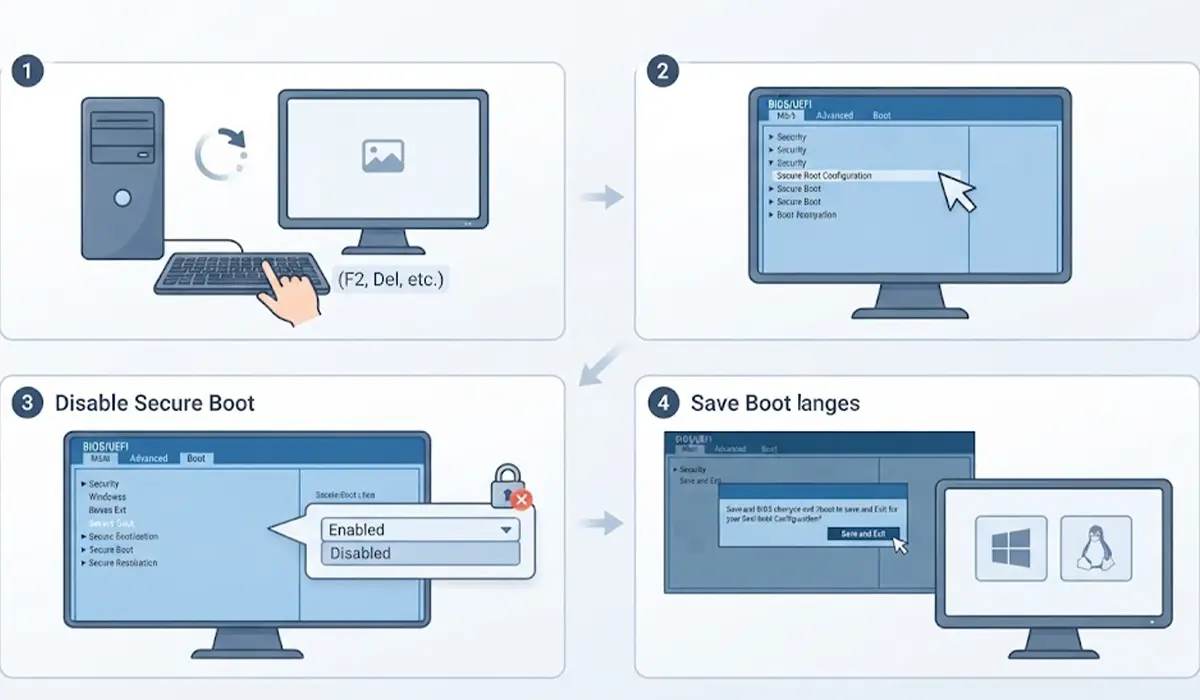
- Step 1: Check the current state. Press the Windows key, type msinfo32, and open System Information. Look at the Secure Boot State line. If it says Off, nothing more needs to be done. If it says On, continue. If BIOS Mode shows Legacy instead of UEFI, the firmware is set up differently and the Secure Boot option will not appear.
- Step 2: Suspend encryption. Open Settings, go to Privacy and security, then Device encryption (or search for Manage BitLocker in the Start menu) and suspend protection. This lowers the chance of a recovery key prompt at the next boot.
- Step 3: Restart into the firmware settings. In Windows 11, go to Settings, System, Recovery, then click Restart now next to Advanced startup. Choose Troubleshoot, Advanced options, then UEFI Firmware Settings, and confirm with Restart. Alternatively, tap the manufacturer’s firmware key right after powering on. Common keys are F2, F10, Del, Esc, or F12, and the splash screen usually shows which one applies.
- Step 4: Find the Secure Boot option. It usually sits under a tab named Boot, Security, or Authentication. Some firmware places it inside an Advanced or Boot Configuration submenu. Menu names vary by manufacturer, so look for the words Secure Boot.
- Step 5: Set Secure Boot to Disabled. If the setting is greyed out, see the Common Problems section below for the usual reasons and fixes.
- Step 6: Save and exit. Most firmware uses F10 for Save and Exit, but the on-screen legend shows the correct key. The PC restarts.
- Step 7: Confirm the change. Boot into Windows, reopen msinfo32, and check that Secure Boot State now reads Off. If a BitLocker recovery screen appeared, enter the saved key, then resume protection in the BitLocker settings.
- Step 8: Boot the installer for the second operating system. Insert the USB drive, open the one-time boot menu (usually F12, F11, or Esc), and select the USB device with the UEFI label.
Tip: Turn off Fast Startup in Windows (Control Panel, Power Options, Choose what the power buttons do) before installing a second system. Fast Startup leaves the Windows drive in a partly hibernated state, which can cause file system warnings when both systems share a disk.
Do You Actually Need to Disable Secure Boot?
Not always. Mainstream distributions such as Ubuntu, Fedora, Debian, and openSUSE ship a signed boot loader that works with Secure Boot enabled. The usual reasons to turn it off are an installer that will not start, a distribution without a signed boot loader, or unsigned kernel modules. Proprietary graphics drivers and virtualization modules are common examples, although many distributions can enroll a key through a Machine Owner Key prompt instead.
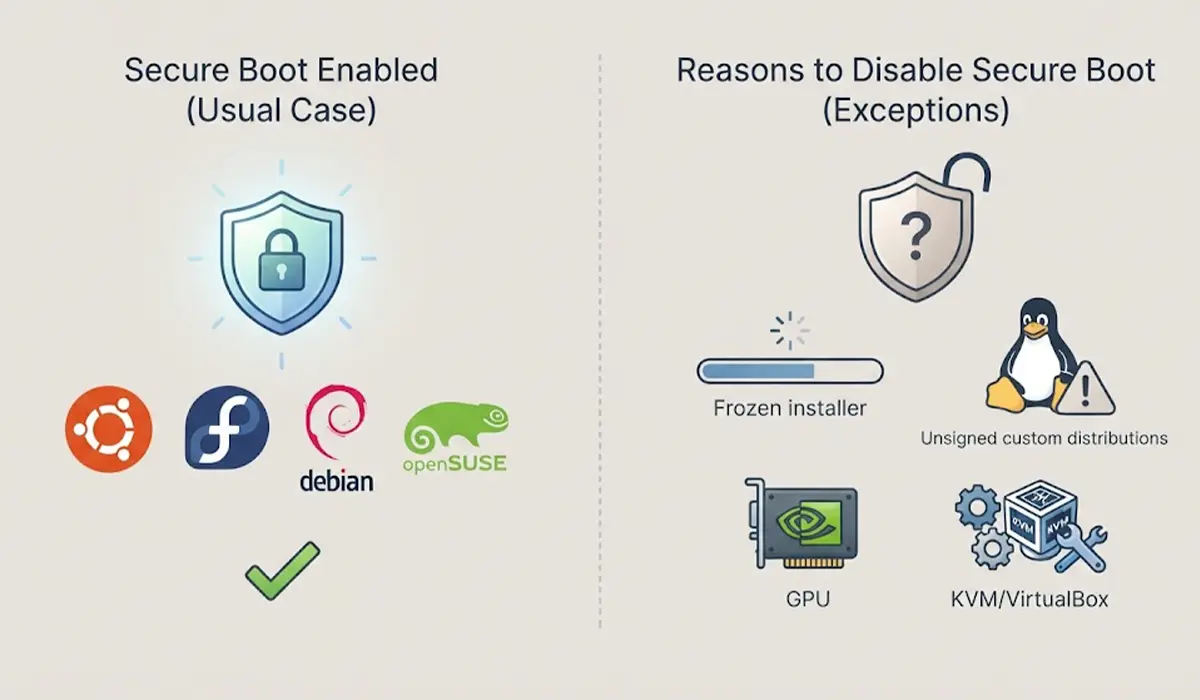
The practical approach is to try the installer with Secure Boot on first. If the USB drive is rejected with a security violation message, or a driver refuses to load, follow the steps above. This keeps the stronger protection in place for as long as possible.
Common Problems and Fixes
The Secure Boot option is greyed out
Many firmware screens lock the option until a supervisor or administrator password is set. Create that password in the Security tab, save, re-enter the firmware, and the toggle usually unlocks. Some boards instead require the Secure Boot mode to be changed from Standard to Custom, or the stored keys to be cleared, before Disabled becomes available.
There is no Secure Boot option at all
The firmware may be running in Legacy or CSM mode. Secure Boot only exists in UEFI mode. Switching modes on a disk set up for the other mode can stop Windows from booting, so confirm that Windows is installed with a GPT disk before changing the boot mode.
BitLocker asks for a recovery key after the change
Enter the saved 48-digit recovery key, and Windows will start normally. After that, open the BitLocker settings and resume protection so the new firmware state is recorded.
The USB installer does not appear in the boot menu
Recreate the USB drive using the GPT partition scheme with UEFI target, and try a different USB port. USB 2.0 ports are often more reliable for installers on older boards.
A game now reports that Secure Boot is required
Some anti-cheat systems check for Secure Boot. In that case, turn Secure Boot back on in the firmware before playing. Windows will boot normally with it enabled, as long as the second operating system is not needed during that session.
The second operating system does not show in the boot menu
Open the one-time boot menu and look for an entry named after the distribution. If it is missing, the installer may have written its boot entry to a different disk, which a firmware boot-order change or a boot repair from the installer media will usually fix.
Tip: If a firmware screen looks unfamiliar or the PC fails to start after a change, the safest option is to load the firmware defaults and repeat the steps slowly. If the machine still does not boot, it is time to contact the manufacturer or a technician rather than keep changing settings.
Frequently Asked Questions
Is it safe to disable Secure Boot for a dual boot setup?
For most home users it is reasonably safe, but it does remove a layer of protection against boot-level malware. Keeping the system updated and re-enabling Secure Boot when it is no longer needed is the best balance.
Will disabling Secure Boot break Windows?
No. Windows starts and runs normally with Secure Boot off. Windows 11 requires a Secure Boot capable system, but it does not stop working when the setting is turned off.
Do all Linux distributions need Secure Boot disabled?
No. Many popular distributions support Secure Boot with a signed boot loader. Disabling it is mainly needed for distributions without signed boot components or when unsigned drivers must be loaded.
Why is the Secure Boot option greyed out in the firmware?
The firmware often locks it until an administrator password is set, or until Secure Boot mode is changed to Custom. A managed work or school PC may also lock it on purpose.
Will disabling Secure Boot trigger a BitLocker recovery prompt?
It can. Suspending BitLocker first and keeping the recovery key on hand avoids being locked out. Protection can be resumed once Windows is running again.
Can Secure Boot be turned back on after the dual boot is set up?
Yes, the setting can be switched back on at any time. Windows will start normally, but a Linux system with unsigned components may fail to boot until it is configured for Secure Boot.
Is Legacy or CSM mode needed for dual boot?
No. Modern dual boot installs work in UEFI mode, and switching to Legacy or CSM on a GPT disk can leave Windows unable to start.
Will games with anti-cheat still work with Secure Boot off?
Some will not. Certain anti-cheat systems require Secure Boot to be enabled, so it may need to be switched back on before playing those titles.
