
Turning on a power-saving toggle takes seconds, but to enable battery saver mode effectively takes a bit more than a single click. This guide walks through the exact steps for Windows and macOS laptops, plus the extra settings that make the feature actually stretch your runtime instead of just dimming the screen.
Key Takeaways
- Battery saver mode works best when paired with background app limits, lower screen brightness, and adjusted sleep timers.
- Windows and macOS both offer automatic activation at a chosen battery percentage, which is more reliable than remembering to turn it on manually.
- Some settings, like high-performance GPU switching or aggressive sync apps, quietly fight against battery saver mode and need to be addressed separately.
- Battery saver mode has the biggest impact on tasks like web browsing and document work, and a smaller impact on video editing or gaming.
- Effective use means adjusting a handful of settings once, not toggling the feature repeatedly throughout the day.
How to Enable Battery Saver Mode Step by Step
The exact menu names vary slightly between operating systems, but the process follows the same basic pattern everywhere: find the power settings, turn the feature on, and set it to trigger automatically.
On Windows 11
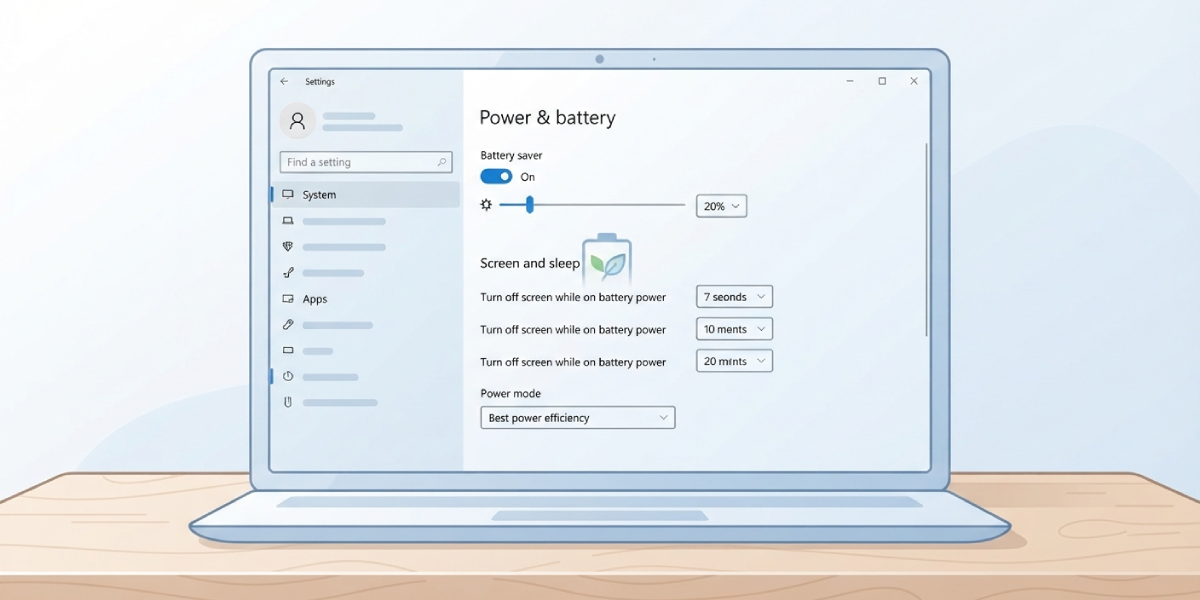
- Step 1: Open Settings and go to System, then select Power and battery.
- Step 2: Find the Battery saver section and click the toggle to turn it on immediately, or open the dropdown to schedule it.
- Step 3: Set the ‘Turn on automatically at’ threshold. Twenty percent is a common starting point, though a laptop that struggles more can be set higher, around thirty to forty percent.
- Step 4: Scroll down to Screen and sleep, and shorten the ‘On battery power, turn off my screen after’ timer. A shorter timer saves more power than battery saver mode alone.
- Step 5: Check Power mode in the same settings panel and switch it to Best power efficiency while unplugged tasks allow for it.
On macOS
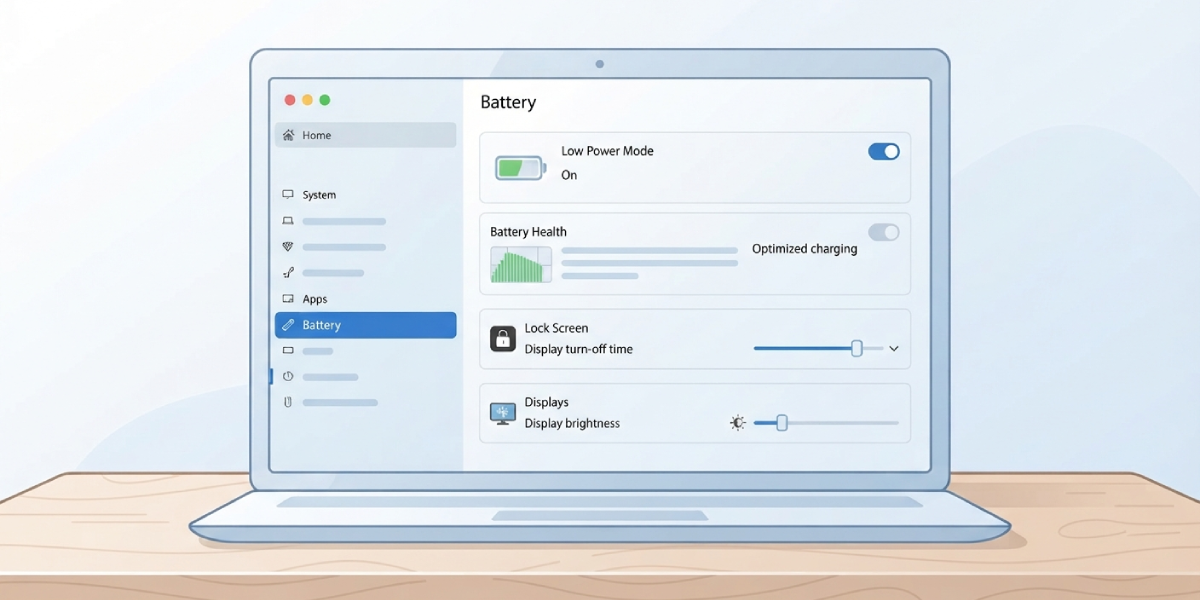
- Step 1: Open System Settings and select Battery from the sidebar.
- Step 2: Turn on Low Power Mode, either always, only on battery, or only while charging, depending on the dropdown options available on that Mac.
- Step 3: Review the Battery Health section to confirm nothing else, like Optimized Battery Charging, is working against the current goal.
- Step 4: Go to Lock Screen settings and reduce the time before the display turns off on battery power.
- Step 5: Open Displays and lower brightness slightly, since the screen remains one of the largest power draws on any laptop.
Tip: Setting battery saver mode to trigger automatically at a fixed percentage removes the guesswork. Most people forget to switch it on manually until the low-battery warning already appears, which is usually too late to make much difference.
Getting the Most Out of Battery Saver Mode
Turning the feature on is only half the job. A laptop can have battery saver mode active and still drain faster than expected if a handful of background habits are left unchecked.
Adjust Background App Activity
Cloud sync tools, chat apps, and browser tabs with auto-refreshing content keep the processor busy even when the screen looks idle. On Windows, checking Battery usage under Power and battery shows exactly which apps are pulling the most power, and background permissions can be limited from there. On macOS, the Battery settings screen offers a similar breakdown under Battery usage by app.
Lower Display Brightness Manually
Battery saver mode reduces some background activity, but on many systems it does not automatically dim the screen. The display remains one of the single biggest power consumers on a laptop, so pairing the feature with a manually lowered brightness level makes a noticeable difference during a long day away from an outlet.
Disconnect Unused Peripherals
External drives, USB accessories, and Bluetooth devices left connected all draw a small amount of power continuously. This adds up over a full workday, similar to how a phone charger left plugged into a wall still pulls a trickle of electricity even with nothing attached.
Close Resource-Heavy Programs
Video editing software, virtual machines, and games push the CPU and GPU harder than battery saver mode is designed to offset. For these tasks, the feature will help marginally, but the bigger gains come from closing the program when it is not actively in use rather than leaving it running in the background.
Common Problems and Fixes
Battery Saver Mode Turns Off When the Laptop Is Plugged In
This is expected behavior on both Windows and macOS, since the feature is designed for unplugged use. If reduced power draw is still wanted while charging, macOS offers a setting to keep Low Power Mode active regardless of power source, found in the same Battery settings menu.
Battery Drains Quickly Even With the Feature On
Check for a runaway background process using Task Manager on Windows or Activity Monitor on macOS. A single misbehaving app, browser extension, or driver can outweigh any savings battery saver mode provides on its own.
Performance Feels Sluggish With Battery Saver Mode Active
This is normal, since the feature intentionally reduces background CPU activity and, on some systems, caps processor speed. Switching to Balanced or standard power mode for demanding tasks, then returning to battery saver mode afterward, avoids the slowdown during heavier work.
The Feature Will Not Turn On
On Windows, battery saver mode is unavailable while the laptop is plugged in, so it needs to be unplugged first to toggle it manually. On macOS, an outdated system version can occasionally hide the Low Power Mode option, so checking for pending software updates is worth doing before assuming something is broken.
Automatic Trigger Percentage Keeps Resetting
This sometimes follows a system update that restores default power settings. Reopening the battery settings menu and reselecting the preferred percentage usually resolves it, and it is worth checking again after any major operating system update.
Frequently Asked Questions
Does battery saver mode damage the battery over time?
No. Battery saver mode only adjusts software behavior like background activity and screen timing. It has no effect on the physical battery cell or its long-term health.
Should battery saver mode stay on all the time?
It can, though performance-heavy tasks like video editing or gaming benefit from switching to a standard power mode temporarily. For everyday browsing and document work, leaving it on full time causes little to no noticeable downside.
Does battery saver mode slow down the CPU?
On many systems, yes, to a degree. The feature typically reduces background processing and can cap maximum processor speed slightly, which trades a small amount of performance for longer runtime.
Why does the screen stay bright even with battery saver mode on?
Not every implementation automatically lowers brightness. Windows and macOS both treat display brightness as a separate setting, so it usually needs to be adjusted manually alongside battery saver mode for the best result.
Is Low Power Mode on macOS the same as Battery Saver on Windows?
They serve the same general purpose but are implemented differently by each operating system. Both reduce background activity and adjust performance to extend battery life, though the exact settings affected vary.
Can battery saver mode be scheduled to turn off automatically once charging starts?
Yes, on Windows the feature turns off automatically once the laptop is plugged in unless changed manually. On macOS, Low Power Mode can be configured to stay active while charging if that setting is selected.
Will battery saver mode block video calls or downloads?
No, core functions continue working normally. What changes is background activity for apps not in active use, along with minor adjustments to performance and screen timing.
Does gaming performance drop with battery saver mode enabled?
Yes, noticeably in most cases. Games rely on sustained CPU and GPU performance, which battery saver mode is designed to limit. Switching to a standard power mode while gaming on battery is usually the better choice.
How much extra battery life does enabling this feature actually provide?
The exact gain depends heavily on the laptop model, battery health, and what tasks are running, so there is no single universal number. In general, lighter tasks like browsing see a more noticeable improvement than demanding tasks like video rendering.
