
Outlook error 0x80190194 shows up when the Offline Address Book fails to sync with the Exchange server, usually because of a corrupted profile, a damaged OAB cache, or a broken OST file. The good news is that clearing it rarely requires reinstalling Outlook. A handful of targeted fixes resolve the issue in most cases.
Key Takeaways
- Outlook error 0x80190194 almost always points to a corrupted Offline Address Book cache or a damaged Outlook profile.
- Clearing the OAB folder contents fixes the error for the majority of users without touching account settings.
- A fresh Outlook profile resolves the issue when the OAB cache clear alone does not work.
- Antivirus software and outdated Outlook builds are common hidden triggers worth ruling out.
- No email data is lost when following the steps below, since the OAB is rebuilt automatically from the server.
How to Fix Outlook Error 0x80190194
This walkthrough starts with the fastest fix and moves to the more thorough one only if needed. Most people find that the first method alone clears things up.
Method 1: Close Outlook Completely
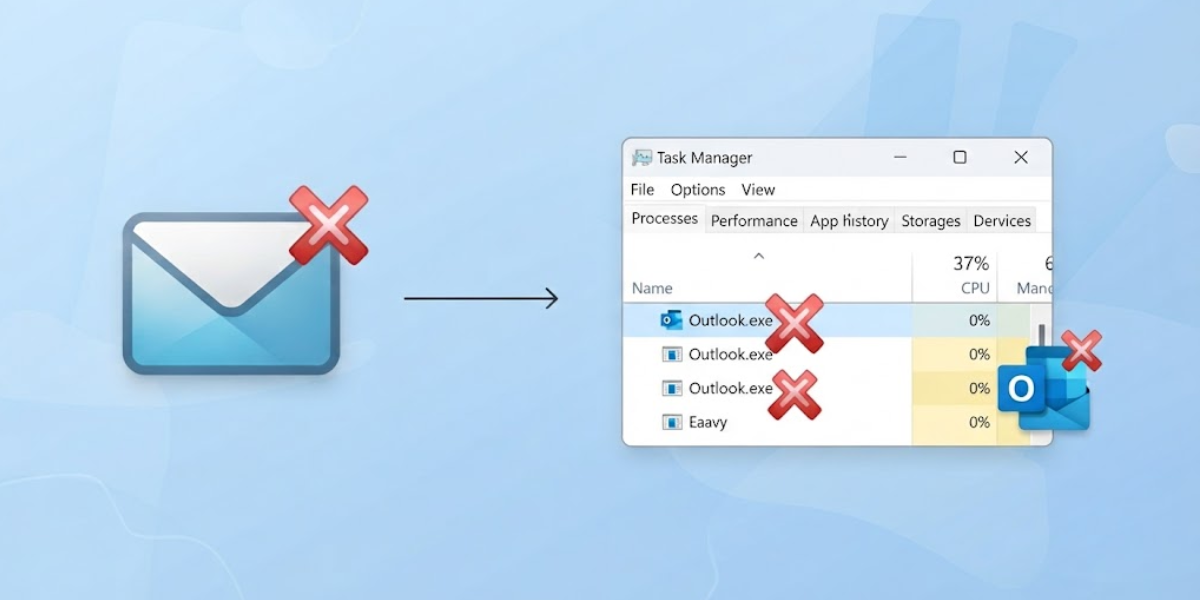
- Step 1: Exit Outlook fully, then check the Task Manager to confirm no Outlook.exe process is still running in the background. A lingering process can lock the very files that need to be cleared.
Method 2: Clear the Offline Address Book Cache
- Step 2: Press Win + R, type %localappdata%\Microsoft\Outlook, and press Enter.
- Step 3: Locate the folder named Offline Address Books (it may also appear simply as a set of files with .oab extensions inside the Outlook folder).
- Step 4: Select all files inside that folder and delete them. This does not remove any email; it only clears the locally cached directory data.
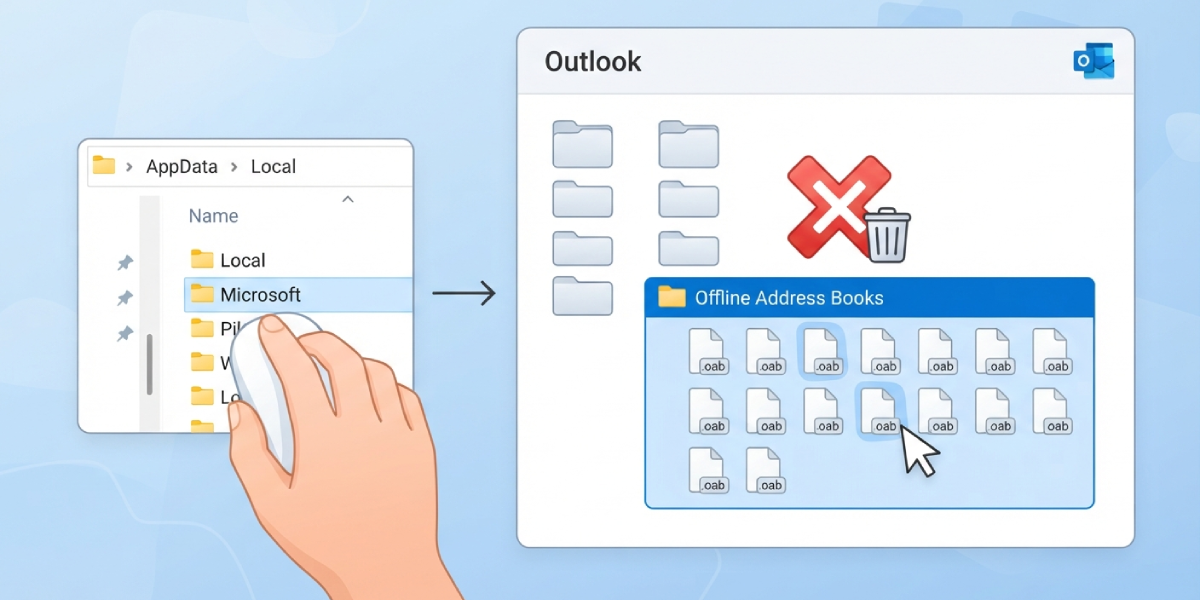
Tip: Renaming the folder instead of deleting it (add ‘.old’ to the end) works just as well and gives a quick way to restore it if something looks off later.
Method 3: Reopen Outlook and Force a Send/Receive
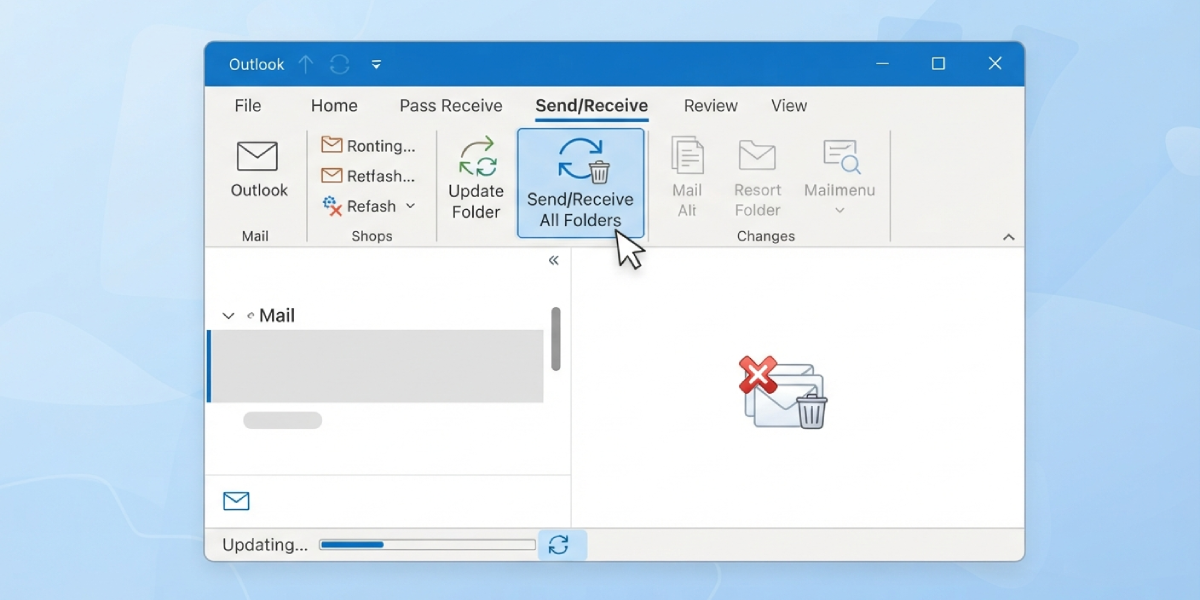
- Step 5: Launch Outlook again. It automatically rebuilds a fresh OAB cache the moment it reconnects to the mail server.
- Step 6: Go to the Send/Receive tab and select Send/Receive All Folders to confirm the download completes without triggering the error again.
Method 4: Rename the Main Outlook Folder (If the Error Persists)
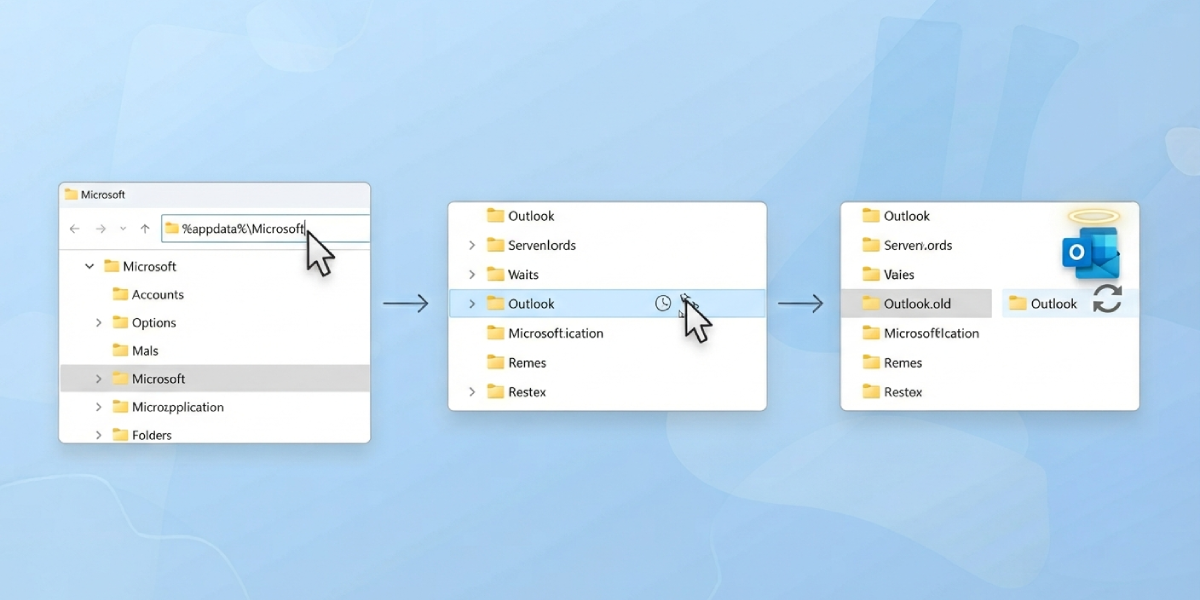
- Step 7: Close Outlook, press Win + R, type %appdata%\Microsoft, and press Enter.
- Step 8: Find the folder named Outlook and rename it to something like Outlook.old.
- Step 9: Reopen Outlook. This forces the application to generate a new, clean Outlook folder along with a fresh OAB configuration.
Method 5: Create a New Outlook Profile (Last Resort)
- Step 10: Open Control Panel and go to User Accounts, then Mail, then Show Profiles.
- Step 11: Select Add, type a new profile name, and click OK.
- Step 12: Follow the prompts to add the email account, then click Finish once setup completes.
- Step 13: Set the new profile as the default, or choose ‘Always use this profile,’ then restart Outlook.

Tip: A corrupted profile is a common culprit when the OAB cache clear and folder rename both fail to stop the error, so this step should not be skipped if the problem keeps returning.
Common Problems and Fixes
- Error returns right after clearing the OAB cache: Outlook may not have fully released the old files. Restart the computer once before reattempting Step 2, then retry the send/receive.
- Antivirus blocks Outlook from reaching the server: Temporarily disable real-time scanning or add Outlook.exe to the antivirus exclusion list, then attempt the sync again.
- Outdated Outlook build keeps throwing the error: Go to File, then Office Account, then Update Options, and select Update Now before repeating the steps above.
- New profile still cannot download the OAB: This usually points to a server-side issue with the Offline Address Book URL or an expired security certificate, which typically needs the mail administrator to reset.
- OST file appears damaged after the fix: Run the Inbox Repair Tool (SCANPST.EXE) against the OST file to check for and repair structural corruption.
Frequently Asked Questions
What does Outlook error 0x80190194 actually mean?
It signals that Outlook could not download or synchronize the Offline Address Book from the mail server, usually because of local cache corruption or a profile issue.
Will clearing the OAB cache delete any emails?
No. The OAB cache only stores contact and directory information. Deleting it has no effect on mail, calendar items, or attachments.
Is Outlook error 0x80190194 related to an internet connection problem?
It can be. A weak or interrupted connection sometimes prevents the OAB download from completing, so checking network stability before troubleshooting further is worthwhile.
How long does it take for Outlook to rebuild the OAB after clearing it?
Rebuilding usually happens within a few minutes of the next successful send/receive cycle, though larger organizations with big address lists may take longer.
Does creating a new Outlook profile affect existing email rules or signatures?
Yes, a new profile starts fresh, so signatures and rules need to be recreated or exported beforehand if they need to carry over.
Can antivirus software really cause this error?
Yes. Some antivirus programs scan or block Outlook’s connection to the Exchange server, which interrupts the OAB download and triggers the error.
What if renaming the Outlook folder does not fix the error?
Move on to creating a new Outlook profile, since a persistent error after the folder rename usually points to a deeper profile-level corruption.
Should the mail administrator be involved in fixing this error?
Only if the steps above do not resolve it. A server-side OAB URL misconfiguration or an expired SSL certificate requires administrator access to correct.
Does updating Outlook to the latest version prevent this error from returning?
Keeping Outlook updated reduces the chance of recurrence, since Microsoft periodically patches known sync and caching bugs tied to this error.
