
Knowing how to enable Windows Firewall properly takes about two minutes and closes one of the most common security gaps on a PC. The built-in firewall filters the network traffic entering and leaving the computer, and it only protects the machine when it is switched on for every network profile. This guide covers the exact steps for Windows 10 and Windows 11, plus how to confirm the firewall is really working.
Key Takeaways
- Windows Firewall has three network profiles – Domain, Private, and Public – and each one needs to be turned on separately.
- The fastest route is Windows Security, then Firewall and network protection.
- A greyed-out toggle usually points to a third-party security product, an administrator policy, or a stopped firewall service.
- Leave the Block all incoming connections option off for everyday use and keep notifications enabled.
How to Enable Windows Firewall Properly: Step-by-Step
The steps below use the Windows Security app, which is the recommended method on both Windows 10 and Windows 11. An administrator account is needed to change firewall settings.
Turn On the Firewall in Windows Security
- Step 1: Click the Start button, type Windows Security, and open the app from the results.
- Step 2: Select Firewall and network protection from the left-hand menu or the main dashboard.
- Step 3: Click Domain network. If the toggle under Microsoft Defender Firewall is off, switch it to On. Click Yes if User Account Control asks for permission.
- Step 4: Use the back arrow, then click Private network and switch Microsoft Defender Firewall to On.
- Step 5: Go back once more, click Public network, and switch Microsoft Defender Firewall to On.
- Step 6: Return to the Firewall and network protection page and confirm that all three profiles show the firewall as on, with no warning icon or red cross.
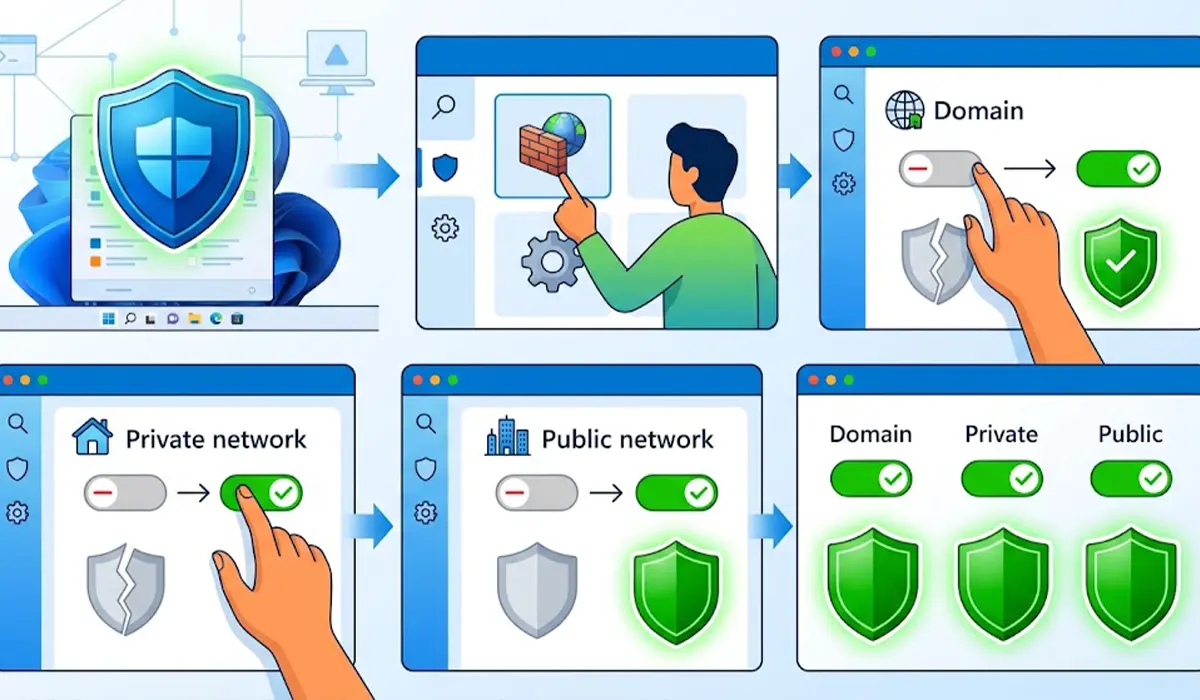
Tip: The profile marked as active is the one the PC is using right now. Home and office Wi-Fi normally fall under Private, while cafes, airports, and other shared networks fall under Public. Turning on all three means protection stays in place when a laptop moves between networks.
Turn On the Firewall from Control Panel
Control Panel offers the same result and is handy when the Windows Security app refuses to open or behaves oddly.
- Step 1: Press the Windows key, type Control Panel, and open it.
- Step 2: Go to System and Security, then click Windows Defender Firewall.
- Step 3: Click Turn Windows Defender Firewall on or off in the left-hand pane.
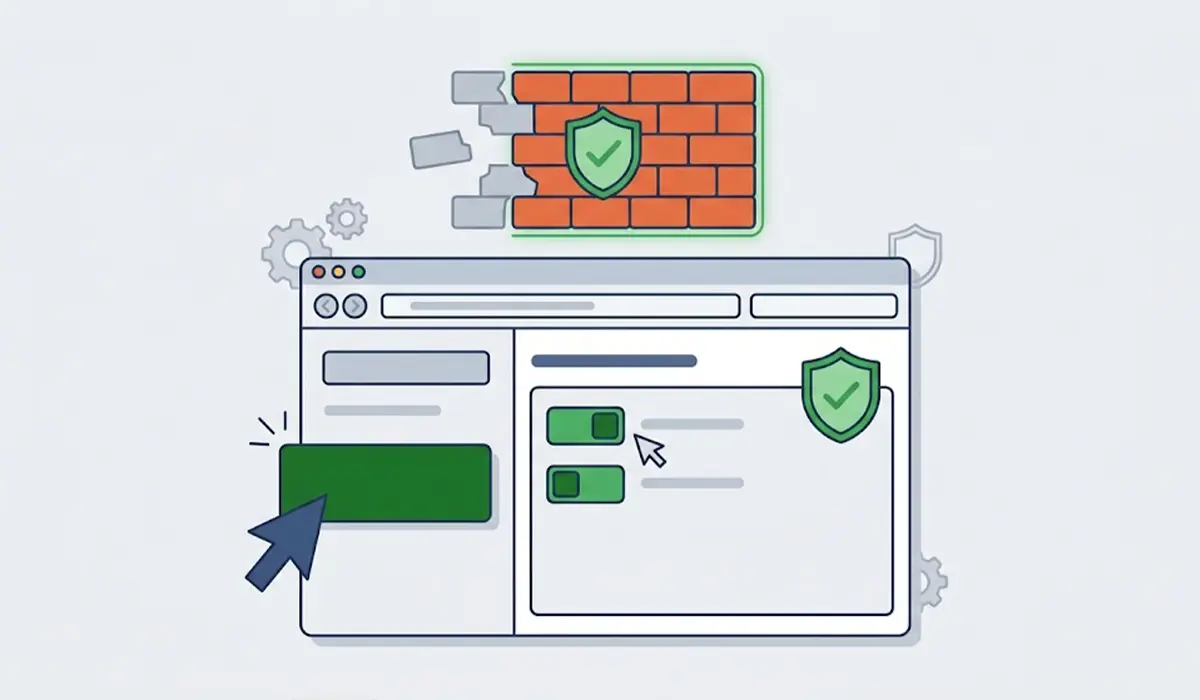
- Step 4: Select Turn on Windows Defender Firewall under both the Private network settings and the Public network settings.
- Step 5: Leave Block all incoming connections unticked and keep Notify me when Windows Defender Firewall blocks a new app ticked, then click OK.
Check That the Firewall Is Working Correctly
A toggle that reads On is a good sign, but the firewall also depends on a background service. The quick check below confirms that everything underneath is running.
- Step 1: Press the Windows key and R together, type services.msc, and press Enter.
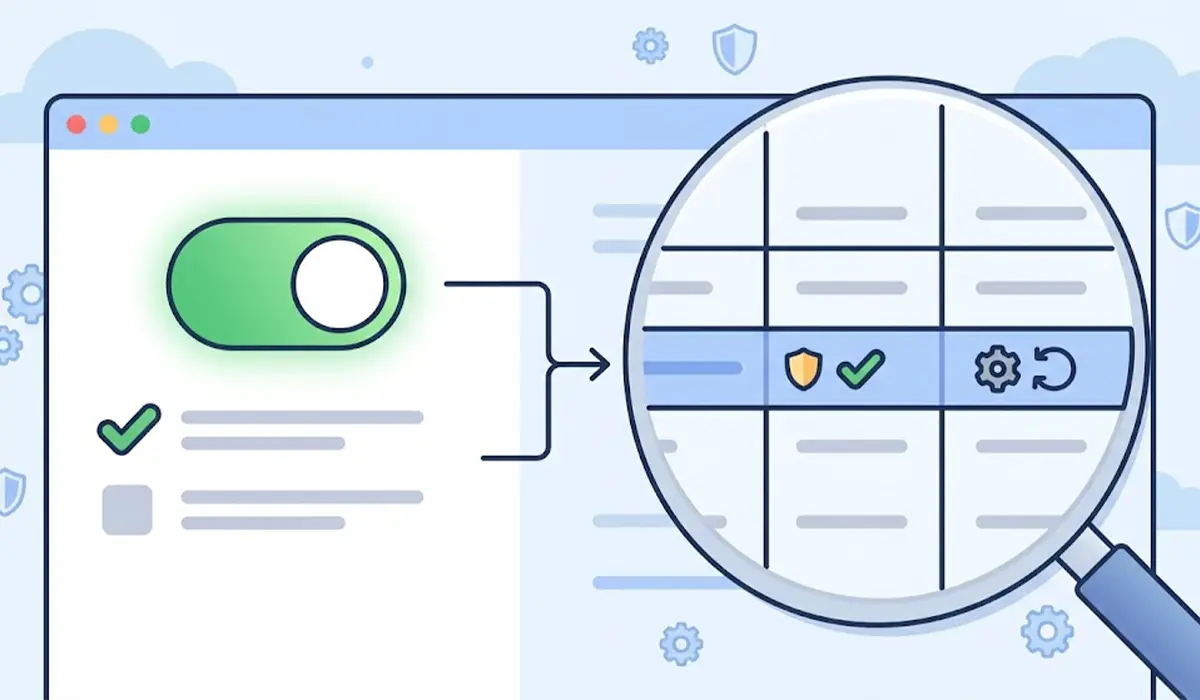
- Step 2: Scroll down to Windows Defender Firewall and look at the Status column. It should read Running, with the Startup Type set to Automatic.
- Step 3: If the service is stopped, double-click it, set Startup type to Automatic, click Start, and then click Apply.
Tip: The firewall service relies on another service called Base Filtering Engine. If Windows Defender Firewall refuses to start, check that Base Filtering Engine is also running.
Recommended Firewall Settings to Keep
Most people find that the default configuration is the safest place to stay. A few settings are worth checking once the firewall is on.
- Keep Block all incoming connections off on home and work networks. This option blocks even the apps that are normally allowed, so it can interrupt file sharing, remote access, and some games.
- Keep firewall notifications enabled so Windows can flag a new app that tries to reach the network.
- Review the Allow an app through firewall list now and then, and remove anything that is no longer needed.
Common Problems and Fixes
The Firewall Toggle Is Greyed Out
This usually means another product or policy controls the firewall. Check whether a third-party antivirus or security suite is installed, since many of them take over firewall duties. Open that program and enable its firewall there, or disable it and let Windows handle protection. On work or school PCs, an administrator policy may lock the setting, and only the IT administrator can change it.
The Page Says Settings Are Managed by a Vendor
This message appears when another security program has registered itself as the active firewall. Only one firewall should run at a time, because two running together can cause connection problems. Decide which one to keep, then turn the other one off.
The Firewall Cannot Be Turned On or Shows an Error
An error with the code 0x80070422 normally means the Windows Defender Firewall service is stopped or disabled. Follow the services.msc steps above to set the service to Automatic and start it, then try the toggle again. A restart afterwards helps the change settle.
The Firewall Keeps Turning Itself Off
A repeated switch-off often traces back to a security program that is disabling it, or to malware. Run a full scan in Windows Security and check which security software is currently registered as the firewall provider. After that, turn the firewall back on for all three profiles.
Firewall Settings Look Broken or Misconfigured
Settings that were changed many times over the years can leave rules in a confusing state. In Control Panel, open Windows Defender Firewall, click Restore defaults in the left-hand pane, and confirm. This returns the firewall to its original configuration, although apps may need to be allowed through again afterwards.
Frequently Asked Questions
Is Windows Firewall turned on by default?
Yes, a standard installation of Windows 10 or Windows 11 has the firewall switched on for all network profiles. It can still end up turned off because of third-party security software, a manual change, or malware, so a quick check is worthwhile.
How can I tell if Windows Firewall is on?
Open Windows Security and select Firewall and network protection. Each profile should show that the firewall is on, with no warning icon. A red cross or a warning message means a profile needs attention.
Should the firewall be on for all three network profiles?
Yes. Domain, Private, and Public should all stay on unless a managed third-party firewall is deliberately handling protection. Keeping all three on protects the PC no matter which network it joins.
Why is the Microsoft Defender Firewall toggle greyed out?
The most common reasons are a third-party security product controlling the firewall, an administrator policy on a work or school PC, or a stopped firewall service. Checking the installed security software and the Windows Defender Firewall service usually finds the cause.
Do I need a separate firewall if Windows Firewall is on?
For most home users, the built-in firewall combined with Windows Security and regular updates gives solid everyday protection. Running a second firewall at the same time can cause conflicts, so only one should be active.
Will turning on Windows Firewall slow down the internet?
In normal use, the firewall does not noticeably slow a connection. It filters traffic in the background and is designed to run continuously without getting in the way.
What does Block all incoming connections do?
This option blocks all unsolicited incoming connections, including those for apps that are normally allowed. It is useful on an untrusted public network, but it can break file sharing, remote access, and some apps, so it should stay off on trusted networks.
How do I let a trusted app through the firewall?
Open Windows Security, select Firewall and network protection, then click Allow an app through firewall. Click Change settings, tick the app for the Private or Public network, and click OK. If the app is missing from the list, use Allow another app to add it.
