
Knowing how to exclude a folder from Outlook search results saves time when a mailbox is packed with folders that clutter every search, like old newsletters or an archive nobody opens. This guide covers the fastest, most reliable way to do it on Outlook for Windows using the built-in indexing controls.
Key Takeaways
- Outlook search results pull from the Windows Search index, so excluding a folder means removing it from that index rather than hiding it inside Outlook itself.
- The fix is done through File, Options, Search, Indexing Options.
- Unchecking a specific folder stops it from being scanned and keeps it out of future search results.
- Changes may take a few minutes to apply while Outlook rebuilds the index in the background.
- This method works for any folder, including subfolders, PST archives, and shared mailboxes added to the profile.
Steps to Exclude a Folder from Outlook Search Results
Follow these steps in order. The whole process usually takes less than two minutes once Outlook is open.
Open the Indexing Settings
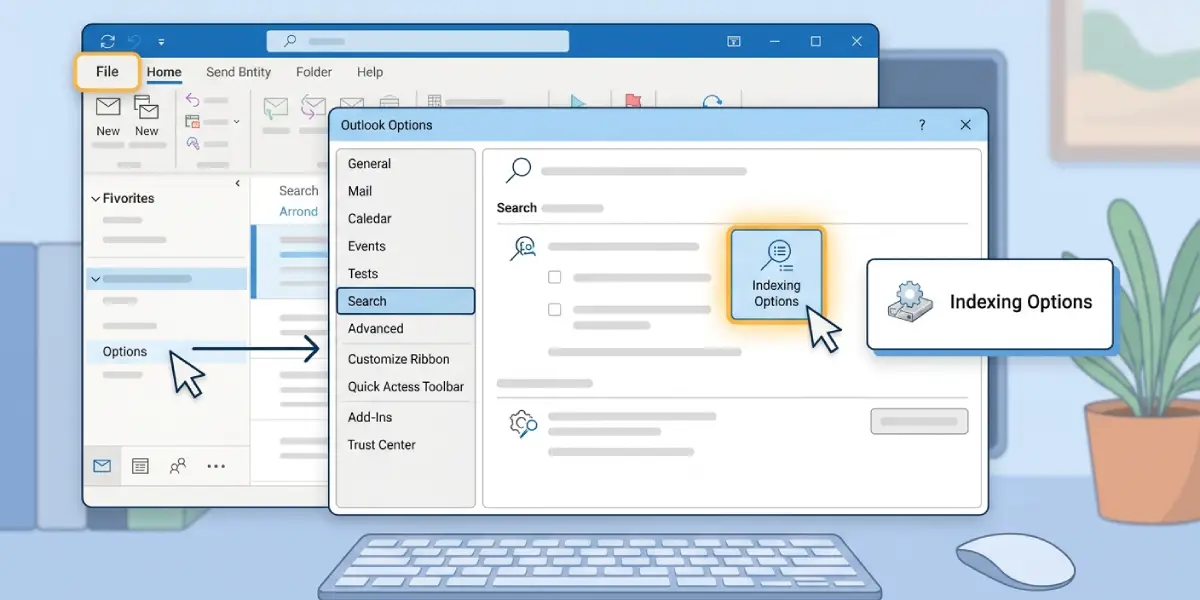
- Step 1: Open Outlook and click File in the top-left corner.
- Step 2: Select Options from the menu on the left, then choose Search from the Outlook Options window.
- Step 3: Under the Results section, click the Indexing Options button. This opens a separate Windows dialog box, since Outlook relies on the same indexing service used across the operating system.
Choose the Folder to Remove from the Index
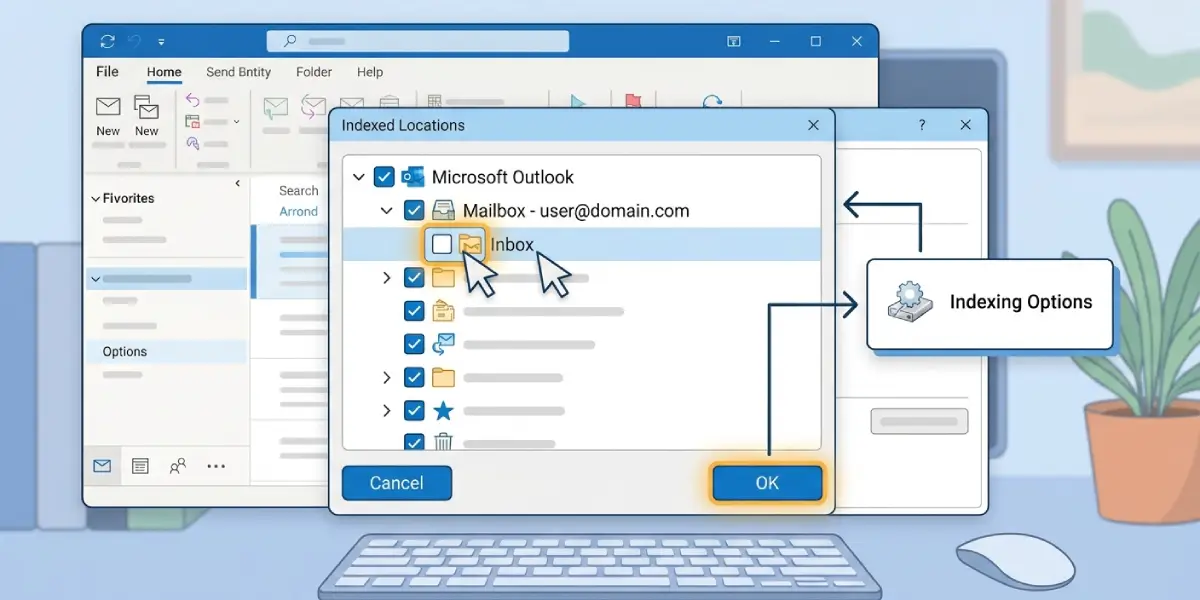
- Step 4: In the Indexing Options window, click Modify.
- Step 5: A list of indexed locations appears. Expand Microsoft Outlook, then expand the mailbox or data file that contains the folder to exclude.
- Step 6: Locate the specific folder in the tree and clear its checkbox. Leave every other folder checked so search still works everywhere else.
- Step 7: Click OK to close the Indexed Locations window, then click Close on the Indexing Options window.
Tip: If the folder tree does not show every subfolder right away, give the dialog a second or two to load. Large mailboxes with dozens of folders take a moment to render the full list.
Confirm the Change Took Effect
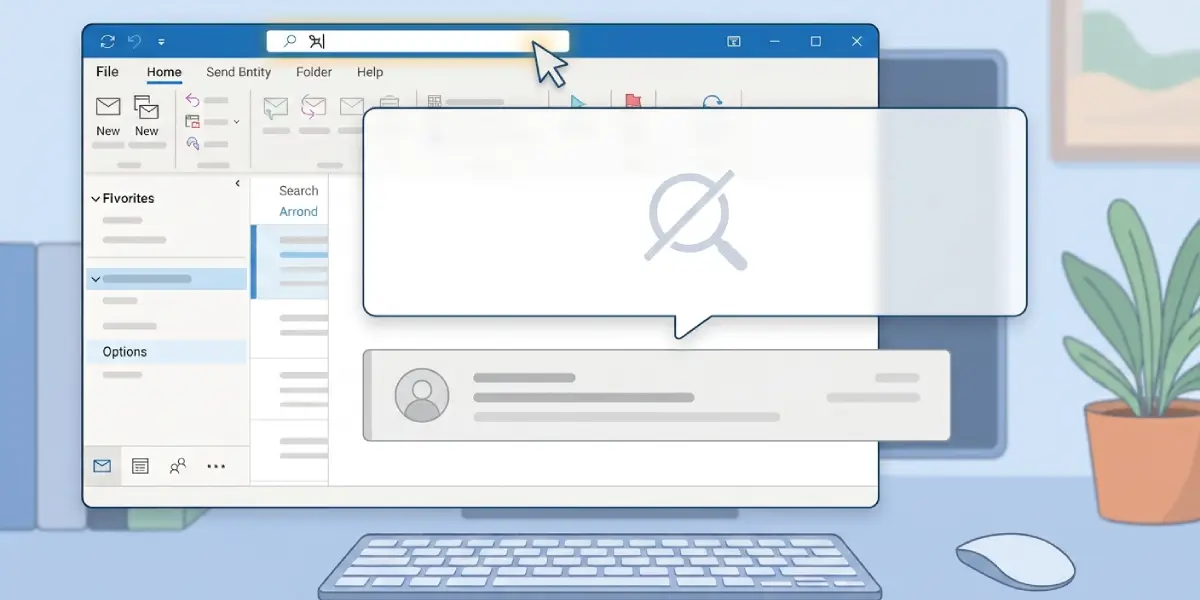
- Step 8: Return to Outlook and run a search that would normally return results from the excluded folder.
- Step 9: If items from that folder still appear, wait a few minutes and search again. The index needs a short window to catch up after a change like this.
Common Problems and Fixes
Most issues with this task come down to timing or permissions rather than a broken setting.
- Excluded folder still shows up in results: The index has not finished updating. Close and reopen Outlook, then wait five to ten minutes before searching again.
- Modify button or checkboxes are greyed out: Indexing Options often requires administrator access on shared or work computers. Look for an Advanced or Change Advanced Search Settings option that prompts for admin rights, or ask an IT administrator to make the change.
- Entire mailbox disappears from search: This usually means the mailbox itself got unchecked instead of just the folder. Reopen Modify, expand Microsoft Outlook again, and recheck the mailbox while leaving only the intended folder unchecked.
- Folder reappears in search after a while: This can happen if Outlook is set to Cached Exchange Mode and re-downloads the folder structure. Repeat the exclusion steps; the setting sticks after the index rebuilds fully.
- Search feels slow right after making the change: A large mailbox can take longer to reindex. This is normal and settles down once Windows Search finishes processing the remaining folders.
Frequently Asked Questions
Does excluding a folder from search also hide it from the folder list?
No. The folder stays fully visible and accessible in Outlook. Only its contents stop appearing in search results.
Can this be undone later?
Yes. Return to Indexing Options, click Modify, and recheck the folder to add it back to the index.
Will this exclude the folder on other devices too?
No. Indexing settings are stored locally on the computer being used, so the same steps need to be repeated on each device.
Does this work for shared or delegated mailboxes?
Yes, as long as the shared mailbox appears under Microsoft Outlook in the Indexed Locations list, its individual folders can be excluded the same way.
Why does the excluded folder still show up in Instant Search suggestions?
Suggestions sometimes pull from recently viewed items rather than the live index. This clears up on its own after the index finishes updating.
Is there a way to exclude a folder without touching Windows Indexing Options?
Indexing Options is the supported way to exclude a folder from search results in Outlook for Windows. Search scope buttons inside Outlook change where a search looks per search, but they do not permanently exclude a folder.
Does excluding a folder affect Outlook’s overall performance?
Generally it helps rather than hurts, since fewer indexed items usually means faster search results across the rest of the mailbox.
What happens to PST archive folders when they are excluded?
The archive folder remains fully accessible by browsing to it manually. It simply stops appearing when searching from the main search bar.
Can multiple folders be excluded at the same time?
Yes. Inside the same Modify screen, clear the checkbox next to each folder that needs to be excluded before clicking OK.
