
Outlook signatures not syncing across devices is one of the most common frustrations Outlook users run into, especially when switching between a laptop, a work desktop, and a phone. The good news is that this happens for a very specific reason, and it has a reliable fix. This guide walks through exactly why it occurs and how to make signatures consistent everywhere.
Key Takeaways
- Signatures created in classic desktop Outlook are stored locally on that device, not in the cloud, so they never appear anywhere else.
- Outlook on the web and the New Outlook for Windows share cloud-based signature settings, which is why those two sync with each other.
- The Outlook mobile app keeps its own separate signature setting that has to be added manually.
- The most reliable fix is to set the signature once in Outlook on the web, then copy it into any app that does not pull from the cloud.
- Enabling the automatic signature checkboxes in Outlook on the web prevents the problem from happening again on synced apps.
Why Outlook Signatures Do Not Sync Across Devices
Signature syncing depends entirely on where the signature was created. Classic Outlook for Windows (the traditional desktop version) saves signatures as files inside a local folder on that specific computer. That folder never leaves the device, so a signature built there stays trapped there. Outlook on the web and the newer, streamlined New Outlook for Windows work differently: both read signature settings directly from the mailbox on Exchange Online or Outlook.com, which is why a signature set in one instantly shows up in the other. Mobile devices add a third layer, since the Outlook app for iOS and Android stores its own signature setting independent of both the desktop and web versions. Understanding which category each device falls into makes the fix below much easier to follow.
How to Fix Outlook Signatures Not Syncing Across Devices
This method treats Outlook on the web as the master copy, since it is the version most other apps can pull from or be matched against.
Method 1: Set the Signature in Outlook on the Web
- Step 1: Sign in to Outlook on the web using the account experiencing the issue.
- Step 2: Select the gear icon in the top right corner to open Settings.
- Step 3: Choose ‘Mail’, then select ‘Compose and reply’.
- Step 4: Type or paste the signature into the editor box, formatting it exactly as it should appear.
- Step 5: Check the boxes for ‘Automatically include my signature on new messages I compose’ and ‘Automatically include my signature on messages I forward or reply to’.
- Step 6: Select ‘Save’ at the top of the panel.
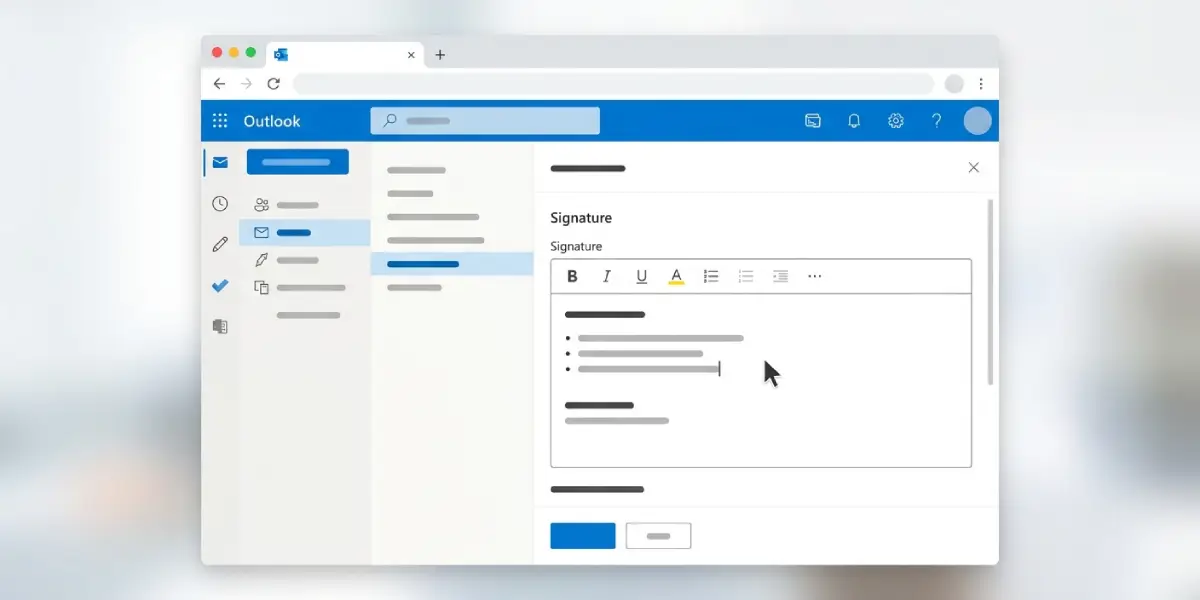
Tip: Building the signature in Outlook on the web first saves time later, since it can simply be copied and pasted into other apps instead of rebuilding it from scratch each time.
Method 2: Confirm New Outlook for Windows Matches
- Step 7: Open the New Outlook for Windows app (the streamlined version, not classic Outlook).
- Step 8: Select Settings, then ‘Accounts’, then ‘Signatures’.
- Step 9: Verify the same signature from Outlook on the web appears here automatically, since both draw from the same cloud settings.
Method 3: Manually Match Classic Desktop Outlook
- Step 10: Open classic Outlook for Windows and go to File, then Options, then Mail.
- Step 11: Select ‘Signatures’ to open the signature editor.
- Step 12: Select ‘New’, name the signature, then paste in the exact text and formatting used in Outlook on the web.
- Step 13: Under ‘Choose default signature’, set this signature for both new messages and replies or forwards.
- Step 14: Select ‘OK’ to save the changes.
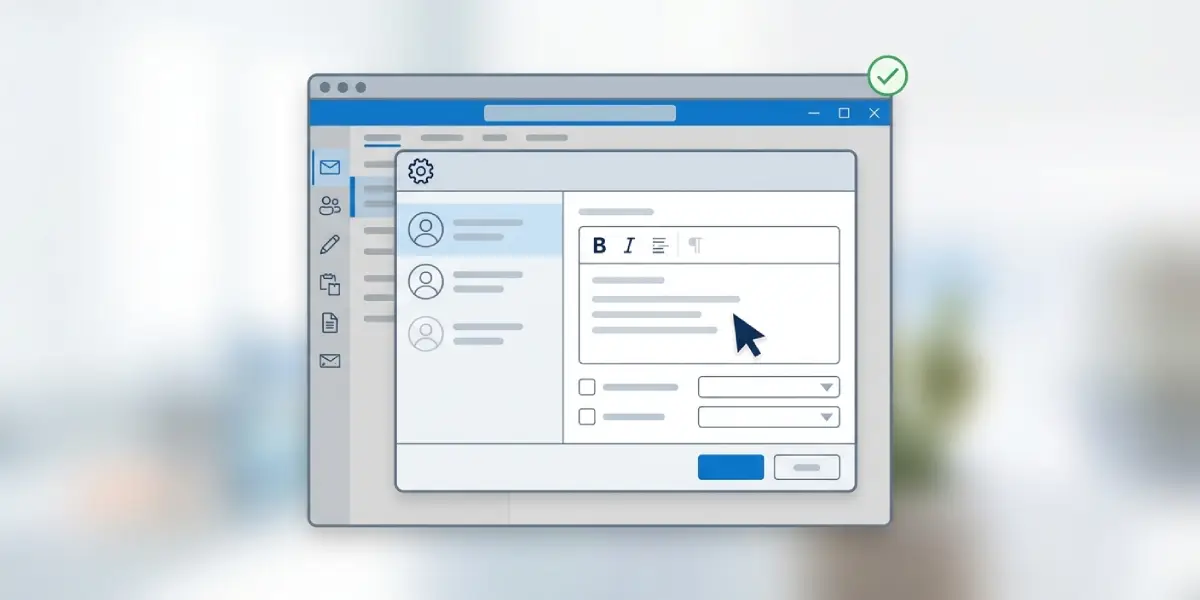
This step has to be repeated on every computer running classic Outlook, since each installation keeps its own local copy.
Method 4: Add the Signature in the Outlook Mobile App
- Step 15: Open the Outlook app on the phone and tap the menu icon in the top left corner.
- Step 16: Tap the gear icon for Settings, then select the account in question.
- Step 17: Tap ‘Signature’ and toggle it on if it is not already active.
- Step 18: Paste in the same signature text, adjusting formatting since mobile signatures support limited styling compared to desktop or web.
- Step 19: Tap the back arrow or checkmark to save.
Tip: Keep signature formatting simple, such as plain text with a single font, since heavily formatted signatures often break or look different once they hit the mobile app’s more limited editor.
Common Problems and Fixes
- Signature looks different on each device: This usually means it was typed separately in each app instead of copied from one source. Rebuild each version by copying and pasting from the Outlook on the web version to keep formatting consistent.
- New signature is not being added to outgoing messages automatically: Check that the default signature checkboxes or dropdowns are set for both new messages and replies in that specific app, since each version has its own default settings.
- Signature disappeared after switching from classic Outlook to New Outlook: New Outlook does not import local signatures from classic Outlook. It has to be added manually through Settings in New Outlook or Outlook on the web.
- Images in the signature do not show up on mobile: The Outlook mobile app has limited support for embedded images. Linking to a hosted image or simplifying the signature to text usually resolves this.
- Changes made on one computer do not appear on another computer running classic Outlook: This is expected behavior, since classic Outlook signatures are local files. The signature has to be added on each machine separately.
Frequently Asked Questions
Why does the Outlook signature only show up on one device?
Signatures created in classic desktop Outlook are stored as local files on that specific computer, so they do not transfer automatically to any other device.
Does Outlook on the web sync signatures with the desktop app?
It syncs with New Outlook for Windows automatically, since both use the same cloud-based mailbox settings. It does not sync with classic Outlook, which stores signatures locally.
Is there a way to sync signatures automatically across every device?
Full automatic syncing currently works only between Outlook on the web and New Outlook for Windows. Classic desktop Outlook and the mobile app require the signature to be added manually.
Why did the signature disappear after switching to New Outlook?
New Outlook does not carry over signatures saved locally in classic Outlook. It pulls signatures from the cloud settings instead, so the signature needs to be re-added through Settings.
Can a signature be copied directly from Outlook on the web to save time?
Yes. Copying the finished signature from the Outlook on the web editor and pasting it into classic Outlook or the mobile app keeps formatting far more consistent than retyping it each time.
Why does the mobile signature look different from the desktop one?
The Outlook mobile app has a simpler formatting editor, so complex fonts, spacing, or embedded images may not display the same way they do on desktop or web.
Does this issue affect Outlook.com personal accounts and work or school accounts the same way?
Yes, the local-versus-cloud behavior applies the same way to both account types, since it depends on which Outlook version is being used rather than the account type.
Will updating classic Outlook to the latest version fix the syncing issue?
No. Updating classic Outlook does not change how it stores signatures locally. Switching to New Outlook for Windows is the only way to get cloud-based syncing on a Windows desktop.
How often does the signature need to be re-added after this fix?
Once it is set correctly in each app, it stays in place. It only needs to be redone if the signature text is edited and that edit needs to be reflected everywhere.
