
Anyone who needs to export Outlook mail to a PST file wants one thing above all else: a complete, untouched copy of every message, folder, and attachment. This guide walks through the exact process Outlook uses to create that backup, with checks along the way to make sure nothing gets skipped or corrupted.
Key Takeaways
- Outlook’s built-in Import/Export wizard creates a PST file without needing third-party software.
- Selecting the top-level mailbox and including subfolders captures every item in one pass.
- Setting a strong password on the PST file protects the exported data from unauthorized access.
- Checking the file size against the original mailbox confirms nothing was left behind.
- Closing Outlook cleanly before and after the export prevents file corruption.
How to Export Outlook Mail to a PST File
This process works the same way across most current versions of Outlook for Windows, including Outlook connected to Microsoft 365, Exchange, IMAP, and POP accounts.
- Step 1: Open Outlook and select the ‘File’ tab in the top-left corner.
- Step 2: Choose ‘Open & Export’ from the menu, then click ‘Import/Export’. This launches the Import and Export Wizard.
- Step 3: Select ‘Export to a file’ from the list of actions, then click ‘Next’.
- Step 4: Choose ‘Outlook Data File (.pst)’ as the file type and click ‘Next’.
- Step 5: Select the mailbox or account name at the very top of the folder list, not just the Inbox. Check the box labeled ‘Include subfolders’ so nothing gets left out. Click ‘Next’.
- Step 6: Choose a save location and file name for the new PST file. Browse to a folder that is easy to find later, such as a dedicated backups folder on a local drive rather than a network location.
- Step 7: Pick a duplicate handling option. ‘Replace duplicates with items exported’ works well for a fresh export, while ‘Do not export duplicate items’ is better when adding to an existing PST file.
- Step 8: Click ‘Finish’ to open the Create Outlook Data File dialog. Enter a strong password if the file needs protection, then click ‘OK’.
- Step 9: Wait for Outlook to complete the export. A progress bar shows folder-by-folder activity, and larger mailboxes can take several minutes.

Tip: Selecting the account name instead of an individual folder is the single most common step people miss, and it is the main reason exports come up short on data.
Verifying the PST File Is Complete
- Step 1: Locate the exported .pst file in File Explorer and check its file size.
- Step 2: Compare that size to the mailbox size shown in Outlook under ‘File’ > ‘Account Settings’ > ‘Account Settings’ > ‘Data Files’ tab.
- Step 3: Reopen Outlook, go to ‘File’ > ‘Open & Export’ > ‘Open Outlook Data File’, and browse to the new PST file to confirm every folder and message appears as expected.
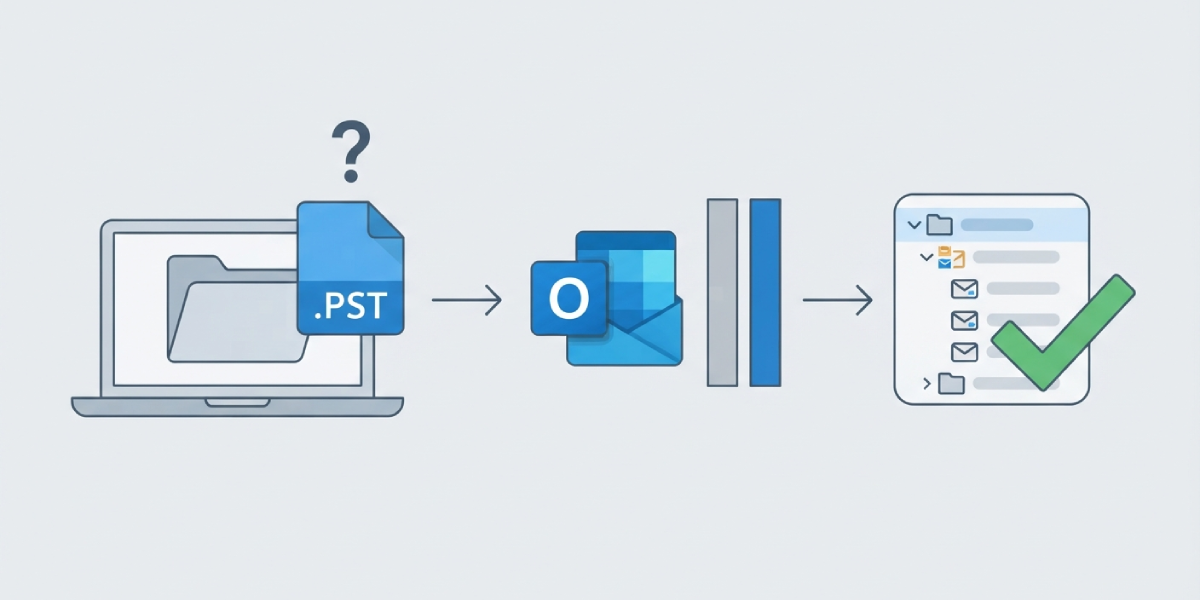
Tip: A PST file that is only a few kilobytes in size after exporting a mailbox with years of history almost always means the export ran on the wrong folder or account.
Common Problems and Fixes
- Export finishes but folders are missing: The ‘Include subfolders’ box was likely left unchecked, or a subfolder was individually selected instead of the parent account. Re-run the export from the top-level mailbox with subfolders included.
- Outlook freezes or slows down during export: Large mailboxes with tens of thousands of items can take real time to process. Let the wizard run without switching accounts or closing Outlook, and avoid running the export during a scheduled sync.
- ‘The file is in use’ error: Another Outlook window or a backup tool may already have the PST file open. Close all Outlook windows and background sync tools, then start the export again.
- Forgotten PST password: Outlook does not store or recover PST passwords. Set a password that gets recorded in a secure location immediately after creating the file, since there is no built-in reset option.
- Export option is greyed out: This usually happens on accounts managed by an organization with data loss prevention policies applied. Check with the IT administrator, since export permissions may be restricted at the account level.
Frequently Asked Questions
Does exporting to PST remove mail from the original mailbox?
No. Exporting creates a copy of the selected items in a new PST file, and the original messages stay in the mailbox untouched.
How long does it take to export Outlook mail to a PST file?
Small mailboxes usually finish in a minute or two, while accounts with tens of gigabytes of mail can take thirty minutes or longer depending on disk speed and item count.
Can calendar and contacts be exported in the same PST file?
Yes. Selecting the top-level account name instead of just the Inbox includes calendar, contacts, tasks, and mail folders in a single PST file.
Is there a size limit for a PST file?
Current versions of Outlook support Unicode PST files up to 50GB by default, though keeping individual files well under that limit makes them easier to manage and back up.
Can a password be added after the PST file has already been created?
Yes. Open the data file in Outlook, right-click it in the folder pane, choose ‘Data File Properties’, then ‘Advanced’ and ‘Change Password’ to add or update protection.
What is the difference between exporting and archiving in Outlook?
Exporting creates a standalone copy while leaving the original mailbox intact, whereas archiving in Outlook typically moves older items out of the live mailbox into a separate file.
Why does the exported PST file open with no password prompt?
If no password was set during the Create Outlook Data File step, the file opens freely. Adding a password after the fact through Data File Properties closes that gap.
Can this PST file be opened on a different computer?
Yes. A PST file can be copied to another machine and opened in Outlook through ‘File’ > ‘Open & Export’ > ‘Open Outlook Data File’, as long as the correct password is available.
Does exporting work the same way for shared mailboxes?
Yes, as long as the shared mailbox is added to the Outlook profile first. It then appears as a separate account in the folder list and can be selected the same way as a primary mailbox.
