
Learning how to calibrate a laptop battery is one of the simplest ways to fix an inaccurate battery percentage and get a more honest read on remaining runtime. It does not add capacity back to an aging battery, but it does reset the internal gauge that tracks charge levels, which often solves the frustrating problem of a laptop shutting down at 20 percent instead of 0.
Key Takeaways
- Calibrating a laptop battery resets the battery gauge, not the battery’s actual chemical capacity.
- The process involves a full charge, a rest period, a full discharge, and another full charge.
- Most modern laptops with lithium-ion batteries only need calibration occasionally, not every week.
- Calibration is most useful when the reported percentage no longer matches real-world runtime.
- Manufacturer utilities, such as those from Dell, Lenovo, or HP, can automate parts of the process.
Before You Start
Calibrating a battery does not require opening the laptop, but a little preparation makes the process smoother and safer.
- Close unnecessary programs and save any open work, since the laptop needs to run undisturbed for several hours.
- Plug the laptop into a reliable power outlet, ideally through a surge protector.
- Check that Windows, macOS, or the relevant operating system is updated, since power management bugs are sometimes fixed in routine updates.
- If the laptop has a removable battery, make sure it clicks in securely before starting.
Tip: Avoid running calibration on a laptop with a battery that is swollen, physically damaged, or unusually hot to the touch. That is a hardware safety issue, not a calibration issue, and it should be looked at by a professional instead.
How to Calibrate a Laptop Battery: Step-by-Step
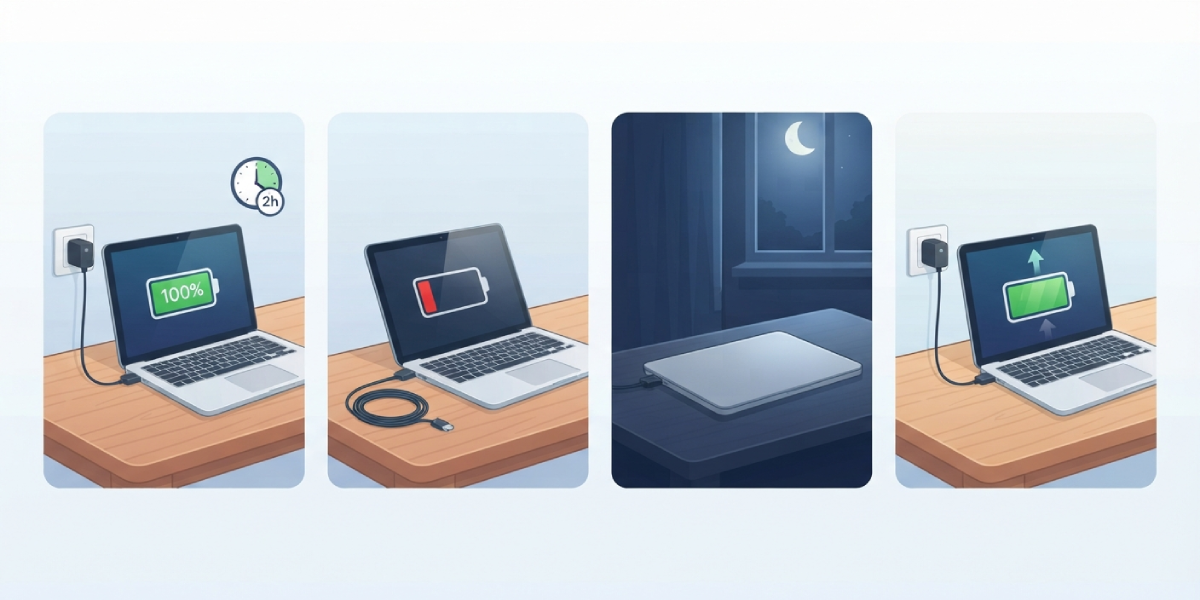
- Step 1: Charge the laptop to 100 percent while it is turned on or in sleep mode, and let it sit on the charger for about two hours after it reaches full charge. This ensures the battery is genuinely topped off, not just showing 100 percent prematurely.
- Step 2: Unplug the charger and use the laptop normally, or let it run idle, until it powers down on its own from low battery. Avoid plugging it back in during this stage, even briefly, since that interrupts the discharge cycle the gauge needs to measure.
- Step 3: Once the laptop shuts off, leave it unplugged for several hours, ideally overnight. This lets the battery settle at its true empty state rather than a rushed one.
- Step 4: Plug the charger back in and charge the laptop uninterrupted to 100 percent, without using it during this charge if possible. A steady, uninterrupted charge gives the internal gauge a clean full-to-empty-to-full reference point.
- Step 5: Check the battery percentage and estimated runtime once charging completes. The reported numbers should now line up much more closely with actual usage.
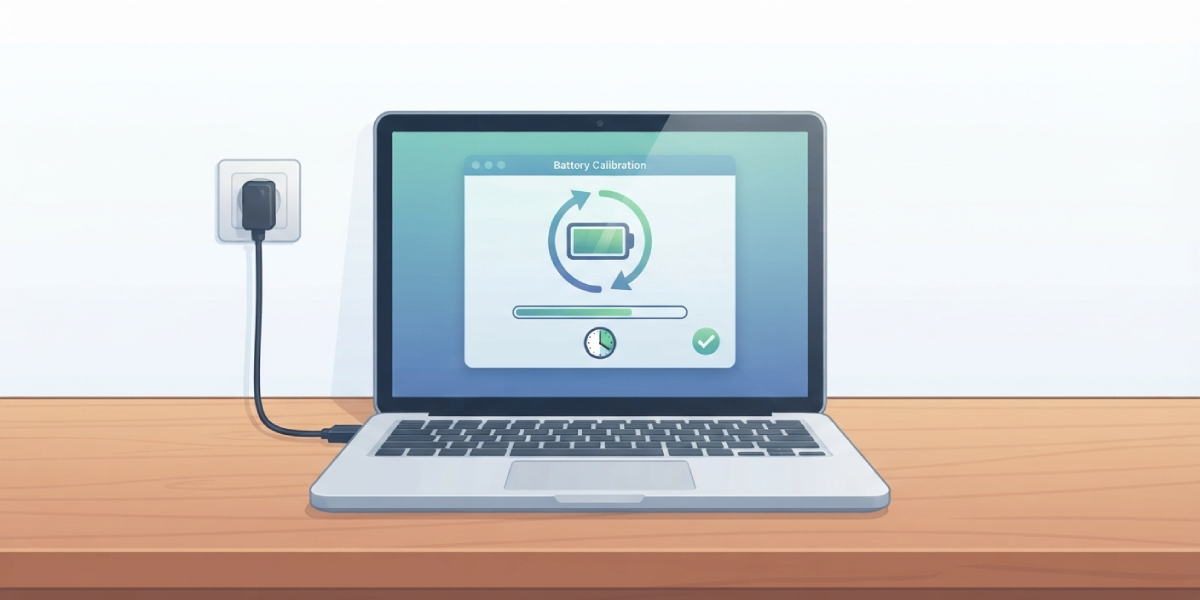
Tip: Many laptop manufacturers, including Lenovo with its Vantage software and Dell with its Power Manager, include a built-in battery calibration or reset tool. These automate the discharge and recharge cycle and are often more reliable than doing it manually.
Using Manufacturer Software Instead of a Manual Cycle
Some business and gaming laptops include a dedicated calibration feature in their control software or even in the BIOS or UEFI settings. This works best when a manual discharge cycle feels inconvenient or time-consuming. The software version typically walks through the same charge and discharge logic automatically, sometimes overnight, without needing constant monitoring.
Common Problems and Fixes
- Battery percentage still jumps around after calibration: This usually means the discharge cycle was interrupted, such as the laptop being plugged in briefly during Step 2. Repeat the full cycle without interruption.
- Laptop will not fully discharge to shutdown: Background apps or aggressive sleep settings can prevent this. Disable sleep mode temporarily in power settings so the laptop stays active until it truly powers down.
- Runtime is accurate but still shorter than expected: Calibration fixes the reading, not the battery’s actual health. A shrinking real-world runtime points to normal battery wear, which calibration cannot reverse.
- Laptop will not turn back on after full discharge: Leave it connected to the charger for 15 to 30 minutes before attempting to power it on again, since some laptops need a brief charge before the power button responds.
- Calibration software reports an error or will not start: Update the manufacturer’s power management utility and the laptop’s BIOS, since outdated versions sometimes fail to communicate properly with the battery controller.
Frequently Asked Questions
How often should a laptop battery be calibrated?
For most modern lithium-ion laptop batteries, calibrating once every few months is enough. There is no need to do it weekly, and doing it too often adds unnecessary charge cycles without real benefit.
Does calibrating a laptop battery improve battery life?
No. Calibration corrects the reported percentage and runtime estimate, not the battery’s actual chemical capacity. A battery that has genuinely degraded will still have reduced capacity after calibration.
Is it safe to let a laptop battery fully discharge?
Occasional full discharges for calibration purposes are safe for most modern laptops. Making a habit of routinely draining the battery to 0 percent during normal use, however, can accelerate wear over time.
Can a laptop battery be calibrated without removing it?
Yes. On laptops with sealed or non-removable batteries, the same charge and discharge cycle works fine without any disassembly.
What is the difference between calibrating and resetting a battery?
These terms are often used interchangeably. Both refer to the same process of running the battery through a full charge and discharge cycle so the internal gauge recalculates its readings.
Why does the battery percentage suddenly jump after calibration?
A sudden correction in the displayed percentage after calibration is normal. It means the gauge had drifted out of sync with the battery’s real charge level and has now been recalibrated to an accurate baseline.
Does calibration work on desktop UPS batteries the same way?
The general principle of a full discharge and recharge cycle is similar, but UPS battery management differs enough from laptop battery controllers that manufacturer-specific instructions should be followed instead.
Should calibration be done with the laptop on or in sleep mode?
Either works for the charging stage, though letting the laptop stay awake during the discharge stage in Step 2 gives a more accurate real-world reading than relying on sleep mode power draw alone.
Can calibration fix a laptop that will not hold a charge at all?
No. A battery that drains rapidly or will not hold any charge is showing signs of hardware degradation, not a gauge error. That situation calls for a battery health check and likely a replacement rather than calibration.
