
An external hard drive not recognized by a computer is one of the most common storage headaches, and it rarely means the data is gone. Most of the time the issue comes down to a cable, a driver, or a setting rather than a dead drive. This guide walks through the real causes and the fixes that actually work, starting with the simplest checks first.
Key Takeaways
- A loose cable, faulty USB port, or insufficient power is the cause in a large share of cases, so start there before assuming drive failure.
- Windows and macOS sometimes see the drive but do not display it, so checking Disk Management or Disk Utility is a critical step many people skip.
- Driver issues, dead partitions, and drive letter conflicts can all block recognition even when the hardware itself is fine.
- Unusual noises, extreme heat, or a drive that was recently dropped point toward physical failure and call for professional data recovery instead of home fixes.
- Testing the drive on a second computer or with a second cable quickly narrows down whether the problem is the drive, the cable, or the host machine.
Common Causes of an External Hard Drive Not Being Recognized
Before jumping into fixes, it helps to understand why this happens. A drive can fail to show up for several different reasons, and the right fix depends on which one applies.
Cable and Port Problems
USB cables wear out from bending and unplugging, and connectors can develop loose contacts inside. A port that has taken years of plugging and unplugging can also lose its grip on the connector, causing an intermittent connection that looks like a dead drive.
Power Supply Issues
Larger desktop external drives, especially 3.5 inch models, need more power than a USB port alone can reliably provide in every situation. If the included power adapter is missing or faulty, the drive may spin up briefly and then disconnect.
Driver or Software Conflicts
An outdated or corrupted USB driver can prevent the operating system from properly communicating with the drive, even though the hardware connection is solid.
Drive Letter or Mount Point Conflicts
On Windows, a drive can be detected by the system but not assigned a visible letter, which makes it invisible in File Explorer while still showing up in Disk Management.
File System or Partition Problems
A corrupted partition table or an unrecognized file system, often from being unplugged during a write or from being formatted on a different type of device, can stop a drive from mounting properly.
Physical or Mechanical Failure
Clicking, grinding, or repeated spin-up-and-stop cycles usually point to a hardware fault inside the drive itself, which is a different problem from anything software-related.
Before You Start
None of the fixes below require opening the drive enclosure, but a few basic precautions still matter.
- Save any open work and close programs that might be accessing the drive before troubleshooting.
- Avoid repeatedly unplugging and replugging a drive that is making unusual noises, since this can worsen mechanical damage.
- If the drive was dropped, is overheating, or is making clicking or grinding sounds, stop and consult a professional data recovery service rather than attempting further fixes at home, since continued use can make recovery harder or impossible.
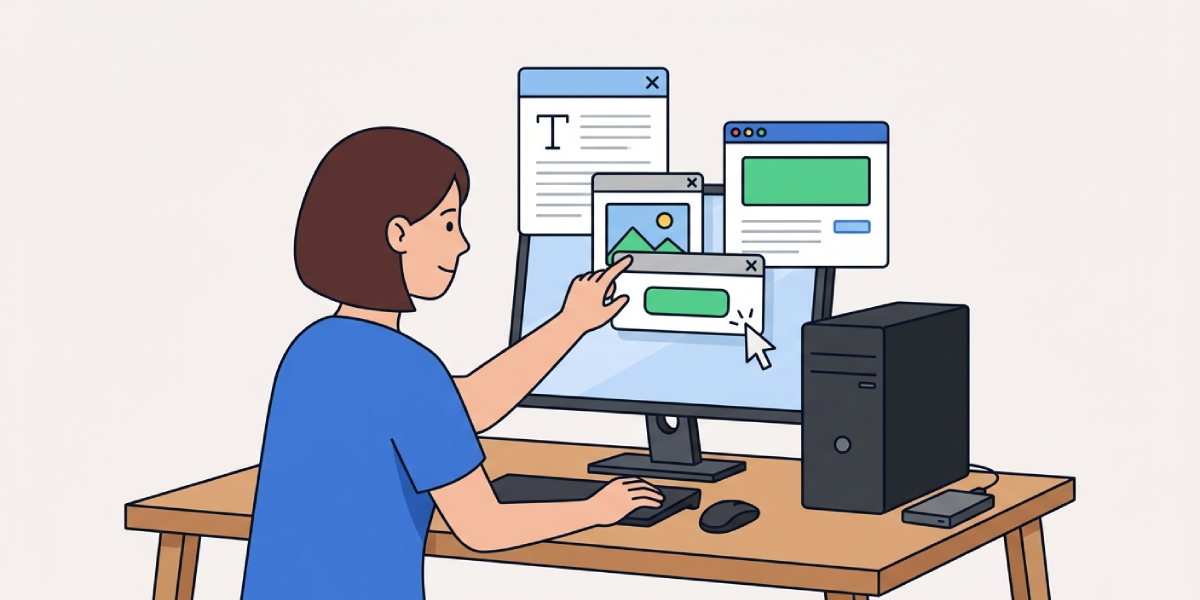
How to Fix an External Hard Drive That Is Not Recognized
Work through these steps in order. Most people find the problem resolves within the first few steps, so there is no need to jump straight to the more involved fixes.
- Step 1: Try a different USB cable and a different port on the computer. This single check resolves the issue more often than any other fix, since cables are the most failure-prone part of the setup.
- Step 2: Test the drive on a second computer if one is available. If it shows up there, the original computer’s port, driver, or settings are the likely cause rather than the drive itself.
- Step 3: For desktop-style drives with their own power adapter, confirm the adapter is firmly connected and that the drive’s activity light turns on. A drive with no power light is not receiving enough power to spin up.
- Step 4: On Windows, open Disk Management by right-clicking the Start button and selecting it from the menu. If the drive appears here but not in File Explorer, it may be missing a drive letter or showing as unallocated space.
- Step 5: If the drive shows in Disk Management without a letter, right-click the drive’s volume, choose ‘Change Drive Letter and Paths,’ and assign a new letter.
- Step 6: On a Mac, open Disk Utility from Applications, then Utilities, and check whether the drive appears in the sidebar, even if it is grayed out or shows no volume.
- Step 7: Update or reinstall the USB controller drivers through Device Manager on Windows by expanding ‘Universal Serial Bus controllers,’ right-clicking each entry, and selecting ‘Update driver.’
- Step 8: Restart the computer fully rather than just closing and reopening applications, since a full restart clears out temporary USB communication issues that a simple unplug and replug will not fix.
- Step 9: If the drive appears as ‘unallocated’ or shows an unrecognized file system, use the built-in disk checking tool, such as CHKDSK on Windows or First Aid in Disk Utility on Mac, to scan for and repair file system errors.
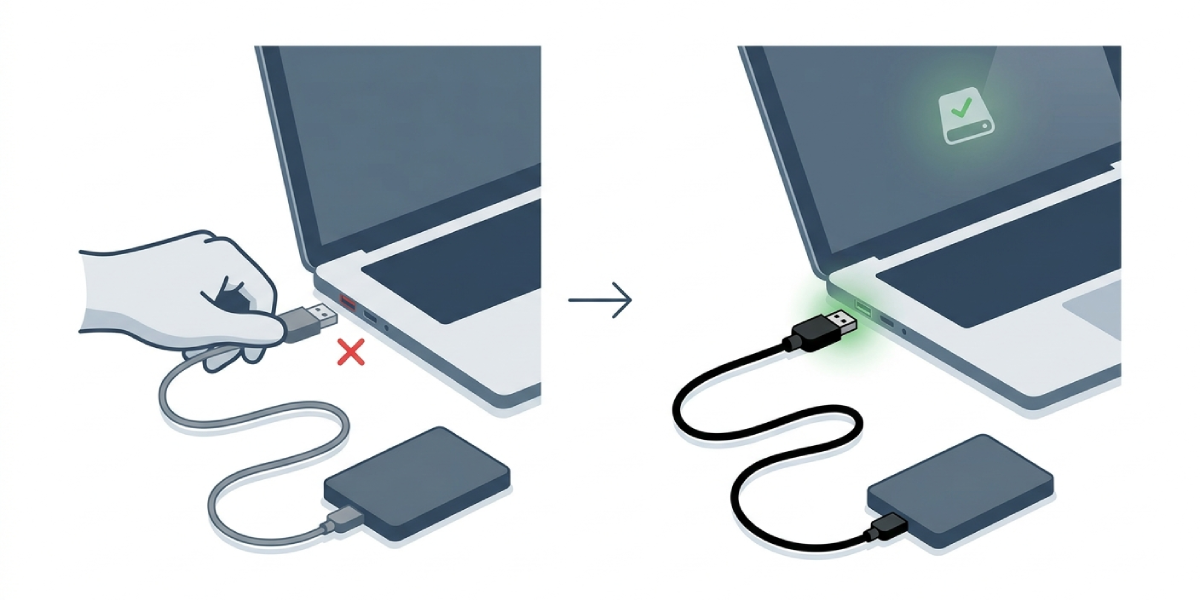
Tip: Keep a spare known-good USB cable on hand specifically for troubleshooting. It removes one variable immediately and saves time chasing driver or software fixes that were never the real problem.
Common Problems and Fixes
Drive Is Detected in Disk Management but Still Not Usable
This usually means the partition is unallocated or uses a file system the operating system cannot read directly. Creating a new volume through Disk Management, or reformatting through Disk Utility on Mac, restores access, though reformatting erases existing data, so this should only be done after attempting file recovery if the data matters.
Drive Works on One Computer but Not Another
This points to a driver, port, or operating system setting on the computer that fails to recognize it, not the drive itself. Updating USB drivers and checking for pending operating system updates typically resolves this.
Drive Disconnects Randomly During Use
Intermittent disconnection during transfers often traces back to a power-saving setting that turns off USB ports to save energy. On Windows, this can be adjusted in Device Manager under the USB Root Hub properties by disabling the option to allow the computer to turn off the device to save power.
Drive Still Not Recognized After Every Software Fix
If cables, ports, drivers, and disk utilities all fail to reveal the drive, and especially if there are clicking or grinding sounds, the issue is almost certainly a hardware failure inside the enclosure or the drive itself, which calls for a professional recovery service rather than further home troubleshooting.
Frequently Asked Questions
Why does an external hard drive show up in Device Manager but not in File Explorer?
This typically means the drive is missing a drive letter or its partition is unallocated. Assigning a letter through Disk Management or creating a new volume usually restores visibility.
Can a bad USB cable really cause a drive to not be recognized at all?
Yes. A worn or damaged cable is one of the most frequent causes of this exact problem, since even a partial break in the internal wiring can prevent a stable connection.
Is it safe to use an external hard drive that makes clicking sounds?
No. Clicking or grinding noises usually indicate a mechanical fault inside the drive, and continued use risks further damage or permanent data loss. Powering it down and consulting a data recovery professional is the safer path.
Why does a drive work on a laptop but not a desktop computer?
This is often a power delivery difference between ports, particularly with drives that draw more power than a single USB port can consistently supply, or it may point to outdated drivers on the desktop.
Will reformatting fix an external hard drive that is not recognized?
Reformatting can fix file system corruption, but it erases the existing data on the drive, so it should only be used as a last step after attempting recovery of anything important.
Does an external hard drive not recognized problem mean the drive has failed?
Not necessarily. Cable, port, driver, and power issues cause this far more often than actual drive failure, which is why working through basic troubleshooting first makes sense before assuming the worst.
Why does a drive appear briefly and then disconnect?
This pattern often points to insufficient power, a failing cable, or a power-saving USB setting turning the port off. Testing with a different cable and disabling USB power-saving settings addresses most cases.
Can outdated drivers cause an external hard drive to not be recognized?
Yes. Outdated or corrupted USB controller drivers can prevent proper communication with the drive even when the hardware connection itself is fine, so updating them is a worthwhile step.
Should a drive not recognized on Windows be tested on a Mac, or the reverse?
Testing on a second, different operating system helps isolate whether the issue is with the drive itself or with settings specific to one computer, making it a useful diagnostic step regardless of which system is used first.
