
Learning how to defragment an HDD is one of the simplest ways to bring a sluggish mechanical hard drive back up to speed, and it takes only a few clicks on a modern Windows PC. This guide walks through the exact steps to defragment an HDD safely, plus explains why that same process should never be run on a solid state drive.
Key Takeaways
- Defragmenting an HDD reorganizes scattered file fragments so the read/write head has to travel less, which speeds up file access.
- Windows includes a built-in defragmentation and optimization tool that handles the entire process automatically.
- SSDs should never be defragmented. Instead, they use a command called TRIM, which Windows handles separately.
- A healthy HDD generally benefits from defragmenting every few weeks to a month, depending on how heavily it is used.
- Running defragmentation on a nearly full drive or a failing drive can cause more harm than good, so drive health matters just as much as the process itself.
Before You Start
Defragmenting an HDD is a software task, not a physical repair, so there is no need to open the case or handle static-sensitive components. A few quick precautions still make the process smoother and safer for the data involved.
- Back up important files first. Defragmentation is generally safe, but any process that moves large amounts of data on a mechanical drive carries a small risk, especially if the drive already shows signs of failure.
- Plug a laptop into power. A defrag job can take anywhere from several minutes to a few hours, and losing power partway through is not something a spinning drive appreciates.
- Close unnecessary programs. Fewer background processes writing to the disk means a faster, cleaner defrag run.
- Confirm the drive is actually an HDD, not an SSD. Windows usually labels this correctly, but it is worth a quick check before proceeding, since running the wrong maintenance task on the wrong drive type defeats the purpose.
If the drive is making clicking, grinding, or repetitive scraping noises, stop here. That is a sign of mechanical failure, and defragmenting a failing drive can push it closer to complete failure. Back up any critical data immediately and consult a data recovery professional instead.
How to Defragment an HDD, Step by Step
Windows has included a defragmentation utility for years, and the modern version, officially called ‘Optimize Drives’, handles HDDs and SSDs differently and automatically. Here is how to run it on a mechanical drive.
Using the Built-In Windows Tool
- Step 1: Open the Start menu and type ‘defragment’. Select ‘Defragment and Optimize Drives’ from the search results.
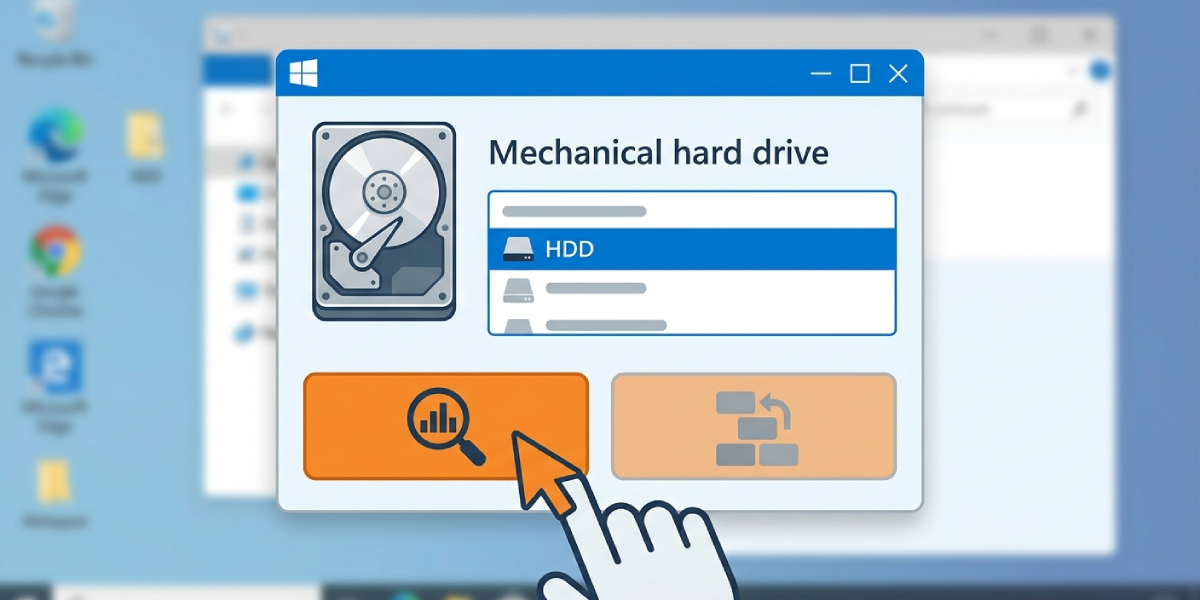
- Step 2: In the window that opens, review the list of drives. Each one shows a media type, either ‘Hard disk drive’ or ‘Solid state drive’, along with a current fragmentation percentage or status.
- Step 3: Click on the HDD to select it, then click ‘Analyze’ to check how fragmented it currently is. This step is optional but useful, since it shows whether defragmenting is even necessary at that moment.
- Step 4: Once the analysis finishes, look at the fragmentation percentage. A drive sitting above roughly 10 percent fragmentation is a good candidate for optimization.
- Step 5: Click ‘Optimize’ with the HDD selected. Windows will begin reorganizing file fragments into contiguous blocks on the disk.
- Step 6: Let the process run without interrupting it. Progress shows in the status column, and the drive remains usable during this time, though performance may feel slightly slower while it runs.
- Step 7: Once finished, the status will update to reflect the new, lower fragmentation level.
Tip: This same window lets a schedule be set up so Windows automatically defragments HDDs on a regular basis, which is the easiest way to keep a mechanical drive running smoothly without having to remember to do it manually.
Setting Up Automatic Scheduling
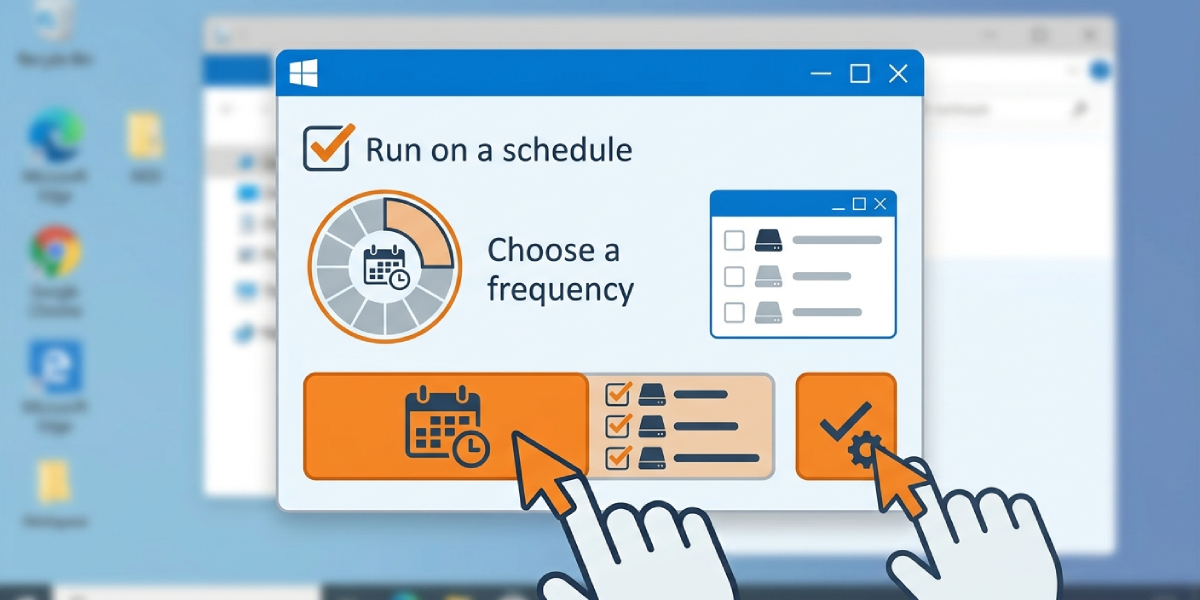
- Step 1: In the ‘Optimize Drives’ window, click ‘Change settings’.
- Step 2: Confirm the ‘Run on a schedule’ box is checked.
- Step 3: Choose a frequency. Weekly is a reasonable default for most home users, while a heavily used drive might benefit from a shorter interval.
- Step 4: Click ‘Choose’ to select which drives are included, then confirm the HDD is checked.
- Step 5: Click ‘OK’ to save the schedule, then close the settings window.
Why Not to Defragment an SSD
Solid state drives store data electronically across memory chips rather than on spinning magnetic platters, so there is no physical read/write head that benefits from data being placed in neighboring locations. Fragmentation on an SSD does not slow it down the way it does on an HDD, because access time to any memory cell is essentially the same regardless of where the data sits.
What defragmenting an SSD does cause is unnecessary wear. Every write to flash memory uses up a small portion of its limited write endurance, and a full defrag pass involves reading and rewriting enormous amounts of data with no real performance benefit in return. Over time, that adds up to wasted write cycles for a drive that was already fast to begin with.
This is exactly why Windows treats SSDs differently inside the same ‘Optimize Drives’ tool. Instead of a traditional defrag, SSDs receive a TRIM command, which tells the drive which blocks of data are no longer in use so it can manage its own storage more efficiently. This happens automatically on a schedule and is genuinely beneficial, unlike defragmentation.
Tip: There is no need to disable or configure anything manually here. Modern Windows versions detect the drive type and apply the correct maintenance automatically, so the safest approach is simply to leave the default settings in place.
Common Problems and Fixes
- Defragmentation seems to take an extremely long time. This usually happens on a drive that has not been optimized in a long time or one that is close to full. Letting the process finish uninterrupted is the best fix, and freeing up disk space beforehand can speed up future runs.
- The ‘Optimize’ button is grayed out. This can happen if another disk operation, such as a backup or antivirus scan, is running in the background. Closing other disk-intensive programs and trying again usually resolves it.
- Fragmentation percentage stays high after running the tool. A drive that is nearly full has little room to rearrange files efficiently. Freeing up at least 10 to 15 percent of total drive space generally allows defragmentation to work properly.
- The PC feels slower during the defrag process. This is normal and temporary, since the drive is under heavy read and write load. Performance returns to normal once the optimization finishes.
- An SSD shows up as needing optimization. This is expected behavior, since Windows uses the same interface to trigger TRIM on SSDs. That is not the same operation as a traditional HDD defrag and does not cause the same wear concerns.
Frequently Asked Questions
How often should an HDD be defragmented?
Once every few weeks to once a month is a reasonable pace for most users, though a drive under heavy daily use may benefit from more frequent runs. Setting up the automatic schedule removes the guesswork entirely.
Is it safe to use the computer while defragmenting?
Yes, the drive remains usable during the process, though heavy simultaneous use can slow the defrag down and extend how long it takes to finish.
Can defragmenting damage an HDD?
A healthy HDD is not damaged by normal defragmentation. However, a drive that is already failing mechanically, showing signs like clicking or grinding, should not be defragmented, since the added read and write activity can accelerate failure.
Why does Windows call it ‘Optimize Drives’ instead of ‘defragment’?
The name reflects that the tool performs the correct maintenance task for each drive type, traditional defragmentation for HDDs and TRIM for SSDs, rather than applying one process to every drive.
Does defragmenting free up disk space?
No, defragmentation reorganizes existing files for faster access but does not delete anything or create additional free space. Disk Cleanup or manually removing unneeded files is the way to reclaim storage.
What happens if an SSD is accidentally defragmented?
A single accidental defrag pass on an SSD is unlikely to cause noticeable harm, since modern drives have substantial write endurance. Repeated, regular defragmentation over a long period is what causes unnecessary wear, so it is worth confirming the correct schedule settings afterward.
Can third-party defragmentation software be used instead of the built-in Windows tool?
Yes, several third-party utilities offer more detailed reporting or additional scheduling options. For most users, though, the built-in Windows tool is sufficient and already applies the correct process automatically based on drive type.
Does defragmenting an HDD improve boot time?
It can, particularly if the system files and frequently used programs were heavily fragmented beforehand. The improvement varies depending on how fragmented the drive was to start with.
How can fragmentation level be checked without running a full defrag?
The ‘Analyze’ button inside the ‘Optimize Drives’ tool checks the current fragmentation percentage without making any changes, which is a useful way to decide whether optimization is actually needed.
Is defragmentation necessary on a brand new HDD?
Not immediately. Fragmentation builds up gradually as files are created, deleted, and modified over time, so a new drive typically will not need attention for a while after initial setup.
