
Learning how to find the largest emails in Outlook is the fastest way to reclaim mailbox space without deleting messages blindly. A handful of oversized attachments can quietly eat up gigabytes of storage, and tracking them down manually is nearly impossible once an inbox has a few thousand messages. This guide walks through the exact steps to surface those space hogs in minutes.
Key Takeaways
- Outlook has a built-in Mailbox Cleanup tool that lists the largest emails by size automatically.
- Sorting any folder by the Size column shows the biggest messages without extra tools.
- Searching with a size operator like size:>5MB narrows results instantly.
- Large attachments, not the message text, are almost always the real culprit.
- Archiving or deleting the top offenders usually frees up the most space with the least effort.
Step-by-Step Guide to Finding the Largest Emails in Outlook
This method uses Outlook’s native Mailbox Cleanup feature, which is built specifically for this kind of space audit. It works the same way across most recent versions of Outlook for Windows.
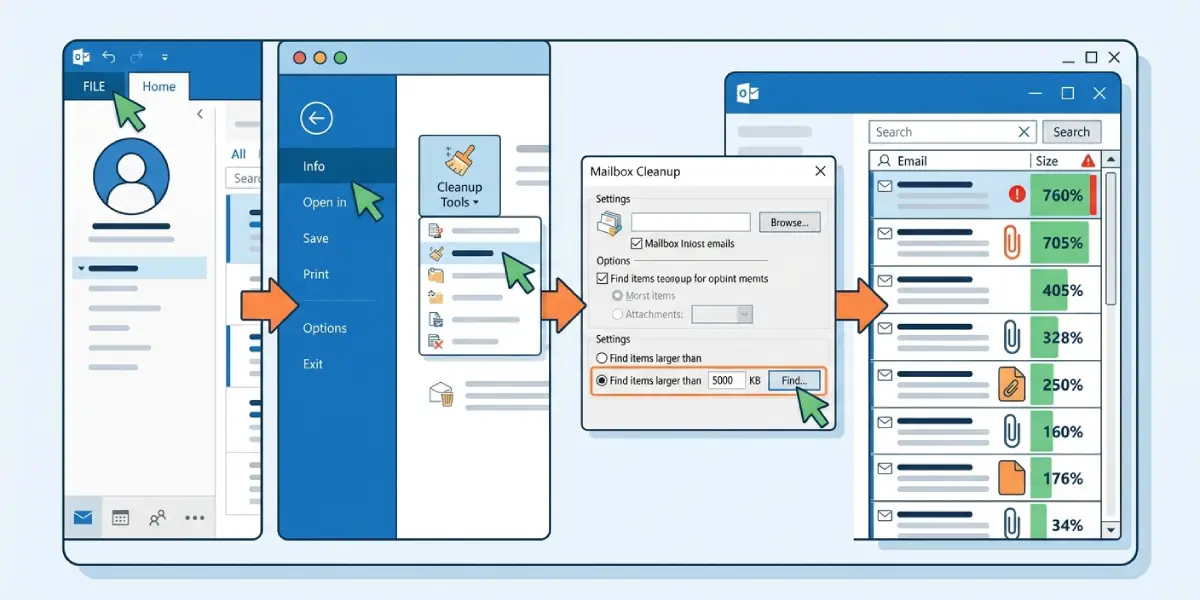
- Step 1: Open Outlook and click the ‘File’ tab in the top-left corner.
- Step 2: Select ‘Info’, then click the ‘Tools’ dropdown (or ‘Cleanup Tools’ in older versions) and choose ‘Mailbox Cleanup’.
- Step 3: In the dialog box, click ‘Find items larger than’ and enter a size in kilobytes. Typing 5000 finds anything roughly 5MB or larger.
- Step 4: Click ‘Find’. Outlook opens a search results window listing every email that meets the size threshold, sorted largest first.
- Step 5: Review the list. Right-click any message to delete it, or drag it into an archive folder if it needs to be kept.
- Step 6: Empty the ‘Deleted Items’ folder afterward, since removed emails still count against mailbox storage until that folder is cleared.
Tip: Start with a high threshold, like 10000 KB, then lower it gradually. This surfaces the biggest wins first instead of wading through hundreds of medium-sized messages.
Alternative: Sort a Folder by Size
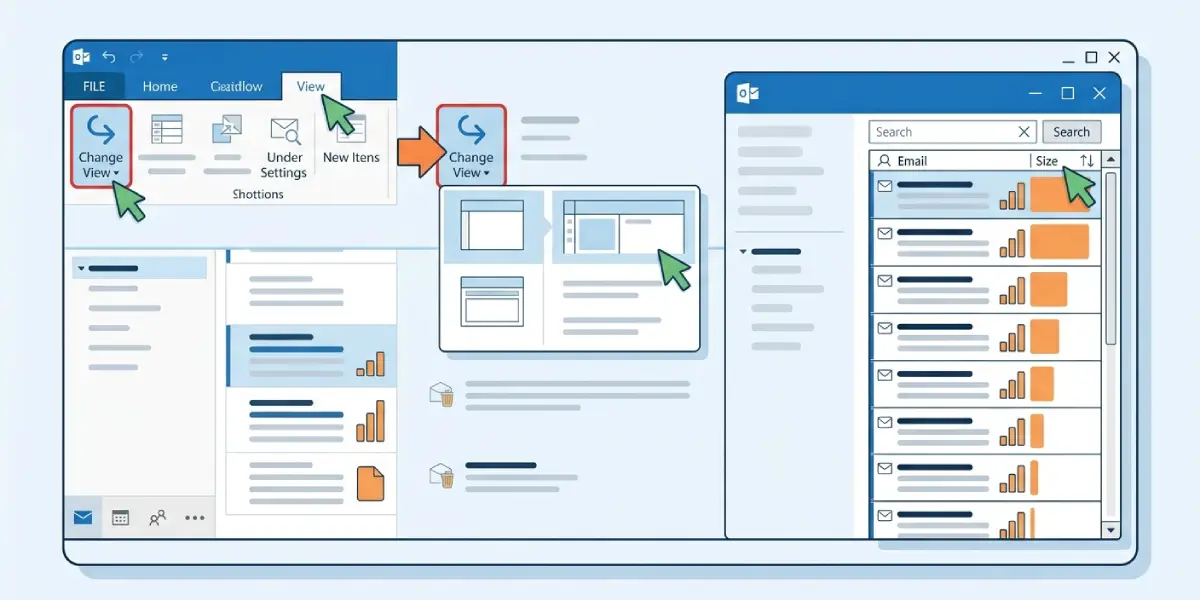
Some people prefer a visual scan over a search dialog, and that works too. Open the Inbox or any folder, click the ‘View’ tab, select ‘Change View’, then choose ‘Preview’ or use ‘Arrange By’ and pick ‘Size’. Click the Size column header once more to sort from largest to smallest, and the biggest emails land right at the top.
Using the Search Box with a Size Operator
For a quicker, more targeted check, click into the Search box at the top of Outlook and type size:>5MB, adjusting the number as needed. Press Enter, and Outlook filters the current folder or entire mailbox (depending on the search scope selected) down to only the messages matching that size. This works well when hunting for large emails in a specific folder like a shared project inbox.
Common Problems and Fixes
Mailbox Cleanup Shows No Results
This usually means the size threshold is set too high for the account being scanned. Lower the number in the ‘Find items larger than’ field and search again.
Search Scope Is Limited to One Folder
By default, Outlook often searches only the currently open folder. Click the dropdown next to the search bar and change the scope to ‘All Outlook Items’ or ‘All Mailboxes’ to catch large emails hiding in Sent Items or subfolders.
Deleted Large Emails Still Show Mailbox as Full
Deleting a message moves it to ‘Deleted Items’, not out of the mailbox entirely. Right-click that folder and choose ‘Empty Folder’ to actually recover the space.
Size Column Is Missing From the View
If the Size column does not appear when sorting, go to ‘View’, click ‘View Settings’, then ‘Columns’, and add ‘Size’ from the list of available fields.
Frequently Asked Questions
What counts as a large email in Outlook?
There is no fixed rule, but anything over 1MB is generally considered worth checking, and anything over 5-10MB is almost always due to attachments and a strong candidate for cleanup.
Why are some emails so much larger than others?
Attachments like high-resolution images, PDFs, or embedded files are the main reason. Plain text messages rarely exceed a few kilobytes on their own.
Does finding large emails delete them automatically?
No. Mailbox Cleanup and the search tools only locate and list large messages. Deleting or archiving them is a separate, manual step.
Can this be done in Outlook on the web?
Yes. In Outlook on the web, open the Inbox, click the sort icon above the message list, and choose ‘Size’ to sort messages from largest to smallest.
Is there a way to see total mailbox size before cleaning up?
Yes, within the same Mailbox Cleanup dialog, there is a ‘View Mailbox Size’ button that breaks down storage usage by folder.
Will removing large emails speed up Outlook?
Often, yes. A smaller mailbox, especially in a .pst or .ost file, tends to load and search faster once bulky items are cleared out.
What if the size: search operator does not work?
Make sure there is no space between ‘size:’ and the operator or number, and confirm indexing is complete, since Outlook relies on its search index to return accurate results.
Should large emails be deleted or archived?
If the content or attachment might be needed later, archiving to a local folder preserves it while still freeing up space in the main mailbox.
How often should this cleanup be repeated?
Checking every few months, or whenever a storage warning appears, keeps the mailbox from filling up unexpectedly again.
