
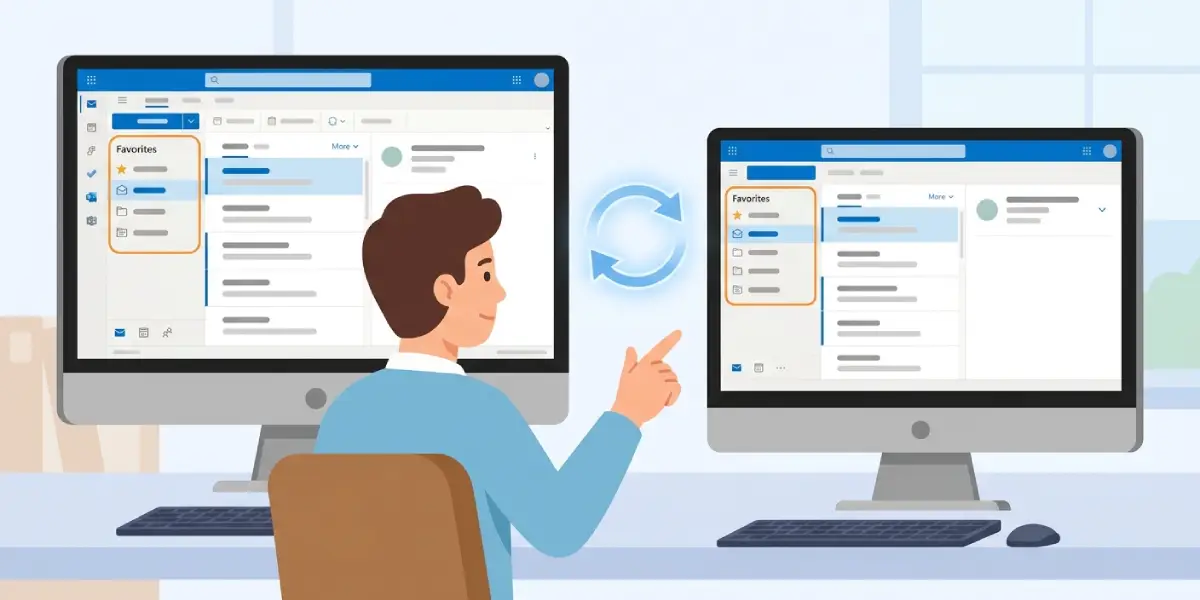
Outlook Favorites not syncing between computers is a common annoyance for anyone who works across a laptop and a desktop, or switches between a home and office machine. The folders pinned to the top of the navigation pane on one device simply refuse to show up on another. The good news is that this is almost always fixable in a few minutes, and the steps below walk through exactly how.
Key Takeaways
- Favorites only sync automatically on Exchange or Microsoft 365 accounts, not on IMAP or POP accounts.
- Signing out and back in often forces Outlook to re-pull Favorites from the server.
- Outlook on the web is a fast way to check whether the sync problem is on the server side or the desktop side.
- Outdated versions of Outlook, especially mismatched classic and new Outlook builds, are a frequent cause.
- Rebuilding the local profile resolves most stubborn cases that other fixes do not.
Step-by-Step Guide to Fix Outlook Favorites Not Syncing Between Computers
These steps work through the most likely causes first, starting with the quickest checks and moving toward deeper fixes. Most people find that the problem clears up within the first three or four steps.
- Step 1: Confirm the account type on both computers. Open Outlook, go to File, then Account Settings, and check that the mailbox is listed as Exchange or Microsoft 365, not IMAP or POP. Favorites are stored server-side only for Exchange-based accounts, so an IMAP account will never sync them automatically between machines.
- Step 2: Check Outlook on the web. Sign in at outlook.office.com or outlook.live.com using the same account and look at the folder pane. If the Favorites appear correctly there but not on one of the desktop computers, the issue sits with that specific desktop install rather than the account itself.
- Step 3: Update Outlook to the latest version on every computer involved. On Windows, go to File, then Office Account, then Update Options, and select Update Now. Mismatched versions, particularly a mix of classic Outlook and the new Outlook for Windows, can cause Favorites to behave inconsistently between machines.
- Step 4: Sign out of the account and sign back in. This forces Outlook to refresh its connection to the mailbox and often pulls down Favorites that were stuck. Go to File, then Account Settings, then Manage Profiles (or Account Settings again in newer builds), remove the account, restart Outlook, and add it back in.
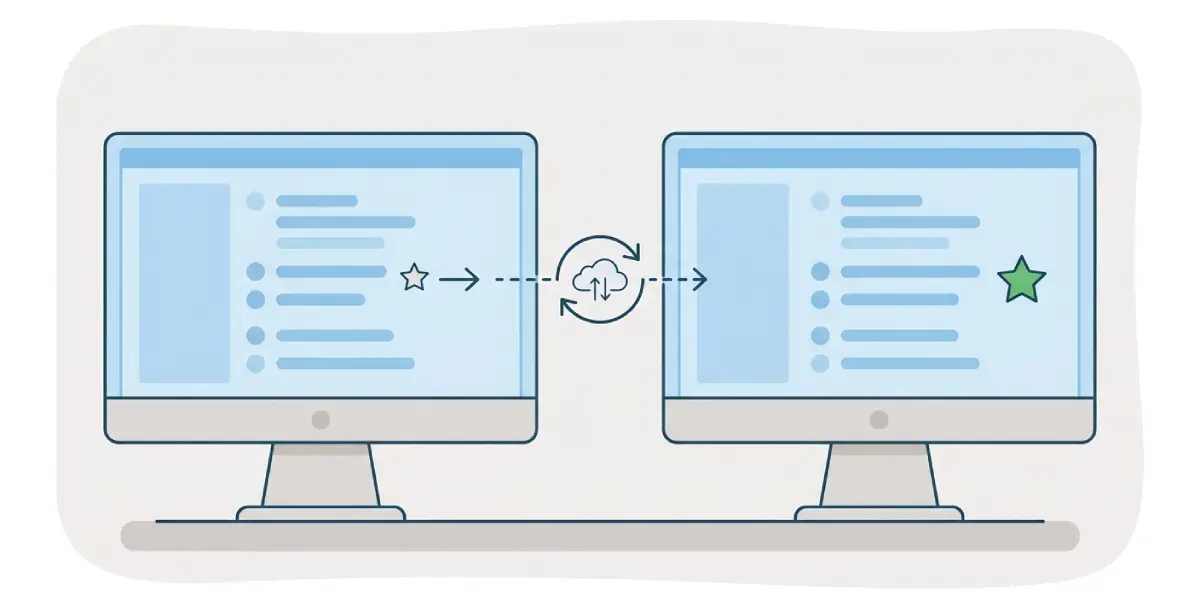
- Step 5: Re-pin the missing folders manually as a test. Right-click the folder that should appear as a Favorite and select Add to Favorites. Then check the second computer after a minute or two. If it appears there as well, the sync mechanism is working and the original glitch was likely a one-time caching issue.
- Step 6: Switch both computers to the same Outlook experience, either both on classic Outlook or both on new Outlook for Windows, using the toggle in the top-right corner of the Outlook window. Favorites lists are not always shared identically between the two interfaces yet, so consistency here avoids confusion that looks like a sync failure.
- Step 7: Rebuild the Outlook profile on the affected computer if the issue persists. Close Outlook, open Control Panel, search for Mail, select Show Profiles, remove the existing profile, then create a new one and reconnect the account. This clears out any corrupted local cache that could be blocking Favorites from updating.
Tip: Before rebuilding a profile, jot down which folders were pinned as Favorites on the working computer. That way, re-adding them after the rebuild takes seconds instead of guesswork.
When Working with a Shared or Delegated Mailbox
Favorites added from a shared mailbox sometimes behave differently than favorites in a primary mailbox. If a shared mailbox folder was pinned on one computer but does not appear on another, remove it from Favorites, close Outlook, reopen it, and re-add it. Shared mailbox settings occasionally need a fresh session to register the change across devices.
Common Problems and Fixes
- Favorites disappear after restarting Outlook: This usually points to a corrupted local profile. Follow Step 7 above and rebuild the profile rather than trying to re-pin folders repeatedly, since re-pinning alone will not fix the underlying corruption.
- Favorites show correctly in Outlook on the web but not on desktop: Update Outlook first, then sign out and sign back in. If that does not help, the desktop cache is likely stale and a profile rebuild is the reliable fix.
- Favorites sync for some folders but not others: This often happens with folders inside shared mailboxes or public folders, which sync on a slightly different schedule than personal folders. Give it a few extra minutes, then re-add the specific folder as a Favorite if it still has not appeared.
- New Outlook and classic Outlook show different Favorites lists: The two interfaces do not always mirror each other’s list instantly. Pin the folder again in whichever version is currently active, and consider standardizing on one interface across all computers to avoid the mismatch going forward.
- IMAP or POP account Favorites never appear on a second computer: This is expected behavior, not a bug, since those account types do not store Favorites on a server. The only workaround is to manually pin the same folders as Favorites on each computer individually.
Frequently Asked Questions
Why do Outlook Favorites not sync between computers on the same account?
The most common reason is an outdated Outlook version, a stale local cache, or an account type such as IMAP that does not support server-side syncing of Favorites. Working through the steps above resolves the vast majority of these cases.
Do Outlook Favorites sync automatically for Microsoft 365 accounts?
Yes, Microsoft 365 and Exchange accounts store Favorites information tied to the mailbox, so they generally sync automatically across devices once the account is properly connected and up to date.
Why don’t Favorites sync on an IMAP or POP account?
IMAP and POP protocols do not support the server-side storage that Favorites rely on for syncing. Each computer using one of these account types needs its Favorites pinned manually.
Does signing out and back in delete existing Favorites?
No, signing out and back in refreshes the connection to the mailbox without deleting pinned folders, since Favorites for Exchange accounts are stored on the server, not just locally.
Will rebuilding an Outlook profile remove emails or other data?
Rebuilding a profile removes local settings and cache but does not delete mailbox data stored on the server for Exchange or Microsoft 365 accounts, since that data is pulled back down once the account is reconnected.
Why do Favorites look different in new Outlook compared to classic Outlook?
The two versions of Outlook handle the Favorites feature slightly differently, and the lists are not always perfectly mirrored yet. Using the same interface across all computers reduces this kind of mismatch.
How long does it usually take for Favorites to sync after pinning a folder?
Syncing typically happens within a couple of minutes on a stable connection. If a Favorite still has not appeared after five or ten minutes, moving on to the update or sign-out steps is the next logical move.
Can a shared mailbox’s Favorites sync between computers?
Shared mailbox Favorites can sync, but they sometimes need a fresh Outlook session to register on a second computer. Removing and re-adding the folder as a Favorite usually clears this up.
Is there a way to check if the problem is server-side or local?
Checking Outlook on the web is the fastest way to isolate the cause. If Favorites appear correctly there, the issue is local to the desktop computer rather than the account itself.
