
Learning how to run DISM to repair Windows image files is one of the most reliable ways to fix a Windows installation that refuses to update, activate, or run System File Checker cleanly. DISM works underneath Windows itself, so it can patch problems that other repair tools cannot reach.
Key Takeaways
- DISM repairs the Windows component store, which is the source Windows uses to fix its own system files.
- Run DISM before SFC when SFC reports it ‘could not fix some of the files’.
- The command needs an active internet connection unless a Windows installation source is provided instead.
- A full DISM repair typically takes ten to twenty minutes, depending on drive speed and internet connection.
- DISM must be run from an elevated Command Prompt or PowerShell window, never a standard one.
Before You Start
A few quick checks now save a repeat run later. None of this takes more than a couple of minutes, and skipping it is the most common reason a DISM repair stalls partway through.
- Save any open work and close unnecessary programs, since the repair uses noticeable CPU and disk activity.
- Confirm an active internet connection, since DISM downloads replacement files from Windows Update by default.
- Plug a laptop into power. A battery that dies mid-scan can leave the component store in a worse state than before.
- Have a Windows installation USB or ISO on hand as a backup source, in case Windows Update is unreachable or blocked by a network policy.
Tip: If this device is on a managed network at work or school, Windows Update may be restricted. That is the most frequent reason DISM fails at the download stage, and it has nothing to do with the health of the operating system itself.
How to Run DISM to Repair a Windows Image
Step 1: Open an Elevated Command Prompt
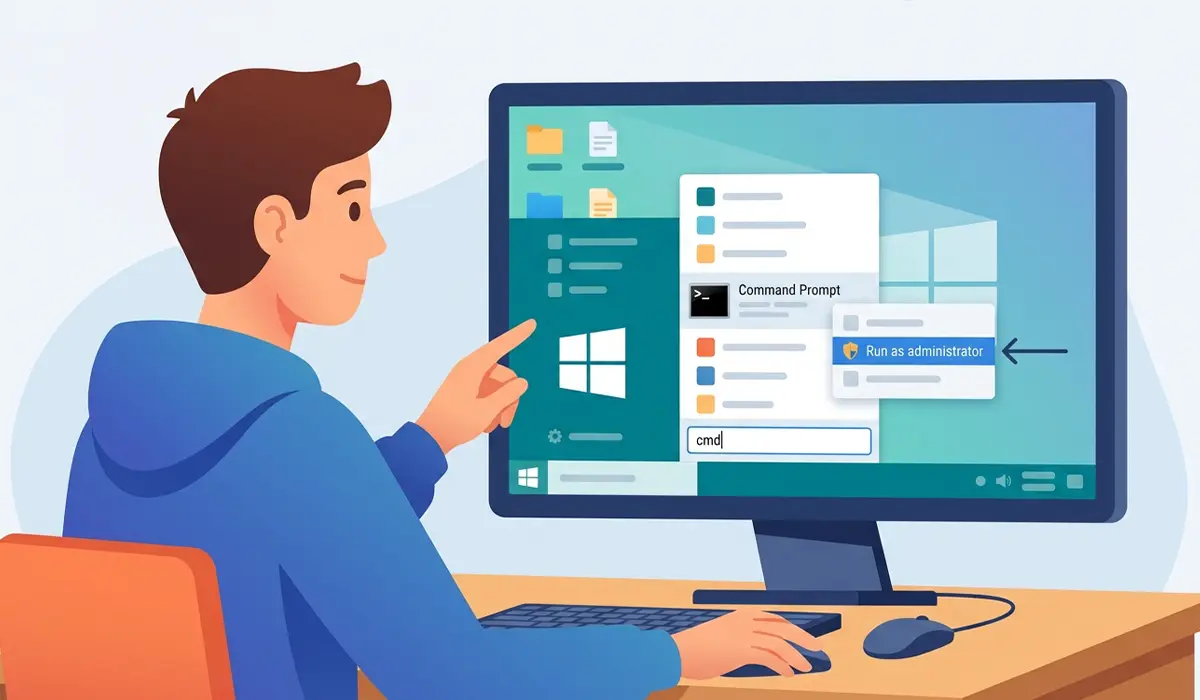
Click the Start button, type ‘cmd’, right-click Command Prompt, and select ‘Run as administrator’. PowerShell run as administrator works exactly the same way for every command in this guide.
Step 2: Run a Quick Health Check
- Step 1: Type DISM /Online /Cleanup-Image /CheckHealth and press Enter. This only flags whether the image has been marked as corrupted; it does not scan deeply or fix anything yet.

This step usually finishes in a few seconds. Think of it as a quick pulse check before deciding whether a fuller exam is needed.
Step 3: Run a Full Scan
- Step 2: Type DISM /Online /Cleanup-Image /ScanHealth and press Enter.
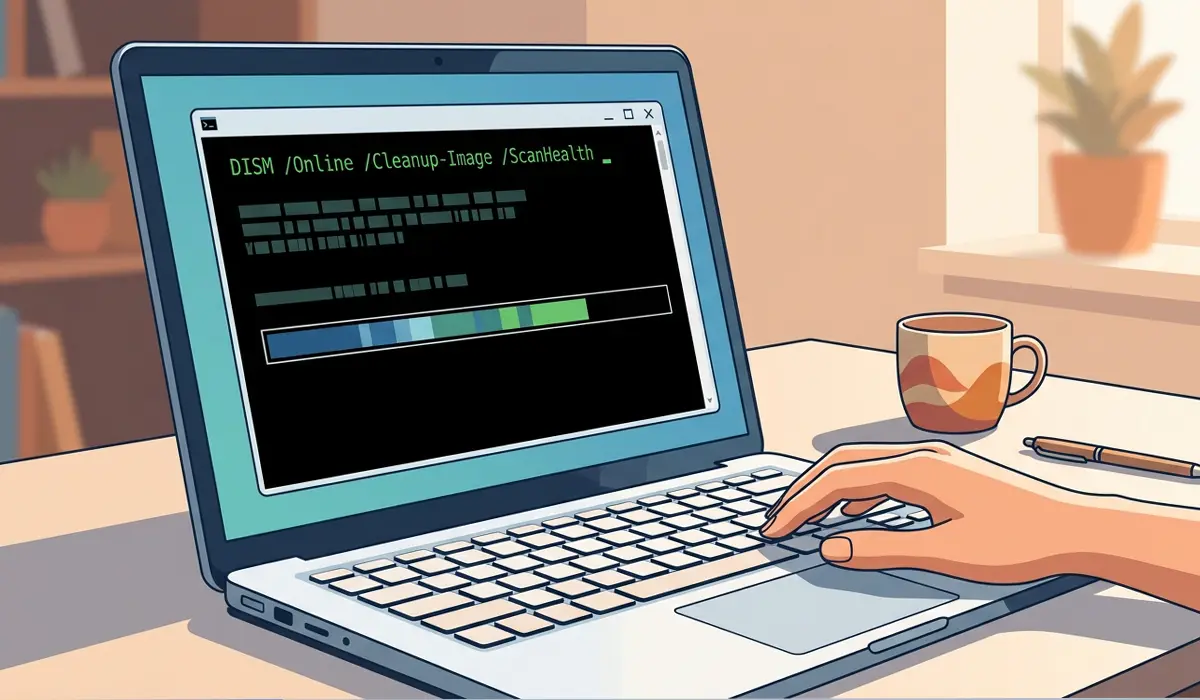
This scan digs through the entire component store and can take several minutes. The progress bar sometimes pauses near 20 percent and again near 40 percent. That is normal behavior, not a freeze, so it is worth resisting the urge to close the window.
Step 4: Run the Actual Repair
- Step 3: Type DISM /Online /Cleanup-Image /RestoreHealth and press Enter.
This is the command that actually replaces damaged files, pulling clean copies from Windows Update. Most repairs land somewhere between ten and twenty minutes, though a heavily damaged image or a slow connection can push that longer.
Tip: If the repair fails with an error pointing to a missing source, or if there is no internet connection available, run the command with a local source instead by attaching Windows installation media and using DISM /Online /Cleanup-Image /RestoreHealth /Source:WIM:D:\sources\install.wim:1 /LimitAccess, adjusting the drive letter to match the mounted media.
Step 5: Follow Up With System File Checker
- Step 4: Once DISM finishes and reports success, type sfc /scannow and press Enter.
DISM repairs the underlying image that Windows draws from, and SFC then uses that repaired image to fix the actual system files currently in use. Running them in this order is what makes the combination effective; running SFC alone when the component store itself is damaged often just returns the same errors on repeat.
Step 6: Restart the Computer
- Step 5: Restart the PC once both commands finish, even if neither reported an error.
A restart clears out any files that were flagged for replacement on next boot and confirms that Windows starts up normally with the repaired image in place.
Common Problems and Fixes
DISM Gets Stuck at a Certain Percentage
A stalled-looking progress bar is usually still working in the background. Give it at least twenty to thirty minutes before assuming it has actually frozen. If it genuinely has not moved after that window, close the Command Prompt, restart the PC, and run the RestoreHealth command again.
Error 0x800f081f or ‘Source Files Could Not Be Found’
This means DISM could not reach Windows Update and no alternate source was provided. Attach a Windows installation ISO or USB and rerun the command with the /Source parameter pointed at the install.wim file, as shown in Step 4 above.
DISM Reports the Image Cannot Be Repaired
This points to damage severe enough that the component store itself cannot rebuild. At this point, an in-place upgrade repair install, which keeps personal files and installed programs while replacing Windows system files, is usually the next reasonable step rather than repeating the same command.
SFC Still Finds Errors After DISM Completes
Run sfc /scannow a second time after a fresh restart. Occasionally one pass replaces some files but not all of them, and a second run catches the remainder using the now-repaired image.
Frequently Asked Questions
What does DISM actually do?
DISM, short for Deployment Image Servicing and Management, repairs the Windows component store, which is the underlying repository of system files Windows draws from during updates and repairs.
Do I need to run DISM before or after SFC?
Run DISM first. It repairs the source image that SFC then uses to fix individual system files, so running them in the reverse order often produces the same errors repeatedly.
How long does a DISM repair take?
Most repairs finish in ten to twenty minutes, though drive speed, internet speed, and the extent of the damage can push that time higher.
Does DISM require an internet connection?
Yes, by default it pulls replacement files from Windows Update. A local Windows installation source can be used instead when no internet connection is available.
Is it safe to close the Command Prompt if DISM seems frozen?
Wait at least twenty to thirty minutes first, since the progress bar frequently pauses at certain percentages during normal operation. Closing it prematurely can leave the repair incomplete.
Can DISM delete personal files?
No. DISM only repairs system image files and does not touch documents, photos, or installed applications.
What is the difference between CheckHealth, ScanHealth, and RestoreHealth?
CheckHealth only reports whether the image has already been flagged as corrupted. ScanHealth performs a full scan without fixing anything. RestoreHealth performs the actual repair.
Why does DISM fail with error 0x800f081f?
This error means DISM cannot reach the files it needs from Windows Update. Providing a local installation source with the /Source parameter usually resolves it.
What should be done if DISM cannot repair the image at all?
An in-place upgrade repair install, run from Windows installation media, replaces system files while keeping personal files and programs intact, and is the standard next step when DISM alone cannot resolve the damage.
Does running DISM require administrator access?
Yes. It must be run from an elevated Command Prompt or PowerShell window opened with ‘Run as administrator’, or the commands will fail immediately.
