
A flickering screen is one of the most common complaints tied to a DisplayPort connection, and the good news is that most cases trace back to a handful of settings or a worn cable. This guide walks through how to fix monitor flickering with DisplayPort, starting with the usual causes and moving through the fixes that resolve the issue for the vast majority of setups.
Key Takeaways
- Flickering over DisplayPort is usually caused by a loose cable, an outdated GPU driver, a refresh rate mismatch, or a bandwidth limit at higher resolutions and refresh rates.
- Reseating or swapping the DisplayPort cable resolves the problem more often than any other single fix.
- HDR and Variable Refresh Rate features (G-Sync or FreeSync) are frequent flicker triggers and are worth testing with individually.
- Matching the monitor’s native refresh rate in Windows display settings clears up flicker caused by a mismatched signal.
- Persistent flicker after every software fix usually points to a cable, port, or monitor hardware issue rather than a driver problem.
Common Causes of Monitor Flickering with DisplayPort
Before jumping into fixes, it helps to understand what typically triggers this behavior. A flickering panel over DisplayPort tends to come from one of these sources:
- A loose, damaged, or low-quality DisplayPort cable, especially with cheaper or older cables not rated for the resolution and refresh rate in use.
- An outdated, corrupted, or mismatched graphics driver.
- A refresh rate set in Windows that does not match the monitor’s native or supported rate.
- HDR enabled on a display or cable that cannot handle the added bandwidth cleanly.
- Variable Refresh Rate technology (G-Sync or FreeSync) conflicting with the monitor’s scaler at certain frame rates.
- Bandwidth limits on older DisplayPort versions when running high resolution and high refresh rate together.
- Interference from nearby cables carrying electrical noise, particularly with long or unshielded runs.

Tip: Note when the flicker happens. Flicker only during gaming often points to Variable Refresh Rate or refresh rate settings, while flicker at idle or on the desktop more often points to the cable or driver.
How to Fix Monitor Flickering with DisplayPort
Work through these steps in order. Most flickering issues resolve within the first three or four steps.
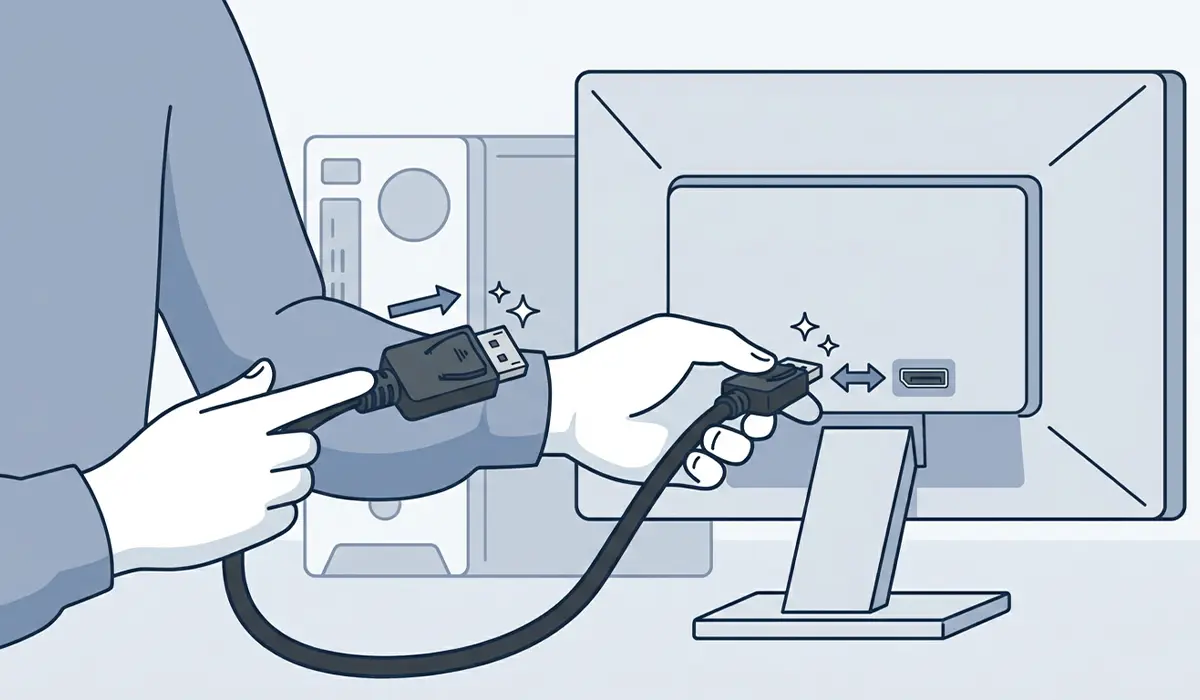
- Step 1: Power down the PC and monitor, then unplug the DisplayPort cable from both ends. Inspect the connectors for bent pins or debris, and firmly reseat the cable until it clicks into place.
- Step 2: Swap in a different DisplayPort cable if one is available, ideally a certified cable rated for the resolution and refresh rate the monitor supports. A worn or budget cable is one of the most common causes of intermittent flicker.
- Step 3: Try a different DisplayPort port on the graphics card, or a different port on the monitor if it has more than one. This isolates whether the issue is the port itself rather than the cable or settings.
- Step 4: Update the graphics driver through the GPU manufacturer’s official tool (NVIDIA App, AMD Software, or Intel Graphics Software) rather than relying only on Windows Update, since GPU vendors typically release display fixes faster.
- Step 5: Open Settings, then Display, then Advanced Display, and confirm the refresh rate matches the monitor’s native supported rate. A mismatch here is a frequent, easy-to-miss cause of flicker.
- Step 6: If HDR is turned on, disable it temporarily under Settings, Display, HDR, and check whether the flicker stops. Some monitors and cables handle standard dynamic range more reliably than HDR at higher refresh rates.
- Step 7: Disable Variable Refresh Rate (G-Sync or FreeSync) in the GPU control panel and retest. If the flicker disappears, re-enable it and update the monitor’s firmware if an update is available, since many VRR flicker issues get patched that way.
- Step 8: If the setup uses a high resolution and high refresh rate together, such as 4K at 144Hz, check the DisplayPort version on both the GPU and the monitor. Older DisplayPort versions do not have enough bandwidth for that combination, and lowering the refresh rate or resolution slightly often clears the flicker instantly.
- Tip: Route the DisplayPort cable away from power cables and other high-current wiring where possible. Electrical interference from parallel cable runs can cause subtle flicker that looks like a driver issue but is not.
Common Problems and Fixes
Flickering continues after updating the driver
A fresh driver install sometimes leaves old configuration files behind. Use the GPU manufacturer’s official uninstaller in a clean or safe boot, restart, then reinstall the latest driver from scratch rather than installing over the existing one.
Flicker only happens at certain refresh rates in games
This usually points to Variable Refresh Rate struggling near the low end of its range. Setting a frame rate cap in the game or through the GPU control panel that keeps frame rate comfortably within the VRR range usually resolves it.
The monitor is fine on HDMI but flickers on DisplayPort
This points to the DisplayPort cable, port, or the DisplayPort-specific driver handshake rather than the monitor itself. Test a certified DisplayPort cable and a different port before assuming the panel is at fault.
Flicker returns after the PC wakes from sleep
This is a known display handshake issue on some GPU and monitor combinations. Disabling and re-enabling the display output in Device Manager, or toggling the monitor’s power off and back on, typically restores a clean signal without a restart.
Cursor or window edges flicker while everything else looks stable
This is often tied to hardware acceleration or scaling settings in a specific application rather than the display connection itself. Testing on the desktop with no applications open helps confirm whether the cable and driver are actually the source.
Frequently Asked Questions
Why does a monitor flicker specifically over DisplayPort but not HDMI?
DisplayPort uses a different signaling method than HDMI, and it is more sensitive to cable quality, port wear, and refresh rate or bandwidth mismatches. A cable or port issue that HDMI tolerates can show up as flicker on DisplayPort.
Can a bad DisplayPort cable really cause flickering?
Yes, and it is one of the most frequent causes. A worn, bent, or uncertified cable can drop the signal intermittently, which shows up as flicker, brief blackouts, or color shifts.
Does updating the graphics driver usually fix DisplayPort flicker?
It fixes a large share of cases, especially when the flicker started after a Windows update or GPU driver update. It is one of the fastest steps to try and carries no risk to the hardware.
Is G-Sync or FreeSync a common cause of flickering?
Yes, particularly when frame rates drop near the bottom of the supported VRR range. Capping frame rate slightly above that range, or temporarily disabling VRR to test, quickly confirms whether it is the cause.
Why does flickering only happen at higher refresh rates or resolutions?
Older DisplayPort versions have a bandwidth ceiling. Running a resolution and refresh rate combination that exceeds that ceiling causes the signal to become unstable, which appears as flicker.
Should HDR be disabled to fix flickering?
Disabling HDR temporarily is a useful test. If the flicker stops, the cable, port, or monitor is likely struggling with the extra bandwidth HDR requires, and an updated cable or monitor firmware may be needed to use HDR reliably.
Does monitor firmware affect DisplayPort flickering?
It can, especially with Variable Refresh Rate issues. Monitor manufacturers frequently release firmware updates specifically to correct flicker reported at certain refresh rates.
How can it be confirmed whether the monitor, cable, or GPU is causing the flicker?
Testing the same cable and port with a different monitor, and testing the same monitor with a different cable or PC, narrows down which component is responsible. Isolating one variable at a time gives the clearest answer.
Is it safe to keep using a monitor that flickers?
Occasional flicker during troubleshooting is not damaging to the hardware. Consistent, prolonged flicker is not a safety hazard to the PC or monitor, but it is worth resolving quickly since it strains the eyes over extended use.
