
A single glowing dot on an otherwise clean display is annoying enough to notice in every video call and every spreadsheet. Learning how to fix stuck pixels on a laptop screen starts with understanding that most stuck pixels are not permanently dead, and several safe methods can coax them back to normal function before anyone reaches for a screen replacement.
Key Takeaways
- A stuck pixel shows a fixed color (usually red, green, or blue) while a dead pixel stays black, and the fix differs slightly for each.
- Software-based pixel-fixing tools that rapidly cycle colors resolve many stuck pixels within 10 to 30 minutes.
- Gentle pressure massage can help, but it carries real risk if done too firmly or on the wrong panel type.
- Warmth and light massage sometimes succeed where color-cycling alone does not.
- Dead pixels rarely respond to any home fix and usually require a professional or a panel swap.
Before You Start
Shut the laptop down completely and let the screen cool if it has been running for a while, since a warm panel responds better to gentle heat later in the process anyway. Wipe hands clean and remove rings or anything that could scratch the display. Static electricity is not a major concern for this particular task since the screen itself stays closed and no internal components get touched, but working on a stable, well-lit surface still matters for precision.
Tools and materials needed for this task include a soft microfiber cloth, a pixel-fixing software tool or website, a warm (not hot) damp cloth for the heat method, and a stylus or pen with a rounded, capped tip if manual pressure will be applied. Never use a bare metal tool, a pencil eraser, or anything abrasive directly on the glass or panel surface.
Fixing Stuck Pixels on a Laptop Screen
Method 1: Identify the Pixel Type First
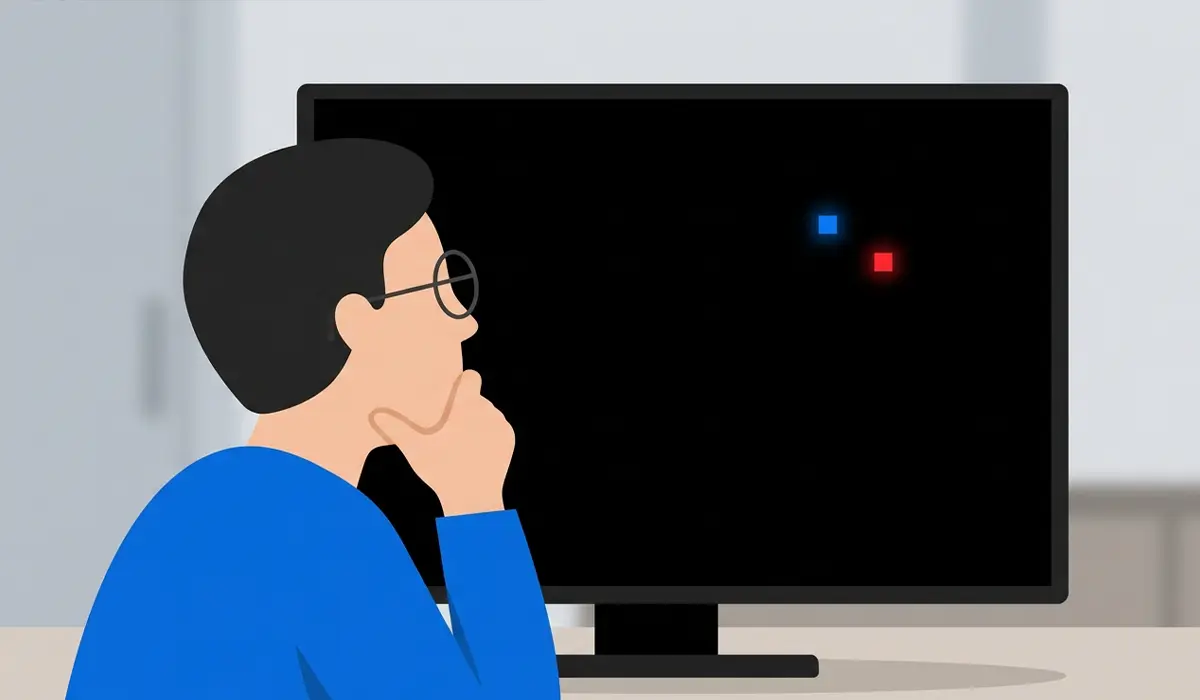
- Step 1: Open a full-screen black image or video and look closely at the affected spot. A pixel that stays lit in red, green, blue, or white is stuck, not dead.
- Step 2: Cycle through full-screen white, red, green, and blue images. A dead pixel stays black against every background, while a stuck pixel shows its fixed color against most of them.
- Step 3: Note the exact location on the panel using a nearby reference point, since some fixes work best when applied directly over the pixel.

Tip: Take a photo of the screen at each color to compare later. Some stuck pixels shift or shrink gradually, and having a reference makes progress easy to confirm.
Method 2: Run Pixel-Fixing Software
- Step 1: Use a reputable pixel-fixing tool that rapidly flashes a wide range of colors across the screen, or the exact stuck spot if the tool supports targeting a region.
- Step 2: Let the cycle run for 10 to 20 minutes, then check the pixel against a black and white background.
- Step 3: If no change appears, run another cycle for up to an hour. Longer sessions occasionally succeed where a short one does not, though most responsive pixels clear up well before that point.
- Step 4: Give the display a short rest between long sessions rather than running the tool continuously for hours on end.

Method 3: Gentle Pressure Massage
This method works by nudging a stuck subpixel back into its correct position using light, even pressure, and it carries more risk than the software method, so patience matters here more than force.
- Step 1: Power off the laptop and turn the screen fully black, or leave it powered off entirely.
- Step 2: Wrap the rounded tip of a stylus or pen in a soft microfiber cloth so no hard surface touches the glass directly.
- Step 3: Apply very light, steady pressure directly on the stuck pixel for a few seconds, then release.
- Step 4: Power the laptop back on with the area displaying a black or white screen and check whether the pixel has changed or cleared.
- Step 5: Repeat no more than two or three times, since repeated pressing raises the odds of damaging neighboring pixels rather than fixing the one in question.
Tip: Never press with a fingernail, a bare pen tip, or anything sharp. A rounded, cloth-wrapped tip spreads pressure evenly and avoids scratching the panel.
Method 4: Warmth and Massage Combined
- Step 1: Dampen a soft cloth with warm water, wring it out well so it is barely moist, and lay it gently over the stuck pixel area with the laptop off.
- Step 2: Leave it in place for a minute or two, keeping the cloth just warm rather than hot.
- Step 3: Remove the cloth, dry the area completely, and follow up with a very light pressure massage as described in Method 3.
- Step 4: Power on and check the result against a black and white screen.
Some technicians find that mild warmth loosens whatever is causing a subpixel to stick, particularly on panels that have been running cool for a long stretch. Results vary by panel type, and this method should stay a last resort after the software cycle has already been tried.
When none of these steps resolve the issue after a few attempts, stopping is the right call. A pixel that stays unresponsive after software cycling and gentle massage is more likely dead than stuck, and further pressure only risks creating new dead pixels nearby. At that point, a qualified repair technician can evaluate whether the panel falls within a manufacturer’s dead-pixel policy or needs replacement, and opening the display assembly beyond what is described here may affect the remaining warranty.
Common Problems and Fixes
- The pixel changes color instead of disappearing: This is a normal part of the process for some stuck pixels. Continue the software cycle, since a color shift often precedes a full fix.
- A new stuck or dead pixel appears after massage: Stop the pressure method immediately. This usually means too much force was applied, and further attempts on that spot should be avoided.
- The pixel-fixing software will not display correctly: Close other background applications and disable any display scaling or color profile that might interfere, then relaunch the tool in full-screen mode.
- The stuck pixel fades but never fully clears: A partial improvement is still a good sign. Running an additional short software cycle after a day of normal use sometimes finishes the job.
- The screen shows several stuck pixels clustered together: A cluster is less likely to respond to manual methods and points toward a panel-level issue better suited to professional diagnosis.
Frequently Asked Questions
What causes a stuck pixel on a laptop screen?
A stuck pixel usually happens when a subpixel’s transistor fails to receive or hold the correct signal, leaving it locked on one color instead of switching normally with the image on screen.
Is a stuck pixel the same as a dead pixel?
No. A stuck pixel displays a fixed color and often responds to software or manual fixes, while a dead pixel shows no light at all and rarely improves without panel replacement.
Can a stuck pixel fix itself over time?
Occasionally, yes. Some stuck pixels clear up on their own after continued normal use, though actively running a pixel-fixing method speeds up the process considerably.
How long does it take to fix a stuck pixel?
Many respond within 10 to 30 minutes of software cycling. Others take multiple sessions spread across a day or two, and some do not respond at all.
Is it safe to press on a laptop screen to fix a pixel?
Light, controlled pressure with a soft, cloth-wrapped tool carries manageable risk when done carefully, but firm or repeated pressing can damage the panel and create new problem pixels.
Does pixel-fixing software work on OLED laptop screens?
Results are less consistent on OLED panels than on LCD panels, since OLED pixels fail differently. Manual pressure methods are generally not recommended on OLED screens.
Will a stuck pixel get worse if left alone?
A single stuck pixel typically stays isolated and does not spread to neighboring pixels. It usually remains a cosmetic issue rather than a sign of a worsening problem.
Are stuck pixels covered under laptop warranty?
Coverage depends on the manufacturer’s dead-pixel policy, which often sets a minimum number of affected pixels before a repair or replacement qualifies. Checking the specific policy for the laptop’s brand is the most reliable way to confirm eligibility.
Can dust or debris under the screen cause something that looks like a stuck pixel?
Yes. Debris trapped between display layers can resemble a stuck pixel but will not respond to software or pressure methods, since the issue sits outside the pixel itself.
What is the safest first method to try?
Pixel-fixing software is the safest starting point because it carries no physical risk to the panel. Manual pressure should stay a secondary option if software cycling does not resolve the issue.
