
A corrupted file system on a drive can turn a normal boot into an error message, a missing partition, or a folder full of files that suddenly refuse to open. This guide walks through why file system corruption happens and how to repair it safely without losing data unnecessarily.
Key Takeaways
- File system corruption usually comes from improper shutdowns, failing storage hardware, malware, or bad sectors, not a single mysterious cause.
- Built-in tools like CHKDSK and Disk Management can repair most logical corruption without reformatting the drive.
- Backing up accessible data before running any repair tool is the single most important step in the whole process.
- If the drive shows physical failure signs, such as clicking sounds or repeated disconnects, repair attempts should stop in favor of data recovery specialists.
- A drive that keeps corrupting after a successful repair is often failing mechanically and should be replaced rather than repaired again.
Common Causes of File System Corruption
Corruption rarely appears out of nowhere. A few situations account for the vast majority of cases seen on both desktop and laptop drives.
Improper Shutdowns and Power Loss
Cutting power to a PC mid-write, whether from a sudden outage or holding the power button during an update, interrupts the file system while it is mid-change. This leaves file tables in an inconsistent state that Windows flags as corruption on the next boot.
Bad Sectors and Aging Drives
Mechanical hard drives develop bad sectors as platters wear, and even solid-state drives can develop failing memory cells over time. Once data lands on a damaged sector, the file system structure pointing to it can become unreadable.
Malware and Faulty Software
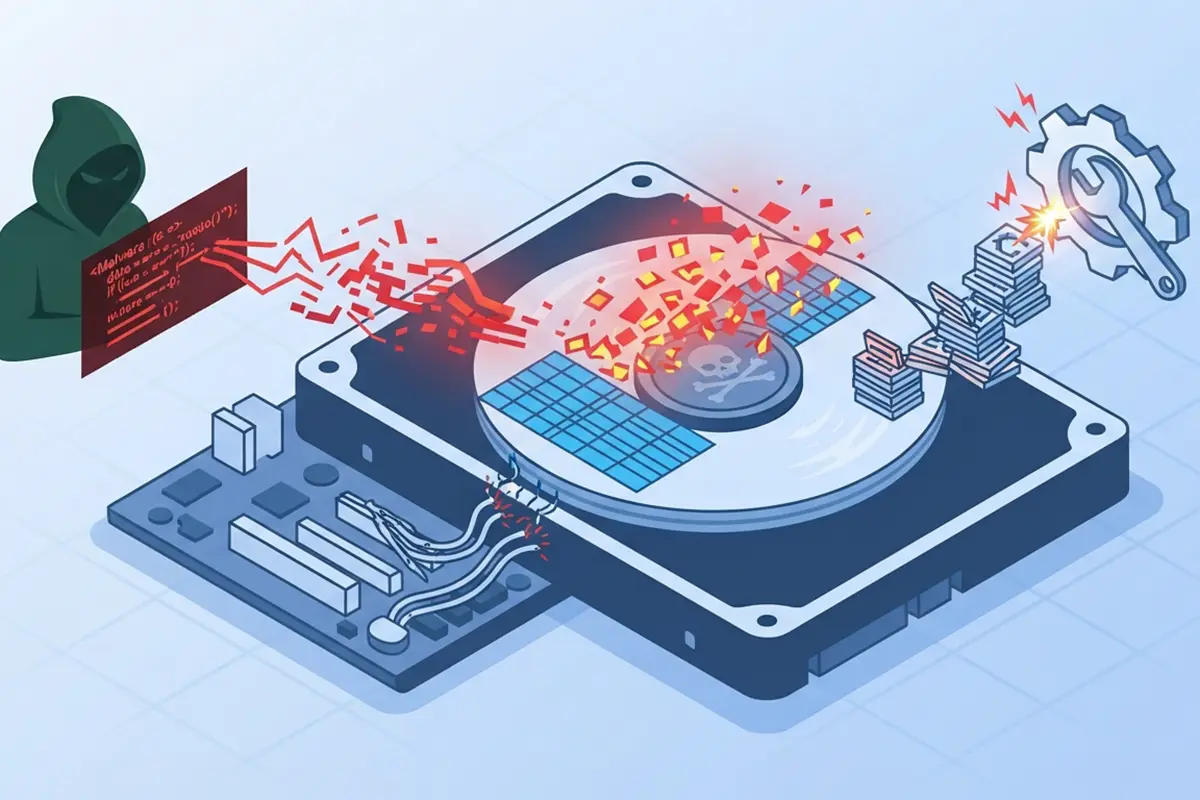
Some malware deliberately damages file system tables, and poorly written disk utilities or a crashed cloning tool can leave a drive in a half-written state. Either scenario tends to produce the same corruption symptoms as hardware failure.
Loose or Failing Connections
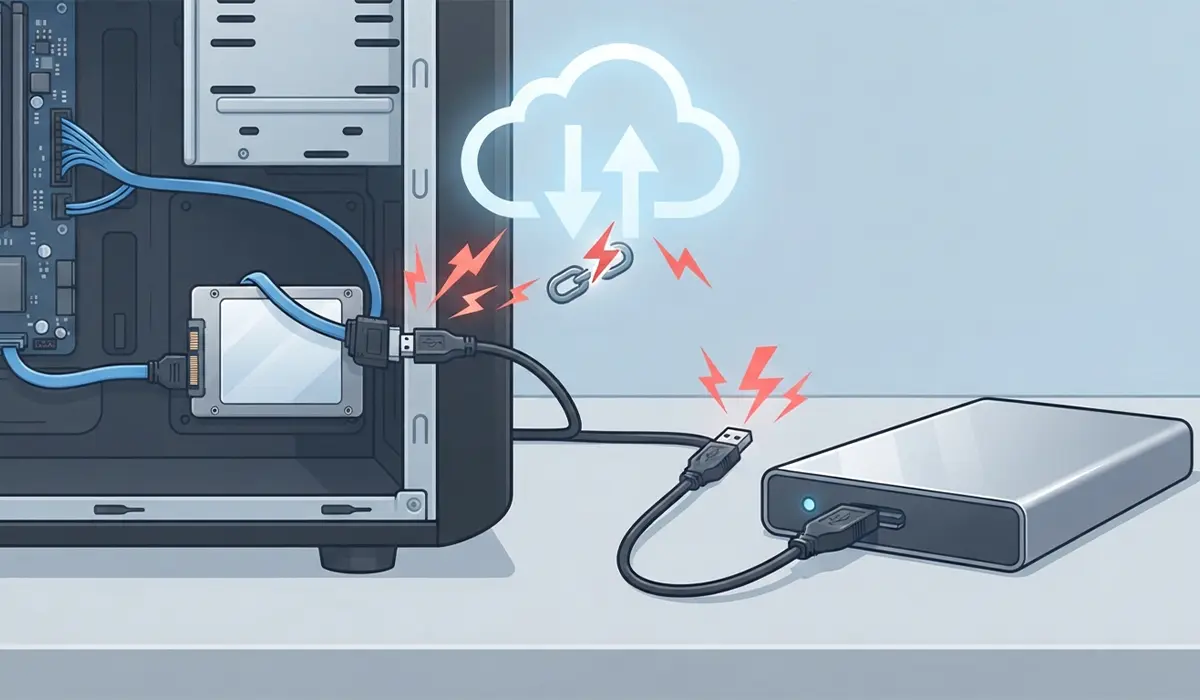
A drive that disconnects mid-transfer because of a loose SATA cable, a failing USB enclosure, or a worn connector can suffer the same kind of write interruption as a power outage.
Tip: Before assuming the worst, reseat internal drive cables or try a different USB port and cable on external drives. A loose connection is an easy fix that mimics serious corruption.
How to Fix a Corrupted File System
These steps move from the safest, least invasive options to more advanced repairs. Working through them in order avoids unnecessary risk to the data still on the drive.
- Step 1: Back up anything currently accessible. Copy readable files to another drive or cloud storage before running any repair tool, since some fixes can overwrite data on damaged sectors.
- Step 2: Open Command Prompt as an administrator by searching ‘cmd’, right-clicking Command Prompt, and choosing ‘Run as administrator’.
- Step 3: Run a basic scan by typing chkdsk followed by the drive letter and a colon, such as chkdsk D:, then pressing Enter. This checks the file system and reports problems without changing anything yet.
- Step 4: Run the repair scan by typing chkdsk followed by the drive letter, a colon, and /f /r, such as chkdsk D: /f /r, then pressing Enter. The /f flag fixes file system errors and /r locates bad sectors and attempts to recover readable data from them.
- Step 5: If the affected drive is the one Windows is installed on, CHKDSK will ask to schedule the scan on the next restart. Type Y and restart the PC to let the scan run before Windows loads.
- Step 6: Once CHKDSK finishes, check whether the drive is now accessible in File Explorer and whether the previously missing files have returned.
- Step 7: If the drive still will not mount, open Disk Management by right-clicking the Start button and selecting ‘Disk Management’, then check whether the partition shows as RAW or unallocated rather than its normal file system format.
- Step 8: For a drive showing as RAW with data that still needs recovering, use dedicated file recovery software to pull files off before formatting, since formatting a RAW drive will erase the existing data structure entirely.
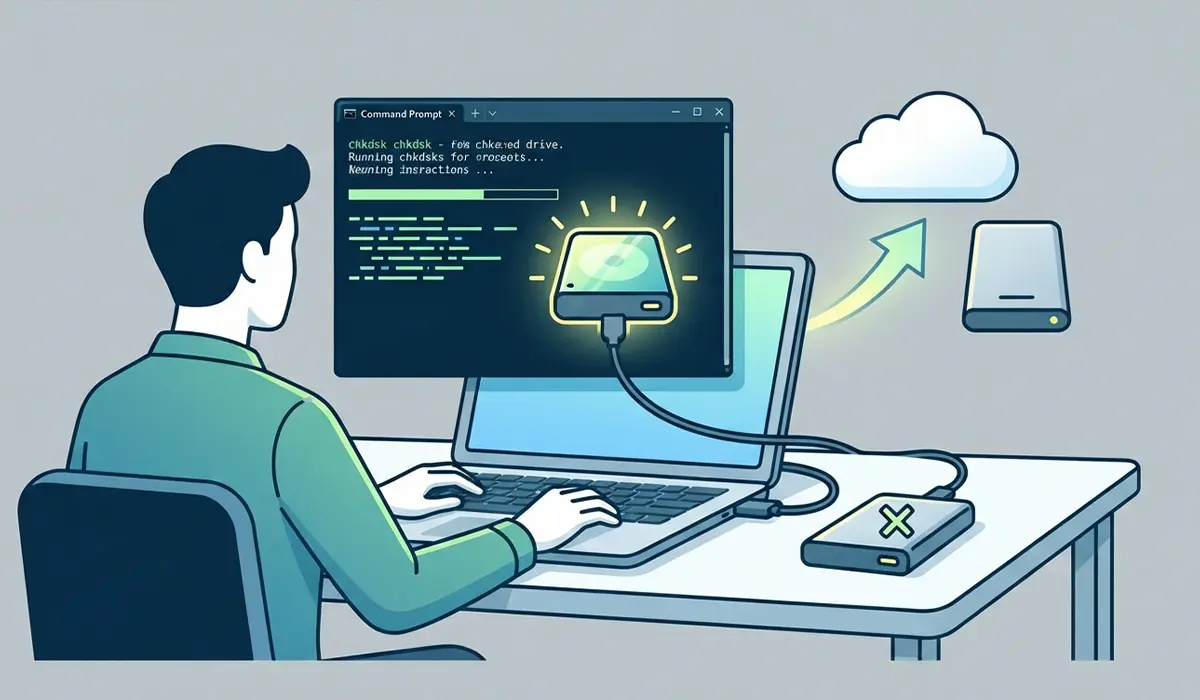
Tip: Running chkdsk without the /f or /r flags first is a good habit. The read-only scan shows how serious the corruption is before committing to a repair that writes changes to the drive.
When to Stop and Call a Professional
If the drive makes clicking, grinding, or repeated spin-up and spin-down noises, or if it disconnects and reconnects on its own, further repair attempts can make data recovery harder rather than easier. At that point, a professional data recovery service with cleanroom equipment is the safer option, especially for data that has no backup elsewhere.
Common Problems and Fixes
CHKDSK Gets Stuck at a Certain Percentage
CHKDSK can appear frozen at the same percentage for a long stretch, particularly during the bad sector scanning stage on a large or heavily damaged drive. This is often still working in the background rather than truly frozen, so it is worth leaving it running for a few hours before assuming it has failed, as long as drive activity lights are still active.
Drive Still Shows as RAW After Repair
When CHKDSK cannot rebuild the file system table at all, the drive can remain in RAW format even after the scan completes. In this case, recovering files with dedicated recovery software before formatting the drive is the next practical step.
PC Will Not Boot After Running CHKDSK on the System Drive
This usually points to deeper corruption than a simple repair scan can fix, or to a drive with failing sectors in critical system areas. Booting from Windows installation media and using the Startup Repair option, or restoring from a recent backup image, is the more reliable path forward here.
Corruption Returns Shortly After a Successful Repair
A file system that keeps corrupting soon after being fixed is a strong sign of a physically failing drive rather than a one-time software glitch. Running the drive’s manufacturer diagnostic tool can confirm hardware health, and a drive that fails that test should be replaced rather than repaired again.
Frequently Asked Questions
What causes a file system to become corrupted?
Improper shutdowns, bad sectors on an aging drive, malware, faulty cloning or partitioning software, and loose or failing cable connections are the most common causes of file system corruption.
Can a corrupted file system be fixed without losing data?
In many cases, yes. Tools like CHKDSK repair the file system structure itself rather than erasing the drive, so data often remains intact, though backing up anything accessible first is still recommended in case a repair cannot recover everything.
Is CHKDSK safe to run on a drive with important files?
CHKDSK is generally safe and is designed to repair rather than erase, but any tool that writes changes to a damaged drive carries some risk. Backing up accessible files before running chkdsk with the /f or /r flags avoids that risk entirely.
What does chkdsk /f /r actually do?
The /f flag tells CHKDSK to fix file system errors it finds, and the /r flag tells it to locate bad sectors on the drive and attempt to recover readable information from them before marking those sectors as unusable.
Why does a drive show up as RAW instead of its normal format?
A RAW drive means Windows can no longer recognize the file system structure at all, usually because of severe corruption. The partition still exists, but without a readable file system, it cannot be browsed normally until it is repaired or reformatted.
Should a RAW drive be formatted right away?
Not if it still contains data that has not been backed up. Formatting creates a fresh file system but erases the existing one, so recovering important files with data recovery software before formatting is the safer order of operations.
How long does a CHKDSK repair scan take?
This depends heavily on drive size, drive type, and how much corruption or how many bad sectors are present. A small solid-state drive might finish in minutes, while a large mechanical hard drive with bad sectors can take several hours.
Can file system corruption damage the drive permanently?
The corruption itself is typically a logical, repairable problem rather than physical damage. That said, corruption is sometimes a symptom of a drive that is already failing mechanically, in which case the underlying hardware issue will keep causing new corruption over time.
Does file system corruption mean the drive needs to be replaced?
Not necessarily. A one-time corruption event from a power loss or crash is usually fully repairable. Repeated corruption on the same drive after successful repairs is the stronger signal that the drive itself is failing and should be replaced.
What is the difference between file system corruption and a failing drive?
File system corruption affects the logical structure that organizes files, while a failing drive involves the physical hardware breaking down. The two can look identical from the user’s side, which is why running a manufacturer diagnostic tool after a repair helps tell them apart.
