
Getting past the Outlook Something Went Wrong 1001 error for good comes down to clearing the damaged sign-in data that Outlook keeps tripping over. The error usually appears while adding an account or signing in, and it tends to come back until the stale credentials or profile behind it are removed. The steps below work in a sensible order, from the quickest fix to the most thorough.
Key Takeaways
- The 1001 error is a sign-in problem, so the fix targets saved credentials, connected accounts, and the Outlook profile.
- Updating Outlook and clearing cached credentials resolves it for many people within minutes.
- A fresh Outlook profile or an online repair of Microsoft 365 handles the stubborn cases.
- New Outlook for Windows has its own reset option that works the same way.
- Mail stored on the server stays safe throughout these steps.
Step-by-Step Guide to Getting Past Outlook Something Went Wrong 1001 Error
Close Outlook completely before starting. Check the system tray near the clock and exit it there too, since a hidden background session can hold on to the broken sign-in.
Update Outlook and Clear Saved Sign-In Data
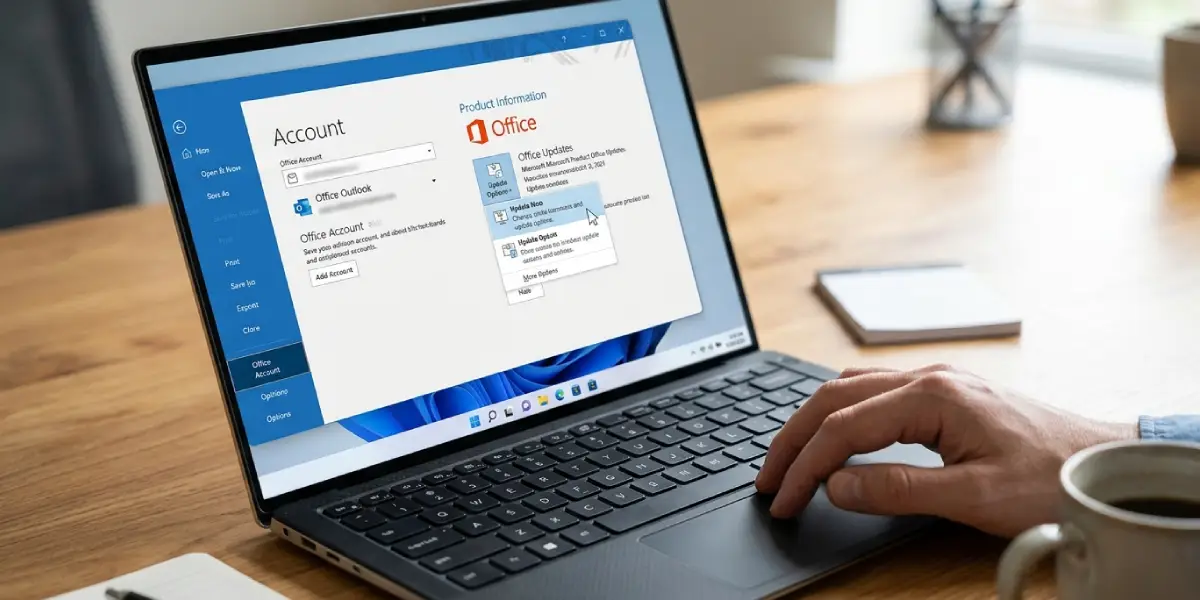
- Step 1: Open classic Outlook, select File, then Office Account, then Update Options, and choose Update Now. If Outlook won’t open at all, open any Office app such as Word and use the same path. For new Outlook for Windows, open the Microsoft Store, go to Downloads, and install any available update.
- Step 2: Close Outlook, then open Control Panel and select Credential Manager. Choose Windows Credentials and look under Generic Credentials for entries that begin with MicrosoftOffice16 or mention Outlook. Expand each one and select Remove.
- Step 3: Open Windows Settings, go to Accounts, then Access work or school. Select any account tied to the mailbox that shows the error and choose Disconnect. Confirm the prompt, then restart the PC.
Tip: Restarting after Step 3 matters. Windows keeps sign-in tokens in memory, and a restart makes sure the old ones are gone before Outlook asks for fresh ones.
Rebuild the Profile and Repair the App
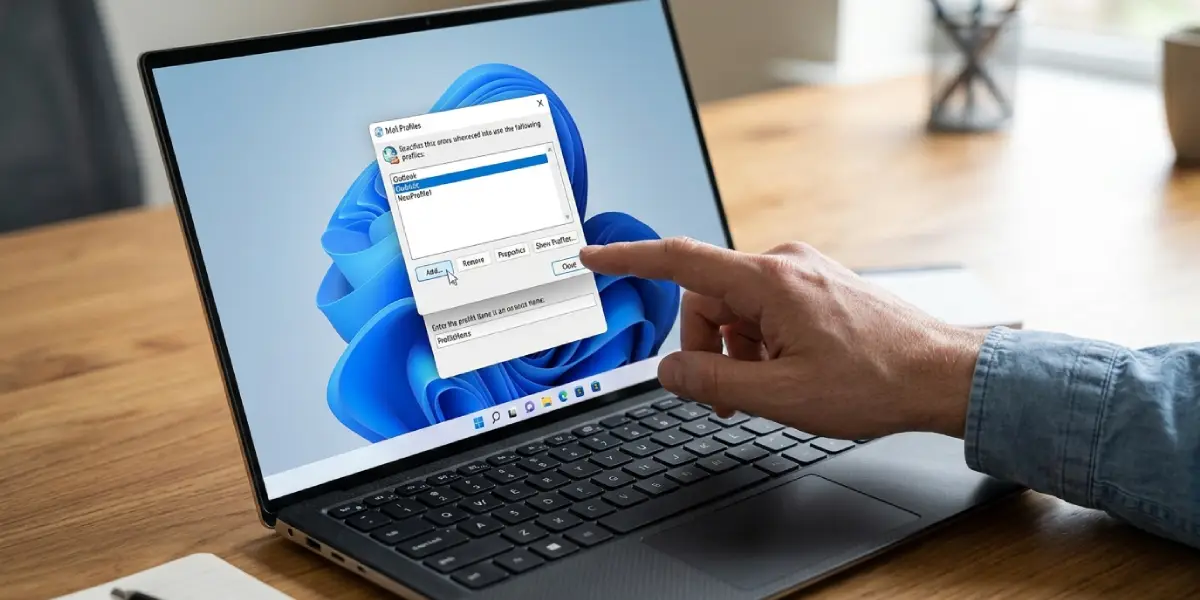
- Step 4: Open Control Panel, select Mail (Microsoft Outlook), and choose Show Profiles. Select Add, give the profile a new name, and enter the email address and sign-in details when prompted. Back on the Mail screen, select Always use this profile, pick the new one, and choose OK.
- Step 5: If the error remains, open Windows Settings, go to Apps, then Installed apps. Find Microsoft 365 (or Microsoft Office), select the three-dot menu, then Modify. Choose Online Repair, select Repair, and let it finish.
- Step 6: For new Outlook for Windows, go to Settings, then Apps, then Installed apps. Select the three-dot menu next to Outlook, choose Advanced options, and select Reset. Open Outlook again and sign in from scratch.
- Step 7: Launch Outlook, sign in with the full email address, and complete any password or verification prompt. A clean sign-in with no error means the fix has held.
Tip: Think of the old profile like a worn key that keeps almost fitting the lock. Building a new one is faster than trying to file the old one down, and that is why Step 4 solves cases that credential clearing alone cannot.
Common Problems and Fixes
No Office Entries Appear in Credential Manager
Some PCs simply have nothing stored there. Skip to Step 3 and continue down the list, since the disconnect and profile steps still apply.
The Work or School Account Won’t Disconnect
Accounts managed by an organization sometimes block removal. In that case, the IT administrator needs to release the device, or the profile and repair steps (Step 4 and Step 5) should be used instead.
The New Profile Shows the Same Error
This points to a damaged Office installation rather than the profile. Run the Online Repair in Step 5, restart the PC, and then try signing in again.
Online Repair Asks for Administrator Permission
The repair modifies installed program files, so Windows may request an administrator login. On a work computer, the IT team can approve it or run the repair remotely.
Outlook Closes Right After Opening
Hold the Ctrl key while launching Outlook and choose Yes to start in safe mode. If it opens there, use the new profile steps above to get a stable setup.
Frequently Asked Questions
What does the Outlook Something Went Wrong 1001 error mean?
It is a sign-in failure. Outlook could not complete authentication for the account, most often because of stale saved credentials, a connected account conflict, or a damaged profile.
Will these steps delete my emails?
No. For Microsoft 365, Outlook.com, and Exchange accounts, mail lives on the server and reappears after signing back in. POP accounts store mail in a local data file, so that file should be backed up before rebuilding a profile.
Does the error mean my password is wrong?
Usually not. The password can be completely correct while Outlook still fails because of cached sign-in data that no longer matches.
Does the error affect both new Outlook and classic Outlook?
Both versions can display it. Steps 1 to 5 suit classic Outlook, while Step 6 is the reset option for new Outlook for Windows.
Do I need to reinstall Office to fix it?
Rarely. An Online Repair from Installed apps restores the program files without a full reinstall, and it is worth trying before anything more drastic.
How long does the whole process take?
Clearing credentials and disconnecting accounts takes a few minutes. Adding a new profile and running Online Repair can bring the total to around fifteen to thirty minutes, depending on internet speed.
Can mail be checked while the error is being fixed?
Yes. Signing in at outlook.office.com or outlook.com in a web browser gives access to the same mailbox while Outlook is being repaired.
Is a restart really necessary?
It is strongly recommended after disconnecting accounts and clearing credentials, because Windows holds sign-in tokens in memory until the system restarts.
