
The easy way to configure Gmail IMAP and SMTP server settings for Outlook is to let Outlook sign in through Google first, then switch to manual entry only if the automatic setup fails. Both methods take only a few minutes. The exact server names, ports, and password rules are covered below.
Key Takeaways
- The quickest route is File, Add Account, then signing in through the Google window that Outlook opens.
- Manual setup uses imap.gmail.com on port 993 for incoming mail and smtp.gmail.com on port 465 or 587 for outgoing mail.
- The username is always the full Gmail address.
- Manual setups need a 16-character Google app password, because the regular Gmail password is rejected.
- Encryption must match the port: SSL/TLS for 993 and 465, STARTTLS for 587.
How to Configure Gmail IMAP and SMTP Server Settings for Outlook
Method 1: Automatic Setup With Google Sign-In
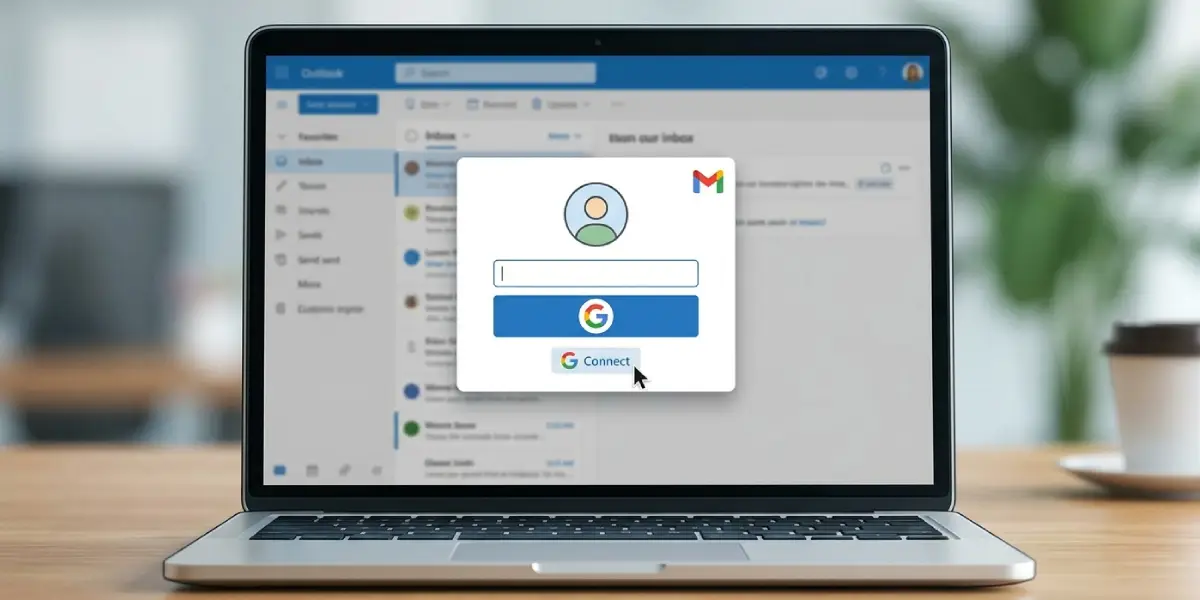
This works best when the goal is simply to get Gmail running in Outlook. Outlook detects the Gmail address, fills in the correct IMAP and SMTP details behind the scenes, and uses Google’s own sign-in page, so no server settings need to be typed.
- Step 1: Open Outlook and select File, then Add Account.
- Step 2: Type the full Gmail address and select Connect.
- Step 3: When the Google sign-in window opens, enter the Gmail password and complete any 2-Step Verification prompt.
- Step 4: Review the permissions Google lists and select Allow.
- Step 5: Select Done once Outlook confirms the account was added. Mail should begin to download within a minute or two.
Tip: If this method works, nothing else is needed. Skip the manual steps below, because they only exist for cases where automatic setup fails or a specific IMAP configuration is required.
Method 2: Manual IMAP and SMTP Setup
Manual setup suits people who need to see and control every setting, or whose automatic attempt ended in an error. The key is to prepare the app password first, since Outlook asks for it at the very end.
- Step 1: Turn on 2-Step Verification for the Google account at myaccount.google.com, under Security. App passwords are not available without it.
- Step 2: Open the Google app passwords page, name the password something recognizable such as Outlook, and select Create. Copy the 16-character password that appears.
- Step 3: In Outlook, select File, then Add Account, and type the Gmail address.
- Step 4: Select Advanced options, tick ‘Let me set up my account manually’, and then select Connect.
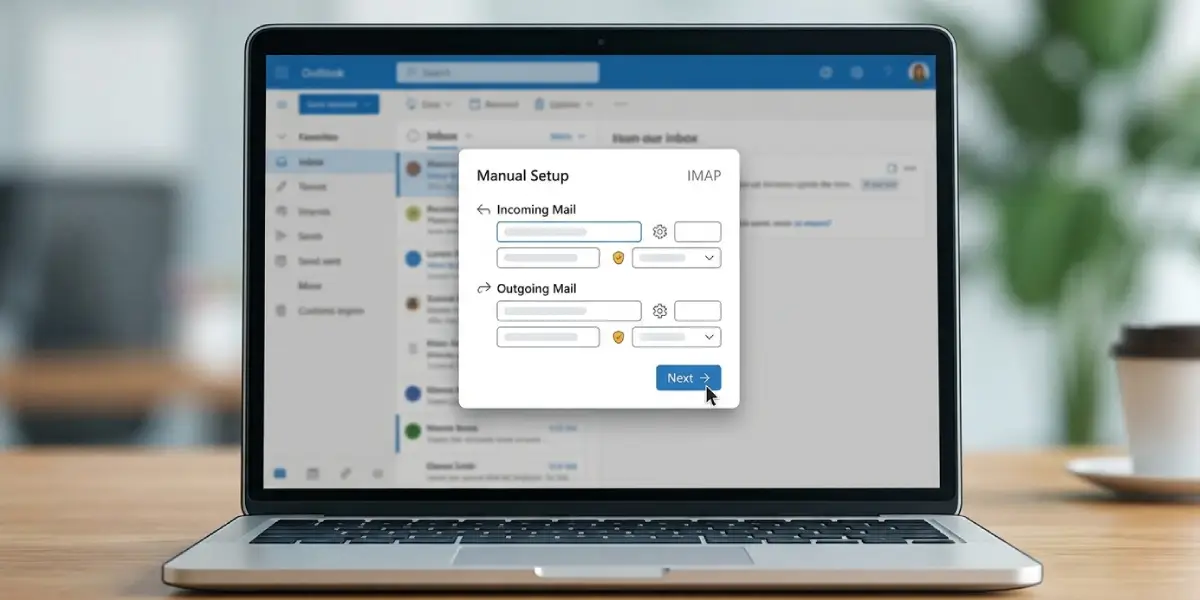
- Step 5: Choose IMAP as the account type.
- Step 6: Under Incoming mail, enter imap.gmail.com as the server, 993 as the port, and SSL/TLS as the encryption method.
- Step 7: Under Outgoing mail, enter smtp.gmail.com as the server, then choose either port 465 with SSL/TLS or port 587 with STARTTLS.
- Step 8: Select Next, paste the 16-character app password when prompted, and select Connect.
- Step 9: Select Done when Outlook reports success, then send a test message to confirm outgoing mail works.
Tip: Paste the app password exactly as Google displays it. Spaces in the displayed password do not matter, but a mistyped character does, so copying and pasting beats retyping.
Gmail IMAP and SMTP Settings at a Glance
- Incoming server (IMAP): imap.gmail.com
- Incoming port: 993 with SSL/TLS
- Outgoing server (SMTP): smtp.gmail.com
- Outgoing port: 465 with SSL/TLS, or 587 with STARTTLS
- Username: the full Gmail address, for example name@gmail.com
- Password: the 16-character app password (or Google sign-in when using automatic setup)
- Outgoing authentication: required, using the same username and password as incoming mail
Google also publishes these values on its own Gmail IMAP setup page, which is useful for double-checking against a typo.
Common Problems and Fixes
Outlook Keeps Asking for the Password
This usually means the regular Gmail password was entered during manual setup. Google no longer accepts that password for basic sign-in from mail apps. Create an app password as shown in Method 2 and enter that instead, or remove the account and use Method 1 so Google handles the sign-in.
The App Passwords Page Is Missing or Unavailable
App passwords only appear when 2-Step Verification is on. They may also be unavailable if the account uses only security keys for 2-Step Verification, or is enrolled in Google’s Advanced Protection Program. On a work or school Google Workspace account, the administrator may have disabled them. In that case, use Method 1 or ask the administrator to allow access.
Messages Download but Will Not Send
This points to the SMTP side. Confirm the outgoing server is smtp.gmail.com and that the encryption matches the port: SSL/TLS with 465 or STARTTLS with 587. A very common slip is pairing port 587 with SSL/TLS, which makes the connection fail. Also confirm that ‘My outgoing server (SMTP) requires authentication’ is turned on, using the same settings as the incoming server.
Connection Timeout or Cannot Connect to the Server
Recheck the server names for typos, such as imap.gmail.com spelled with an extra letter. Then make sure the network allows ports 993 and 465 or 587. Some public or workplace networks block these ports, and switching to a different network for the initial setup quickly confirms whether that is the cause.
Workspace Account Blocked by the Administrator
Google Workspace addresses use the same server settings, but the administrator controls whether IMAP access is permitted. If sign-in fails even with correct settings and a valid password, the administrator needs to allow IMAP for that user.
Frequently Asked Questions
What are the Gmail IMAP server settings for Outlook?
The incoming server is imap.gmail.com, the port is 993, and the encryption method is SSL/TLS. The username is the full Gmail address.
What are the Gmail SMTP server settings for Outlook?
The outgoing server is smtp.gmail.com. Use port 465 with SSL/TLS, or port 587 with STARTTLS. Authentication is required, using the same username and password as incoming mail.
Is an app password required to add Gmail to Outlook?
Not when Outlook signs in through the Google browser window, because Google handles the authentication. An app password is needed when the manual IMAP setup asks for a password, since the regular Gmail password is not accepted there.
Should SMTP use port 465 or 587?
Either one works with Gmail. Port 465 pairs with SSL/TLS and port 587 pairs with STARTTLS. The important part is that the encryption method matches the chosen port.
Does IMAP need to be turned on in Gmail first?
For personal Gmail accounts, IMAP access is on by default. Google Workspace accounts depend on the administrator’s policy, so access may need to be allowed by the admin.
What username should be used for Gmail in Outlook?
The full email address, such as name@gmail.com. Entering only the part before the at sign causes the sign-in to fail.
Why does Outlook reject the Gmail password?
Google no longer accepts the regular account password for basic sign-in from third-party mail apps. Use the Google sign-in window in automatic setup, or generate a 16-character app password for manual setup.
Where is an app password created for Outlook?
Turn on 2-Step Verification in the Google account, then open myaccount.google.com/apppasswords, name the password, and select Create. Google displays the 16-character password once, so copy it right away.
Do Google Workspace addresses use the same IMAP and SMTP settings?
Yes. The servers and ports are identical: imap.gmail.com on 993 and smtp.gmail.com on 465 or 587. The only difference is that the administrator must permit access for the account.
