
Knowing how to benchmark GPU performance on Windows turns vague impressions like ‘games feel slow’ into numbers that can be compared, tracked, and trusted. A good benchmark needs only a few free tools, a clean test setup, and a habit of running every test more than once. This guide covers the process from preparation to reading the final score.
Key Takeaways
- A reliable GPU benchmark combines one synthetic test and one real game or in-game benchmark.
- Updated drivers, a plugged-in power source, and closed background apps matter more than any single tool.
- Monitoring temperature, clock speed, and usage during the run explains why a score is high or low.
- Running each test at least three times and using the same settings every time gives results that can be compared fairly.
Step-by-Step: How to Benchmark GPU Performance on Windows
- Step 1: Identify the graphics card. Open Task Manager, go to the Performance tab, and select GPU to see the model name and current usage. On laptops with two graphics chips, both an integrated GPU and a dedicated GPU appear here. A free tool such as GPU-Z shows the exact model, memory size, and driver version in one window.
- Step 2: Update the graphics driver. Download the latest driver directly from NVIDIA, AMD, or Intel, depending on the card. Restart the PC after installing. Benchmarking on an outdated driver is one of the most common reasons scores look lower than expected.
- Step 3: Install Windows updates and restart. Pending updates can start downloading or installing in the middle of a test and skew the result.
- Step 4: Set the PC to full performance. Open Settings, go to System, then Power, and choose the Best performance power mode. On a laptop, plug in the charger first, because many laptops reduce GPU power on battery.
- Step 5: Close background programs. Shut down browsers, launchers, chat apps, cloud sync tools, and any overlay that is not part of the test. Check Task Manager to confirm nothing heavy is still running.
- Step 6: Make sure the benchmark uses the right GPU. Open Settings, go to System, then Display, then Graphics, and set the benchmark app to High performance. This step matters most on laptops, where Windows can send a test to the integrated graphics by mistake.
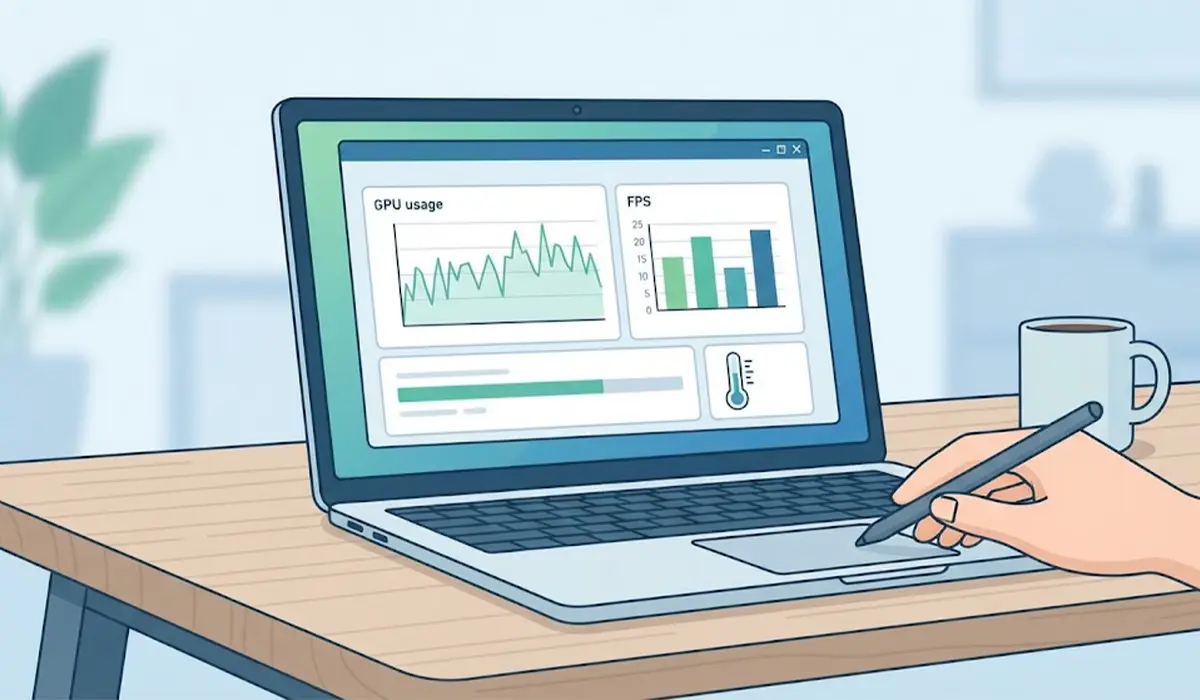
- Step 7: Set up monitoring. Install MSI Afterburner with its on-screen display, or use HWiNFO or GPU-Z, to track GPU temperature, clock speed, usage, and power. These readings show whether the card is running at full speed or slowing down from heat.
- Step 8: Run a synthetic benchmark. 3DMark is the most widely used choice, and a free edition is available on Steam. Time Spy suits DirectX 12 systems, while Port Royal tests ray tracing on cards that support it. Unigine Superposition is another free option. Let the test finish without touching the mouse or keyboard.
- Step 9: Run a real-world test. Many games include a built-in benchmark in the graphics or video settings menu. Use the same resolution, quality preset, and upscaling options every time so that results stay comparable. Note the average frame rate and, if the game reports it, the 1 percent low figure.
- Step 10: Repeat each test at least three times. The first run often finishes slightly differently from later ones because the card is still warming up. Compare the runs, and treat a large gap between them as a sign that something in the setup needs attention.
- Step 11: Record everything. Write down the driver version, the test name, the settings, the score, and the peak temperature. A simple spreadsheet is enough, and it makes later comparisons after a driver update or hardware change much easier.
Tip: Wait a few minutes between runs on a laptop or a small case. A card that starts a test already hot will often score lower than the same card starting cool, and that gap has nothing to do with the hardware itself.
Choosing the Right GPU Benchmark Tool
Synthetic Benchmarks
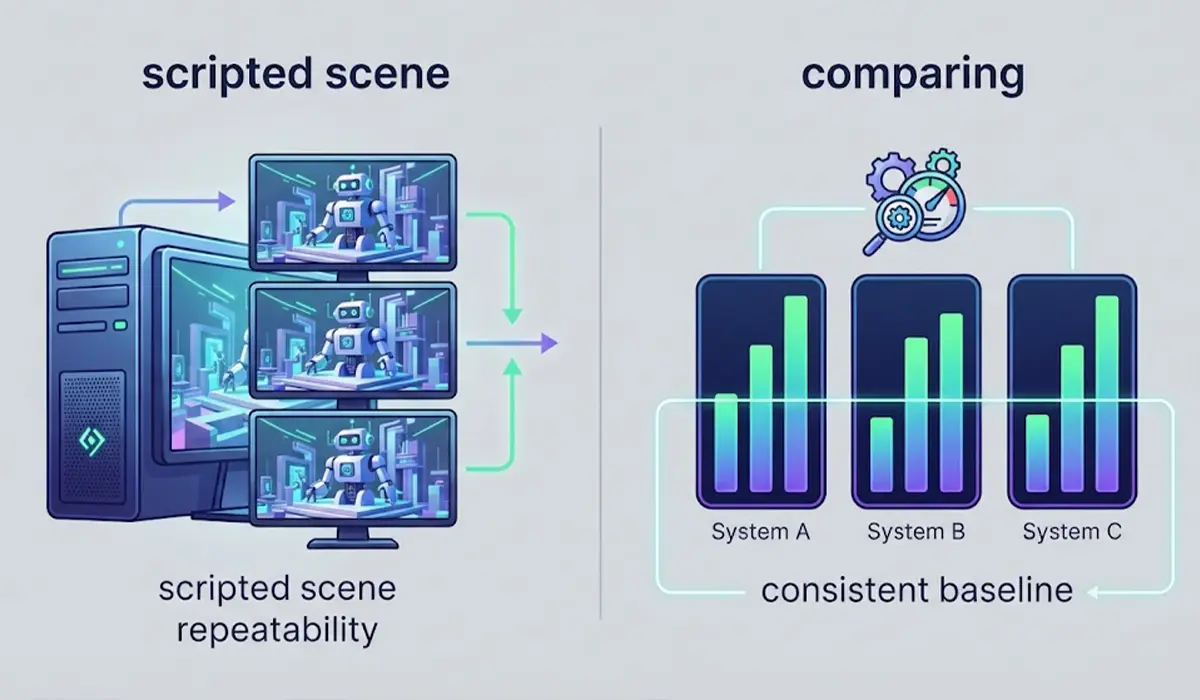
Synthetic tools such as 3DMark and Unigine Superposition run the same scripted scene every time. That repeatability makes them ideal for comparing a PC against similar systems or checking the effect of a driver update or overclock. They do not perfectly predict how any one game will run, but they give a consistent baseline.
In-Game Benchmarks
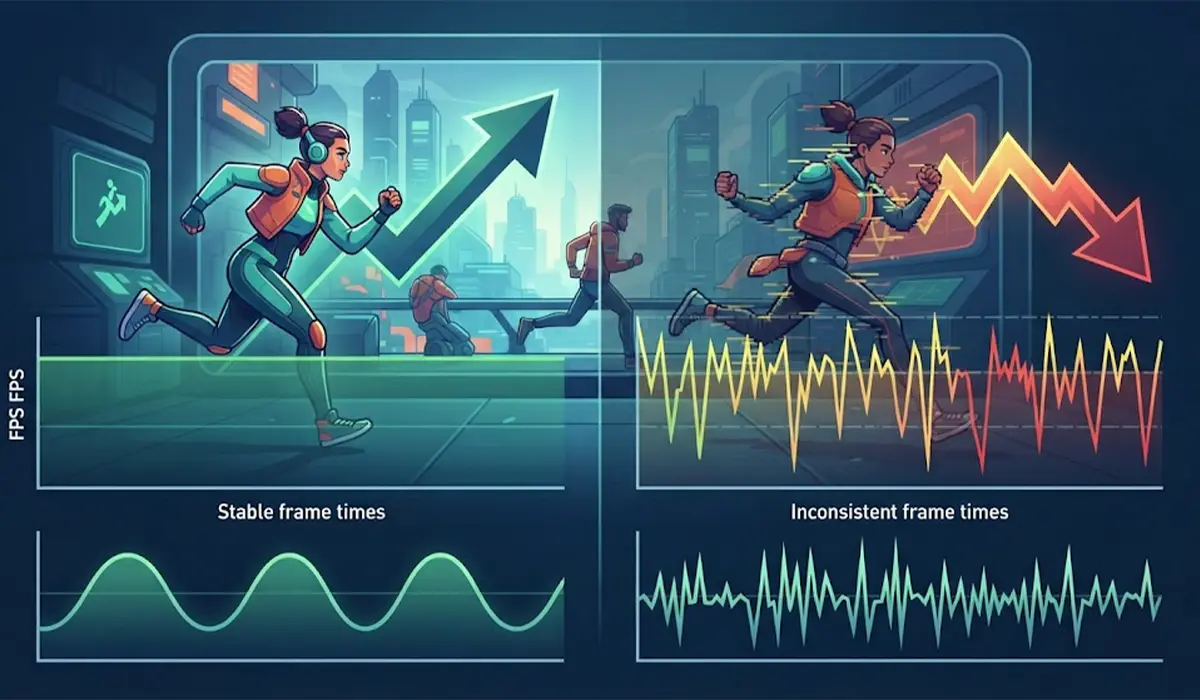
A built-in game benchmark shows how the card handles a real workload at the settings actually used. For anyone who cares mostly about gaming, this result is often more meaningful than a synthetic score. Frame rate and frame time consistency both matter here, since a smooth 1 percent low figure feels better than a high average with stutter.
Stress Tests
Tools such as FurMark push the GPU to a heavy sustained load to test stability and cooling. They are useful for checking whether a card overheats or crashes under pressure, but they are not designed to measure everyday performance. Watch temperatures closely during a stress test and stop it if readings climb unusually high.
How to Read GPU Benchmark Results
A single number means little on its own. The useful comparison is against other systems with the same GPU model, which 3DMark and similar tools display through their online result pages. A score far below that range points to a setup problem such as an old driver, a power limit, or thermal throttling rather than a faulty card.
Next, look at the monitoring data. A steady clock speed with moderate temperatures means the card is performing as intended. Clock speeds that drop as temperature rises are a classic sign of thermal throttling, where the GPU slows itself to protect against heat. High usage with low frame rates, on the other hand, suggests the card is the limit, while low GPU usage with low frame rates often points to a CPU or memory bottleneck.
Tip: Always compare like with like. Scores from different resolutions, presets, or driver versions cannot be placed side by side without confusion.
Common Problems and Fixes
The Benchmark Runs on the Wrong GPU
On laptops with integrated and dedicated graphics, set the benchmark app to High performance under Settings, System, Display, Graphics, then restart the app. Task Manager shows which GPU is under load during the run.
The Score Is Much Lower Than Similar Systems
Check the driver version, confirm the power mode is set to Best performance, and make sure a laptop is plugged in. Also look at the monitoring log for thermal throttling, since heat is a frequent cause of low results.
Results Change a Lot Between Runs
Close background apps, let the PC cool between tests, and avoid using the machine while a benchmark runs. Large swings usually come from background activity or changing temperatures.
The Benchmark Crashes or Freezes
Reinstall the graphics driver with a clean install option, then retest. If crashes continue, check temperatures and consider whether an overclock or undervolt is causing instability. Returning the card to default settings helps confirm this.
Frame Rate Is Capped at the Monitor Refresh Rate
Turn off V-Sync in the game or benchmark settings, or in the graphics control panel, so the test measures what the GPU can actually produce rather than what the display can show.
The GPU Shows Low Usage During the Test
This often means the CPU or system memory is holding the card back, or that a frame limiter is active. Disable frame limiters and test at a higher resolution to shift more of the load onto the GPU.
Frequently Asked Questions
What is the best free tool to benchmark a GPU on Windows?
3DMark offers a free edition on Steam and is the most widely recognized option. Unigine Superposition is another solid free choice, and many games include their own built-in benchmark at no extra cost.
How many times should a GPU benchmark be run?
At least three times. Comparing the runs shows whether the results are consistent, and the later runs reflect the card at normal operating temperature.
Does benchmarking damage a graphics card?
Normal benchmarks do not harm a healthy card, since they are no heavier than demanding games. A stress test on a card with poor cooling can expose heat problems, so watching temperatures during the run is a good habit.
Why is the benchmark score lower than other people with the same GPU?
Common causes include an outdated driver, a laptop running on battery, a power-saving mode, background apps, or thermal throttling. A different CPU or slower memory can also affect some scores.
What is the difference between a synthetic benchmark and an in-game benchmark?
A synthetic benchmark runs a fixed scripted scene to give a repeatable score for comparisons. An in-game benchmark measures performance in a real title at chosen settings, which shows how that specific game will feel.
Should the PC be restarted before benchmarking?
Yes. A fresh restart clears background activity and frees memory, which helps produce cleaner and more consistent results.
Can a laptop GPU be benchmarked the same way as a desktop GPU?
Yes, the steps are the same. A laptop needs extra care to stay plugged in, use the High performance GPU setting for the test, and allow cooling time between runs.
How can thermal throttling be spotted during a benchmark?
Monitor clock speed and temperature with a tool such as MSI Afterburner, HWiNFO, or GPU-Z. If the clock speed drops as temperature climbs during the test, the card is throttling to manage heat.
