
Knowing how to fix Wi-Fi authentication error saves a lot of frustration, because the message usually appears right after a password is typed correctly. The error means the device and the router could not agree on credentials or security settings during the connection handshake. In most cases, a saved-profile reset, a security mode adjustment, or a driver refresh clears it within minutes.
Key Takeaways
- The error almost always comes from a wrong or outdated saved password, a mismatched security type, or a corrupted network profile.
- Forgetting the network and reconnecting fixes a large share of cases on its own.
- Router security mode, firmware, and the laptop’s Wi-Fi driver are the next things to check.
- A network reset is the last software step before suspecting failing hardware.
Common Causes of Wi-Fi Authentication Error
Authentication is a short conversation between the laptop and the router. If either side says something the other does not accept, the connection stops. Most people find that one of the causes below is behind the problem.
- The router password was changed, but the laptop still holds the old one in its saved profile.
- The saved network profile is corrupted, often after a Windows update or an interrupted connection.
- The router uses a security mode the adapter handles poorly, such as a WPA3-only setting on an older Wi-Fi card.
- An outdated, damaged, or incompatible Wi-Fi driver is installed.
- Router firmware has a glitch that a restart or update resolves.
- MAC address filtering on the router is blocking the device.
- On work or school networks, the account credentials used for 802.1X login have expired.
Step-by-Step Ways to Fix Wi-Fi Authentication Error
Work through these in order. The simplest fixes come first, and each one rules out a specific cause.
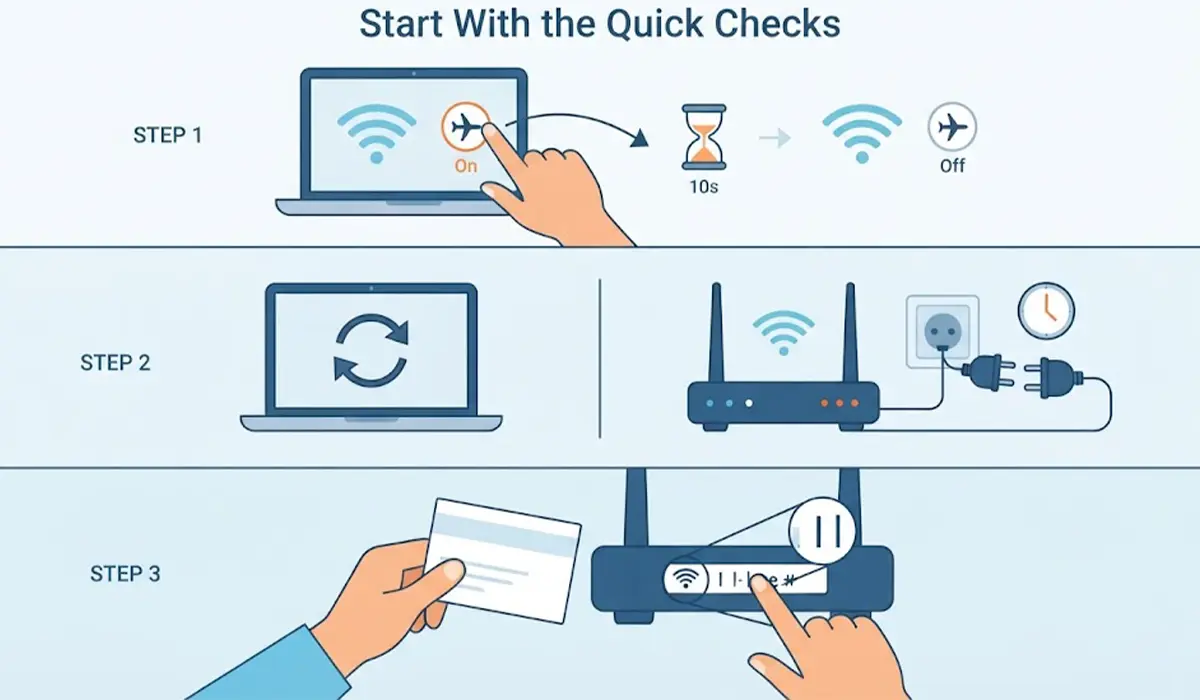
Start With the Quick Checks
- Step 1: Turn Airplane mode on, wait about ten seconds, then turn it off. This forces the Wi-Fi adapter to restart its connection attempt.
- Step 2: Restart the laptop or PC, and power-cycle the router by unplugging it for about thirty seconds before plugging it back in.
- Step 3: Confirm the password by checking the label on the router or the router admin page. Passwords are case-sensitive, and characters like a capital I and a lowercase l are easy to mix up.
Tip: Type the password into a notes app first, or use the show password option on the connection prompt, so typos are caught before submitting.
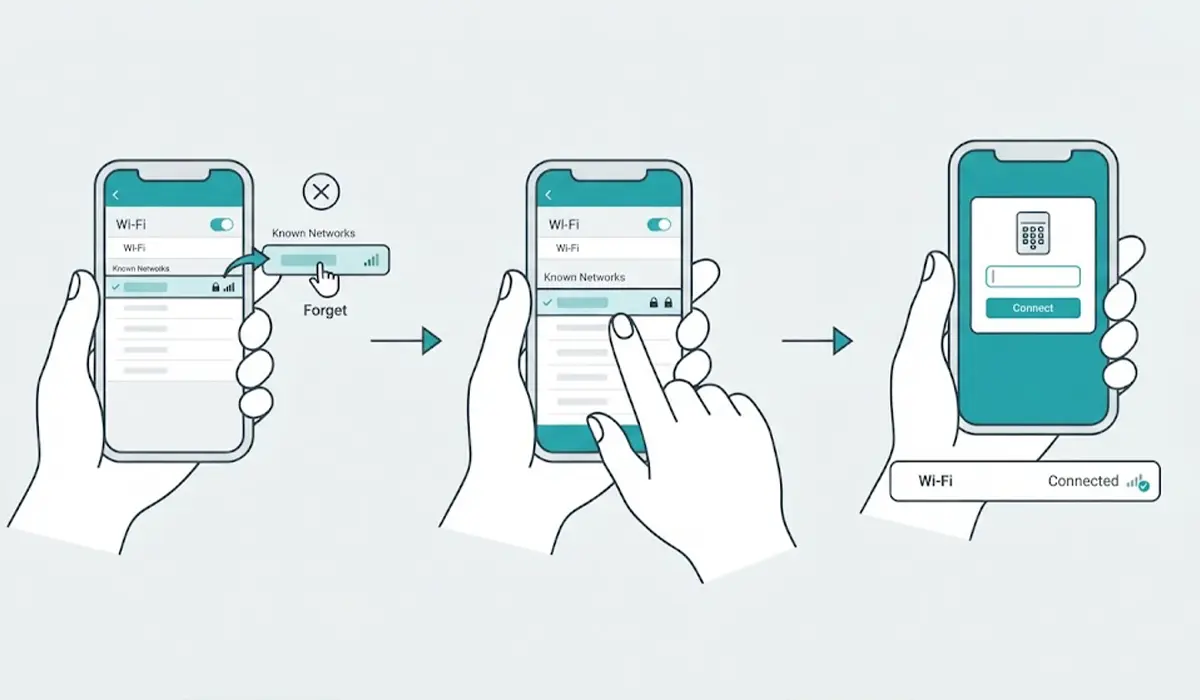
Forget the Network and Reconnect
- Step 4: Open Settings, go to Network and internet, then Wi-Fi, and select Manage known networks.
- Step 5: Select the affected network and choose Forget.
- Step 6: Open the Wi-Fi list again, select the network, enter the password fresh, and connect. This replaces any corrupted or outdated saved profile with a clean one.
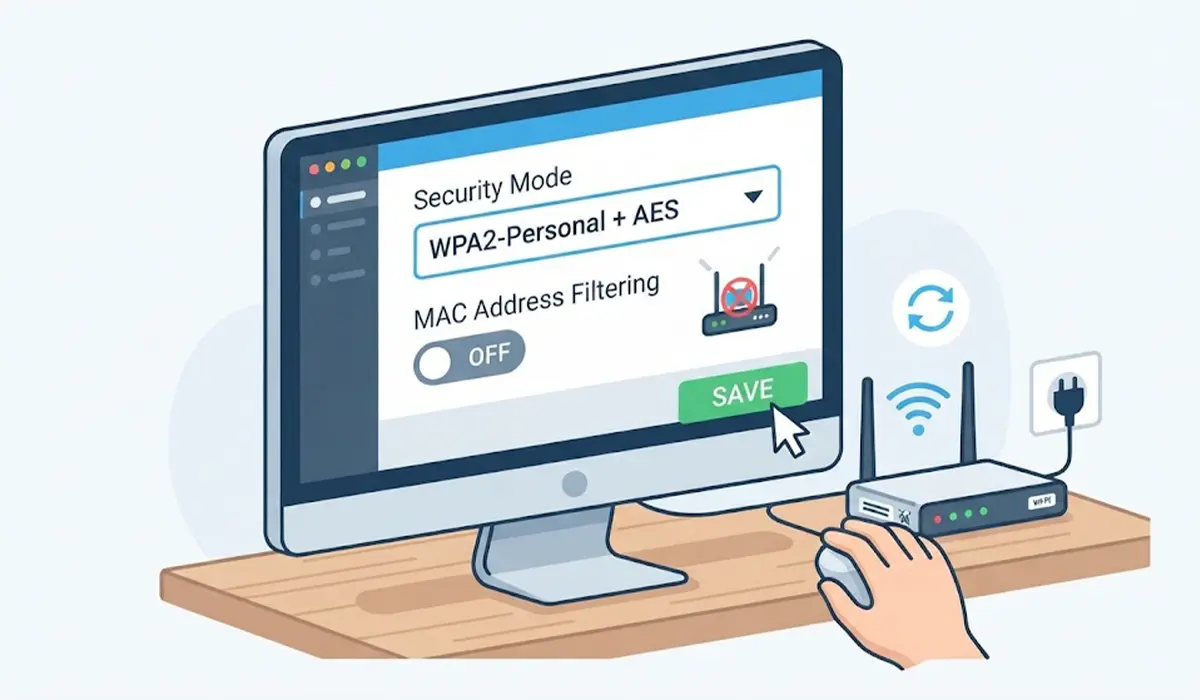
Check the Router Security Settings
- Step 7: Log in to the router admin page using the address printed on the router label.
- Step 8: Open the wireless security section and check the security mode. WPA2-Personal with AES encryption is the most widely compatible choice. If the router is set to WPA3-only, switching to a WPA2/WPA3 mixed mode often helps older adapters connect.
- Step 9: Avoid WEP and TKIP. These are outdated, and many modern devices refuse to authenticate with them.
- Step 10: Check whether MAC address filtering is enabled. If it is, either add the device to the allowed list or turn the filter off.
- Step 11: Save the changes, let the router restart if prompted, then try connecting again.
Update or Reinstall the Wi-Fi Driver
- Step 12: Right-click the Start button and open Device Manager, then expand Network adapters.
- Step 13: Right-click the wireless adapter and choose Update driver, then Search automatically for drivers.
- Step 14: If the error remains, right-click the adapter again and choose Uninstall device. Restart the computer, and Windows reinstalls a fresh driver on startup.
- Step 15: If the problem began right after an update, download the latest Wi-Fi driver from the laptop or motherboard manufacturer’s support page and install it manually.
Turn Off Adapter Power Saving
- Step 16: In Device Manager, double-click the wireless adapter and open the Power Management tab.
- Step 17: Uncheck the option that lets the computer turn off the device to save power, then select OK. Aggressive power saving can interrupt the handshake on some laptops.
Run a Network Reset as the Last Software Step
- Step 18: Open Settings, go to Network and internet, then Advanced network settings, and select Network reset.
- Step 19: Confirm the reset and let the computer restart. All saved Wi-Fi networks and VPN settings are removed, so keep the passwords handy.
- Step 20: Reconnect to the network and enter the password again.
Tip: Test with a phone hotspot before the network reset. If the laptop connects to the hotspot without trouble, the fault is almost certainly on the router side rather than inside the laptop.
Common Problems and Fixes
The Error Returns After Every Restart
This usually points to a router-side issue. Update the router firmware from its admin page and recheck the security mode. A router that keeps reverting to a mismatched setting may need a full factory reset, followed by a fresh setup with a new password.
Only One Device Shows the Error
If phones and other computers connect fine, the problem sits with that single device. Forget the network, update or reinstall the driver, and run the network reset. If the error survives all of that, the adapter itself is the next suspect.
The Error Appears on a Work or School Network
These networks use 802.1X login with an account username and password rather than a shared Wi-Fi key. An expired or changed account password triggers the error. The fix is to update the credentials or contact the network administrator, since router settings cannot be changed by the user.
Wi-Fi Works Briefly, Then Drops With the Error
Interference or a weak signal can interrupt re-authentication. Move closer to the router, and switch between the 2.4 GHz and 5 GHz bands if the router lists them separately.
The Adapter Is Missing From Device Manager
If the Wi-Fi adapter does not appear at all, the card may be disabled in the BIOS or UEFI, or it may have a hardware fault. Opening a laptop to reseat the card can affect the warranty and risks damaging the fragile antenna cables, so this is the point to stop and let a professional technician take over. A USB Wi-Fi adapter is a simple stopgap while repairs are arranged.
Frequently Asked Questions
What does a Wi-Fi authentication error mean?
It means the device and the router could not complete the security handshake needed to join the network. The cause is usually an incorrect password, a mismatched security type, or a corrupted saved profile.
Why does the error appear even when the password is correct?
A correct password can still fail if the saved profile is damaged, if the router and adapter disagree on the security mode, or if the router blocks the device through MAC filtering. Forgetting the network and reconnecting fixes the profile issue in most cases.
Does forgetting a Wi-Fi network delete any files?
No. Forgetting a network only removes the saved connection details for that one network. Files and apps are not affected.
Which router security mode works best to avoid this error?
WPA2-Personal with AES encryption is the most broadly compatible option. A WPA2/WPA3 mixed mode also works well when newer and older devices share the same network.
Will a network reset erase personal data?
No. A network reset only clears network adapters, saved Wi-Fi networks, and VPN settings, then returns them to default. Saved Wi-Fi passwords must be entered again afterward.
Why does only one device get the authentication error?
When other devices connect normally, the router is working properly. The problem then lies with that device’s saved profile, driver, or Wi-Fi adapter.
Can outdated router firmware cause the error?
Yes. Firmware bugs can break the handshake with certain devices. Updating the firmware from the router admin page often resolves repeated authentication failures.
When does the error point to a failing Wi-Fi card?
If the error continues after the profile reset, driver reinstall, and network reset, and the device also fails to connect to a phone hotspot, the Wi-Fi card may be faulty. At that stage, a technician can test or replace it, or a USB Wi-Fi adapter can be used in the meantime.
