
Knowing how to check laptop battery health is the fastest way to tell whether a laptop’s sluggish runtime is normal aging or a battery that needs replacing soon. Most laptops already include the tools needed to pull this information, no extra hardware required. This guide walks through the exact steps for Windows and macOS, plus what the numbers actually mean.
Key Takeaways
- Windows users can generate a full battery report using a simple Command Prompt command, no third-party software needed.
- Mac users can check battery condition directly in System Settings under Battery.
- The key numbers to watch are design capacity versus full charge capacity, and cycle count.
- A battery that has lost a significant portion of its original capacity, or shows a ‘Service Recommended’ status, is nearing the end of its useful life.
- Checking battery health every few months helps catch a failing battery before it swells or dies unexpectedly.
Before You Start
This process is entirely software-based, so there is no need to open the laptop or handle any internal components. A few small things still make the check more accurate and useful.
- Make sure the laptop is plugged in or has at least a partial charge before running any report, since some tools work more reliably with a stable power state.
- Close unnecessary background apps so the readings reflect the system at rest rather than under heavy load.
- Have a notepad or spreadsheet handy to log the results if this is going to become a recurring check, since comparing numbers over time is what actually reveals a trend.
How to Check Laptop Battery Health on Windows
Windows has a built-in battery report generator that has shipped with the operating system for years. It pulls detailed usage history straight from the battery’s own firmware.
- Step 1: Open the Start menu, type ‘cmd’, and right-click Command Prompt to run it as administrator.
- Step 2: Type the command powercfg /batteryreport and press Enter.
- Step 3: Note the file path shown in the response, since it points to an HTML file saved on the system drive.
- Step 4: Open File Explorer, paste that path into the address bar, and double-click the report to open it in a web browser.
- Step 5: Scroll to the section labeled ‘Installed batteries’ to find the ‘Design capacity’ figure, which represents the battery’s capacity when it was brand new.
- Step 6: Compare that number against ‘Full charge capacity’, which shows how much the battery can currently hold.
- Step 7: Check the ‘Cycle count’ entry near the bottom of the report to see how many full charge cycles the battery has gone through.
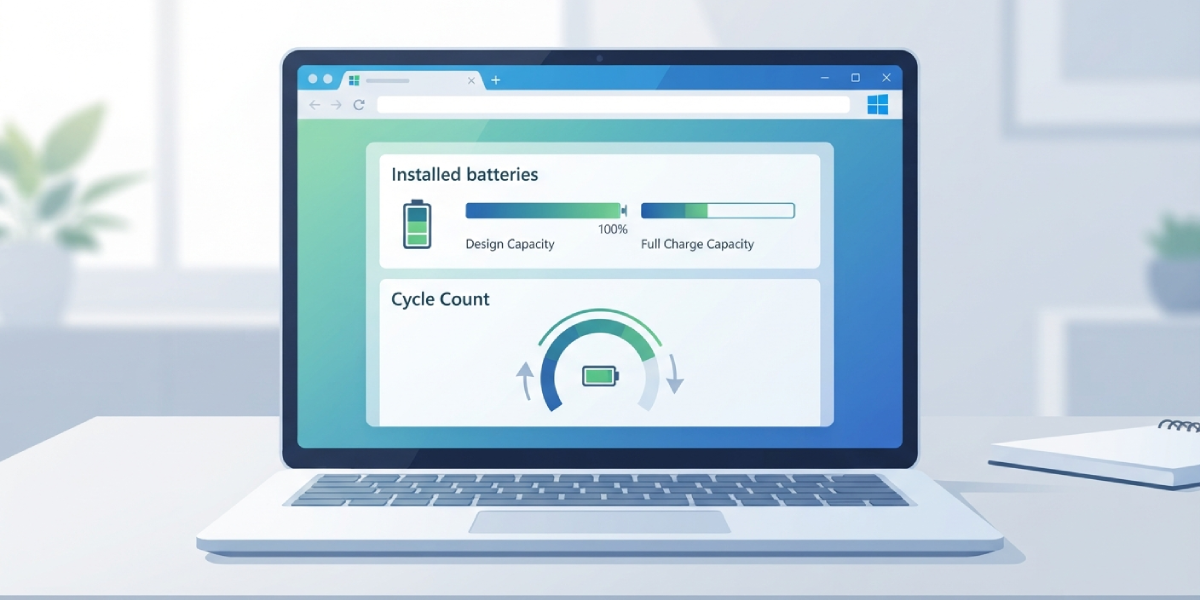
Tip: A battery that has dropped below roughly 80 percent of its original design capacity is generally considered to be showing meaningful wear, though it can often keep working for a while longer at reduced runtime.
How to Check Laptop Battery Health on macOS
Apple builds a battery condition indicator directly into system settings, and it uses plain language instead of raw numbers, which makes it easy to read at a glance.
- Step 1: Click the Apple menu and open System Settings.
- Step 2: Select Battery from the sidebar.
- Step 3: Click Battery Health in the details section.
- Step 4: Read the status shown, which will typically say ‘Normal’ for a healthy battery or ‘Service Recommended’ for one that has degraded significantly.
- Step 5: For a deeper look, hold the Option key, click the Apple menu, and select System Information, then click Power on the left to view cycle count and maximum capacity percentage.
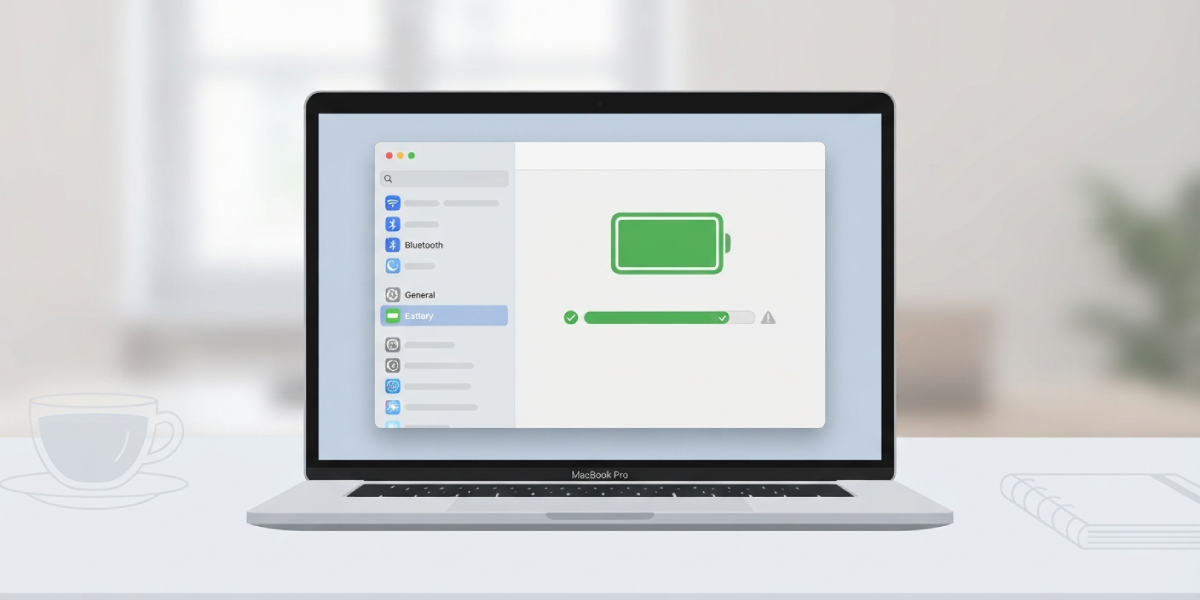
Tip: macOS quietly manages charging behavior in the background to slow down battery aging, so a Mac’s cycle count often climbs more slowly than expected for how often it gets used.
What the Numbers Actually Mean
Design Capacity vs Full Charge Capacity
Design capacity is the battery’s original, factory-rated energy storage. Full charge capacity reflects what it can hold today. The gap between the two grows naturally over time, the same way a water bottle that has been dented still holds liquid, just less of it than before.
Cycle Count
One full cycle equals using 100 percent of the battery’s capacity, whether that happens in a single day or spread across a week of partial charges. Most modern laptop batteries are rated for several hundred to around a thousand cycles before capacity drops noticeably, though this varies by manufacturer and battery chemistry.
Common Problems and Fixes
- The battery report shows 0 cycle count on a laptop that has clearly been used for a while. This usually points to a battery driver issue. Updating the chipset or battery drivers through Device Manager or the manufacturer’s support site typically resolves it.
- Full charge capacity is higher than design capacity. This can happen briefly after certain firmware updates or a battery calibration cycle skews the reading. Running the report again after a full charge and discharge cycle usually corrects it.
- macOS shows ‘Service Recommended’ but the laptop still holds a decent charge. This status is a wear warning, not an immediate failure notice. It’s worth monitoring runtime over the following weeks to see how much it has actually declined.
- The battery percentage jumps or drops suddenly. This is often a sign the battery needs a calibration cycle, or in more persistent cases, that the battery itself is wearing unevenly and should be tested further or replaced.
Frequently Asked Questions
How often should laptop battery health be checked?
Checking every three to six months is enough to catch a gradual decline before it becomes noticeable in daily use.
What is considered a healthy battery capacity percentage?
Anything above 80 percent of original design capacity is generally considered healthy for a laptop that has been in regular use for a year or more.
Does checking battery health drain the battery?
No, generating a battery report or viewing battery health in system settings does not use any meaningful power and has no effect on the battery itself.
Can battery health be checked without opening the laptop?
Yes, both Windows and macOS provide software-based tools that read this information directly from the battery’s internal firmware, so no disassembly is needed.
Why does cycle count matter more than age alone?
A battery’s wear is tied more closely to how many charge cycles it has completed than to the calendar age of the laptop, since usage patterns vary widely between users.
What does ‘Service Recommended’ mean on a Mac?
It means the battery has lost enough capacity that Apple recommends having it evaluated or replaced, though the laptop will typically still function normally in the meantime.
Is a laptop safe to use if the battery health is low?
Generally yes, though runtime will be shorter and it’s worth watching for signs like unusual swelling, overheating near the battery, or the laptop shutting down unexpectedly, any of which mean it’s time to stop using that battery and have it inspected or replaced.
Do third-party apps give more accurate battery health data than built-in tools?
Built-in tools pull data directly from the battery’s own firmware, so they are generally just as accurate as third-party alternatives, which mostly just present the same underlying data differently.
Does fast charging affect long-term battery health?
Frequent fast charging can generate more heat, which is one of the bigger contributors to battery wear over time, so keeping the laptop cool while charging helps preserve capacity.
Can a laptop battery be replaced after health checks show significant wear?
Yes, most laptops allow battery replacement, though the process ranges from straightforward on models with accessible batteries to more involved on ultra-thin laptops where a qualified technician is the safer choice.
