
Learning how to clean a laptop charging port is one of the simplest fixes for a laptop that charges slowly, intermittently, or not at all. Dust, lint, and pocket debris build up inside the port over time and block the connection between the charging cable and the internal contacts. A few minutes of careful cleaning often restores a solid charge without opening the laptop or replacing any parts.
Key Takeaways
- Most charging problems come from dust or lint blocking the port, not a failed battery or charger.
- Compressed air and a wooden or plastic pick are the safest tools for the job.
- Never use water, metal objects, or sharp pins inside the port.
- Power down and unplug the laptop completely before cleaning.
- If the port still fails after cleaning, the issue may be a bent pin or internal damage that needs a professional repair.
Before You Start
A little prep keeps this task quick and safe. It also protects the delicate contacts inside the port from static damage or accidental bending.
- Shut the laptop down completely and unplug the charging cable.
- Let the laptop sit for a few minutes if it has been running, since the port area can hold some warmth.
- Touch a bare metal surface, like a doorknob or an unpainted radiator, to discharge any static build-up before touching the port.
- Work in a well-lit area so the inside of the port is easy to see.
Tools and Materials Needed
- Compressed air can, or a small hand-operated air blower.
- A wooden toothpick or a plastic pry tool with a fine point.
- A soft-bristled brush, such as a clean, dry toothbrush or an anti-static brush.
- A dry microfiber or lint-free cloth.
- 90 percent or higher isopropyl alcohol, for stubborn residue only.
- A flashlight or phone light to inspect the port.
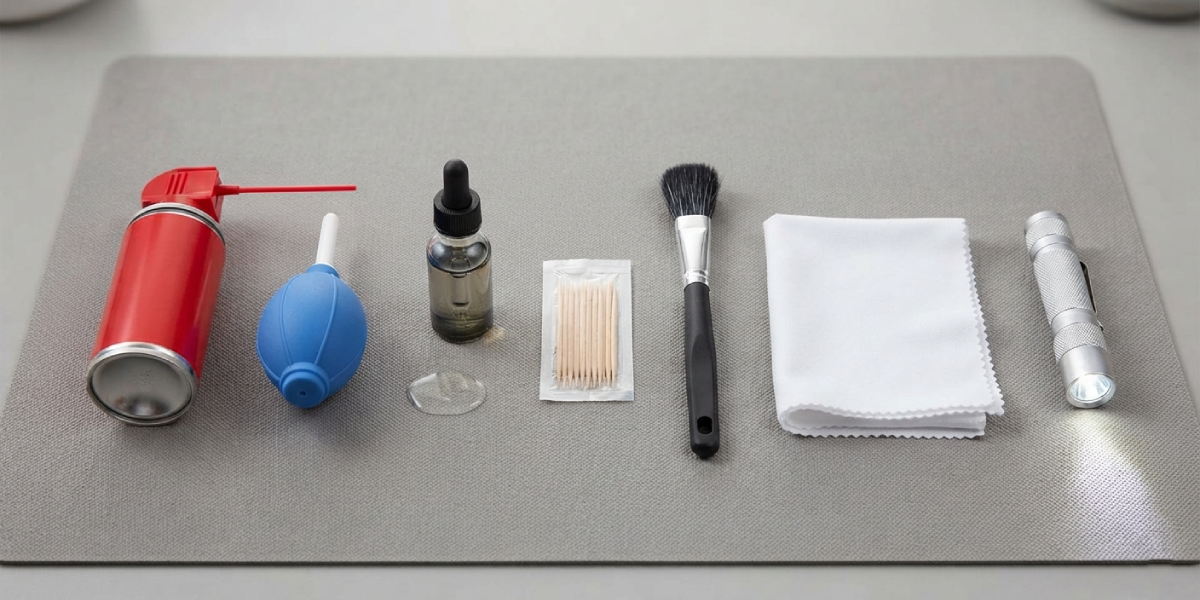
Tip: Skip any tool made of metal, including paperclips, tweezers, or pins. Metal can scratch the contacts or bend the small charging pin found on many barrel-style connectors, turning a simple cleaning job into a repair job.
How to Clean a Laptop Charging Port Step by Step
This process works for both round barrel connectors and USB-C charging ports. The core idea stays the same: loosen the debris first, then remove it without forcing anything against the internal pins.
- Step 1: Shine a light into the port and look for visible lint, dust clumps, or debris. This shows how much buildup exists and whether anything looks bent or out of place.
- Step 2: Hold the compressed air can upright and give the port several short bursts from a slight angle, rather than straight on. Short bursts prevent moisture from the can condensing inside the port.
- Step 3: If lint remains after the air, gently insert the wooden toothpick or plastic pry tool along the inside edge of the port. Move it in a light scraping motion to loosen debris without pressing on the center pin or contacts.
- Step 4: Use the soft brush to sweep any loosened particles toward the opening, then follow up with another round of compressed air to clear them out completely.
- Step 5: For sticky residue or a slightly corroded look on the contacts, dip a cotton swab or the very tip of the brush in isopropyl alcohol, wring out the excess, and lightly wipe the visible contact area. Let the port air-dry for a few minutes before proceeding.
- Step 6: Wipe the outer casing around the port with the microfiber cloth to remove any dust that settled nearby during the process.
- Step 7: Once everything looks clear and dry, plug the charger back in and check whether the laptop charges normally and the connection feels snug.
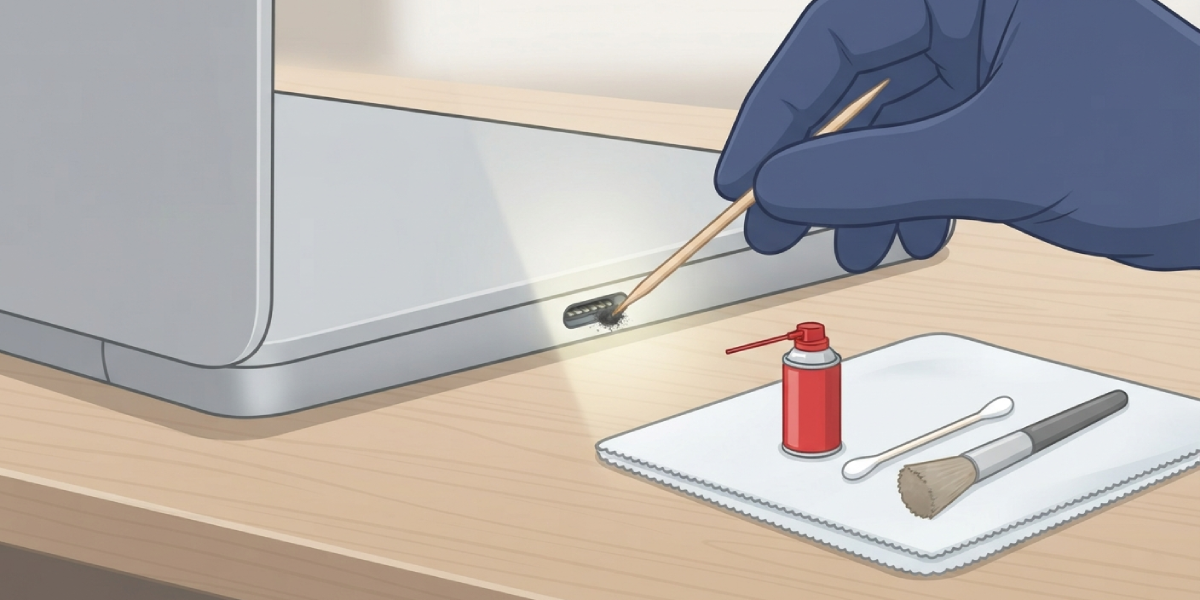
Tip: A laptop that wobbles when the charger is plugged in, even after cleaning, often points to a worn port rather than remaining debris. That is a sign the connector itself has loosened internally and may need professional attention.
Common Problems and Fixes
- The port still does not charge after cleaning: Test the charger and cable on another compatible laptop first. If the charger works elsewhere, the port likely has internal damage, such as a cracked solder joint, that requires a technician’s diagnosis.
- Charging is intermittent, working only at certain angles: This usually points to a loose internal connection rather than leftover debris. Cleaning will not fix a mechanical fault, and continued use at odd angles can stress the connector further.
- A faint burnt smell or discoloration inside the port: Stop using the charger immediately. This can indicate electrical damage inside the port or the cable, and it is a genuine case where a professional repair technician should take over rather than attempting further cleaning.
- The port feels gritty even after using compressed air: A build-up of oxidized residue on the contacts can feel gritty. A very light, careful wipe with isopropyl alcohol on a cotton swab typically clears this, followed by full drying time before reconnecting power.
- USB-C port pins look bent under the light: Do not force a cable into a port with a visibly bent pin. Attempting to charge with a bent contact can short the connection or damage the cable further.
Frequently Asked Questions
How often should a laptop charging port be cleaned?
Checking the port every few months is reasonable for most users, and more often for anyone who carries the laptop in a bag with loose items like coins or crumbs that can migrate into the opening.
Can compressed air alone clean a laptop charging port?
Compressed air handles loose dust and light debris well, but compacted lint or sticky residue often needs a plastic pick or a lightly dampened swab to fully clear.
Is it safe to use a toothpick inside a charging port?
A wooden toothpick is generally safe because it will not scratch metal contacts or conduct electricity, but it should be used gently to avoid pressing against the center pin.
Why does a laptop charge only when the cable is held at a certain angle?
This is typically a sign of a worn or loose port connection rather than dirt, since debris usually blocks charging entirely rather than making it angle-dependent.
Can rubbing alcohol damage a laptop charging port?
Isopropyl alcohol at 90 percent or higher is safe in small amounts because it evaporates quickly and leaves no residue, but it should be applied sparingly and never poured directly into the port.
Does cleaning the charging port void the laptop warranty?
Cleaning the outside of the port with compressed air or a dry tool typically does not affect a warranty, since no disassembly is involved, but opening the laptop chassis to access internal components usually does.
What causes debris to build up in a charging port in the first place?
Pocket lint, bag dust, and everyday airborne particles settle into the open port whenever the charger is unplugged, and static can pull dust in even when the laptop sits untouched on a desk.
Should the laptop be turned off before cleaning the port?
Yes, powering down and unplugging the charger first prevents any risk of a short circuit while tools are inserted near the electrical contacts.
How can someone tell if the problem is the port or the charger cable?
Testing the same charger and cable on a different compatible device, or trying a different charger on the same laptop, quickly isolates whether the fault lies in the port or the cable itself.
When should a laptop charging port issue be handled by a professional instead?
Any sign of physical damage, such as a bent pin, a loose or wobbly port, discoloration, or a burnt smell, calls for a professional repair rather than continued at-home cleaning attempts.
