
Learning how to disable Windows visual effects for speed is one of the quickest ways to make an older or low-powered PC feel more responsive. Animations, transparency, and shadows all take a little processing and graphics power to draw. Turning them off frees up that effort for the things that matter, like opening apps and switching windows.
Key Takeaways
- Windows has a built-in Performance Options panel that turns off most visual effects in a few clicks.
- The Settings app has separate switches for animation and transparency effects on Windows 10 and Windows 11.
- The biggest gains show up on older PCs with limited memory or integrated graphics.
- Keeping ‘Smooth edges of screen fonts’ enabled protects text readability.
- Every change is fully reversible and does not delete any files or apps.
Before You Start
No tools or disassembly are needed, since this is a settings change only. Save any open work first, because the screen may flicker briefly when the new settings apply. Administrator rights are not usually required for these settings, but a work or school PC managed by an organization may lock some options.
How to Disable Windows Visual Effects for Speed
There are two reliable approaches. The first uses the classic Performance Options panel and gives the most control. The second uses the Settings app and covers animations and transparency. Using both together gives the best result.
Method 1: Use the Performance Options Panel
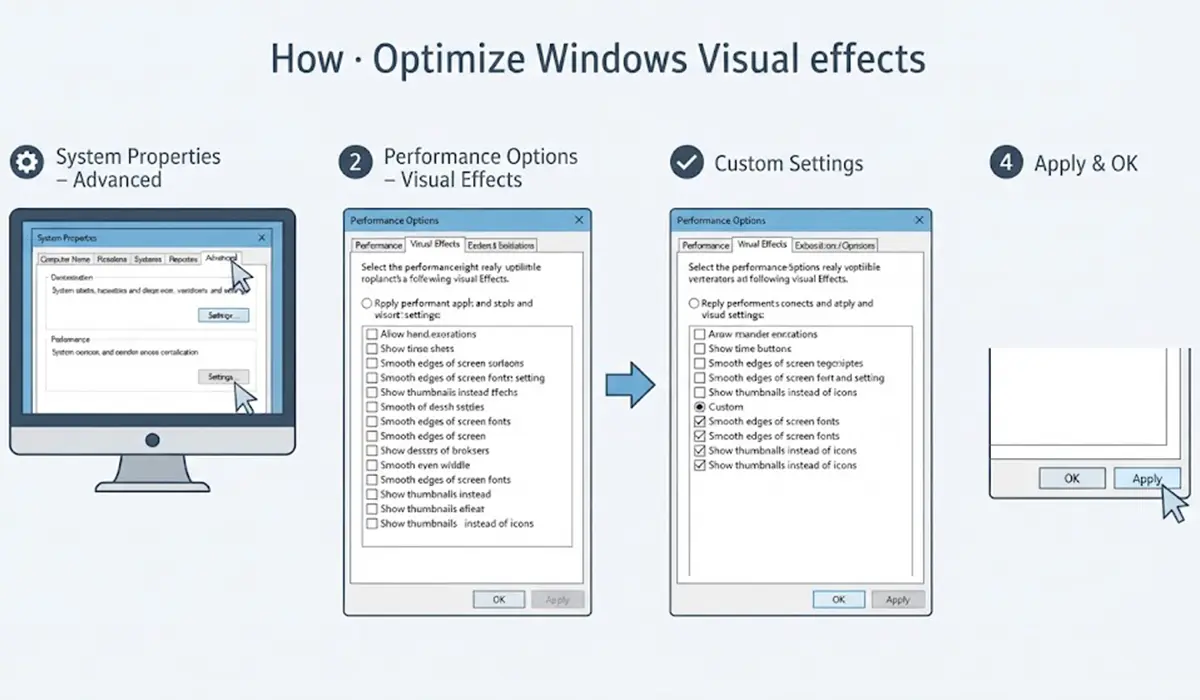
- Step 1: Press the Windows key + R, type sysdm.cpl, and press Enter to open System Properties. Searching the Start menu for ‘Adjust the appearance and performance of Windows’ opens the same panel directly.
- Step 2: Click the Advanced tab, then click Settings under the Performance section.
- Step 3: On the Visual Effects tab, select ‘Adjust for best performance’. This clears every checkbox in the list.
- Step 4: Tick ‘Smooth edges of screen fonts’ again. Without it, text can look jagged and tiring to read. Ticking ‘Show thumbnails instead of icons’ is also worthwhile if folders full of photos or videos become hard to browse.
- Step 5: Click Apply, then OK. The screen may flash for a moment while the changes take effect.
Tip: Choosing ‘Custom’ and unticking items one at a time works well for anyone who wants a faster PC without losing every visual comfort. Start with ‘Animate windows when minimizing and maximizing’ and ‘Fade or slide menus into view’, since these are the most noticeable delays.
Method 2: Turn Off Animations and Transparency in Settings
On Windows 11, follow these steps:
- Step 1: Press the Windows key + I to open Settings.
- Step 2: Select Accessibility, then click Visual effects.
- Step 3: Switch off ‘Transparency effects’ and ‘Animation effects’.
On Windows 10, follow these steps:
- Step 1: Press the Windows key + I and open Ease of Access, then choose Display.
- Step 2: Under the section for simplifying and personalizing Windows, switch off ‘Show animations in Windows’ and ‘Show transparency in Windows’.
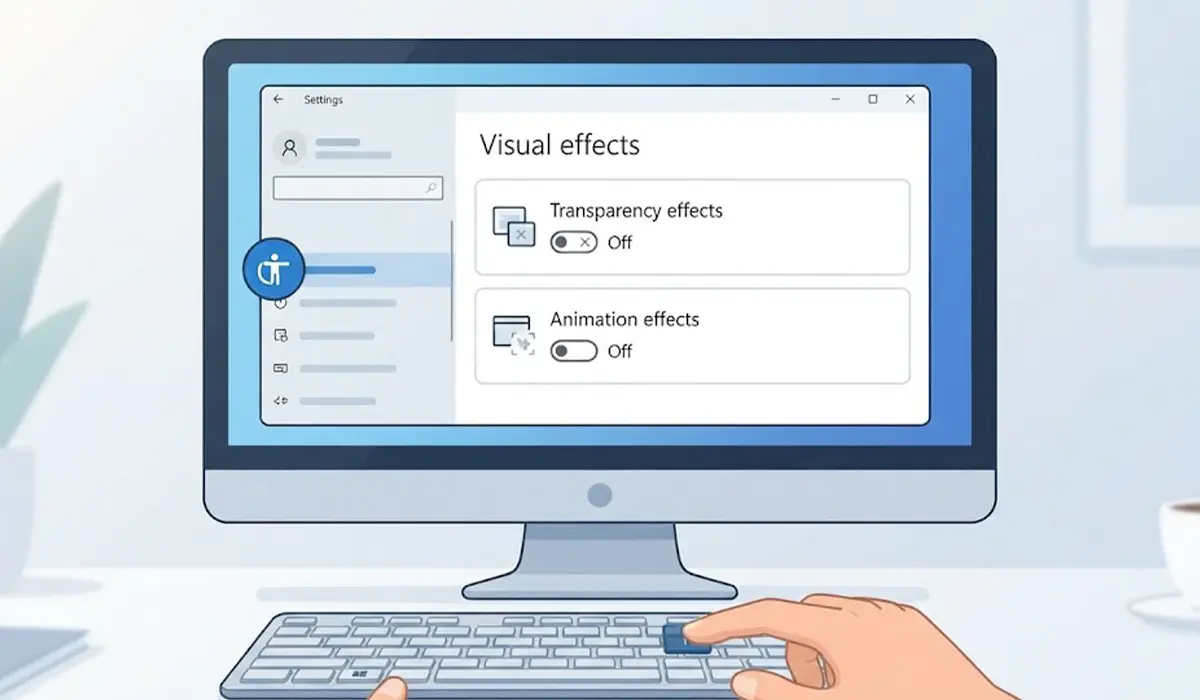
Transparency can also be switched off under Personalization, then Colors, using the ‘Transparency effects’ toggle. Either location controls the same setting.
Confirm the Change Worked
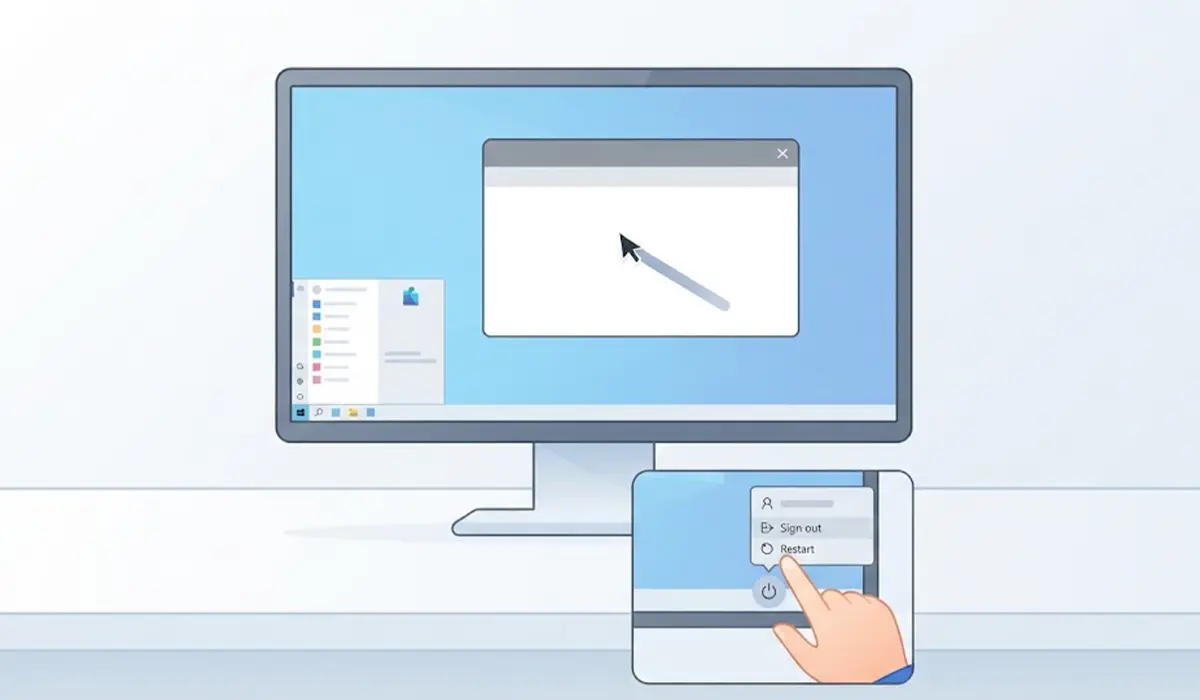
Open the Start menu, minimize a window, and drag a folder around. Menus should appear instantly rather than fading in, and windows should snap open and closed without the slide effect. If something still animates, sign out of Windows and sign back in so every running component picks up the new settings.
Tip: Pair this with closing unused startup apps for a bigger improvement. Visual effects are only one part of why a PC feels slow, and they matter most when memory and graphics power are already tight.
Common Problems and Fixes
The Settings Switches Are Grayed Out or Keep Resetting
This usually points to a power-saving mode or a policy applied by a work or school account. Check that the PC is not in a restrictive battery mode, then reopen the panel. On a managed device, the administrator may need to allow the change.
Text Looks Rough or Jagged After the Change
The ‘Smooth edges of screen fonts’ option was probably cleared by the best performance preset. Reopen Performance Options, tick it again, and click Apply.
Folder Thumbnails Turned Into Plain Icons
Selecting ‘Adjust for best performance’ also clears ‘Show thumbnails instead of icons’. Tick it again in the Visual Effects list to bring back image and video previews.
Windows Show Only an Outline While Dragging
This happens when ‘Show window contents while dragging’ is cleared. It is harmless, but ticking the box restores the normal look with only a small cost.
No Noticeable Speed Difference
On a modern PC with plenty of memory and a capable graphics chip, the gain is small because the effects were never a bottleneck. In that case, look at startup programs, low storage space, or background apps instead.
Settings Return to Default After a Windows Update
Major updates can reset some preferences. Repeat the steps above, and the settings will apply again.
Frequently Asked Questions
Does disabling Windows visual effects really make a PC faster?
It can, mainly on older PCs with limited memory or integrated graphics. Animations and transparency use some processing and graphics resources, so removing them makes menus and windows respond more quickly. On powerful modern hardware, the difference is usually small.
Is it safe to turn off visual effects in Windows?
Yes. These options only change how the desktop is drawn. No files, apps, or system components are removed, and every setting can be switched back on at any time.
Which visual effects should stay turned on?
‘Smooth edges of screen fonts’ is the most important one to keep, since it keeps text clean and readable. ‘Show thumbnails instead of icons’ is also useful for anyone who works with photos or videos.
How do I turn the visual effects back on?
Open Performance Options and select ‘Let Windows choose what’s best for my computer’ or ‘Adjust for best appearance’, then click Apply. Animation and transparency toggles in the Settings app can be switched back on in the same place they were turned off.
Do these steps work on both Windows 10 and Windows 11?
Yes. The Performance Options panel is identical on both. Only the Settings app path differs, with Accessibility and Visual effects on Windows 11, and Ease of Access and Display on Windows 10.
Will turning off transparency effects help performance?
It reduces the graphics work needed to draw the taskbar, Start menu, and other surfaces. The benefit is most noticeable on PCs with integrated graphics or older graphics hardware.
Do I need to restart the computer after changing these settings?
A restart is usually not needed. Most changes apply immediately after clicking Apply, and signing out and back in handles any effect that does not update right away.
Will disabling visual effects improve gaming performance?
Full-screen games draw their own graphics, so the effect is minimal. The change helps more with everyday desktop responsiveness, such as switching between windows and opening menus.
