
Buying the wrong memory module is one of the most common upgrade mistakes, and it is easy to avoid. This guide shows how to find compatible RAM for your laptop model by confirming the exact model name, reading the official memory specs, and matching the type, size, and speed before any money is spent.
Key Takeaways
- Start with the exact model name and number, since two laptops with similar names can use completely different memory.
- Laptops use SODIMM modules (or in some newer designs, CAMM2 modules), and the DDR generation must match exactly.
- Some laptops have soldered memory that cannot be upgraded, so confirm that slots exist before shopping.
- The manufacturer spec page and a memory maker’s model lookup tool give the most reliable compatibility answer.
- Check the maximum capacity, number of slots, and supported speed so the new module actually works as intended.
Before You Start
Most of the work is research, and no screwdriver is needed until the optional physical check in Step 6. If the bottom panel needs to be opened, power the laptop off completely, unplug the charger, and disconnect the internal battery if the service manual shows it as accessible. Touch a bare metal part of the chassis before handling any component to discharge static, and let the laptop cool down first.
Useful items to have nearby: a small Phillips screwdriver, a plastic pry tool, and a phone to photograph the existing module. Opening the case may affect the warranty on some models, and some laptops are glued or locked down in ways that make access risky. If the manual does not show a clear way in, stop and let a professional handle it.
How to Find Compatible RAM for Your Laptop Model Step by Step
- Step 1: Identify the exact model name and number. Check the label on the bottom of the laptop, or press the Windows key and R together, type msinfo32, and press Enter. The ‘System Model’ and ‘System SKU’ lines in System Information give the precise name. Write down the full string, including any letters and numbers at the end.
- Step 2: Open the manufacturer’s support or specification page for that model. Look for the memory section, which normally lists the memory type (such as DDR4 or DDR5), the supported speed, the number of slots, and the maximum supported capacity. This page is the most trustworthy source because it reflects what the manufacturer actually tested.
- Step 3: Confirm that the memory is upgradeable. The spec page or service manual will say whether the laptop uses removable SODIMM modules, soldered memory, or a mix of both. Many thin and light laptops solder all of the memory to the board. Others solder part of it and leave one open slot for expansion.
- Step 4: Check what is installed right now. Open Task Manager, go to the Performance tab, and select Memory. The panel shows the current speed, the number of slots used, and the form factor. A free hardware information tool such as CPU-Z can also show the memory type and the size of each module on its Memory and SPD tabs.
- Step 5: Run the model through a memory maker’s compatibility lookup. Major memory makers such as Kingston offer a search tool where the laptop brand and model can be entered to see a list of tested modules. Treat the result as a shortlist, then cross-check it against the manufacturer spec page from Step 2.
- Step 6: Optionally verify by reading the label on the installed module. With the laptop prepared as described above, remove the service panel and look at the sticker on the existing module. It usually shows the capacity, the DDR generation, and the speed rating. Photograph it, then close the laptop back up until the new module arrives.
- Step 7: Buy a module that matches every detail, and choose a seller with a clear return policy. The match should cover the DDR generation, the SODIMM form factor, the speed, and a capacity that stays within the maximum listed for the model.

Tip: Take a screenshot of the spec page and the System Information window before shopping. Having the model name, memory type, and maximum capacity in one place makes it much easier to compare listings and avoid a near-miss purchase.
What Has to Match
DDR generation
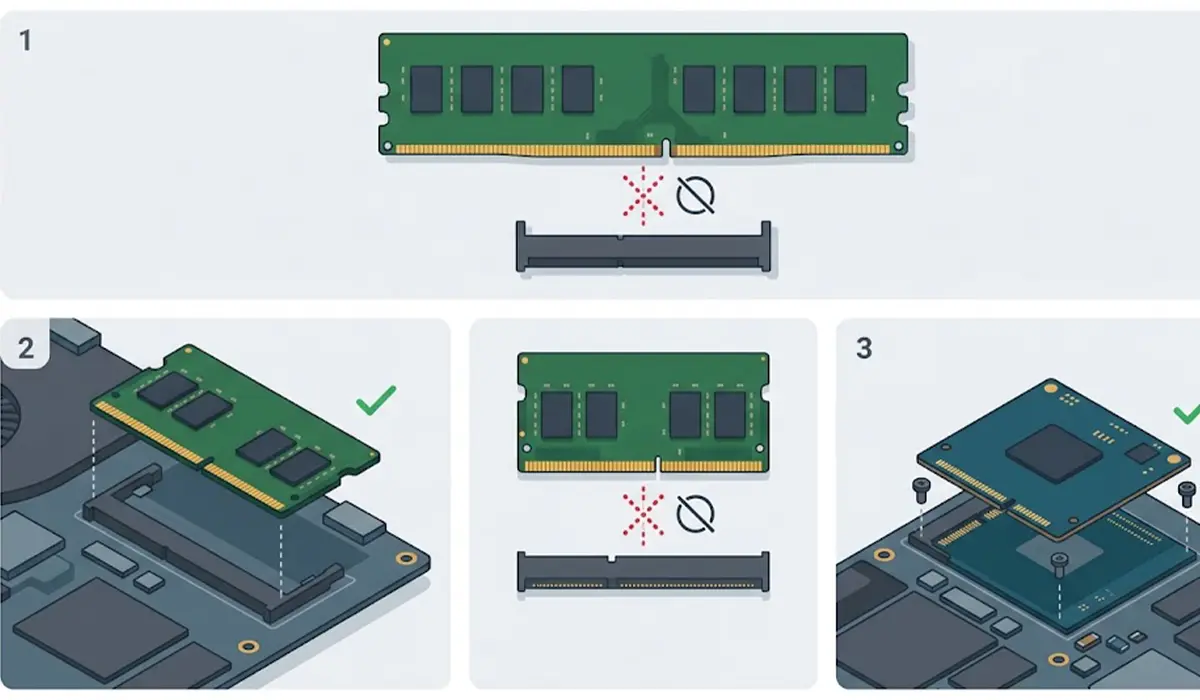
DDR3, DDR4, and DDR5 are physically and electrically different. Each generation has its notch in a different position, so a module from the wrong generation either will not fit or will not work. Always match the generation the laptop was designed for.
Form factor
Laptop memory is shorter than desktop memory. Most laptops with upgradeable memory use SODIMM modules, while some newer designs use the CAMM2 format. A desktop DIMM will not fit a laptop slot, and a SODIMM will not fit a CAMM2 connector.
Capacity and slot count
The spec page lists a maximum total capacity, and that figure applies across all slots combined. A laptop with two slots and a stated maximum can be filled with two smaller modules or two larger ones, as long as the total stays within the limit.
Speed and channel pairing
Memory rated faster than the laptop supports normally runs at the slower supported speed, so extra speed brings no benefit. When two modules with different speeds are installed together, the system generally runs both at the lower rating. For the best performance, a matched pair of identical modules is the safest way to use dual-channel mode.
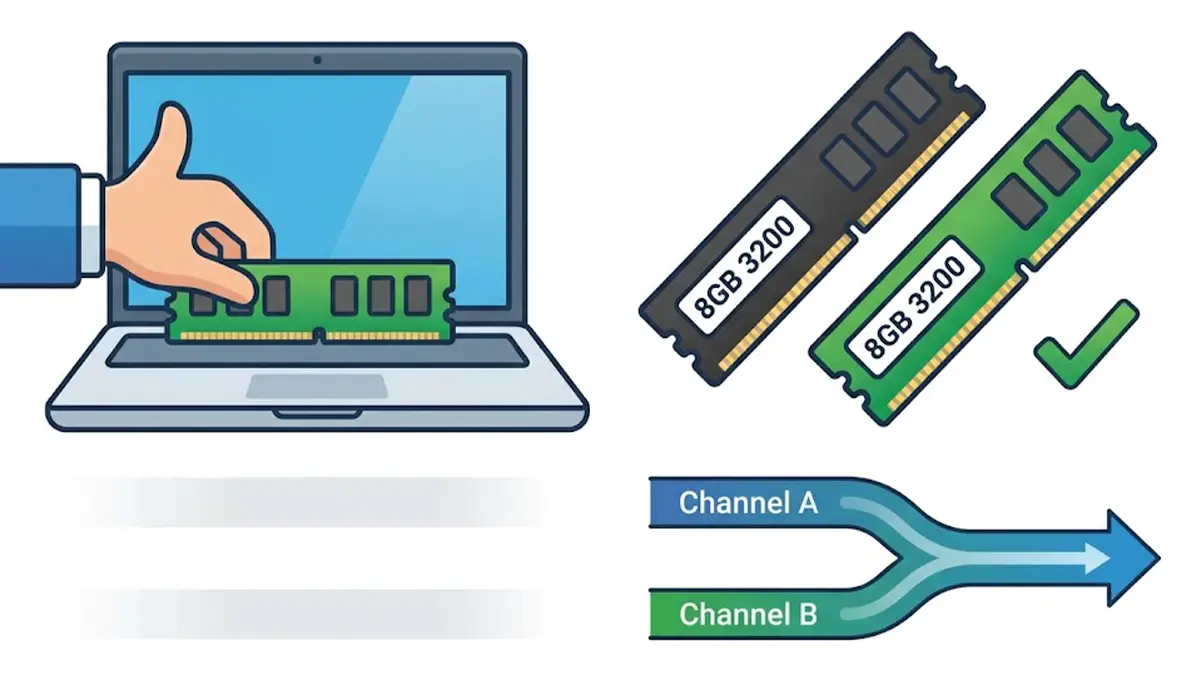
Tip: When adding a second module to a laptop that already has one, try to match the speed and capacity of the existing module. A mismatched pair often works, but a matched pair removes most of the guesswork.
Common Problems and Fixes
The laptop does not boot after installing the new RAM
Power off, unplug the charger, and reseat the module. Insert it at an angle, press it down until the side clips lock, and make sure it sits fully flat. If the problem continues, try each module alone to find out whether one of them is faulty or incompatible.
Only part of the new memory shows up in Windows
First confirm that the installed Windows is a 64-bit version, since 32-bit Windows can only use around 4 GB. Then check the BIOS or UEFI memory page to see whether the full capacity is detected. If the BIOS shows less than expected, reseat the module or test it in another slot.
The memory runs slower than the rating on the label
The laptop is probably limiting the speed to the maximum it supports, or to the speed of the slower module in a mixed pair. Check the supported speed on the manufacturer spec page. Using two matched modules usually solves a mixed-speed slowdown.
A compatibility tool lists the module, but it still fails
Check for a BIOS update from the manufacturer, since newer firmware sometimes improves memory support. Reseat the module, test it alone, and confirm that the capacity does not exceed the stated maximum. If the module still fails, return it for a replacement or refund.
No second slot is available
Some laptops have only one slot or a single soldered bank with no expansion. In that case, the only option is to replace the module in the existing slot with a larger one, if the spec page shows that the capacity fits within the maximum.
Frequently Asked Questions
Can any RAM be installed in any laptop?
No. The module must match the laptop’s DDR generation and form factor, and it must stay within the supported speed and capacity. Desktop memory does not fit laptop slots.
How can the current RAM type be checked in Windows?
Task Manager shows the speed, the slots used, and the form factor under Performance and then Memory. A free tool such as CPU-Z shows the memory type and module sizes on its Memory and SPD tabs. The manufacturer spec page also lists the type for the exact model.
Is soldered laptop RAM upgradeable?
No. Soldered memory is attached to the motherboard and cannot be replaced or expanded. Some laptops combine soldered memory with one open slot, which allows a partial upgrade.
How much RAM can a laptop support?
The maximum is listed on the manufacturer spec page for the exact model. It depends on the processor, the motherboard, and the number of slots, so a general rule is not reliable.
Can faster RAM than the listed speed be installed?
In most cases the laptop runs the module at the highest speed it supports, so the extra rating goes unused. It is usually better to buy a module that matches the listed speed.
Is it safe to mix different RAM brands or sizes?
Mixed modules often work, but the system generally runs them at the slower speed, and dual-channel performance may be reduced. A matched pair is the most dependable option.
Does the version of Windows affect how much RAM can be used?
Yes. A 32-bit version of Windows can only use around 4 GB of memory. A 64-bit version is needed to use larger amounts.
What should be done if a compatibility tool and the manufacturer spec page disagree?
Follow the manufacturer spec page, since it reflects the supported limits for that model. Use the lookup tool as a shortlist and confirm the type, speed, and capacity against the official page before buying.
