
Learning how to fix a PC that starts then immediately shuts off usually comes down to a short list of suspects: power delivery, memory, cooling, or an electrical short. The fans spin, the lights flicker on, and a second or two later everything goes dead. This guide walks through the checks in the order that finds the cause fastest.
Key Takeaways
- An instant shutdown after power-on is almost always a protection response, triggered by a short circuit, a power fault, a missing cooler signal, or unstable memory.
- Strip the system down to the bare minimum first (CPU, cooler, one RAM stick, power supply) so the faulty part has nowhere to hide.
- Reseating power cables, RAM, and the CPU cooler fixes a large share of cases without any new parts.
- Clearing the CMOS removes bad BIOS or memory profile settings that cause boot loops.
- Swapping in a known-good power supply is the most reliable way to confirm or rule out the PSU.
Common Causes
A desktop motherboard monitors power and temperature from the first moment of boot. If anything looks wrong, it cuts power on purpose to protect the hardware. The most frequent triggers are:
- A failing or underpowered power supply unit (PSU).
- A loose 24-pin motherboard cable or CPU power cable (the 8-pin or 4+4-pin EPS connector).
- A short circuit from an extra case standoff, a stray screw, or a bent front panel connector.
- RAM that is not fully seated, is faulty, or is unstable with its XMP or EXPO profile.
- A CPU cooler that is mounted badly, or a fan or pump cable plugged into the wrong header.
- A stuck case power button, or a faulty graphics card or other add-in device.
- Corrupt BIOS settings after an update or overclock.
- A failing motherboard or CPU, which is the least common cause and should be confirmed last.
Before You Start
Turn the PC off, flip the PSU switch to the off position, and unplug the power cable from the wall. Press and hold the case power button for about 10 seconds to drain any leftover charge. Touch a bare metal part of the case, or wear an anti-static strap, before handling components.
- A Phillips screwdriver (a magnetic tip helps with small screws).
- A flashlight to see into the case.
- Compressed air and a soft brush for dust.
- The motherboard manual, for header locations, debug LED meanings, and the CMOS reset method.
- A known-good PSU, if one can be borrowed, for the power supply test.
Opening the case is safe for most people, but it may affect certain warranties, especially if stickers or seals are broken. If a burning smell, scorch marks, or swollen parts are found, stop and let a professional take over.
How to Fix a PC That Starts Then Immediately Shuts Off
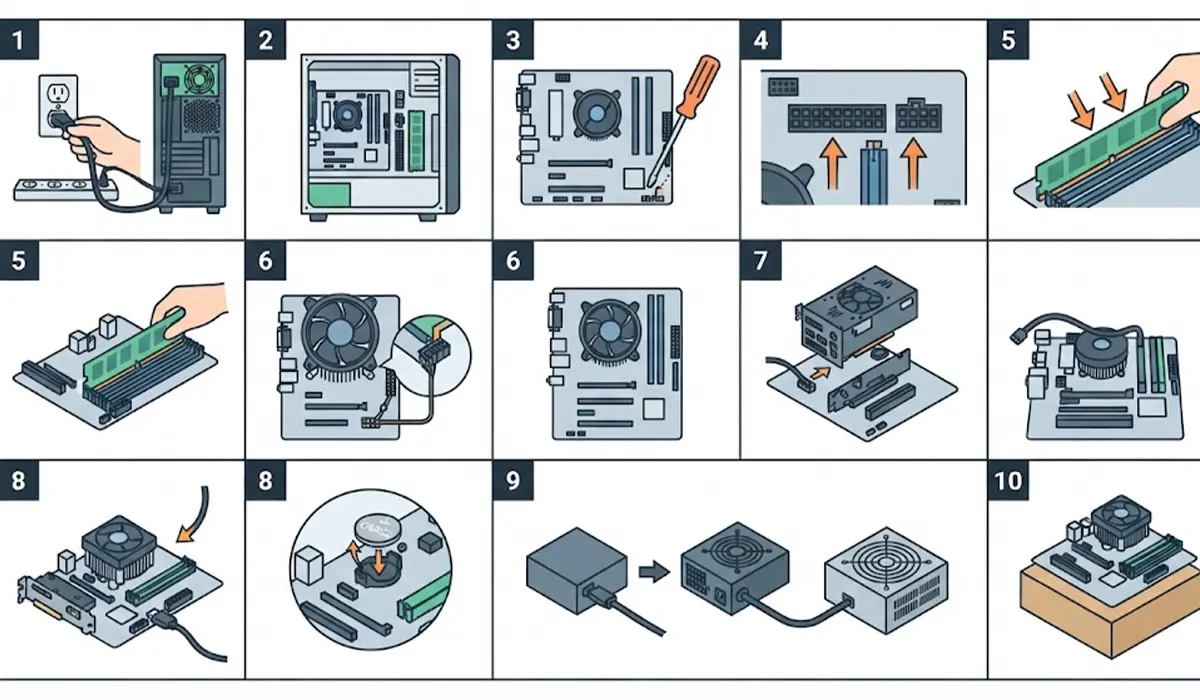
Work through these steps in order. Test the PC after each one so the exact fix is clear.
- Step 1: Rule out the outlet and cables. Plug the PC directly into a wall outlet that is known to work, bypassing any power strip or UPS. Check that the PSU switch is on and that the power cable is firmly seated at the PSU. Try a different power cable if one is available.
- Step 2: Disconnect everything that is not essential. Unplug all USB devices, extra drives, card readers, and case fans from the motherboard. Leave only the CPU, cooler, one RAM stick, the motherboard, and the PSU connected, plus the monitor if the CPU has integrated graphics. A faulty drive or USB device can pull the system down on its own.
- Step 3: Check for a short circuit. Look at the motherboard standoffs and make sure there is one under each mounting hole and none under a spot without a hole. Remove any loose screws or metal fragments from inside the case. Then check the front panel connectors (power switch, reset, LEDs) for bent pins or wrong placement. Disconnect the reset switch cable and the power switch cable, then power on by briefly touching the two power switch pins with an insulated screwdriver tip as shown in the motherboard manual. If the PC stays on, the case button or its cable is the problem.
- Step 4: Reseat the power connectors. Unplug and firmly re-insert the 24-pin motherboard cable, the CPU power cable (EPS), and any PCIe power cables to the graphics card. These connectors have latches and need to click into place. A half-seated EPS cable is a classic cause of power-on, then shutdown.
- Step 5: Reseat and test the RAM. Remove each stick, then push it back into the slot until both side clips snap shut. Test with a single stick in the slot recommended by the manual, then try each stick separately in that slot. If one stick causes the shutdown, it is faulty or incompatible.
- Step 6: Inspect the CPU cooler. Make sure it is mounted evenly, that any plastic film on the base has been removed, and that the fan cable is plugged into the CPU fan header. For a liquid cooler, the pump cable usually goes to the CPU fan or a dedicated AIO pump header. Some boards shut the system down when no cooler signal is detected.
- Step 7: Test without the graphics card. If the CPU has integrated graphics, remove the dedicated GPU, connect the monitor to the motherboard video port, and power on. A faulty card or a bad PCIe power connection can trigger the shutdown. If the PC now stays on, reseat the GPU and test it again before assuming it is dead.
- Step 8: Clear the CMOS. With the PC unplugged and the PSU switch off, remove the round coin cell battery (usually a CR2032) from the motherboard for about a minute, then put it back. Many boards also have a CLR_CMOS jumper or button, described in the manual. This wipes overclocks and memory profile settings that may be causing a boot loop.
- Step 9: Test with a known-good PSU. A PSU can seem fine while idle yet fail the moment the system draws power. Borrow a quality unit with enough wattage for the build, connect it to the stripped-down system, and power on. If the problem disappears, the original PSU needs replacing.
- Step 10: Test outside the case. Place the motherboard on its retail box or a non-conductive surface, connect the CPU, cooler, one RAM stick, and the PSU, then start it by touching the power switch pins. If it runs normally outside the case, something in the case is shorting the board.
Tip: Check the motherboard for debug LEDs or a two-digit debug display and note which light stays on or which code appears. The manual translates these into a CPU, RAM, GPU, or boot device fault, which can save a lot of guessing.
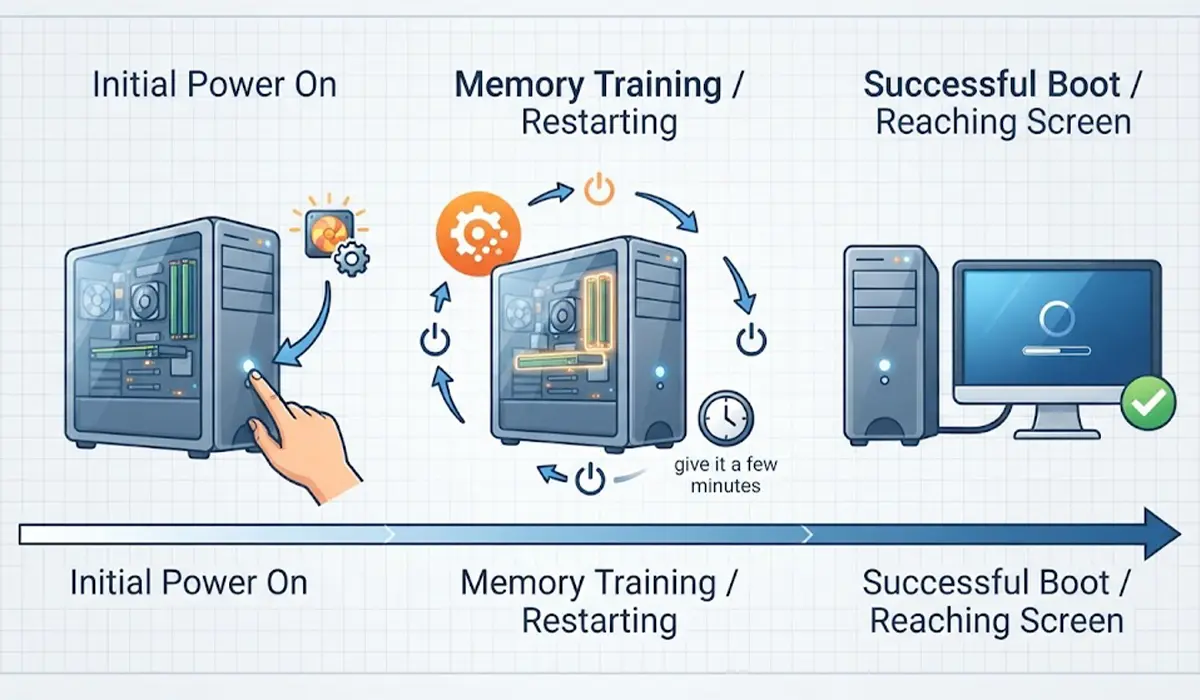
When Memory Training Looks Like a Failure
Some newer platforms run memory training on the first boot, or after a BIOS or memory change. During this, the PC may power on, shut off, and restart a few times before reaching the screen. Give a new build or a freshly reset system a few minutes to settle before assuming the worst.
Common Problems and Fixes
The PC Still Shuts Off With Only the Essentials Connected
With just the CPU, cooler, one RAM stick, and PSU connected, the most likely culprits are the PSU, motherboard, or CPU. Test with a known-good PSU first. If the shutdown continues, a technician should check the motherboard and CPU.
Fans Spin for a Second After a New Build, Then Everything Stops
This points to a short circuit or a missing power connection. Recheck the standoffs, confirm the EPS cable is plugged into the CPU power socket, and test the board outside the case.
The PC Cycles On and Off Repeatedly After a BIOS Update or XMP Change
Clear the CMOS to restore default settings. Then let the system sit for a few minutes on the next boot, because memory training can take time. Re-enable the memory profile only after the PC is stable at default settings.
The PC Starts With One RAM Stick but Shuts Off With Two
Try each stick alone, then both together in the slots the manual recommends. If a single stick works alone in every slot but the pair fails, the memory kit may be incompatible or one stick may be failing.
The PC Powers Off Immediately After the Cooler Was Replaced or Cleaned
Check that the fan or pump cable is plugged into the correct header and that the cooler is mounted flat against the CPU. An uneven mount or a disconnected pump can trigger an instant protective shutdown.
Frequently Asked Questions
Why does a PC turn on for a second and then shut off?
The motherboard has detected a fault and cut power to protect the hardware. Common causes include a short circuit, a failing or poorly connected power supply, unseated RAM, or a cooler fan or pump that is not connected to the right header.
Can a bad power supply cause a PC to shut off right after starting?
Yes. A failing PSU may power on the fans and lights but be unable to deliver stable power under load, which causes an immediate shutdown. Testing with a known-good PSU is the most reliable way to confirm this.
Can faulty RAM make a PC turn off immediately?
Yes. Unseated, damaged, or incompatible memory can cause the system to shut down or restart in a loop. Reseating the RAM and testing one stick at a time usually identifies the problem.
Can a stuck case power button or loose front panel connector cause this?
Yes. A stuck or faulty power switch can send a shutdown signal as soon as the PC starts. Disconnecting the front panel cables and starting the PC by briefly touching the power switch pins on the motherboard shows whether the case button is the cause.
Is it safe to keep pressing the power button when the PC will not stay on?
A couple of attempts are fine, but repeated tries are not a good idea if a short circuit is possible. Unplug the PC and work through the checks instead, starting with standoffs, loose screws, and cable connections.
Does clearing the CMOS erase files on the drive?
No. Clearing the CMOS resets BIOS settings such as boot order, overclocks, and memory profiles to their defaults. Files and the operating system on the drive are not affected.
How can a PC be tested without a case?
Place the motherboard on a non-conductive surface such as its retail box, connect the CPU, cooler, one RAM stick, and the PSU, then briefly touch the power switch pins with an insulated screwdriver tip. If the PC stays on outside the case, something inside the case is likely shorting the board.
When is it time to replace the motherboard or call a technician?
If the PC still shuts off with a minimal setup, a known-good PSU, tested RAM, and a cleared CMOS, the motherboard or CPU is the likely cause. At that point, or if there are signs of burning or swollen components, professional diagnosis is the safest next step.
