
Learning how to fix blurry apps in Windows 11 takes only a few minutes, and the cause is almost always a display scaling mismatch. Older desktop programs often struggle on high-resolution screens or when a laptop is connected to a second monitor. These steps work on every edition of Windows 11, and no administrator rights are needed unless a step says otherwise.
Key Takeaways
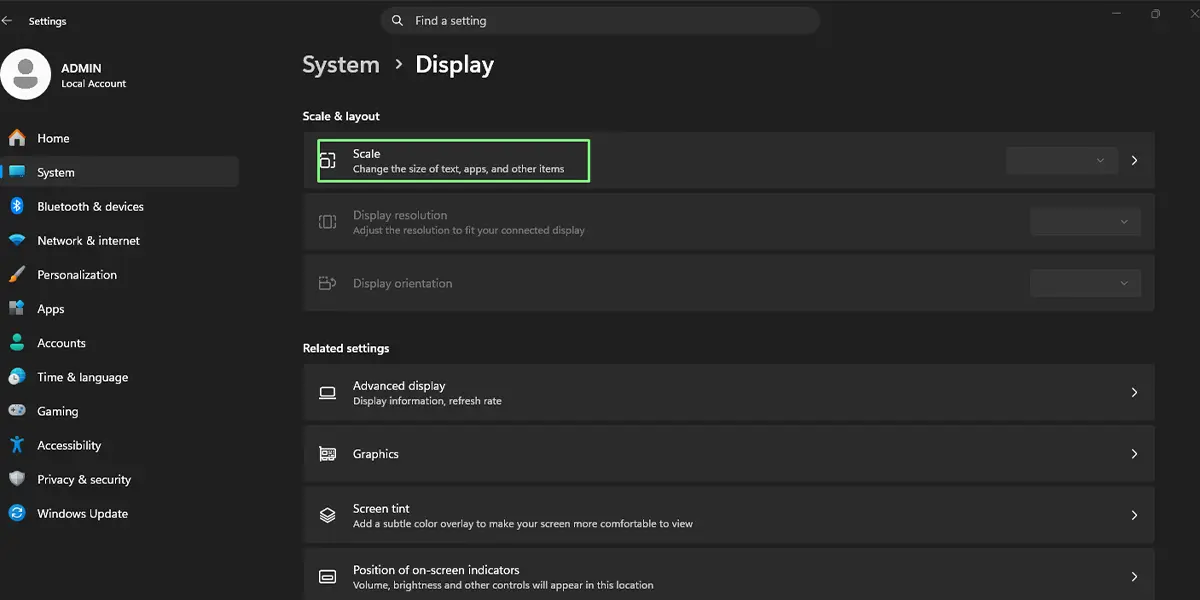
- Turn on Let Windows try to fix apps so they’re not blurry under Settings > System > Display > Scale.
- Set the display resolution and scale to the values marked Recommended on the same Display page.
- For one stubborn program, use its Compatibility tab and override the high DPI scaling behavior.
- Sign out and back in after changing scaling so every app picks up the new setting.
Step-by-Step Guide to Fix Blurry Apps in Windows 11
Method 1: Use the Settings App to Fix Scaling for Apps
This is the quickest fix and works for most blurry desktop programs, especially after plugging in an external monitor or changing the scale.
- Press Windows + I to open Settings.
- Click System in the left sidebar.
- Click Display.
- Under Scale & layout, click the Scale row to open its scaling options.
- Find the Fix scaling for apps section.
- Turn on the toggle for Let Windows try to fix apps so they’re not blurry.
- Close and reopen the blurry app. If the text still looks soft, sign out of Windows and sign back in.
After signing back in, text and buttons in the app should look noticeably crisper, with clean edges instead of a smudged look.
Tip: Windows sometimes shows a notice saying an app looks blurry with a button to fix it. Choosing that button applies the same fix without opening Settings.
Method 2: Set the Recommended Resolution and Scale
A screen running below its native resolution is stretched, much like a small photo blown up to fill a poster. Setting the recommended values removes that stretch for every app at once.
- Press Windows + I to open Settings.
- Go to Settings > System > Display.
- Under Scale & layout, open the Display resolution drop-down and pick the option marked (Recommended).
- Open the Scale drop-down and pick the percentage marked (Recommended).
- If the screen asks for confirmation, click Keep changes.
- Sign out and back in so open and newly launched apps redraw at the new scale.
With two monitors, click the screen you want to adjust at the top of the Display page first, because each screen keeps its own resolution and scale. Blurriness often shows up only when an app is dragged from one screen to another with a different scale.
Method 3: Override High DPI Scaling for One App
When a single program stays blurry after Methods 1 and 2, its own compatibility settings can force a different scaling behavior. This works for classic desktop programs (.exe files), not for apps installed from the Microsoft Store.
- Right-click the app’s shortcut on the desktop or in the Start menu, then choose Open file location if needed to reach the program’s shortcut or .exe file.
- Right-click the shortcut or .exe file and click Properties.
- Open the Compatibility tab.
- Click Change high DPI settings.
- Tick Override high DPI scaling behavior.
- Open the Scaling performed by drop-down and choose Application first. If the app is still blurry, repeat the steps and try System (Enhanced).
- Click OK, then click OK again in the Properties window.
- Reopen the app.
Choosing Application lets the program draw itself at the correct size, which usually gives the sharpest result. Administrator approval is needed only if the Change settings for all users button is used, for example on a shared family PC.
Tip: Text that looks slightly fuzzy even when scaling is correct can be tuned by typing Adjust ClearType text in the Start menu search box and following the on-screen wizard.
How to Undo or Reverse This Change
To restore the original behavior, go back to Settings > System > Display > Scale and turn off Let Windows try to fix apps so they’re not blurry. To restore the old scale or resolution, reopen Settings > System > Display and pick the previous values. For a single app, reopen Change high DPI settings in its Properties window and untick Override high DPI scaling behavior.
Common Problems and Fixes
The Fix Scaling for Apps Toggle Is Missing or Greyed Out
On a PC managed by work or school, an administrator may control display settings. A missing or locked option can also point to an outdated graphics driver. Open Settings > Windows Update > Advanced options > Optional updates, check Driver updates, and install any display driver listed. Then check the Display page again.
The App Is Still Blurry After Signing Out and Back In
Some older programs ignore the global setting entirely. Use Method 3 on that app and try both Application and System (Enhanced), because one of them usually works where the other does not.
Apps Turn Blurry Only on the Second Monitor
This happens when the two screens use different scale percentages. Open Settings > System > Display, select each monitor in turn, and set the scale marked (Recommended) for that screen. Matching the scale on both screens, where possible, avoids the issue when dragging windows between them.
The Compatibility Tab Has No High DPI Option
Apps from the Microsoft Store do not offer the Change high DPI settings button. For those apps, rely on Method 1 and Method 2 instead.
Blurriness Returns After Changing the Scale Again
Changing the scale while apps are open can leave them drawn at the old size. Close the affected apps, or sign out and back in, after every scale change.
Frequently Asked Questions
Does this work on Windows 11 Home and Pro?
Yes. The Settings options and the per-app Compatibility tab are available on Home, Pro, and Enterprise editions.
Why do some apps look blurry while others look sharp?
Modern apps scale themselves correctly, while older desktop programs may not. Windows then enlarges their window like a picture, which makes text and icons look soft.
Do I need to restart the PC after changing these settings?
A full restart is not required. Signing out and signing back in is usually enough for apps to redraw at the new scaling.
Will turning on the fix for blurry apps slow down the computer?
No noticeable slowdown is expected. The setting only changes how Windows scales app windows and has no meaningful effect on battery life or speed.
Is a higher scale percentage the cause of blurry apps?
It can be. Scales such as 125% or 150% are common on laptops and work well with modern apps, but older programs may look soft at those values. The Let Windows try to fix apps so they’re not blurry toggle is designed to help in that situation.
Why is the Change high DPI settings button missing?
The button appears only on the Compatibility tab of classic desktop programs. Microsoft Store apps and some system apps do not have it.
What is the quickest way to reach the Display settings?
Press Windows + I to open Settings, then go to Settings > System > Display. Right-clicking an empty area of the desktop and choosing Display settings reaches the same page.
Can the fix be applied to just one program instead of the whole PC?
Yes. Right-click the program’s shortcut or .exe file, open Properties, go to the Compatibility tab, and use Change high DPI settings to override scaling for that program only.
