
Need to make text bigger without changing scaling in Windows 11? The built-in Text size setting enlarges words across the system while icons, buttons, and window layouts stay the same. This works on every Windows 11 edition, needs no administrator rights, and takes less than a minute.
Key Takeaways
- Open Settings > Accessibility > Text size and drag the slider to enlarge text only.
- The slider runs from 100% to 225%, and the display scaling value under System > Display stays untouched.
- Click Apply to save the change. No restart is needed.
- Zoom shortcuts inside apps and the Magnifier tool are quick alternatives when only one program needs bigger text.
Step-by-Step Guide to Make Text Bigger in Windows 11 Without Changing Scaling
Method 1: Use the Settings App
This is the cleanest way to enlarge text across Windows 11 itself, including Settings, File Explorer, and the Start menu, plus most modern apps.
- Press Windows + I to open Settings.
- Click Accessibility in the left sidebar.
- Click Text size near the top of the page.
- Drag the Text size slider to the right. The sample text above the slider grows as the slider moves, so there is no need to guess how it will look.
- Click Apply.
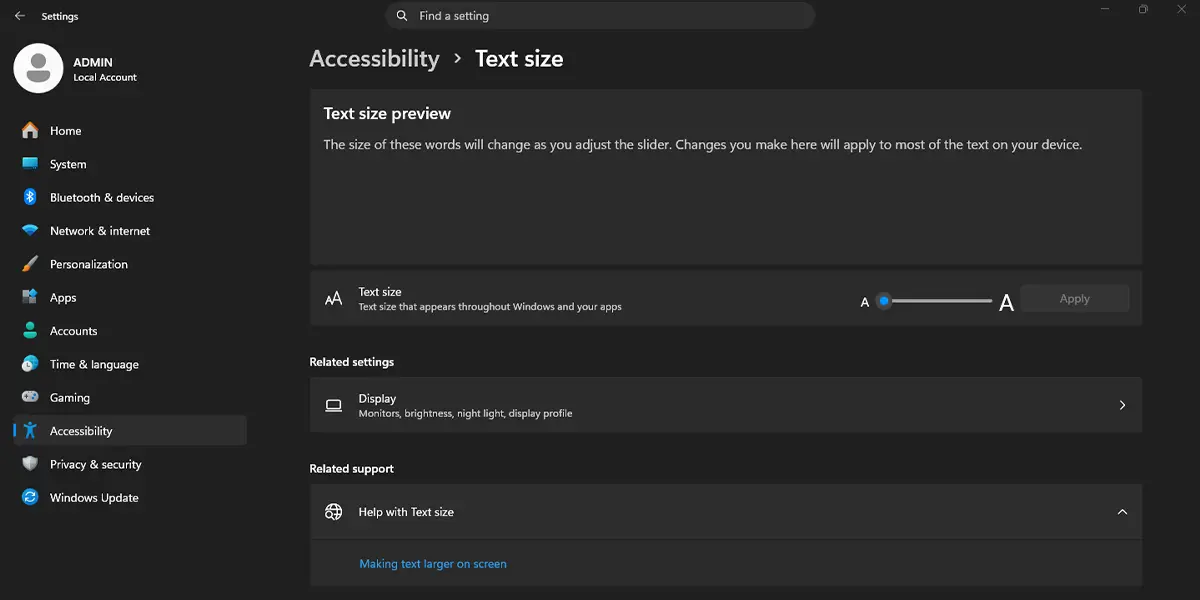
A short blue ‘Please wait’ screen may appear, and then the desktop returns with larger text. Icons and window sizes look the same as before, which confirms that scaling was not changed.
Tip: Start with a small step, such as 125%, and check how it feels for a few minutes. Most people find that a modest increase is easier to live with than jumping straight to the maximum.
Method 2: Zoom Text Inside a Single App
This approach suits a laptop shared with family members, or a case where only a browser or a text editor needs bigger words. The system-wide text stays at its normal size.
- Open the app, such as Microsoft Edge or Notepad.
- Press Ctrl + Plus (+) to zoom in. Alternatively, hold Ctrl and scroll the mouse wheel up.
- Repeat until the text reaches a comfortable size.
- Press Ctrl + 0 to return to the default size when finished.
The text in that app grows immediately. Each app remembers zoom in its own way, so the setting may need repeating in other programs.
Method 3: Use the Magnifier
Magnifier enlarges whatever is on screen, which helps when a small label or a block of text is hard to read. It zooms the picture and does not change any text or scaling setting.
- Press Windows + Plus (+) to turn on Magnifier.
- Press Windows + Plus (+) again to zoom in more, or Windows + Minus (-) to zoom out.
- Press Windows + Esc to turn Magnifier off.
The screen enlarges right away, and closing Magnifier brings the normal view back. The same tool can also be found under Settings > Accessibility > Magnifier.
How to Undo or Reverse This Change
To return text to its original size, go to Settings > Accessibility > Text size, drag the slider all the way to the left until it shows 100%, and click Apply. Other apps that were zoomed with Ctrl + Plus return to normal with Ctrl + 0.
Common Problems and Fixes
Text Is Still Small in Some Apps
Some apps must be closed and reopened before the new size appears. If the text still stays small, the app may not follow the system Text size setting. In that case, use the app’s own zoom with Ctrl + Plus.
The Text Size Slider Does Not Move or Cannot Be Applied
On a work or school PC, an organization may control accessibility settings. Check whether the device is managed, and ask the administrator if needed. Restarting the PC and trying again also clears a stuck Apply button in many cases.
Icons and Buttons Did Not Get Bigger
This is expected. The Text size setting only enlarges words. Making icons and interface elements bigger requires the scaling option under Settings > System > Display, which is exactly what this method avoids.
The Text Size Page Is Missing
The page sits under Settings > Accessibility on current Windows 11 versions. If it cannot be found, the PC may be running an outdated build, so install pending updates through Windows Update and check again.
Frequently Asked Questions
Does making text bigger change display scaling in Windows 11?
No. The Text size slider under Accessibility only enlarges text. The scale percentage under Settings > System > Display stays exactly as it was.
Does this work on Windows 11 Home?
Yes. The Text size setting is available on Windows 11 Home, Pro, Enterprise, and Education.
Does the change need a restart?
No. Clicking Apply is enough. Apps that were already open may need to be closed and reopened to show the new size.
Why do some apps ignore the new text size?
Certain older desktop programs draw their own text instead of following the system setting. Their built-in zoom, often Ctrl + Plus, is the better option there.
Does bigger text affect battery life or performance?
No noticeable effect is expected. The setting only changes how large text is drawn, so a laptop on battery behaves the same as before.
Is there a keyboard shortcut for the Text size setting?
There is no single shortcut that sets a text size value. Windows + I opens Settings quickly, Ctrl + Plus zooms inside most apps, and Windows + Plus turns on Magnifier.
How can text be set back to the default size?
Open Settings > Accessibility > Text size, move the slider back to 100%, and click Apply.
Will the larger text appear on a second monitor?
Yes. The Text size setting is a system-wide choice, so it applies across the displays connected to the computer.
