
Learning how to fix Ethernet showing unidentified network problems starts with one fact: Windows plugged in the cable but could not get a valid IP address from the router. The link exists, yet nothing useful travels across it. The good news is that the fix is usually quick, and most cases are solved with a restart, a cable swap, or a few network commands.
Key Takeaways
- The ‘Unidentified network’ message usually means Windows failed to receive a valid IP address from the router or modem.
- Start with the simple checks: restart the router and PC, then test the cable and the router port.
- Renewing the IP address and resetting the Winsock and TCP/IP stack fix most software-related cases.
- Outdated drivers, adapter power-saving settings, and Fast Startup are common hidden triggers.
- If a different device also fails on the same cable and port, the problem is the cable, router, or modem, not the PC.
Common Causes of the Unidentified Network Error
Think of the router as a receptionist who hands every visitor a visitor badge (an IP address). When the badge never arrives, Windows labels the connection ‘Unidentified network’ and often assigns itself a temporary address starting with 169.254. That address cannot reach the internet. Several things can interrupt the handoff:
- A loose, damaged, or low-quality Ethernet cable, or a faulty port on the PC or router.
- A router or modem that has stopped assigning addresses and needs a restart.
- A corrupted network stack after a Windows update or software change.
- An outdated, damaged, or incompatible Ethernet driver.
- Adapter power management or Fast Startup leaving the network card in a bad state.
- VPN software or virtual adapters interfering with the physical connection.
Step-by-Step Fixes for Ethernet Showing Unidentified Network
Work through these in order. Each one is a little more involved than the last, so there is no need to skip ahead.
Start With the Quick Physical Checks
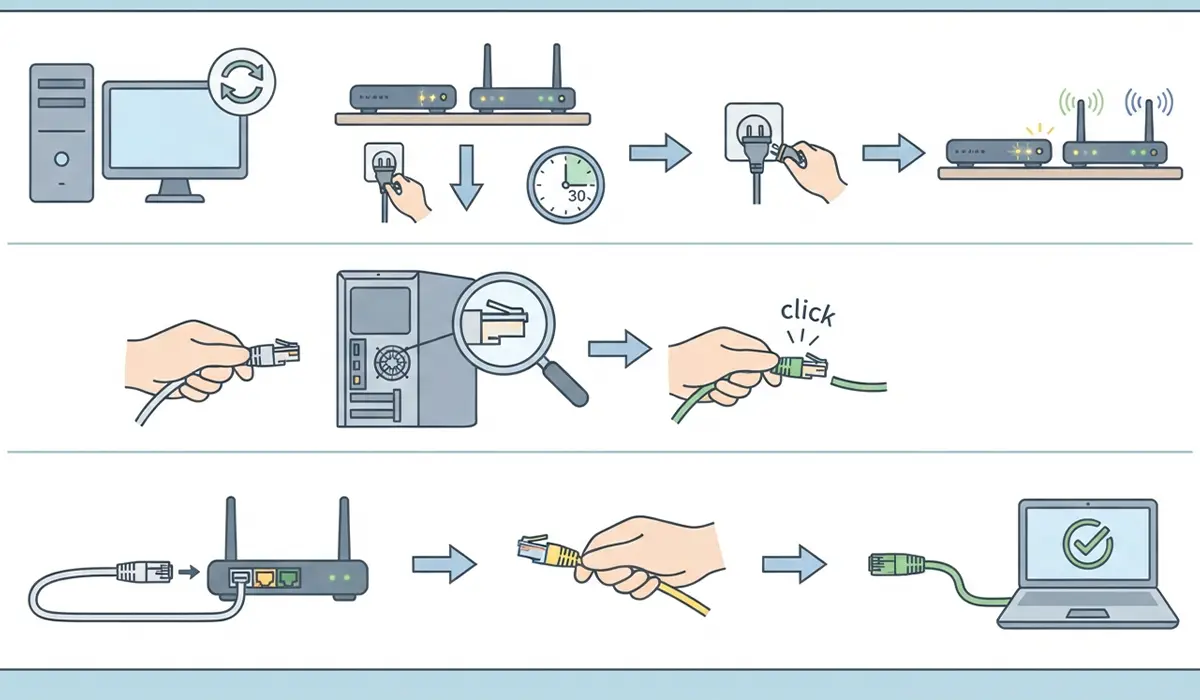
- Step 1: Restart the PC, then power off the router and modem, wait about 30 seconds, and power them back on. Give them a couple of minutes to fully start before testing again. This clears many temporary address assignment failures.
- Step 2: Unplug the Ethernet cable at both ends and firmly reseat it until it clicks. Look for bent pins, a cracked clip, or a kinked cable.
- Step 3: Try a different LAN port on the router, and if possible a different cable. Testing the same cable and port with another laptop or PC quickly shows whether the fault is the PC or the network gear.
Tip: A cable that works for a moment and then drops is a classic sign of a worn connector. Replacing an inexpensive cable is often faster than any software troubleshooting.
Reset the Adapter and Renew the IP Address
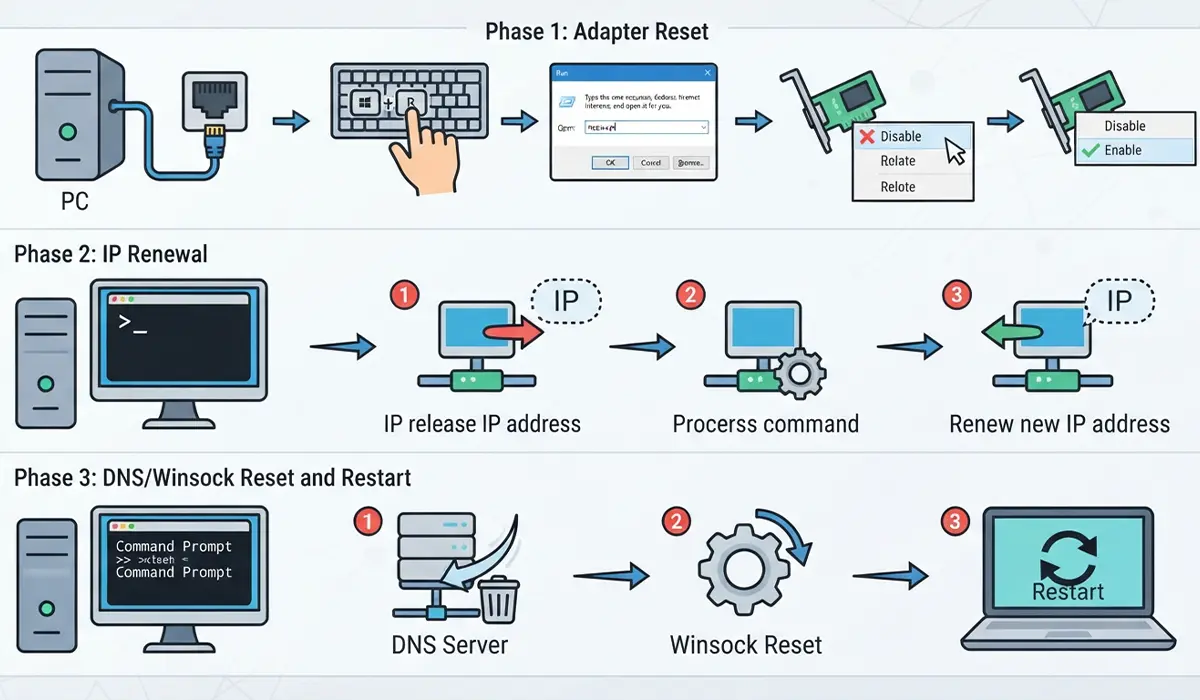
- Step 4: Press Windows key + R, type ncpa.cpl, and press Enter. Right-click the Ethernet adapter, choose Disable, wait a few seconds, then right-click it again and choose Enable.
- Step 5: Open the Start menu, search for Command Prompt, and choose Run as administrator. Enter these commands one at a time, pressing Enter after each: ‘ipconfig /release’, then ‘ipconfig /renew’, then ‘ipconfig /flushdns’.
- Step 6: In the same administrator Command Prompt, enter ‘netsh winsock reset’ and then ‘netsh int ip reset’. Restart the PC afterward so the changes take effect.
Check the IP Settings
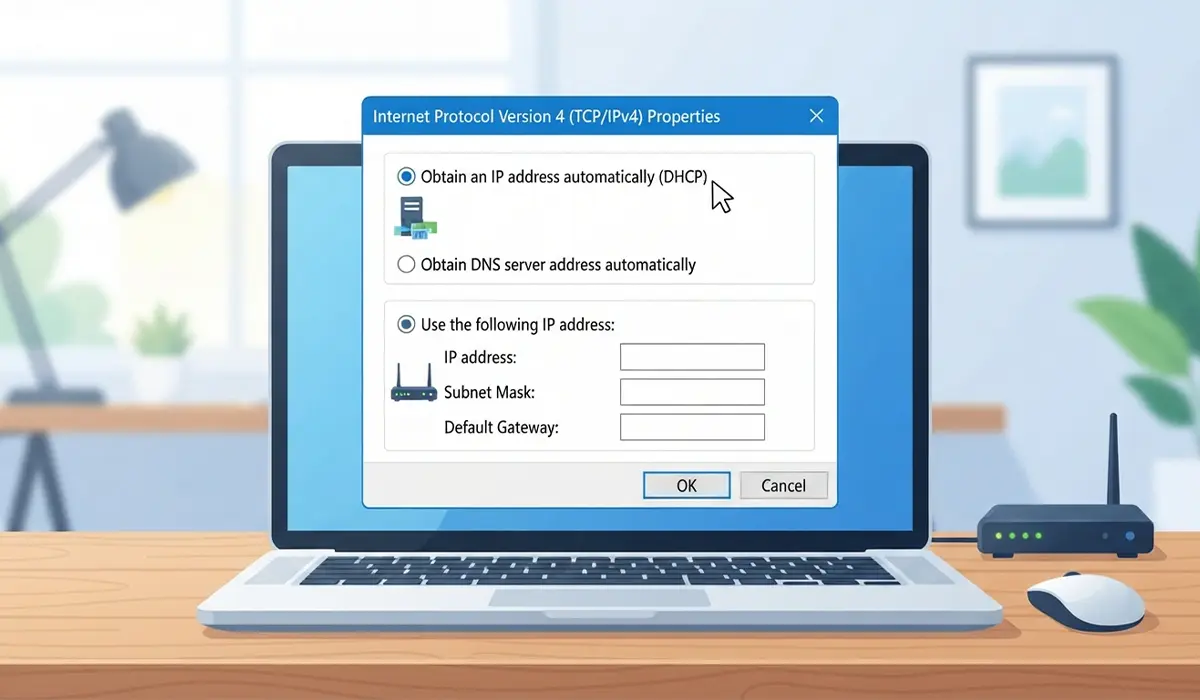
- Step 7: Open ncpa.cpl again, right-click Ethernet, choose Properties, then select Internet Protocol Version 4 (TCP/IPv4) and click Properties. Make sure both ‘Obtain an IP address automatically’ and ‘Obtain DNS server address automatically’ are selected, then click OK.
- Step 8: If automatic settings still fail, try a temporary static address as a test. Choose ‘Use the following IP address’ and enter an address in the same range as the router. For example, if the router is 192.168.1.1, an address such as 192.168.1.50 with subnet mask 255.255.255.0 and the router address as the default gateway can work. If this connects, the router’s address assignment (DHCP) is likely the culprit, and automatic settings should be restored once that is sorted out.
Fix the Driver and Power Settings
- Step 9: Right-click the Start button, open Device Manager, and expand Network adapters. Right-click the Ethernet controller and choose Update driver. If the problem began after an update, open Properties, go to the Driver tab, and try Roll Back Driver. If neither helps, choose Uninstall device and restart the PC so Windows reinstalls it.
- Step 10: In the adapter’s Properties in Device Manager, open the Power Management tab and untick ‘Allow the computer to turn off this device to save power’. Then open Control Panel, go to Power Options, choose ‘Choose what the power buttons do’, and turn off Fast startup, since it can leave the network card in a stale state.
- Step 11: If the error remains, open Settings, go to Network and Internet, then Advanced network settings, and choose Network reset. This removes and reinstalls all network adapters and returns settings to default, so any VPN clients or custom configurations will need to be set up again.
Tip: Download the latest Ethernet driver from the PC or motherboard manufacturer’s support page if Windows cannot find a working one. Using a phone or another PC and a USB drive is a handy way to get it onto a machine with no internet.
Common Problems and Fixes
The Adapter Still Shows a 169.254 Address
That address means the router never answered. Recheck the cable and port, restart the router again, and test another device on the same port. If other devices also fail to get an address, the router or modem needs attention, such as a firmware update or a factory reset by the internet provider.
Ethernet Works, Then Drops Back to Unidentified Network
Intermittent failure points to a worn cable, a loose port, or adapter power-saving settings. Replace the cable, disable power management on the adapter, and turn off Fast startup.
The Error Started After a Windows Update
A driver or network stack change is the likely cause. Roll back the Ethernet driver, run the Winsock and TCP/IP reset commands, and if needed use Network reset.
Wi-Fi Works but Ethernet Does Not
This suggests the internet connection itself is fine and the fault lies with the cable, the router’s LAN port, or the PC’s Ethernet adapter. Try another LAN port and cable first, then reinstall the Ethernet driver.
The Problem Returns When a VPN Is Installed
VPN clients add virtual adapters that can conflict with the physical one. Disconnect and uninstall the VPN, reset the network settings, and reinstall the latest version of the VPN software afterward.
Nothing Works and Every Device Is Affected
When every device on that connection fails, the router, modem, or the service line is the problem. Contact the internet provider rather than continuing to change Windows settings.
Frequently Asked Questions
What does Ethernet showing unidentified network mean?
It means Windows detected a physical connection but could not get a valid IP address or identify the network. Without a valid address, the PC cannot reach the internet.
Why does my Ethernet say unidentified network with no internet?
Common reasons include a router that is not assigning addresses, a faulty cable or port, a corrupted network stack, or an outdated Ethernet driver.
Will restarting the router fix unidentified network?
Often, yes. A restart clears temporary glitches in the router’s address assignment. Turn it off for about 30 seconds, turn it back on, and wait for it to fully start before testing.
What is the 169.254 IP address in this error?
It is a temporary self-assigned address Windows uses when no router responds. It only allows communication with other devices on the same local link and cannot reach the internet.
Which commands fix unidentified network in Windows?
Run ‘ipconfig /release’, ‘ipconfig /renew’, ‘ipconfig /flushdns’, ‘netsh winsock reset’, and ‘netsh int ip reset’ in an administrator Command Prompt, then restart the PC.
Can a bad Ethernet cable cause unidentified network?
Yes. A damaged cable or worn connector can carry a signal that looks connected but fails to complete the address handoff. Testing with a different cable is a quick way to rule this out.
Can outdated drivers cause this problem?
Yes. A corrupted, outdated, or incompatible Ethernet driver can stop the adapter from getting an IP address. Update, roll back, or reinstall the driver from Device Manager or the manufacturer’s site.
Is it safe to use a static IP address to fix it?
A static IP is safe as a temporary test if it matches the router’s address range and does not conflict with another device. For everyday use, automatic settings are usually easier to manage.
Does Network reset in Windows delete my files?
No. Network reset only removes and reinstalls network adapters and restores default network settings. Saved Wi-Fi passwords and VPN setups will need to be added again.
When should a professional look at the problem?
If a different device also fails on the same cable and port, or the PC still cannot connect after a driver reinstall and Network reset, the router, modem, or Ethernet hardware may be faulty and needs professional attention.
