
Learning how to fix frame drops and stuttering in games starts with one idea: a smooth game is not just about a high frame rate, it is about frames arriving at an even pace. A game can report a healthy average and still feel choppy if frame delivery is uneven. The steps below narrow down the cause and fix it, in the order that solves most problems fastest.
Key Takeaways
- Frame drops are sudden dips in frame rate, while stuttering is uneven frame timing. Both usually trace back to a bottleneck, heat, or a software conflict.
- Check CPU, GPU, memory, and temperature readings during gameplay before changing anything, so the fix targets the real cause.
- Current graphics drivers, a proper power mode, and fewer background programs fix a large share of cases.
- Heat, slow storage, and memory problems cause the stubborn cases that settings changes alone cannot solve.
- Change one thing at a time and retest the same game scene, so it is clear which change actually helped.
Common Causes of Frame Drops and Stuttering
Most cases fall into a handful of groups. Knowing which one applies saves a lot of trial and error.
- Outdated or corrupted graphics drivers: Bugs and missing game optimizations show up as hitches, especially in newly released titles.
- Thermal throttling: When the CPU or GPU gets too hot, it lowers its own speed to protect itself, and frame rates fall mid-session.
- Wrong power settings: Laptops running on battery or in a power-saving mode hold back performance on purpose.
- Wrong GPU in use: Many laptops have both integrated and dedicated graphics, and a game can land on the weaker one.
- Background programs and overlays: Browsers, launchers, recording tools, and update services compete for CPU, memory, and disk.
- Graphics settings beyond the hardware: Textures that exceed video memory or CPU-heavy options cause sudden stalls.
- Slow storage or a nearly full drive: Games stream assets while running, and a hard drive often cannot keep up.
- Memory issues: Too little RAM, a single memory stick, or memory running below its rated speed all contribute.
How to Fix Frame Drops and Stuttering in Games Step by Step
Work through these in order. Many players find the problem disappears somewhere in the first five steps.
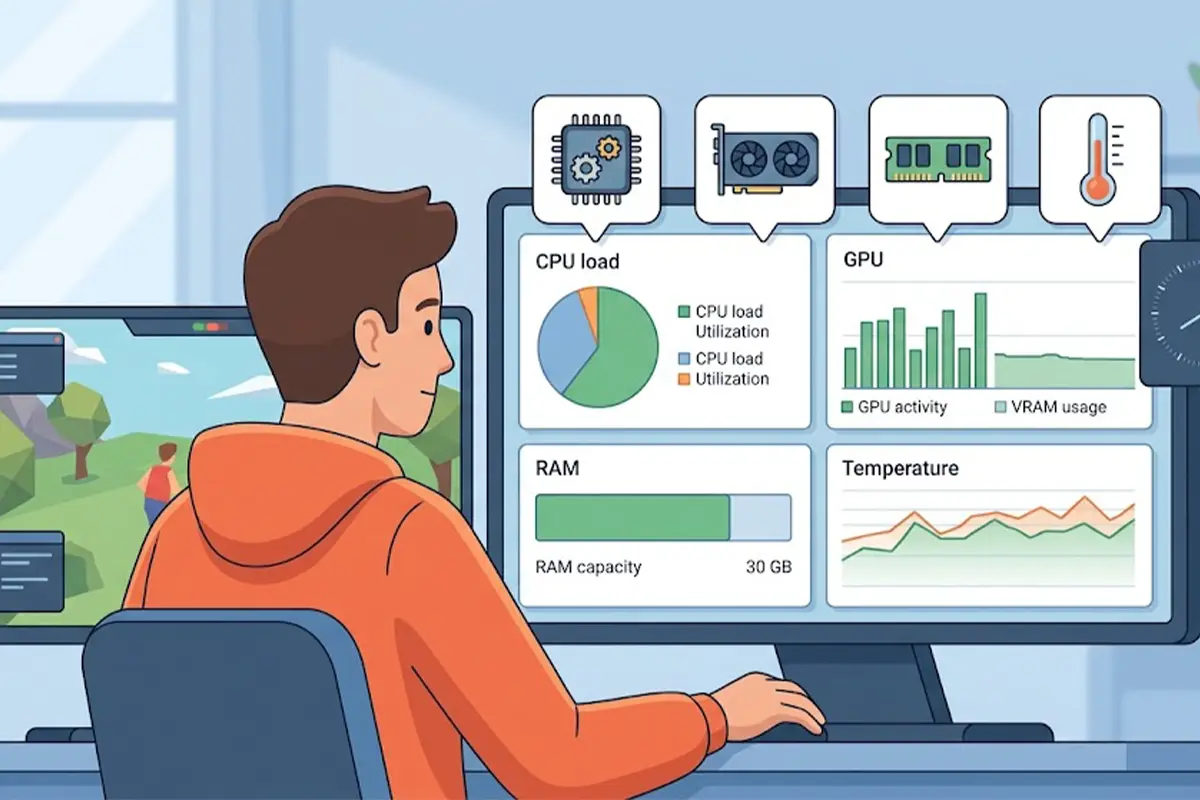
- Step 1: Find out what is actually struggling. Open a monitoring tool such as MSI Afterburner with RivaTuner, HWiNFO, or the built-in Task Manager performance tab, and watch CPU load, GPU load, memory use, video memory use, and temperatures during a stutter. A GPU pinned near full load points to graphics settings. One CPU core maxed out while the GPU idles points to a processor bottleneck. Full memory points to a RAM or background program problem.
- Step 2: Update the graphics driver. Download the latest driver directly from NVIDIA, AMD, or Intel rather than relying on Windows Update alone. If problems began right after a driver update, or persist after updating, a clean reinstall using Display Driver Uninstaller in Windows Safe Mode removes leftover files that a normal install can leave behind.
- Step 3: Set the right power mode. On a laptop, plug in the charger, since many models throttle on battery. In Windows, open Settings, go to System, then Power, and choose the Best performance power mode. Many laptops also have a performance or turbo profile in the manufacturer’s own control app, which is worth switching on for gaming.
- Step 4: Confirm the game uses the dedicated graphics card. In Windows, open Settings, go to System, then Display, then Graphics, add the game’s executable, open Options, and select High performance. NVIDIA Control Panel and AMD Software offer a similar per-game setting.
- Step 5: Close background programs and trim overlays. Shut down browsers, cloud sync tools, and extra launchers before playing. Turn off overlays that are not needed, such as Discord, Steam, GeForce Experience, and Xbox Game Bar capture features, because each one hooks into the game.
Tip: Open Task Manager before launching a game and sort by CPU, then by Disk. Anything unfamiliar using steady resources in the background is a likely culprit for periodic stutters.
- Step 6: Match graphics settings to the bottleneck. If video memory is nearly full, lower texture quality first, since that setting uses the most VRAM. If the CPU is the limit, reduce settings tied to the processor, such as crowd density, physics detail, and view distance. Shadow quality and ambient occlusion are heavy on the GPU and are among the easiest ways to recover smoothness.
- Step 7: Manage frame pacing. Cap the frame rate a few frames below the monitor’s refresh rate, using the in-game limiter or the graphics driver’s limiter. On a monitor with G-Sync or FreeSync, enable variable refresh rate and keep the cap just under the maximum. Without variable refresh rate, test V-Sync on and off, because one of them usually feels smoother on a given system.
- Step 8: Check temperatures and clean out dust. If the readings from Step 1 show the CPU or GPU climbing steadily until performance falls, heat is the cause. Shut down the system, unplug it, and on a laptop disconnect the charger. Use short bursts of compressed air through the vents while holding the fans still with a soft tool so they do not overspin. Keep vents unblocked and avoid playing on soft surfaces such as beds or couches. If temperatures stay high after cleaning, thermal paste or fan problems may be involved. Opening a device can affect its warranty, so it is wise to let a professional handle internal work if there is any doubt.
- Step 9: Put the game on an SSD with free space. Install demanding games on a solid-state drive rather than a hard drive, and keep a healthy amount of free space available. Open-world games that stream data constantly are the most sensitive to slow storage.
- Step 10: Check memory configuration. Make sure two memory sticks run in dual-channel mode where the motherboard supports it, since a single stick can noticeably reduce performance. In the BIOS, enable the memory’s rated speed profile, called XMP on Intel boards and EXPO or DOCP on many AMD boards, because memory often runs at a slower default speed. Also make sure Windows is allowed to manage the page file automatically.
- Step 11: Review Windows gaming settings. Turn Game Mode on in Settings under Gaming. Install pending Windows updates. If stutters continue, test toggling Hardware-accelerated GPU scheduling in Settings under System, then Display, then Graphics, then Default graphics settings, restarting afterward. The effect varies between systems, so it is worth testing both ways.
- Tip: After each change, replay the same scene or benchmark in the game. Testing in the same spot makes it obvious whether a change helped or made no difference.
Common Problems and Fixes
Stuttering continues after a driver update
Perform a clean driver reinstall with Display Driver Uninstaller, then install only the graphics driver without extra optional software. If the issue began after a specific driver version, rolling back to the previous version often confirms the cause.
Frame rate is high but the game still feels choppy
This points to uneven frame pacing rather than low performance. Cap the frame rate slightly below the monitor’s refresh rate, enable variable refresh rate if the monitor supports it, and close overlays and background programs.
Performance is fine at first, then drops after 15 to 30 minutes
That pattern is typical of thermal throttling. Check temperatures during play, clean the vents and fans, raise the back of a laptop for airflow, and consider a cooling pad for laptops that run hot.
Stutters happen only when entering new areas
The game is likely loading assets from storage or compiling shaders. Move the game to an SSD, free up drive space, and allow the first pass through a new area to finish, since later visits are usually smoother once shaders are cached.
The game runs worse on a laptop than the specs suggest
The game may be running on integrated graphics or the laptop may be in a power-saving mode. Recheck the per-game graphics preference in Windows and make sure the charger is connected.
Stutters happen at regular intervals
Regular hitches often come from a background task running on a timer, such as a sync service, antivirus scan, or update check. Use Task Manager to catch what spikes at the same moment and pause or reschedule it.
Frequently Asked Questions
What is the difference between frame drops and stuttering?
Frame drops are sudden decreases in frames per second, such as going from smooth play to a noticeably lower rate. Stuttering is uneven timing between frames, which feels like brief hitches even when the average frame rate looks fine.
Why does a game stutter even with a powerful graphics card?
The graphics card is only one part of the system. A processor bottleneck, slow storage, single-channel memory, overheating, or background programs can all cause stutters regardless of how strong the GPU is.
Can overheating cause frame drops?
Yes. When the CPU or GPU reaches its thermal limit, it lowers its clock speed to protect itself, which reduces performance. Cleaning dust from vents and fans and improving airflow are the first fixes to try.
Does RAM affect stuttering in games?
It can. Insufficient memory forces Windows to use the page file on the drive, which causes hitches. Running memory in dual-channel mode and at its rated speed also helps keep frame delivery steady.
Should V-Sync be on or off to reduce stutter?
It depends on the system. V-Sync can remove screen tearing but may add input delay or uneven pacing in some games. Variable refresh rate with a frame cap just below the refresh rate is usually the smoothest option when the monitor supports it.
Will an SSD fix stuttering in games?
It helps when the stutter comes from loading or streaming assets, which is common in open-world games. It will not fix stutter caused by heat, drivers, or a CPU or GPU bottleneck.
Do background apps really reduce game performance?
Yes. Browsers with many tabs, launchers, cloud sync tools, and recording overlays use CPU, memory, and disk resources. Closing them before gaming frees those resources and removes hooks that can disturb frame pacing.
Is it worth reinstalling Windows to fix stuttering?
Rarely. A reinstall should be a last resort after drivers, power settings, thermals, storage, memory, and background programs have been checked. Most stuttering is solved well before that point.
