
Knowing how to enter BIOS on different laptop brands saves a lot of frustration, because the key changes from one manufacturer to the next. Some laptops want F2, others want Delete, and a few need a physical button. This guide covers the right method for each major brand, plus a Windows-based backup route that works when the timing is too tricky.
Key Takeaways
- The key must be pressed right after the power button, usually by tapping it repeatedly while the manufacturer logo appears.
- F2 is the most common BIOS key, but HP typically uses F10 or Esc, ThinkPad uses Enter then F1, and Microsoft Surface uses the Volume Up button.
- The BIOS key is different from the boot menu key, which only picks a one-time startup device.
- On Windows 10 and 11, Advanced Startup can open the firmware settings without any key timing.
Before You Start
Entering BIOS requires a full restart, so a little preparation prevents lost work.
- Save open files and close all apps.
- Plug in the charger so the battery does not run out while changing settings.
- Check the exact brand and model on the bottom label or in Settings, since the key can vary between product lines.
- If the built-in keyboard is unreliable, connect an external USB keyboard first.
BIOS vs UEFI: What Is Being Opened
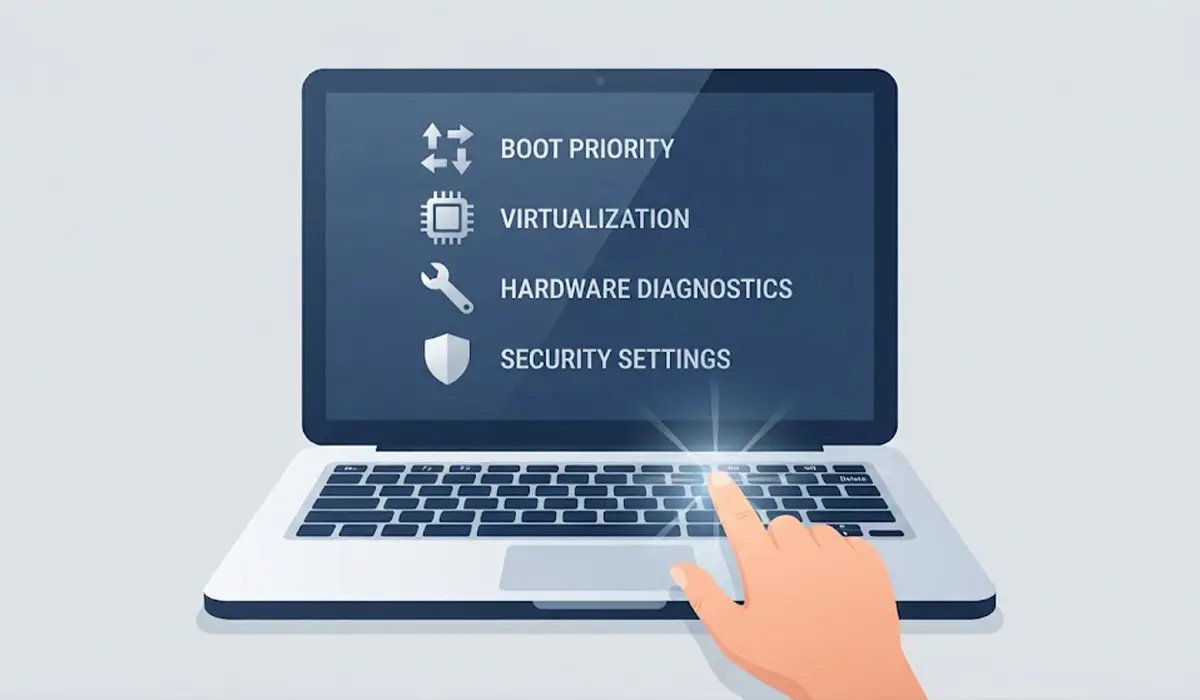
Nearly every laptop made in recent years uses UEFI firmware, which replaced the older BIOS design. The setup screen is still commonly called BIOS, and it is opened the same way. Both let the user adjust boot order, enable virtualization, check hardware, and manage security options.
How to Enter BIOS on Different Laptop Brands: Key by Brand
The general process is the same everywhere. The brand sections below list the specific key to use.
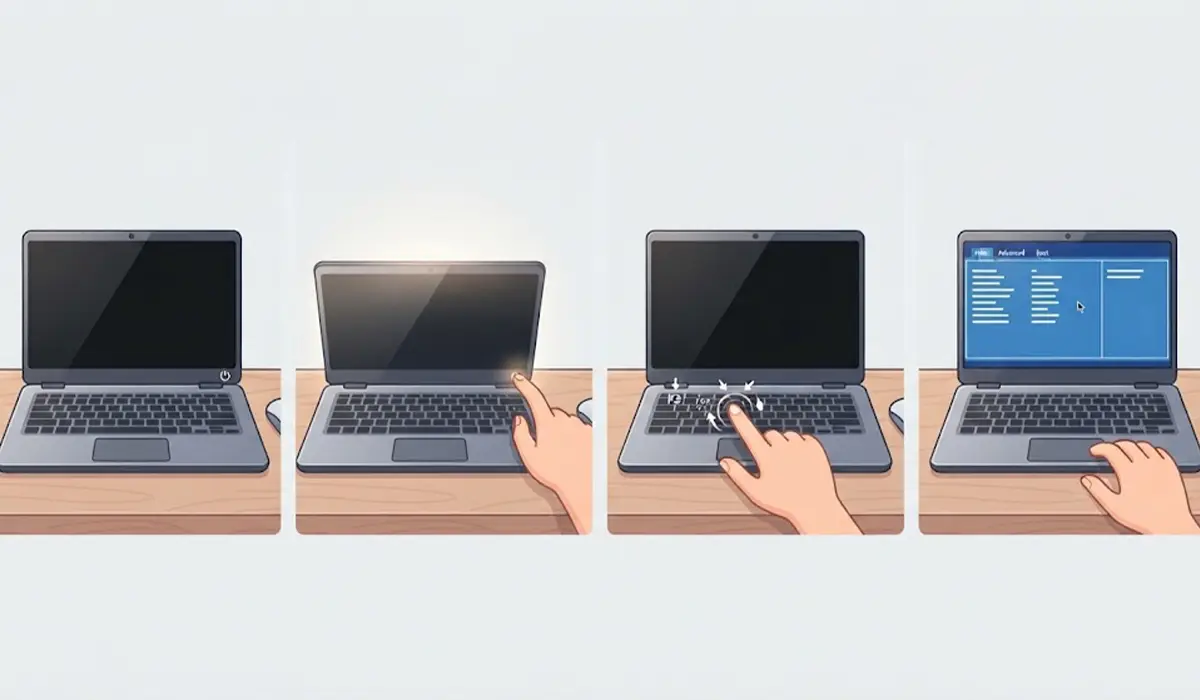
- Step 1: Shut the laptop down completely. Use Shut down rather than Restart if a fresh start is needed.
- Step 2: Press the power button.
- Step 3: Immediately start tapping the brand’s BIOS key about once per half second. Do not hold it down.
- Step 4: Keep tapping until the BIOS or UEFI setup screen appears.
- Step 5: If Windows starts loading instead, restart and try again, beginning to tap sooner.
Tip: On laptops where the top row doubles as media or brightness keys, hold Fn while tapping the function key if the plain key does nothing.
Dell
Tap F2 while the Dell logo is on screen to open setup. For a one-time boot menu, tap F12 instead.
HP
Tap F10 right after powering on to open BIOS Setup. Alternatively, tap Esc to open the Startup Menu, then press F10 for BIOS Setup. The Startup Menu also lists the boot device option.
Lenovo (IdeaPad, Legion, ThinkPad)
On most IdeaPad and Legion models, tap F2 (or Fn + F2). On ThinkPad models, press Enter at the logo to reach the Startup Interrupt Menu, then press F1 for BIOS Setup. Many Lenovo laptops also have a small Novo button, often a pinhole or tiny button near the power button or on the side. With the laptop off, pressing it opens the Novo Menu, which includes BIOS Setup. F12 opens the boot menu on most models.
ASUS
Tap F2 as the laptop powers on. Some models respond better if F2 is held down before pressing the power button. Esc opens the boot menu on many ASUS laptops.
Acer
Tap F2 at the Acer logo. Some models also accept Delete. F12 opens the boot menu, though on some Acer laptops the F12 Boot Menu must first be enabled inside BIOS.
MSI
Tap Delete during startup to open BIOS. F11 opens the boot menu on most MSI laptops.
Samsung
Tap F2 right after powering on. Esc opens the boot menu on many Samsung laptops.
Toshiba and Dynabook
Tap F2 as the laptop starts. F12 opens the boot menu on most models.
Microsoft Surface
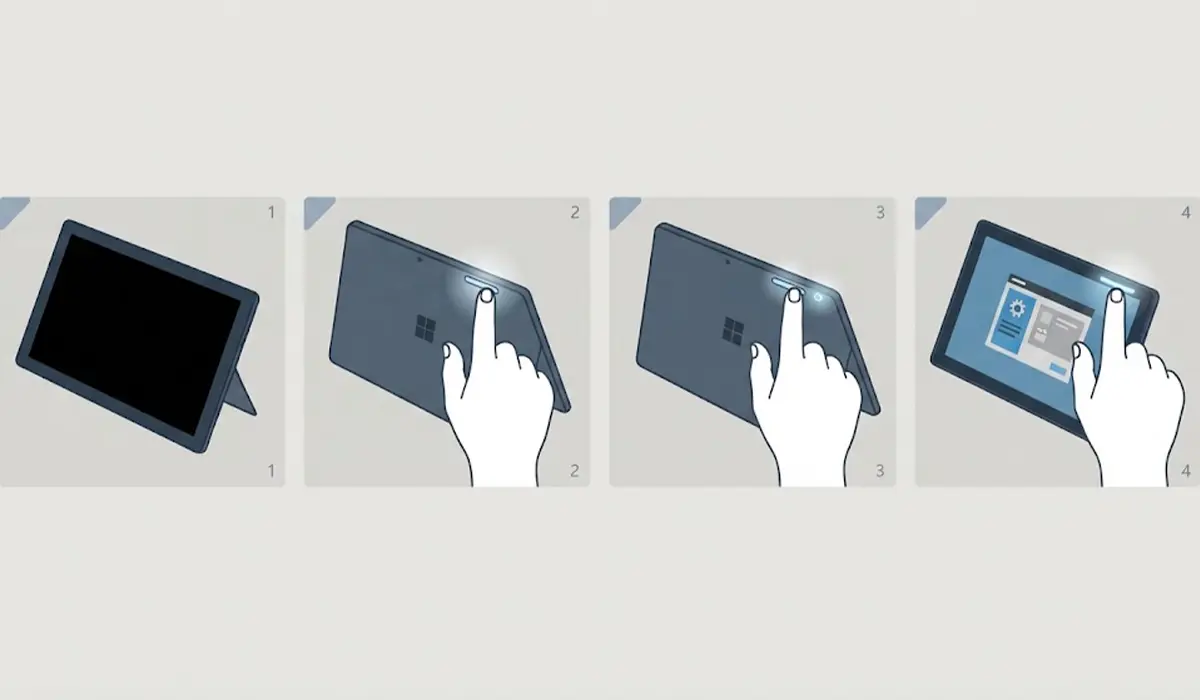
Surface devices use a button method instead of a keyboard key.
- Step 1: Shut the Surface down completely and wait a few seconds.
- Step 2: Press and hold the Volume Up button.
- Step 3: While still holding it, press and release the power button.
- Step 4: Keep holding Volume Up until the UEFI screen appears, then release.
How to Enter BIOS From Windows Without Pressing a Key
This method works on any brand running Windows 10 or 11 in UEFI mode. It is the most reliable option when the key timing keeps failing, since Windows handles the restart directly into firmware settings.
- Step 1: Open Settings and go to System, then Recovery. On Windows 10, go to Update and Security, then Recovery.
- Step 2: Under Advanced startup, select Restart now and confirm.
- Step 3: On the blue screen, choose Troubleshoot.
- Step 4: Select Advanced options.
- Step 5: Choose UEFI Firmware Settings, then select Restart.
- Step 6: The laptop restarts directly into its BIOS or UEFI setup screen.
Tip: Holding Shift while clicking Restart from the Start menu opens the same blue screen faster.
Common Problems and Fixes
The Laptop Boots Straight Into Windows
Fast Startup and quick boot logos can make the key window very short. Use the Windows Advanced Startup method above, which does not depend on timing. Starting to tap the key the moment the power button is pressed also helps.
The Function Key Does Nothing
Many laptops default the top row to media controls. Hold Fn while tapping the key, or try an external USB keyboard. Some models also have an Fn Lock key that switches the default behavior.
UEFI Firmware Settings Is Missing in Windows
This option only appears when Windows is installed in UEFI mode. On older laptops running in legacy mode, the keyboard key method is the only route.
BIOS Asks for a Password
A password means the owner or an IT administrator set one. Contact that person, or the manufacturer’s support team with proof of ownership. Attempting to bypass it can lock the laptop or void support.
The Screen Stays Black With No Logo
Check that the charger is connected and the display is working. Try an external monitor if possible. If the laptop shows no signs of starting at all, the issue is a hardware or power fault rather than a BIOS key problem, and a repair technician should take a look.
Frequently Asked Questions
What is the most common key to enter BIOS on a laptop?
F2 is the most common key across brands such as Dell, ASUS, Acer, Samsung, and many Lenovo models. HP commonly uses F10 or Esc, MSI uses Delete, and ThinkPad uses Enter followed by F1.
Is BIOS the same as UEFI?
UEFI is the modern replacement for the traditional BIOS. Most current laptops use UEFI but still call the setup screen BIOS, and it serves the same purpose of managing startup and hardware settings.
How do I enter BIOS in Windows 11 without pressing a key?
Open Settings, go to System, then Recovery, and select Restart now next to Advanced startup. Then choose Troubleshoot, Advanced options, UEFI Firmware Settings, and Restart.
Why does my laptop skip the BIOS key prompt?
Fast boot features shorten the window where the key is detected. Starting to tap the key as soon as the power button is pressed, or using the Windows Advanced Startup method, solves this.
Can I enter BIOS while the laptop is already on?
Not directly. The laptop must restart first. On Windows, the Advanced Startup route restarts the device straight into the firmware settings.
Is the BIOS key the same as the boot menu key?
No. The BIOS key opens full firmware settings, while the boot menu key opens a short list for choosing a one-time startup device such as a USB drive. Common boot menu keys are F12 on Dell, Lenovo, and Acer, and Esc on HP and ASUS.
Should the key be pressed once or tapped repeatedly?
Tapping repeatedly works best. Start immediately after pressing the power button and continue until the setup screen appears. Holding the key down can sometimes trigger a keyboard error on certain models.
Is it safe to change settings in BIOS?
Looking around is safe, but changes should be limited to settings that are understood. Noting the original value before changing anything makes it easy to undo. If something goes wrong, the Load Defaults or Exit Without Saving option restores the previous state.
What should be done if BIOS asks for a password?
A password is set by the owner or an administrator. Ask that person for it, or contact the manufacturer’s support team with proof of ownership.
