
Knowing how to fix missing operating system after SSD install saves a lot of panic when a fresh drive greets the PC with a black screen and a boot error. In nearly every case the drive is fine and the problem is a blank disk, a wrong boot setting, or a drive the firmware cannot see. This guide walks through each cause in the order that finds the fault fastest.
Key Takeaways
- A brand-new SSD is empty, so it has no operating system until Windows is installed or an old drive is cloned onto it.
- If the SSD does not appear in the BIOS or UEFI, the problem is physical (seating, cable, slot type), so fix that before anything else.
- The boot order and boot mode (UEFI with GPT) must match how the drive was set up.
- A cloned drive that will not boot can usually be repaired from Windows installation media.
- When nothing else works, a clean install onto the new SSD is the most reliable fix.
Common Causes of a Missing Operating System After an SSD Install
The message may read ‘Operating System not found’, ‘Missing operating system’, or ‘No bootable device’, depending on the manufacturer. All of them mean the same thing: the firmware found no usable boot files where it looked. The usual culprits are listed below.
- The new SSD is blank and no operating system has been installed yet.
- The SSD is not detected because it is loose, the SATA or power cable is not seated, or the M.2 slot does not support that drive type.
- The boot order still points to an empty or removed drive.
- The firmware is in Legacy or CSM mode while the drive uses GPT, or the reverse, which is a common result of cloning.
- The cloned copy is missing or has damaged boot files, or the system partition was not copied.
- Windows setup cannot see the drive because the storage controller is in RAID or Intel VMD mode and needs a driver.
Before You Start
Most of the fixes below happen in software, but checking the SSD may mean opening the case. Power the device off completely and unplug it. On a laptop, disconnect the battery where the design allows it. Touch bare metal on the chassis to discharge static, or use an anti-static strap, and let any warm parts cool.
- A small Phillips screwdriver that fits the SSD and cover screws
- A second working PC and a USB flash drive of at least 8 GB for Windows installation media
- Plastic pry tools for laptops with clipped covers
- A backup of any important files that live on the old drive
If the laptop is sealed, glued, or still under warranty, note that opening it may affect the warranty. Stop and hand it to a professional if the cover will not release without force or if a connector looks damaged.
How to Fix Missing Operating System After SSD Install Step by Step
Work through these in order. Each step either fixes the issue or tells exactly which step to jump to next.
Check That the SSD Is Detected
- Step 1: Restart the PC and press the BIOS or UEFI key repeatedly during startup. Common keys are Delete, F2, F10, F12, or Esc, depending on the maker.
- Step 2: Look for the SSD on the main, storage, or boot screen. It should appear by model name and show a capacity close to what was purchased.
- Step 3: If the SSD is missing, shut down, unplug the device, and reseat it. For an M.2 drive, remove the screw, slide the drive straight into the slot at a slight angle, press it flat, and secure it. For a 2.5-inch SATA drive, reconnect both the data cable and the power connector.
- Step 4: Confirm the slot suits the drive. Some M.2 slots accept only NVMe drives and others only SATA drives, so check the board or laptop manual if the drive still does not show.
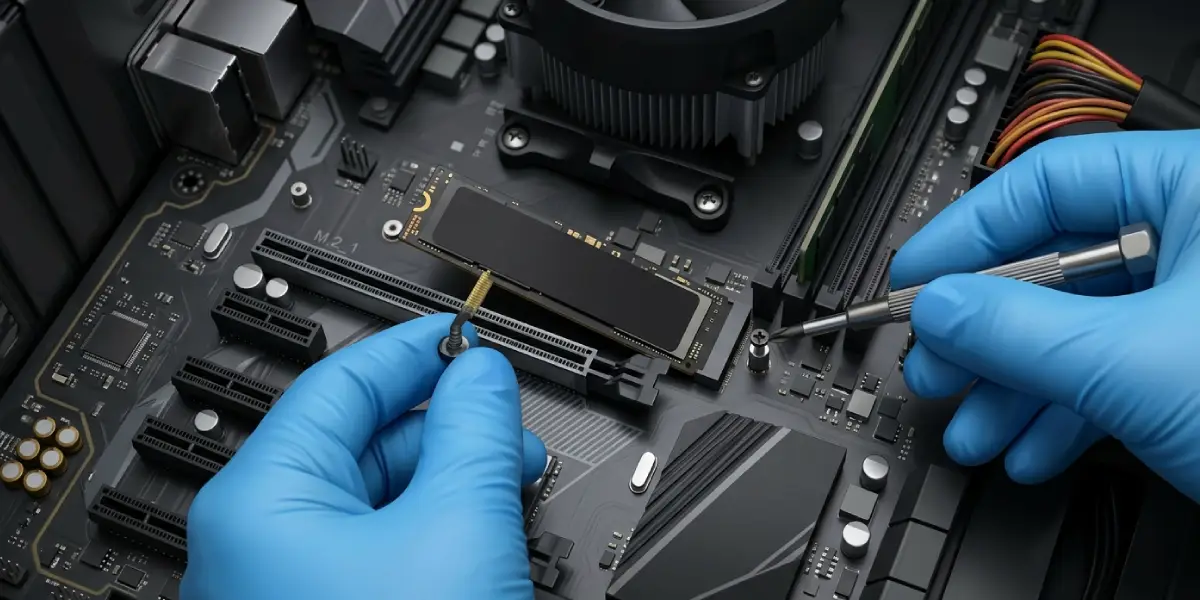
Tip: Reseating is the most overlooked fix. An M.2 drive that looks seated can still sit a hair out of the connector, much like a USB plug that is almost in.
Set the Correct Boot Order
- Step 5: Open the Boot section of the BIOS or UEFI.
- Step 6: Move the entry labeled Windows Boot Manager, or the SSD itself, to the top of the boot priority list. If the old drive is still installed and was not cloned, move the SSD or the installation USB to first position instead.
- Step 7: Save changes and exit, usually with F10, then let the PC restart.
Match the Boot Mode to the Drive
- Step 8: In the Boot settings, check whether the firmware is set to UEFI or to Legacy (CSM) mode.
- Step 9: Use UEFI for a drive set up with GPT, which is the standard for modern Windows installs. Use Legacy only if the drive was cloned from an older MBR system and the PC genuinely requires it.
- Step 10: Save and restart. If the cloned drive now boots, the mode mismatch was the cause.
Repair the Boot Files on a Cloned Drive
- Step 11: On a working PC, create Windows installation media from the official Microsoft download page, Download Windows 11, or the matching Windows 10 page.
- Step 12: Plug the USB drive into the affected PC and boot from it using the boot menu key. Choose the language, then select Repair your computer instead of Install now.
- Step 13: Go to Troubleshoot, then Advanced options, then Startup Repair, and let it finish. Restart and test.
- Step 14: If Startup Repair fails, return to Advanced options and open Command Prompt. Type diskpart, then list vol, to find the drive letter holding the Windows folder, since it is often not C in the repair environment. Type exit to leave diskpart.
- Step 15: Run bcdboot X:\Windows, replacing X with the correct Windows drive letter. This rebuilds the boot files for a UEFI system. On older Legacy and MBR systems, the commands bootrec /fixmbr, bootrec /fixboot, and bootrec /rebuildbcd are used instead.
- Step 16: Close the window, restart, and remove the USB drive.
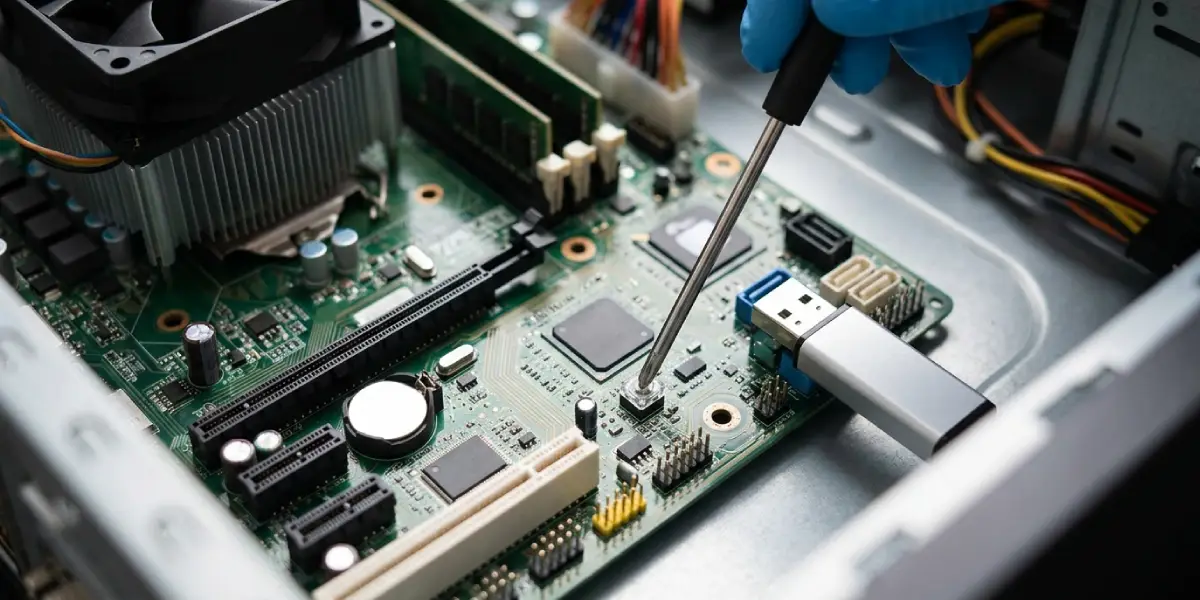
Tip: If a clone keeps failing, the cause is often that the small EFI system partition was not copied. A clean install avoids that entire class of problem.
Install Windows Cleanly on the New SSD
- Step 17: Boot from the Windows installation USB and choose Install now.
- Step 18: Select Custom: Install Windows only (advanced) when asked which type of installation is wanted.
- Step 19: Select the SSD, which will show as Unallocated Space if it is new, and click Next. Windows creates the needed partitions on its own.
- Step 20: If no drive is listed at this screen, choose Load driver and point to the storage driver from the PC or motherboard maker, usually Intel Rapid Storage Technology or VMD. Alternatively, switch the SATA mode in the BIOS from RAID to AHCI where the firmware allows it, then try again.
- Step 21: Let setup complete and restart. Once the PC boots into Windows from the SSD, remove the USB drive.
Update the BIOS if the Drive Is Still Not Seen
- Step 22: Check the manufacturer support page for the exact model and note the installed BIOS version.
- Step 23: If a newer BIOS is listed, follow the maker’s update instructions precisely and keep the device plugged in the whole time.
Only update the BIOS after the simpler fixes fail, since an interrupted update can leave a device unable to start.
Common Problems and Fixes
The SSD still does not show in the BIOS after reseating
Try a different SATA cable or port for a 2.5-inch drive, or test the SSD in another PC or enclosure. If it is not detected anywhere, the drive itself may be faulty and should be returned under its warranty.
The SSD shows in the BIOS but not in Windows setup
The storage controller needs a driver. Load the Intel RST or VMD driver from the manufacturer, or change the storage mode to AHCI if the system has no other drives that depend on RAID.
The PC boots from the old drive instead of the new SSD
The boot order still favors the old drive. Move the SSD or Windows Boot Manager to the top of the list, or disconnect the old drive while testing the new one.
Windows says it cannot be installed on this disk
This usually points to a partition style mismatch. If the PC is booted in UEFI mode, the target disk must be GPT, and if it is booted in Legacy mode, the disk must be MBR. Switch the boot mode or convert the disk, remembering that conversion erases it.
The cloned SSD boots to a blank screen or a recovery loop
The boot files are likely damaged or missing. Run Startup Repair, rebuild the boot files with bcdboot, or clone again with the cloning tool set to copy all partitions.
Frequently Asked Questions
Why does my PC say operating system not found after installing a new SSD?
A new SSD is empty, so there is nothing for the firmware to boot. The message also appears when the boot order points to the wrong drive or the SSD is not detected at all.
Do I need to install Windows on a brand-new SSD?
Yes, unless an existing installation was cloned onto it. A blank SSD has no operating system, so Windows must be installed from a USB installation drive.
How do I know if the SSD is detected?
Open the BIOS or UEFI and check the storage or boot section. A detected SSD appears with its model name and capacity. If it is missing there, the problem is physical or a slot compatibility issue.
Should the boot mode be UEFI or Legacy?
UEFI with a GPT disk is the right choice for most modern PCs and for Windows 11. Legacy mode with MBR is only needed for older systems or older cloned installations.
Can a cloned SSD fail to boot even though the clone finished successfully?
Yes. A clone can finish without errors and still miss the boot partition or use the wrong partition style. Running Startup Repair or rebuilding the boot files with bcdboot often solves it.
Why does Windows setup show no drives to install on?
The storage controller is probably running in RAID or Intel VMD mode, which needs a driver during setup. Load the driver from the manufacturer or switch the SATA mode to AHCI if the system allows it.
Is it safe to remove the old drive before installing Windows on the new SSD?
Yes, and it is often recommended. With the old drive disconnected, Windows places its boot files on the new SSD, which prevents the new install from depending on the old drive later.
When should the SSD be replaced under warranty?
If the drive is not detected in the BIOS on a second PC or in an enclosure, after reseating and trying other cables or slots, the drive is likely faulty and worth returning.
