
Knowing how to fix .NET Framework errors on Windows saves a lot of frustration when an app refuses to open, crashes on launch, or an installer stops halfway. Most of these problems come down to a disabled feature, corrupted system files, or a failed update. The fixes below start with the quickest checks and move toward deeper repairs, so there is no need to jump straight to a full reset.
Key Takeaways
- Many .NET Framework errors are solved by turning on the correct Windows feature or installing pending Windows updates.
- .NET Framework 3.5 and .NET Framework 4.x are separate components, and older apps often need 3.5 specifically.
- The Microsoft .NET Framework Repair Tool, SFC, and DISM fix most corruption-related failures.
- Install error codes such as 0x800F0950 and 0x800F081F usually point to missing source files, which a Windows ISO can supply.
- Newer apps built on modern .NET need a separate runtime and are not fixed by repairing .NET Framework.
Common Causes of .NET Framework Errors
Pinpointing the cause first prevents wasted effort. These are the culprits seen most often:
- The required .NET Framework version is turned off in Windows Features, which is common for .NET Framework 3.5 because it is not enabled by default.
- Damaged or missing system files caused by an interrupted update, a sudden shutdown, or disk problems.
- A failed or stuck Windows Update that left the .NET components half-installed.
- A blocked download of the feature files, often due to a restricted network, a proxy, or a policy set on a work or school PC.
- Low free disk space during installation.
- A damaged installation of the app itself rather than .NET Framework.
- Confusion between .NET Framework and modern .NET (formerly called .NET Core), which are installed and repaired separately.
Before You Start
These fixes change system components, so a little preparation goes a long way. Sign in with an administrator account, save open work, and make sure the PC has a stable internet connection and a few gigabytes of free storage. Creating a restore point first gives an easy way back if something behaves unexpectedly. Commands below are run from Command Prompt or Windows Terminal opened with the Run as administrator option.
Steps to Fix .NET Framework Errors on Windows
Start With the Quick Checks
- Step 1: Restart the PC and install pending updates. Open Settings, go to Windows Update, and select Check for updates. Install everything offered, then restart again. A half-finished update is a surprisingly common reason a .NET component misbehaves.
- Step 2: Identify which version the app needs. Read the full error message or the app’s system requirements. A message mentioning version 3.5, 2.0, or 3.0 points to .NET Framework 3.5, while 4.x points to the newer family.
- Step 3: Turn on the required feature. Press Windows key + R, type optionalfeatures, and press Enter. Tick .NET Framework 3.5 (includes .NET 2.0 and 3.0) if the app needs the older version, and confirm that .NET Framework 4.x Advanced Services is ticked as well. Click OK, choose Let Windows Update download the files for you, and restart when prompted.

Tip: If the feature is already ticked, untick it, restart, then tick it again. This forces Windows to re-register the component and clears many silent faults.
Run the Repair Tools
- Step 4: Use the Microsoft .NET Framework Repair Tool. Download it from the official Microsoft website, run it, accept the license, and let it scan. Apply the fixes it recommends and restart afterward.
- Step 5: Repair Windows system files with SFC. In an administrator Command Prompt, type sfc /scannow and press Enter. The scan can take several minutes, so let it finish before closing the window.
- Step 6: Repair the Windows component store with DISM. Run DISM /Online /Cleanup-Image /RestoreHealth and wait for it to reach 100 percent. Then run sfc /scannow once more and restart. DISM repairs the source that SFC relies on, which is why the two work best together.
Install From a Windows ISO When Downloads Fail
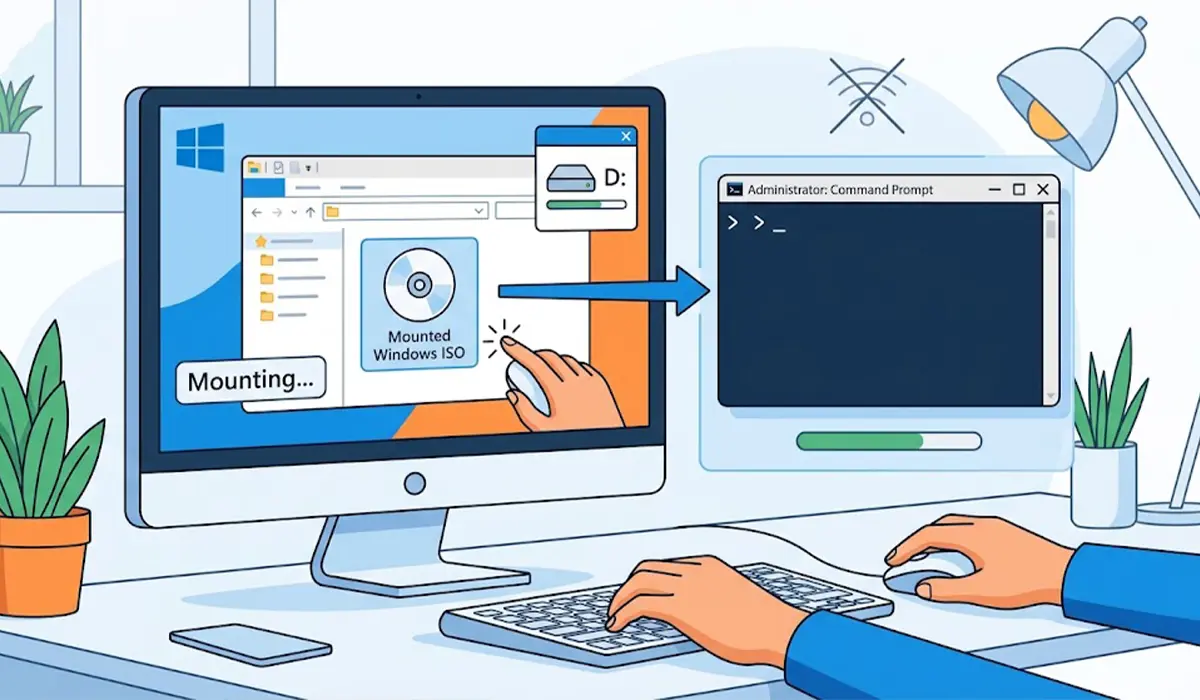
- Step 7: Download an official Windows ISO that matches the installed version of Windows from Microsoft, then right-click it and choose Mount. Note the drive letter assigned to the mounted disc.
- Step 8: In an administrator Command Prompt, run DISM /Online /Enable-Feature /FeatureName:NetFx3 /All /LimitAccess /Source:D:\sources\sxs and replace D with the actual drive letter of the mounted ISO. Restart once the command reports success.
Tip: Installing from a local ISO bypasses Windows Update entirely, which makes it the most reliable route for error codes 0x800F0950, 0x800F081F, and 0x800F0906.
Rule Out the App Itself
- Step 9: Check Event Viewer for clues. Open Event Viewer, expand Windows Logs, select Application, and look for entries from .NET Runtime or Application Error around the time of the crash. The faulting module name often reveals whether the problem is .NET or the app.
- Step 10: Repair or reinstall the affected app. In Settings, open Apps, select the program, and choose Modify or Repair if offered. If not, uninstall it, restart, and install a fresh copy from the publisher’s official site.
Common Problems and Fixes
Error 0x800F0950 or 0x800F081F When Enabling .NET Framework 3.5
Windows could not find or download the source files. Use the ISO method in Step 7 and Step 8, which supplies the files locally.
Error 0x800F0954 on a Work or School PC
This code usually means a policy is blocking the download of optional features. A PC managed by an organization may need an administrator to adjust the policy or provide an approved source, so contact the IT department rather than forcing changes.
The Feature Installs but the App Still Crashes
The app may be built for a different .NET version than the one just fixed. Recheck the requirements, and if the app calls for modern .NET, install the matching .NET Desktop Runtime from Microsoft. Repairing .NET Framework does not affect it.
SFC Reports Files It Cannot Repair
Run the DISM RestoreHealth command from Step 6 first, then repeat sfc /scannow. If problems remain after both, a repair install of Windows may be needed, which keeps personal files and apps in most cases.
Windows Update Fails or Hangs During the Install
Restart, make sure there is enough free disk space, and temporarily disconnect any VPN. If the update still stalls, skip it and use the ISO method instead.
Errors Return After Every Restart
A recurring fault often points to a failing drive or a third-party security tool interfering with the install. Check drive health, and temporarily pause third-party antivirus software while the feature installs, turning it back on right afterward. If the system keeps showing signs of deeper corruption, a professional technician should take a look.
Frequently Asked Questions
What causes .NET Framework errors on Windows?
The most common causes are a disabled .NET Framework feature, corrupted system files, a failed Windows Update, blocked feature downloads, and low disk space. A damaged app installation can also trigger the same error messages.
Is .NET Framework already installed on Windows 10 and 11?
Yes, a version of .NET Framework 4.x is built into current releases of Windows 10 and Windows 11. .NET Framework 3.5 is included but turned off by default, so it must be enabled in Windows Features when an older app needs it.
How do you check which .NET Framework version is installed?
Windows Features shows which versions are enabled. For the exact 4.x build, the release value in the registry key for .NET Framework 4 Full can be matched against Microsoft’s published version table.
Why does .NET Framework 3.5 fail to install with error 0x800F0950?
The error usually means Windows could not download the required source files from Windows Update. Installing from a mounted Windows ISO with the DISM command avoids the download and normally resolves it.
Does uninstalling .NET Framework fix errors?
The versions built into Windows cannot be fully uninstalled like a regular program. Turning the feature off in Windows Features, restarting, and turning it back on achieves a similar reset and is safe to try.
Is .NET Framework the same as .NET 8?
No. .NET Framework is the older Windows-only platform, while .NET 8 belongs to the modern .NET family, which is installed and updated separately. An app built for one will not run on the other.
Can SFC and DISM fix .NET Framework errors?
Yes, when the cause is corrupted Windows system files or a damaged component store. Running DISM with the RestoreHealth option first and SFC afterward gives the best chance of a clean repair.
Will repairing .NET Framework delete installed programs or files?
No. The repair tool, SFC, DISM, and toggling the Windows feature do not remove personal files or installed programs. Creating a restore point beforehand is still a sensible precaution.
