
Learning how to fix Windows Defender being disabled by malware starts with one uncomfortable fact: the threat that switched protection off is usually still on the PC. Real-time protection will not stay on until that threat is removed and the settings it changed are repaired. The steps below cover both jobs in the right order.
Key Takeaways
- Malware often turns Defender off by stopping its services, changing policy values, or adding exclusions, so cleaning the system comes before repairing Defender.
- A standalone scanner from Microsoft can find threats even while Defender is not running.
- Third-party antivirus software, leftover policy settings, and corrupted system files can also switch Defender off, so each one needs a quick check.
- Tamper Protection should be turned back on once repairs are finished.
- If Defender keeps turning off after a clean scan and a full repair, backing up data and resetting Windows is the safest final option.
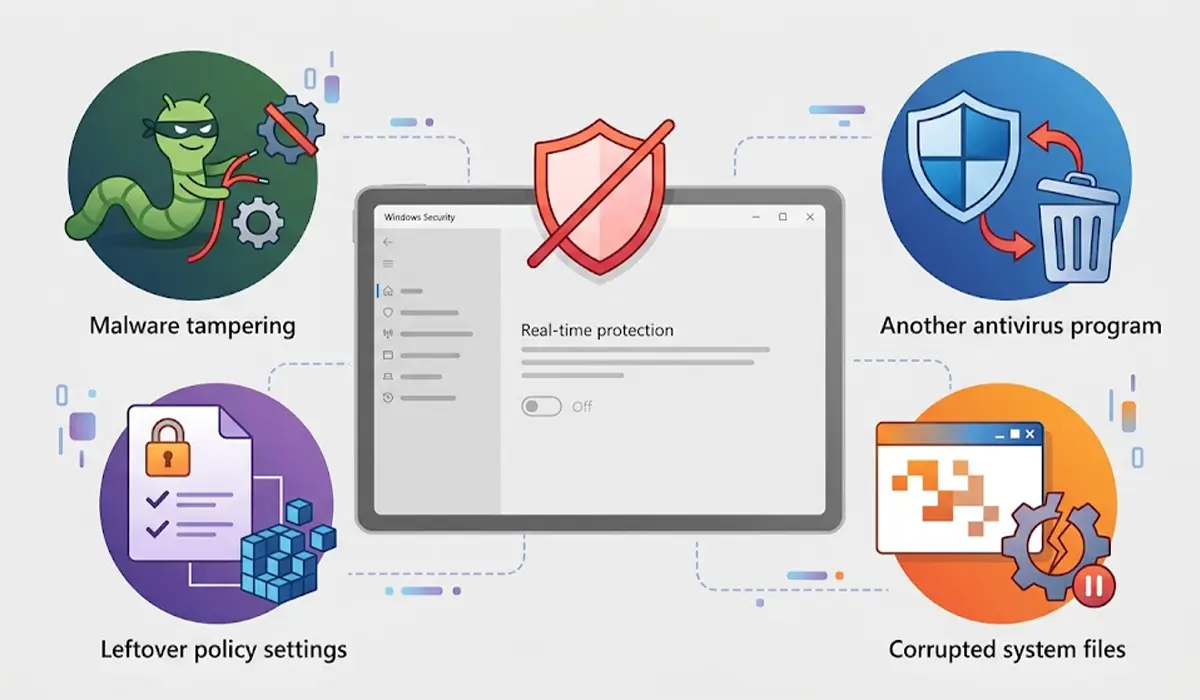
Common Causes of Windows Defender Being Disabled
Before touching any settings, it helps to know what usually sits behind the problem. Most cases trace back to one of the causes below.
- Malware tampering: Many threats stop the Defender services, add folders to the exclusion list, or write policy values that tell Windows to keep Defender off.
- Another antivirus program: Windows switches Defender off on purpose when a third-party security product registers itself. A leftover or half-removed product can leave Defender off even after the other program is gone.
- Leftover policy settings: A Group Policy or registry value set by malware, a tweaking tool, or an old cleanup script can block Defender at every restart.
- Corrupted system files: Damaged Windows components or a broken Windows Security app can leave the Defender page blank or unresponsive.
- Stopped services: If the Microsoft Defender Antivirus Service or the Windows Security Service is not running, the protection toggles often appear greyed out.
Step-by-Step Process to Fix Windows Defender Being Disabled by Malware
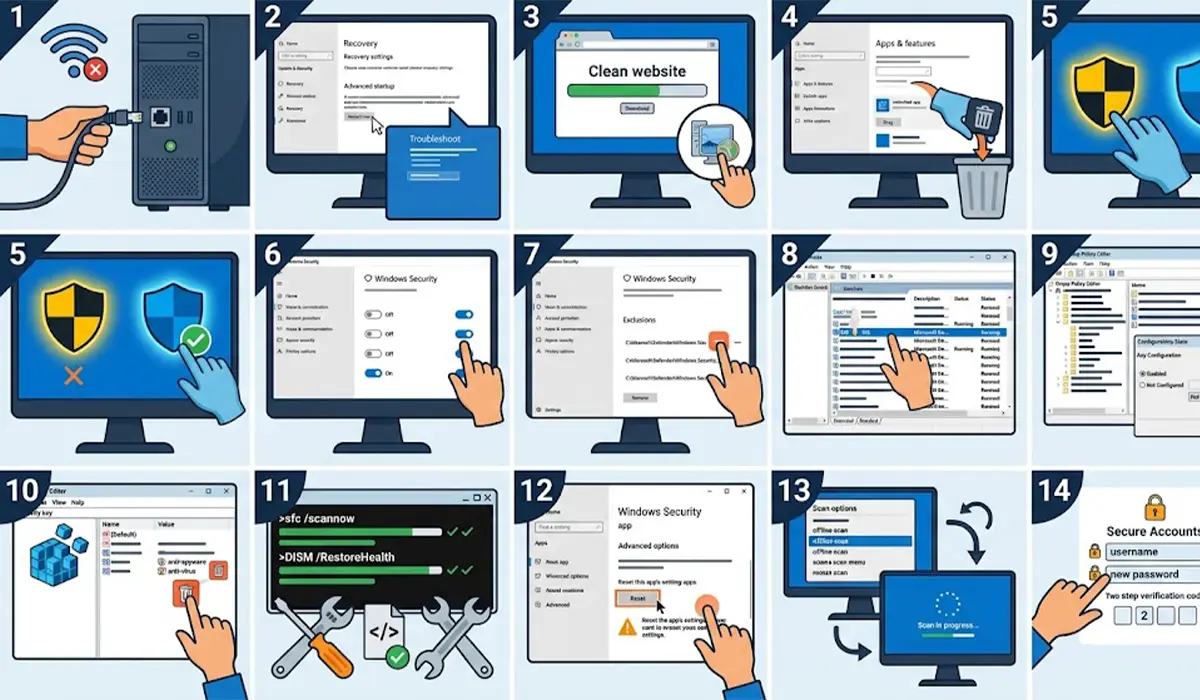
Work through the steps in order. Each one builds on the last, and skipping the malware scan is the most common reason Defender turns off again after a repair.
- Step 1: Disconnect the PC from the internet by turning off Wi-Fi or unplugging the Ethernet cable. This limits what the malware can send or download while the cleanup is underway. Reconnect only when a download is needed, and download from a clean device if one is available.
- Step 2: Restart in Safe Mode. Open Settings, go to System, then Recovery, and select Restart now beside Advanced startup. After the restart, choose Troubleshoot, then Advanced options, then Startup Settings, then Restart, and press 4 for Safe Mode or 5 for Safe Mode with Networking. Safe Mode loads only core Windows components, which stops many threats from starting.
- Step 3: Run Microsoft Safety Scanner. Download it from the official Microsoft website, open it, and choose the Full scan option. This tool works on its own, so it can find threats even when Defender is disabled. Keep in mind that it expires ten days after download and does not provide real-time protection.
- Step 4: Remove anything suspicious. Go to Settings, then Apps, then Installed apps, and uninstall programs that were not installed on purpose. Pay extra attention to unknown security tools, browser toolbars, and apps that appeared around the time Defender stopped working. Restart normally afterward.
- Step 5: Check for a conflicting antivirus. Open Windows Security and look at the Virus and threat protection page. If another security product is listed as the active provider, either keep it and let it handle protection, or uninstall it completely using the removal tool from its publisher and restart so Defender can take over again.
- Step 6: Turn protection back on. In Windows Security, open Virus and threat protection, select Manage settings under Virus and threat protection settings, and switch on Real-time protection. Also switch on Cloud-delivered protection and Tamper Protection if they are off.
- Step 7: Review the exclusion list. On the same settings page, scroll to Exclusions and select Add or remove exclusions. Remove any file, folder, file type, or process that was not added on purpose. Malware often hides in an excluded folder so scans skip it.
- Step 8: Confirm the Defender services are running. Press Windows key + R, type services.msc, and press Enter. Find Microsoft Defender Antivirus Service and Windows Security Service, then check that both show Running with a Startup type of Automatic. If a service is stopped and the Start button works, start it. If the options are greyed out, move on to the next step.
- Step 9: Clear policy blocks with Group Policy (Windows Pro, Enterprise, and Education). Press Windows key + R, type gpedit.msc, and press Enter. Go to Computer Configuration, then Administrative Templates, then Windows Components, then Microsoft Defender Antivirus. Open Turn off Microsoft Defender Antivirus and set it to Not Configured. Then open the Real-time Protection folder and set Turn off real-time protection to Not Configured as well.
- Step 10: Clear policy blocks with the registry (Windows Home). Press Windows key + R, type regedit, and press Enter. Before changing anything, choose File, then Export, and save a backup. Go to HKEY_LOCAL_MACHINE\SOFTWARE\Policies\Microsoft\Windows Defender. If values named DisableAntiSpyware or DisableAntiVirus exist, delete them. Then open the Real-Time Protection subkey, if present, and delete any value that disables monitoring. Only remove values inside this Policies location, and restart afterward.
- Step 11: Repair Windows system files. Right-click Start, open Terminal (Admin) or Command Prompt (Admin), and run sfc /scannow. When it finishes, run DISM /Online /Cleanup-Image /RestoreHealth, then restart. These tools replace damaged system files that can keep Defender from loading.
- Step 12: Repair or reset the Windows Security app. Go to Settings, then Apps, then Installed apps, select the three dots beside Windows Security, choose Advanced options, and select Repair. If the problem remains, select Reset. This restores the app without touching personal files.
- Step 13: Run a full Defender scan and an offline scan. Once real-time protection is back on, open Virus and threat protection, choose Scan options, and run a Full scan. Then run Microsoft Defender Offline scan from the same page. The offline scan restarts the PC and checks files before Windows fully loads, which helps catch threats that hide while the system is running.
- Step 14: Secure the accounts. After the PC is confirmed clean, reconnect to the internet and change important passwords from a clean device, starting with email, banking, and the Microsoft account. Turn on two-step verification wherever it is available.
Tip: After Step 3 finishes, restart the PC and run the scanner one more time. A second pass often catches leftover files that were locked or hidden during the first scan.
Common Problems and Fixes
Defender Turns Off Again After a Restart
This usually means a threat or a startup item is putting the setting back. Run Microsoft Safety Scanner again, review the exclusion list, and recheck the Group Policy or registry values from Steps 9 and 10. Also open Task Manager, go to the Startup apps tab, and disable anything unfamiliar.
The Real-Time Protection Toggle Is Greyed Out
A greyed-out toggle points to a policy block, a stopped service, or a managed device. Clear the policy values in Step 9 or Step 10 and confirm the services in Step 8 are running. On a work or school PC, the setting may be controlled by an administrator, and the IT team will need to change it.
Windows Security Opens to a Blank Page or Will Not Open
Repair the app from Settings as described in Step 12, then run the SFC and DISM commands from Step 11. If the page stays blank, creating a new local administrator account and testing there can show whether the issue is limited to one user profile.
The Start Button for the Defender Service Is Greyed Out
Windows protects some Defender services from manual changes. Do not try to force them with third-party tools. Clear the policy blocks, repair system files, and restart so Windows can start the service on its own.
Group Policy Editor Is Missing
The Local Group Policy Editor is not included in Windows Home. Use the registry method in Step 10 instead, and export a backup before deleting any value.
The Scanner Finds Nothing but Defender Is Still Off
A clean scan result does not always mean a clean system, since some threats leave only their changes behind. Recheck exclusions, policies, and services, repair the Windows Security app, and run the offline scan. If Defender still cannot be turned on, a repair install or a Windows reset may be needed. This is the point where handing the PC to a trusted technician is a sensible choice, especially if it holds important or sensitive data.
Frequently Asked Questions
Can malware really turn off Windows Defender?
Yes. Many threats stop the Defender services, change policy settings, or add exclusions so their files are skipped during scans.
Is Windows Defender being turned off always a sign of malware?
No. Installing another antivirus program normally switches Defender off on purpose, and corrupted system files or a policy set by a work or school account can do the same. Still, it is worth running a scan to rule out a threat.
Should the PC stay offline while removing the malware?
Yes, whenever possible. Staying offline limits what the threat can send or download. Reconnect only when a tool or update must be downloaded, and use a clean device for downloads if one is available.
What is Tamper Protection in Windows Security?
Tamper Protection is a Windows Security feature that stops apps and unauthorized changes from altering key Defender settings, including real-time protection. It should be switched back on after repairs are complete.
Is Microsoft Safety Scanner a replacement for Windows Defender?
No. It is an on-demand scanner that expires ten days after download and offers no real-time protection. It is best used for cleanup while Defender is unavailable.
Why does Windows Defender turn off again after a restart?
The most common reasons are a leftover threat, a policy value that reapplies at startup, or a conflicting security program. Rescan the system, recheck the exclusions and policies, and make sure no other antivirus is registered as the active provider.
Is it safe to edit the registry to fix Windows Defender?
It is safe when the changes are limited to the Defender policy values and a backup is exported first. Deleting the wrong entries can cause other problems, so only remove the values named in the steps above.
Does Windows need to be reinstalled after Defender was disabled by malware?
Rarely. A full scan, a policy cleanup, and a system file repair solve most cases. A reset or clean installation is worth considering only if threats keep returning or Defender cannot be repaired, and important files should be backed up first.
