
Knowing how to fix Wi-Fi turning off automatically saves a lot of frustration, especially when a video call drops or a download stalls for no obvious reason. In most cases, Windows is cutting power to the wireless adapter, a driver is misbehaving, or a setting is quietly switching the radio off. The fixes below start with the most common cause and work toward the less likely ones.
Key Takeaways
- The most common cause is Windows turning off the wireless adapter to save power.
- Changing the adapter power management setting and the power plan fixes most cases.
- Outdated or corrupted drivers are the next most likely culprit.
- If other devices stay connected while only one PC drops, the problem is almost always on that PC and not the router.
- Repeated drops after every software fix can point to failing hardware, such as the wireless card or antenna cable.
Common Causes of Wi-Fi Turning Off Automatically
Wi-Fi that switches itself off usually traces back to one of a handful of triggers. Understanding which one applies makes the fix much faster.
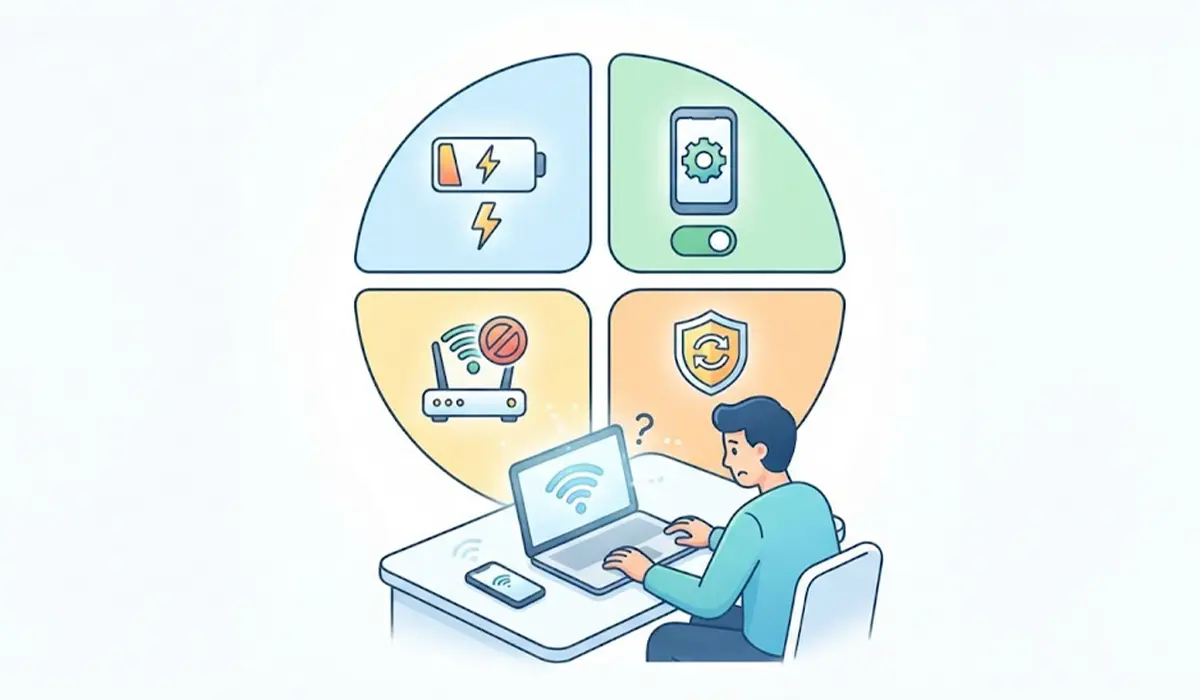
Power Saving Settings
Windows can power down the wireless adapter when it decides the device is idle or when the battery is low. This is the top reason Wi-Fi vanishes after a few minutes of inactivity or after waking from sleep.
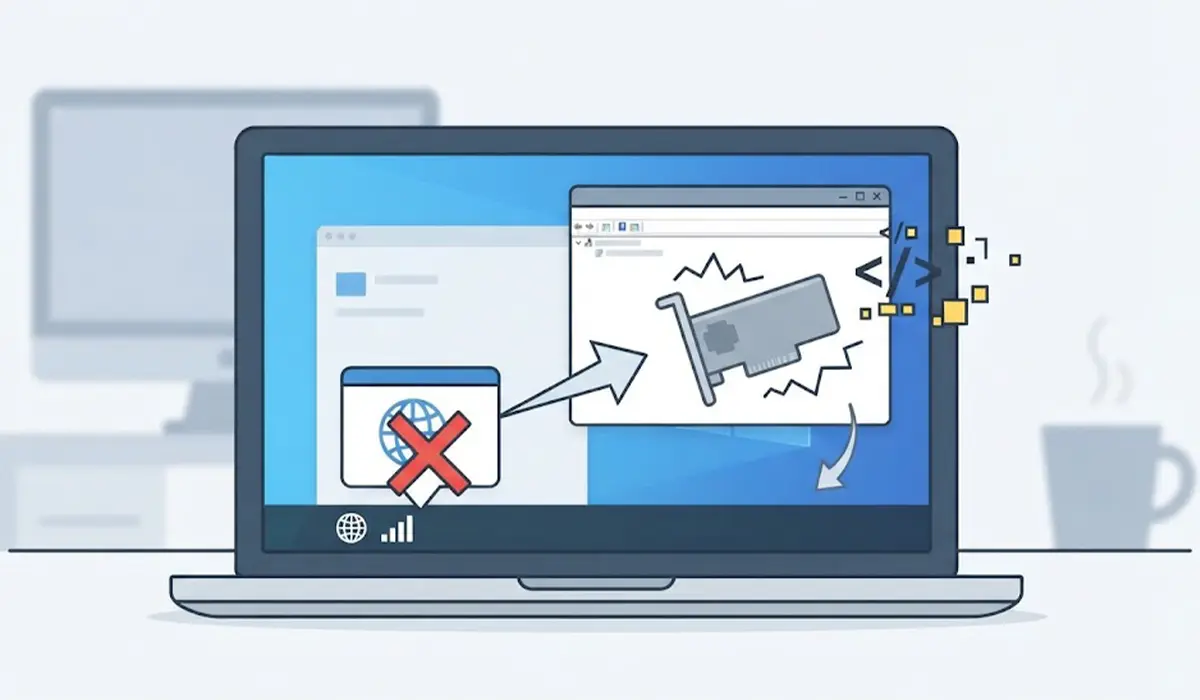
Driver Problems
A buggy, outdated, or corrupted network driver can cause the adapter to crash and disappear from the network list. This often starts right after a Windows update.
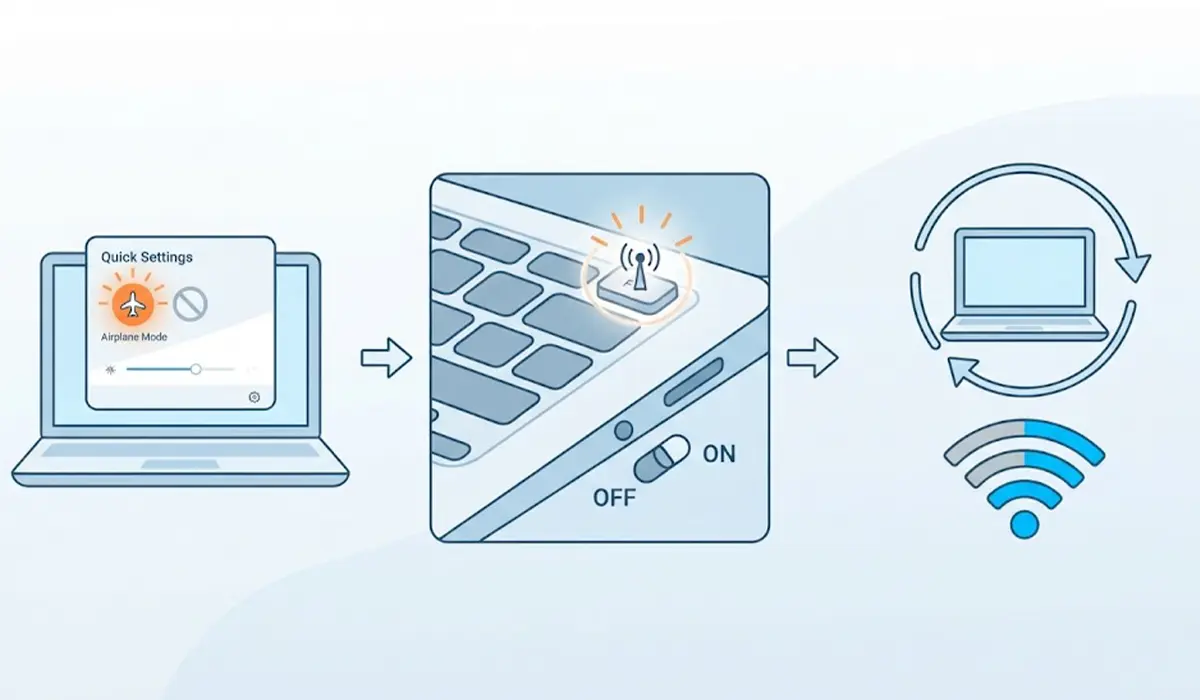
Airplane Mode and Hardware Switches
Some laptops have a function key or physical switch that toggles the wireless radio. A stray key press can turn Wi-Fi off without any warning on screen.
Services, Software, and Router Issues
A stopped WLAN AutoConfig service, conflicting VPN or security software, or an unstable router connection can also make Wi-Fi drop. Think of it like a phone line: the problem may be the phone, the wire, or the exchange, so each part needs a quick check.
How to Fix Wi-Fi Turning Off Automatically Step by Step
Work through these fixes in order. Test the connection for a while after each one, since the problem may not show up immediately.
- Step 1: Check for the simple triggers first. Make sure Airplane mode is off in the Quick Settings panel, look for a wireless key on the keyboard (often a function key with an antenna icon) and a physical Wi-Fi switch on older laptops, then restart the PC.
- Step 2: Stop Windows from powering off the adapter. Right-click the Start button, open Device Manager, expand Network adapters, and double-click the wireless adapter. Open the Power Management tab and uncheck ‘Allow the computer to turn off this device to save power’, then click OK. Tip: If the Power Management tab is missing, the driver may need updating, which is covered in Step 4.
- Step 3: Set the wireless adapter to full performance. Open Control Panel, go to Power Options, click Change plan settings next to the active plan, then Change advanced power settings. Expand Wireless Adapter Settings, expand Power Saving Mode, and set both On battery and Plugged in to Maximum Performance. Click Apply.
- Step 4: Update or reinstall the wireless driver. In Device Manager, right-click the wireless adapter and choose Update driver. If the problem began after an update, open Properties, go to the Driver tab, and use Roll Back Driver if the button is available. Otherwise, choose Uninstall device, restart the PC, and let Windows reinstall the driver. The laptop manufacturer’s support page is the best source for a newer driver.
- Step 5: Confirm the WLAN AutoConfig service is running. Press the Windows key and R, type services.msc, and press Enter. Find WLAN AutoConfig, double-click it, set Startup type to Automatic, and click Start if the service is stopped.
- Step 6: Run the built-in network troubleshooter. In Settings, go to System, then Troubleshoot, then Other troubleshooters, and run the Network and Internet troubleshooter. Apply any fix it suggests.
- Step 7: Forget the network and reconnect. In Settings, open Network and internet, then Wi-Fi, then Manage known networks. Select the network, choose Forget, and then reconnect with the password. A damaged saved profile can cause repeated drops.
- Step 8: Reset the network stack. Open Command Prompt as administrator and run netsh winsock reset, then netsh int ip reset, and restart the PC. If problems continue, the Network reset option in Settings under Network and internet, Advanced network settings, reinstalls all network adapters and returns network settings to default.
- Step 9: Rule out software conflicts and the router. Temporarily disable any VPN or third-party security suite to see if the drops stop. Then restart the router, and check whether phones or other computers lose Wi-Fi at the same moments. If they do, router firmware, channel congestion, or the router itself is the likely cause.
Tip: Change one thing at a time. Making several changes at once makes it impossible to know which fix actually worked.
When to Stop and Call a Professional
If Wi-Fi still drops after every software fix, or the adapter vanishes from Device Manager entirely, the wireless card or its antenna cable may be loose or failing. Replacing it means opening the laptop, which may affect the warranty, so a qualified technician or the manufacturer’s support is the safer route.
Common Problems and Fixes
Wi-Fi Turns Off Only After Sleep or Hibernate
Repeat the power management change in Step 2 and set Maximum Performance in Step 3. Then update the driver, since wake-from-sleep failures are often driver related.
The Power Management Tab Is Missing
This usually means a generic or damaged driver is installed. Install the driver from the laptop or adapter manufacturer, then check the tab again.
Wi-Fi Still Drops After a Driver Reinstall
Move on to the network reset in Step 8 and test with any VPN or security software disabled. If the drops continue, test the PC on a different network, such as a phone hotspot, to separate a PC fault from a router fault.
Wi-Fi Disappears Completely From the Network List
Check that the adapter is enabled in Device Manager and that WLAN AutoConfig is running. If the adapter is missing from Device Manager, the hardware may need professional inspection.
Only One Wi-Fi Band Keeps Dropping
If the router offers separate 2.4 GHz and 5 GHz networks, try connecting to the other band. Distance, walls, and interference affect each band differently, and one may be far more stable in a given room.
Frequently Asked Questions
Why does my Wi-Fi turn off by itself?
The most common reason is that Windows powers down the wireless adapter to save energy. Faulty drivers, a stopped WLAN AutoConfig service, Airplane mode, and router problems can also cause it.
Why does Wi-Fi turn off when my laptop goes to sleep?
Sleep mode cuts power to many components, and the adapter may not wake correctly if power management is enabled or the driver is outdated. Disabling the power saving option for the adapter and updating the driver usually fixes it.
Is Wi-Fi turning off automatically a driver problem?
Often, yes. A corrupted or outdated driver can crash the adapter, especially after a Windows update. Updating, rolling back, or reinstalling the driver is a good early step.
How do I stop Windows from turning off my Wi-Fi adapter?
Open Device Manager, double-click the wireless adapter under Network adapters, go to the Power Management tab, and uncheck the option that allows the computer to turn off the device to save power.
Can Battery Saver turn off Wi-Fi?
Battery Saver mainly reduces background activity and does not normally switch Wi-Fi off. The wireless adapter power saving mode in the advanced power plan settings is the more likely cause, so set it to Maximum Performance.
Can the router cause Wi-Fi to keep disconnecting?
Yes. Outdated router firmware, a crowded channel, or an overheating router can cause drops. If phones and other computers disconnect at the same time, the router is the likely cause.
Will resetting network settings delete my files?
No. A network reset removes saved Wi-Fi networks, VPN connections, and custom adapter settings and returns them to default, but personal files are not affected. Keep Wi-Fi passwords handy to reconnect afterward.
When does Wi-Fi turning off mean a hardware fault?
If the adapter disappears from Device Manager, or drops continue after driver reinstalls, a network reset, and testing on another network, the wireless card or antenna connection may be faulty. At that point, professional repair is the safest option.
