
The Windows audio service not running error turns the speaker icon into a red X and leaves every app silent. The cause is almost always a stopped service, a broken dependency, or a driver problem, and each one can be fixed from inside Windows in a few minutes.
Key Takeaways
- The Windows Audio service (Audiosrv) must be running and set to Automatic for any sound to play.
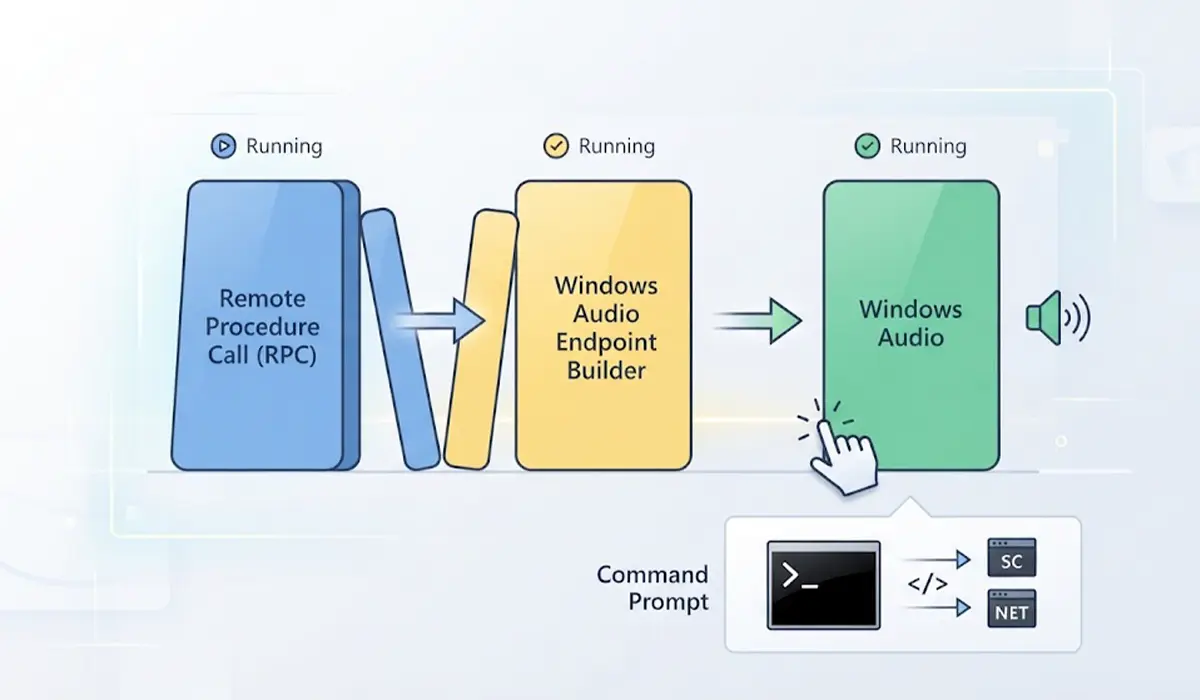
- Windows Audio depends on the Windows Audio Endpoint Builder and Remote Procedure Call (RPC) services, so both must be running too.
- A restart from the Services console fixes many cases, but a repeat failure usually points to a driver, a corrupted system file, or conflicting software.
- Work through the fixes in order, from the simplest to the most involved.
Common Causes of the Windows Audio Service Not Running
Knowing why the service stopped makes it easier to choose the right fix. Most cases trace back to one of the following.
- The service was stopped or its startup type was changed to Manual or Disabled, often by a tweak tool or a system cleaner.
- A dependent service, such as Windows Audio Endpoint Builder or Remote Procedure Call (RPC), failed to start.
- The audio driver is outdated, corrupted, or was replaced during a Windows update.
- System files that the audio stack relies on are damaged.
- Third-party audio software or enhancement tools conflict with the service.
- The service account permissions were altered, which can trigger access denied errors when starting the service.
How to Fix Windows Audio Service Not Running Step by Step
Sign in with an administrator account before starting, since most of these fixes need elevated permissions. Then follow the steps in order and test the sound after each one.
Start with the Quick Fixes
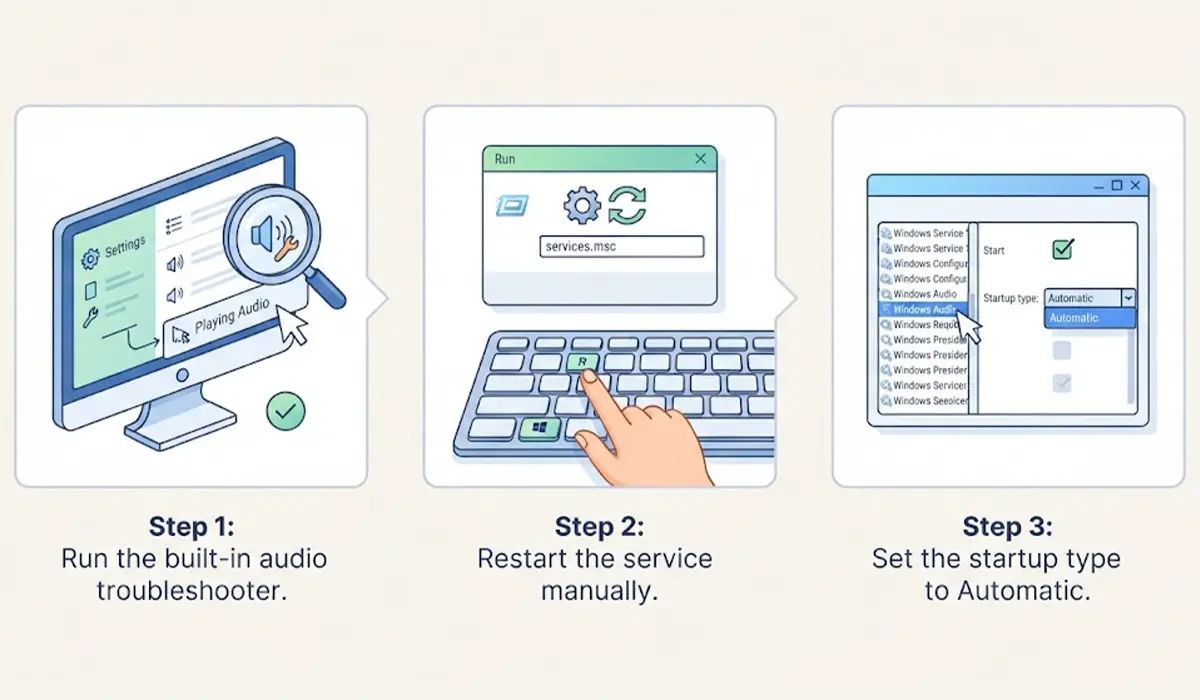
- Step 1: Run the built-in audio troubleshooter. On Windows 11, open Settings, go to System, then Troubleshoot, then Other troubleshooters, and run the Playing Audio troubleshooter. On Windows 10, open Settings, go to Update and Security, then Troubleshoot, then Additional troubleshooters, and run Playing Audio. Let it apply any fix it suggests and test the sound.
- Step 2: Restart the service manually. Press the Windows key and R together, type services.msc, and press Enter. Scroll down to Windows Audio, right-click it, and choose Restart. If the option reads Start instead, the service was stopped, so choose Start.
- Step 3: Set the startup type to Automatic. Double-click Windows Audio, open the General tab, and set Startup type to Automatic. Click Apply, then Start if the service is not running. Repeat the same setting for Windows Audio Endpoint Builder.
Tip: A service that is set to Automatic but still shows as stopped after a reboot usually has a failing dependency, so move straight to the next step rather than repeating the restart.
Check the Dependencies
- Step 4: Open the properties of Windows Audio again and select the Dependencies tab. The list should show Windows Audio Endpoint Builder and Remote Procedure Call (RPC). Find each one in the Services list and confirm the status is Running. If Windows Audio Endpoint Builder is stopped, start it first, then start Windows Audio. Think of it like a row of dominoes: the first one has to fall before the rest can move.
- Step 5: Use Command Prompt as a backup method. Search for cmd, right-click Command Prompt, and choose Run as administrator. Enter sc config audiosrv start= auto and press Enter, then enter net start audiosrv. If Windows reports that a dependency is not started, enter net start audioendpointbuilder and then try net start audiosrv again.
Repair the Driver and System Files
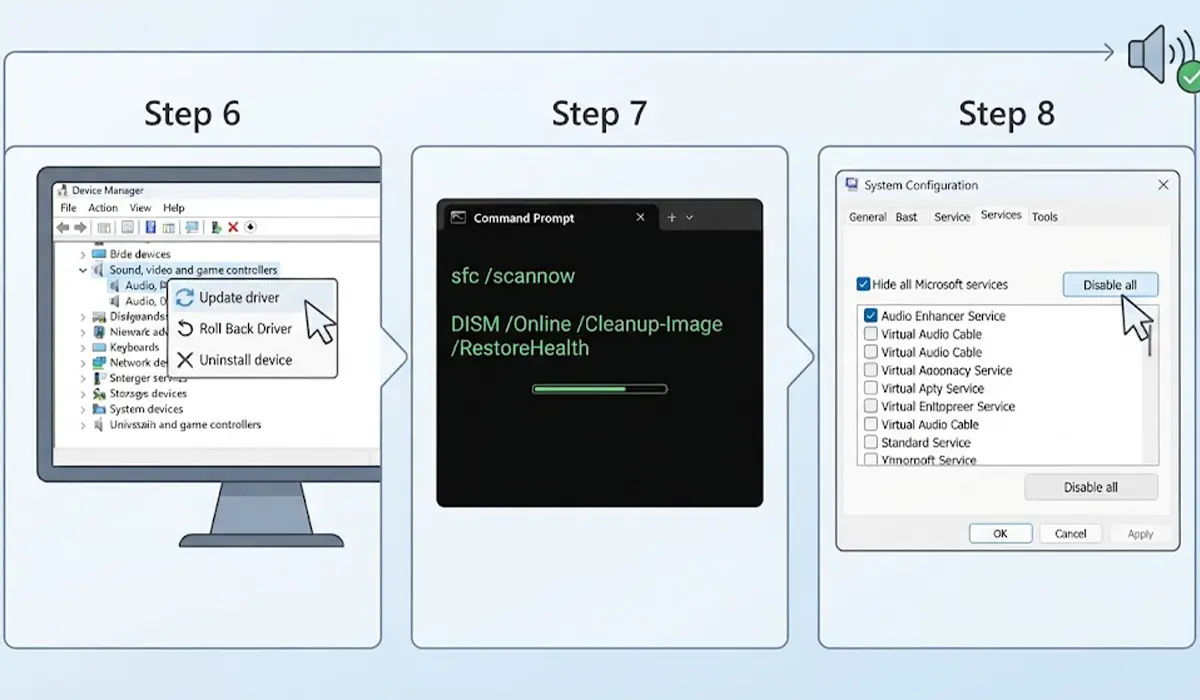
- Step 6: Update or reinstall the audio driver. Right-click the Start button, open Device Manager, and expand Sound, video and game controllers. Right-click the audio device, choose Update driver, and let Windows search automatically. If the problem began right after a driver update, open the device properties, go to the Driver tab, and choose Roll Back Driver when it is available. If neither helps, choose Uninstall device, restart the PC, and let Windows reinstall the driver on boot.
- Step 7: Repair damaged system files. In an administrator Command Prompt, run sfc /scannow and wait for it to finish, which can take several minutes. Then run DISM /Online /Cleanup-Image /RestoreHealth, restart the PC, and check the audio service again.
- Step 8: Rule out software conflicts. Press the Windows key and R, type msconfig, and open the Services tab. Tick Hide all Microsoft services, click Disable all, then restart. If the audio service now runs normally, re-enable the disabled items in small groups until the culprit shows up. Audio enhancement tools, equalizers, and virtual sound devices are the usual suspects.
Tip: Creating a restore point before changing drivers or startup items gives an easy way back if something behaves unexpectedly.
Common Problems and Fixes
Error 1068: The Dependency Service or Group Failed to Start
This error means Windows Audio Endpoint Builder or RPC is not running. Start Windows Audio Endpoint Builder first, confirm RPC shows as Running, and then start Windows Audio again.
Access Denied When Starting the Service
This usually means the console was opened without administrator rights, or the service account settings were changed. Reopen Services or Command Prompt as administrator. If the message persists, open the Log On tab of Windows Audio and confirm it is set to the Local Service account, which is the default for this service.
Service Runs but There Is Still No Sound
Right-click the speaker icon, open Sound settings, and confirm the correct output device is selected and not disabled. A muted app in the volume mixer or a disabled playback device can look exactly like a service failure.
Service Stops Again After Every Restart
A repeating failure points below the service itself. Reinstall the audio driver, run the SFC and DISM scans, and test in a clean boot to catch a conflicting program.
Problem Started After a Windows Update
Open Settings, go to Windows Update, then Update history, and look for a recent update to uninstall. Rolling back the audio driver is often the faster and safer first move.
If the service still fails after all of these steps, a System Restore to a date before the problem began is the next safe option. Resetting or reinstalling Windows should be a last resort, and important files should be backed up first.
Frequently Asked Questions
What does Windows audio service not running mean?
It means the background service that manages sound playback has stopped or failed to start. Without it, Windows cannot send audio to speakers or headphones, even when the hardware is working normally.
How do you restart the Windows Audio service?
Press the Windows key and R, type services.msc, and press Enter. Right-click Windows Audio in the list and choose Restart, or Start if it is stopped.
Should Windows Audio be set to Automatic?
Yes. Automatic is the standard startup type for Windows Audio, and it makes sure the service launches every time Windows boots. The same applies to Windows Audio Endpoint Builder.
What is Windows Audio Endpoint Builder and why does it matter?
Windows Audio Endpoint Builder manages the audio devices that Windows Audio uses, such as speakers, headphones, and microphones. Windows Audio depends on it, so if it is stopped, Windows Audio will not start.
Why does the audio service keep stopping after a restart?
A repeated failure usually comes from a stopped dependency, a faulty audio driver, damaged system files, or conflicting third-party software. Checking the Dependencies tab and reinstalling the driver resolves most of these cases.
Can a Windows update cause the audio service to stop working?
Yes. An update can replace or corrupt an audio driver, which then prevents the service from working properly. Rolling back the driver or uninstalling the recent update often restores sound.
Will reinstalling the audio driver fix the problem?
It fixes many cases, especially when the trouble began after an update or driver change. Uninstall the device in Device Manager, restart the PC, and let Windows reinstall the driver automatically.
Do the SFC and DISM commands help with audio problems?
They can. Both tools repair damaged Windows system files, and corrupted files in the audio stack can stop the service from starting. Run SFC first, then DISM, and restart afterward.
When is a System Restore or Windows reset needed?
Only when the service still fails after the driver, dependency, and system file fixes. A System Restore to an earlier date is the gentler choice, while a reset should be a last resort after backing up important files.
