
Knowing how to remove malware from a laptop manually comes in handy when an infection is blocking antivirus software or slipping past automated scans. A laptop that suddenly runs hot, pops up strange ads, or opens programs on its own is usually sending a clear signal that something unwanted has taken root. This guide walks through the manual cleanup process from start to finish, without relying on guesswork or risky shortcuts.
Key Takeaways
- Disconnecting from the internet early prevents malware from spreading further or sending out data.
- Safe Mode strips malware of the normal startup environment it depends on, making it far easier to isolate.
- Checking Task Manager, Startup Apps, and installed programs catches most malware that hides in plain sight.
- A trusted on-demand scanner should always back up manual removal, since some threats hide files a visual check will miss.
- Persistent infections after cleanup are often a sign that a full Windows reset is the faster, safer path.
Before You Start
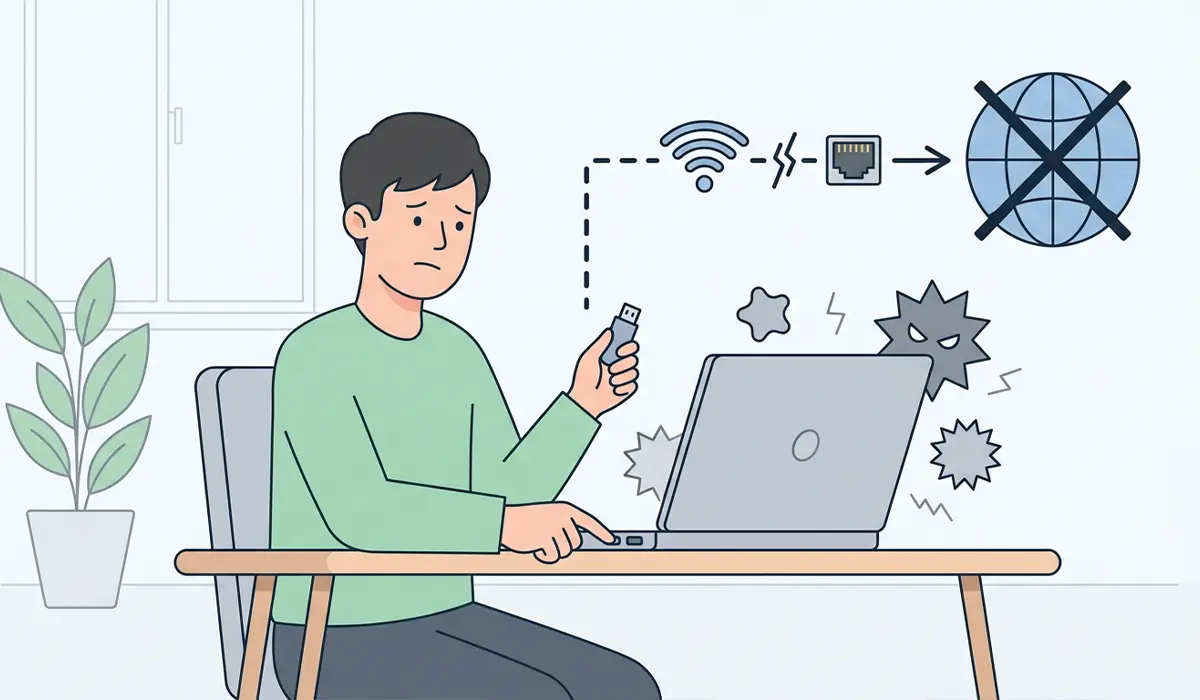
Manual malware removal does not require opening the laptop, but a little prep still matters. Back up anything irreplaceable, like photos or documents, to an external drive or cloud folder before touching anything else, since some cleanup steps involve deleting files. Disconnect the laptop from Wi-Fi or unplug the Ethernet cable so the infection cannot communicate with outside servers or spread to other devices on the same network.
If the laptop will not boot at all, keeps reinfecting itself after every cleanup attempt, or shows signs of ransomware such as locked files with a ransom note, stop the manual process and consult a professional data recovery or security specialist instead. Pushing forward with the wrong steps in these cases can make recovery harder.
Steps to Remove Malware From a Laptop Manually
These steps follow the order that tends to work best, starting with containment and moving toward a full, verified cleanup.
- Step 1: Disconnect the laptop from the internet by turning off Wi-Fi or unplugging the network cable. This stops most malware from downloading additional payloads or transmitting stolen data while cleanup is underway.
- Step 2: Restart the laptop into Safe Mode. Open the Start menu, select Settings, go to Update and Security, then Recovery, and choose Restart now under Advanced startup. After the laptop restarts, select Troubleshoot, then Advanced options, then Startup Settings, and press the number key for Safe Mode with Networking if a scanner needs to download updates, or plain Safe Mode if it does not.
- Step 3: Open Task Manager with Ctrl, Shift, and Escape, and review the Processes tab for anything unfamiliar consuming high CPU or memory. Right-click any suspicious process, choose Open file location to see where it lives, and end the task if it looks out of place.
- Step 4: Clear temporary files, since many infections stash their launch files here. Press Windows key and R, type %temp%, and delete the contents of the folder that opens. Repeat with the Temp folder found directly under the Windows directory.
- Step 5: Check the list of programs that start with Windows. In Task Manager, select the Startup Apps tab, and disable anything unrecognized or recently added, especially entries with vague or misspelled names.
- Step 6: Open Settings, then Apps, then Installed Apps, and scan the list for programs that were never intentionally installed. Uninstall anything suspicious, paying attention to toolbars, “optimizer” utilities, and software with generic or unfamiliar names.
- Step 7: Run a full scan with Windows Security by opening Settings, then Privacy and Security, then Windows Security, then Virus and threat protection, and choosing Scan options followed by Microsoft Defender Offline scan. This offline mode catches threats that hide from normal scans run while Windows is fully loaded.
- Step 8: Install and run a reputable on-demand malware scanner as a second opinion, since no single engine catches everything. Let it complete a full scan rather than a quick scan, and quarantine or remove anything it flags.
- Step 9: Reset each browser that was used before the infection appeared. In most browsers, this option sits under Settings, then Reset settings, and it clears hijacked homepages, altered search engines, and unwanted extensions in one step.
- Step 10: Reconnect to the internet, run Windows Update to patch any vulnerabilities the malware may have exploited, and change passwords for email, banking, and other sensitive accounts from a separate, trusted device if possible.
Tip: Take a screenshot or note of anything unusual before removing it. If a program turns out to be legitimate after all, that record makes it much easier to reinstall correctly.
Common Problems and Fixes
Safe Mode will not load
Some malware blocks access to Safe Mode. If the Startup Settings menu will not appear through normal means, use a Windows installation USB drive to boot into the recovery environment instead, then access Advanced options from there.
Windows Security or the scanner will not open
Certain infections disable security tools directly. Try running the scanner from Safe Mode, since many types of malware only activate their blocking behavior during a normal boot.
The laptop is still slow after cleanup
Lingering slowness often comes from leftover startup entries or a fragmented, overloaded drive rather than an active infection. Recheck the Startup Apps tab and consider a disk cleanup pass once the malware itself is confirmed gone.
Pop-ups or a hijacked browser return after a reset
This usually means a rogue extension survived the reset or malware reinstalled it through a scheduled task. Check the browser’s extensions list again, and review Task Scheduler for entries that trigger the browser to launch unwanted pages.
The infection keeps coming back after every scan
Recurring infections despite repeated cleanup are a strong signal that a full reset of Windows, keeping personal files but removing installed apps, will save far more time than continuing to chase the same malware manually.
Frequently Asked Questions
How do you know if a laptop has malware?
Common signs include unexpected slowdowns, pop-up ads outside the browser, programs launching without being opened, a changed browser homepage, and unusually high data or battery usage.
Can malware be removed without antivirus software?
Manual removal through Safe Mode, Task Manager, and startup cleanup can eliminate many infections, but pairing it with at least one trusted scanner catches hidden files that are easy to miss by eye alone.
Is Safe Mode necessary to remove malware?
It is not strictly required for every infection, but Safe Mode loads only essential drivers and services, which stops most malware from running and makes it far easier to isolate and delete.
Will removing malware delete personal files?
Careful manual removal targets only the infected files and programs, leaving personal documents and photos untouched. Backing up important files beforehand still adds a safety net in case cleanup requires a full reset.
What should be done if malware blocks access to antivirus software?
Boot into Safe Mode with Networking and attempt to run the scanner from there, since the blocking behavior built into some malware is often disabled outside of a normal boot.
How long does manual malware removal usually take?
A straightforward infection can often be cleared within an hour, while deeper infections involving multiple startup entries and browser hijacks may take longer, especially if a full scan is included.
Can malware come back after it has been removed?
Yes, particularly if a scheduled task, hidden startup entry, or browser extension was missed. Rechecking Task Scheduler and the Startup Apps list after cleanup helps prevent a reinfection.
Does a factory reset always remove malware?
A full reset that removes installed apps typically clears most infections, but malware that has modified firmware or a recovery partition can survive in rare cases, which is why persistent infections sometimes need professional attention.
Is it safe to use the laptop while it may be infected?
Avoid logging into banking or email accounts until the laptop is confirmed clean, since active malware can capture keystrokes or steal saved credentials during that time.
