
Learning how to safely clean laptop battery contacts can fix a surprising number of charging and power problems. Dust, skin oils, and light oxidation build up on the small metal connectors over time and weaken the electrical connection. A few minutes with the right materials and a gentle touch is usually all it takes.
Key Takeaways
- Power off, unplug the charger, and remove the battery before touching any contacts.
- Use 90 percent or higher isopropyl alcohol on a lint-free cloth or swab, never water.
- Wipe gently and let everything dry completely before reinserting the battery.
- Never scrape the contacts or use metal tools, since the thin plating wears away easily.
- Stop and seek professional help if the battery is swollen, leaking, or the contacts are bent or burned.
Before You Start
Cleaning is quick, but the prep matters. Skipping it is how a simple maintenance job turns into a short circuit or a damaged connector.
Safety Prep
- Shut the laptop down completely (not sleep or hibernate) and unplug the charger and any connected accessories.
- Let the laptop cool if it was recently running hot.
- Touch a bare metal surface or wear an anti-static strap to discharge static before handling the battery.
- Work on a clean, dry, well-lit surface with plenty of space.
Tools and Materials
- Isopropyl alcohol, 90 percent or higher
- Lint-free or microfiber cloth
- Lint-free foam or microfiber-tipped swabs
- Soft, dry brush (an anti-static brush works well)
- Compressed air, optional
- A flashlight or phone light for inspecting small contacts
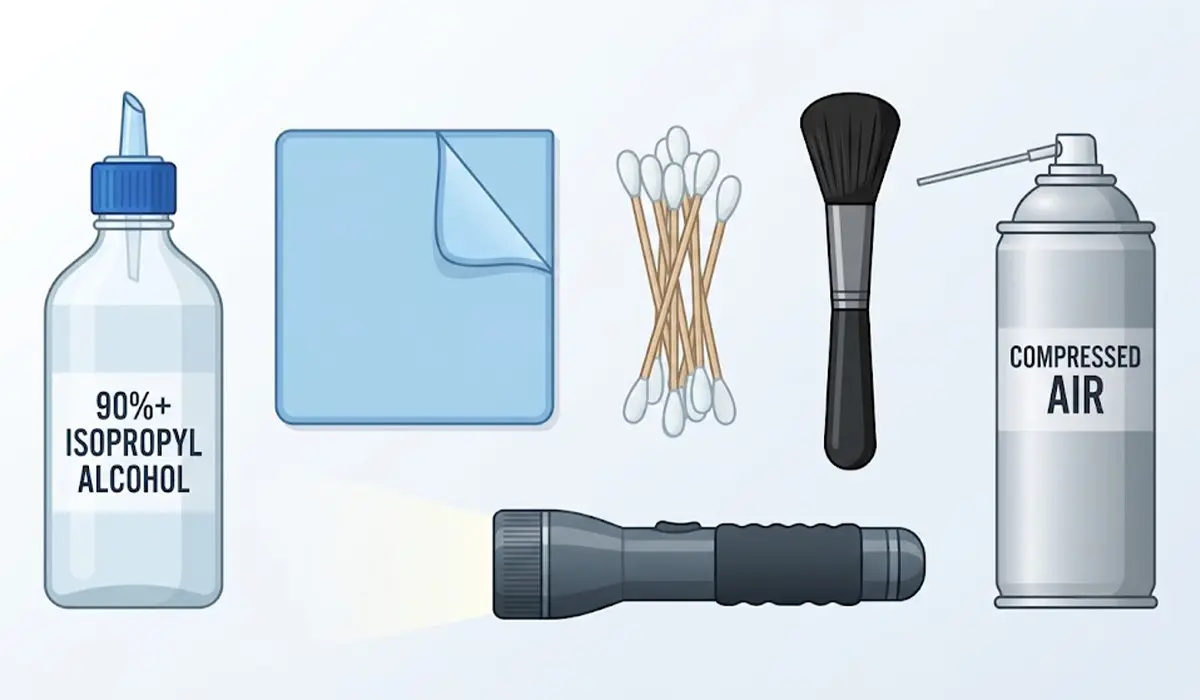
This guide covers laptops with a removable battery. If the battery is built in and sealed inside the chassis, opening the case may affect the warranty, and a professional is the safer choice for anything beyond a visual check.
How to Safely Clean Laptop Battery Contacts
- Step 1: Power down and disconnect everything. Turn the laptop off, unplug the charger, and close the lid. Flip the laptop over onto a soft, clean cloth so the underside faces up.
- Step 2: Remove the battery. Slide the release latch or latches and lift the battery out. Set it on a clean, dry surface with the contacts facing up.
- Step 3: Inspect the contacts. Use a light to look at both the metal strip on the battery and the matching pins or pads inside the battery bay. Dull, dark, or cloudy spots mean oxidation or grime. Bent pins, burn marks, or crusty residue mean cleaning alone may not be enough.
- Step 4: Clear loose dust. Use the soft brush or a short burst of compressed air to remove debris from the battery bay and the battery edge. Hold the compressed air can upright so no liquid spray escapes.
- Step 5: Dampen the cloth or swab. Apply a small amount of isopropyl alcohol to a lint-free cloth or swab. It should be damp, not dripping, since liquid running into the bay can reach parts that should stay dry.
- Step 6: Wipe the battery contacts. Rub gently along the metal strip in one direction, then switch to a fresh clean section of cloth or a new swab. Keep going until the cloth comes away clean.
- Step 7: Clean the contacts inside the laptop. Use a fresh, barely damp swab on the pins or pads in the battery bay. Press lightly, because spring-loaded pins bend easily and bent pins lose contact.
- Step 8: Let everything dry completely. Isopropyl alcohol evaporates quickly, but give both sides a few extra minutes in open air. Any damp spot should be fully dry before power returns.
- Step 9: Reinstall the battery. Line it up with the bay and slide it in until the latch clicks. A battery that sits snugly without wobble is making proper contact.
- Step 10: Test the connection. Plug in the charger and power the laptop on. Check that the operating system detects the battery and that the charging indicator responds.
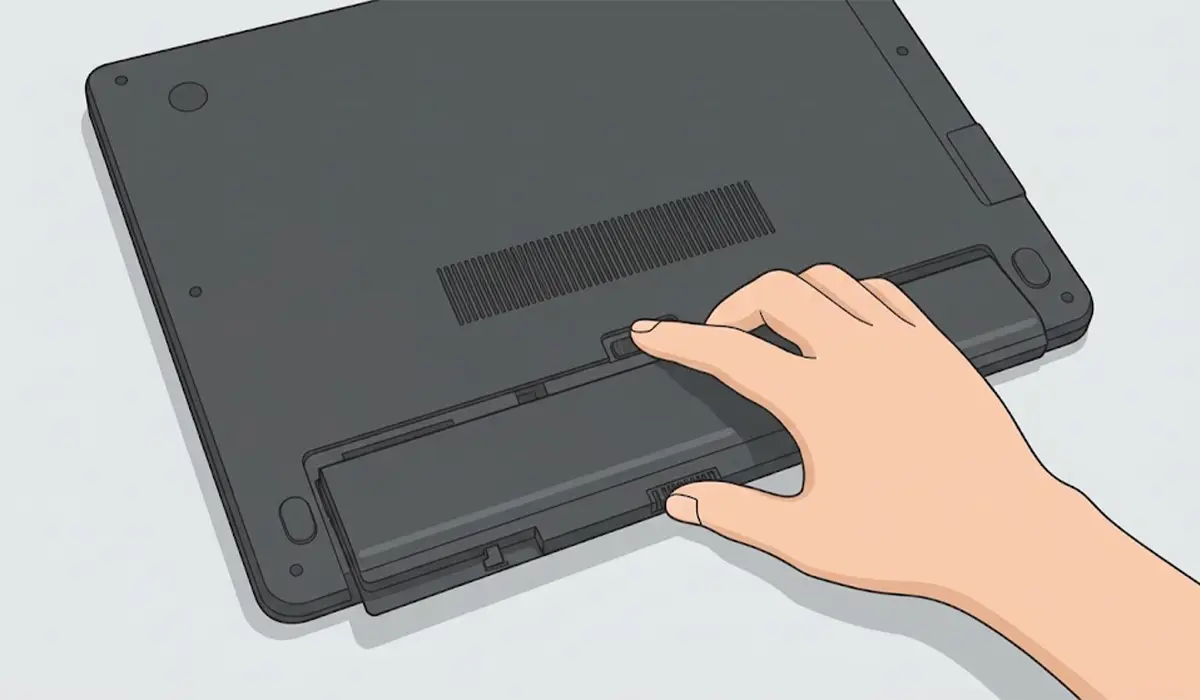
Tip: Think of the contacts like the electrical points on a car battery terminal. A light wipe restores the connection, while scrubbing hard only removes the protective plating that keeps the metal conductive.
What to Avoid While Cleaning
Most damage during this job comes from good intentions. A few habits are worth dropping before they cause trouble.
- Do not use water, window cleaner, or household sprays. Moisture and residue can cause corrosion and short circuits.
- Do not scrape with screwdrivers, knives, or paper clips. Metal tools can scratch the plating or short the pins.
- Do not use abrasive pads or rough erasers. The gold or nickel plating is very thin.
- Do not clean with the battery installed or the charger connected.
- Do not use a cotton ball or fuzzy swab, which can leave fibers lodged between the pins.
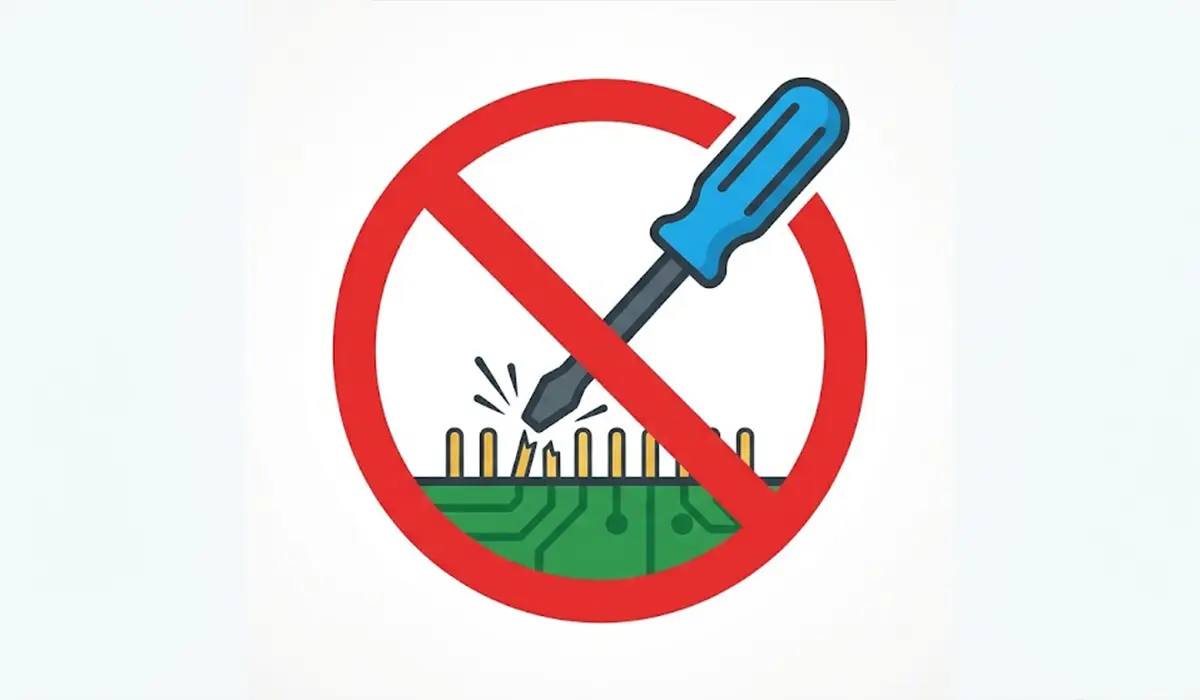
Tip: A good habit is to inspect the contacts every few months, or any time the battery bay collects dust. Light, regular cleaning beats heavy cleanup later.
Common Problems and Fixes
The Laptop Still Does Not Detect the Battery
Remove the battery again and check that the pins in the bay are not bent or pushed in. Clean once more with a fresh swab, let everything dry fully, and reseat the battery firmly. If the laptop still reports no battery, the battery itself or the internal connector may have failed and needs professional testing.
The Battery Charges Only When Held in a Certain Position
This usually points to a weak or dirty connection, or a worn latch. Repeat the cleaning with extra care along the contact edge, then check that the battery seats flat and the latch locks securely. If wiggling still changes the charging behavior, the connector is likely worn.
Green or White Crust on the Contacts
Crusty residue can mean corrosion or a leaking cell. Do not scrub it aggressively and do not keep using the battery. Switch off the laptop, avoid touching the residue with bare skin, and have a professional inspect it.
The Battery Is Swollen or Warm
A swollen battery is a safety hazard, not a cleaning job. Stop using it immediately, do not press on it or try to charge it, and take it to a qualified technician or battery recycling point.
Bent or Burned Pins
Bent pins can sometimes be corrected by a trained technician, but forcing them back at home risks breaking them. Burn marks suggest an electrical fault that needs professional diagnosis.
Frequently Asked Questions
How often should laptop battery contacts be cleaned?
Checking them every few months is enough for most users. Clean them sooner if the battery starts charging inconsistently or the laptop is used in dusty or humid environments.
What is the best cleaner for laptop battery contacts?
Isopropyl alcohol at 90 percent or higher on a lint-free cloth or swab is the standard choice. It evaporates quickly and leaves very little residue.
Can water be used to clean battery contacts?
No. Water can cause corrosion, leave mineral deposits, and risk a short circuit if any remains when the battery is reinserted.
Is it safe to clean the contacts with the battery still installed?
No. Always power off, unplug the charger, and remove the battery first so there is no live connection while cleaning.
Can a pencil eraser be used on battery contacts?
It is better avoided. Erasers are abrasive and can wear away the thin plating, and they leave crumbs behind. Isopropyl alcohol and a soft cloth are gentler and safer.
How long should the contacts dry before reinstalling the battery?
Isopropyl alcohol dries quickly, but waiting a few extra minutes in open air is a smart precaution. The contacts should look and feel completely dry before the battery goes back in.
Why is the laptop not charging after cleaning the contacts?
The battery may not be seated fully, the pins may be bent, or the problem may lie elsewhere, such as the charger, the battery itself, or the internal connector. Reseat the battery, recheck the pins, and try a known-good charger.
Can dirty battery contacts drain the battery faster?
Dirty contacts mainly cause poor connection, such as intermittent charging or the battery not being detected. They are not a typical cause of fast battery drain, which usually points to battery wear or software activity.
When should a professional handle the contacts instead?
Seek professional help if the battery is swollen or leaking, the contacts show burn marks or heavy corrosion, pins are bent, or the battery is built into the laptop and cannot be removed without opening the case.
