
A headset with separate jacks uses two 3.5mm plugs instead of one, and getting both the microphone and audio working means connecting each plug to the right port and confirming the settings in Windows. This guide walks through connecting the headset correctly and configuring it so voice chat, calls, and games all come through clean.
Key Takeaways
- The pink plug is the microphone and the green plug is for audio output – matching colors to ports solves most connection problems.
- Front panel jacks on a desktop sometimes need to be enabled in the motherboard’s audio settings before they work.
- Laptops usually have one combo jack, so a headset with separate plugs needs a splitter adapter to work properly.
- Windows needs both the playback device and the recording device set as default for the headset to fully function.
- A quiet or missing microphone is almost always a wiring, port, or default device issue rather than a broken headset.
Before You Start
Setting up a headset with separate jacks does not require opening the computer, but having the right pieces on hand makes the process faster.
- The headset itself, with its two labeled 3.5mm plugs.
- Access to the front or rear audio ports on a desktop, or the single audio jack on a laptop.
- A 3.5mm headset splitter adapter, needed only if connecting to a laptop or any device with one combo jack.
- Updated audio drivers, since an outdated driver can cause a properly connected headset to behave as if it is not plugged in.
How to Connect and Configure a Headset with Separate Jacks
The exact steps differ slightly between a desktop with two dedicated ports and a laptop with a single combo jack, so the process for each is broken out below.
Setting Up on a Desktop PC
- Step 1: Look at the plugs on the headset. The one with a microphone icon or pink ring is for audio input, and the one with a headphone icon or green ring is for audio output.
- Step 2: Locate the matching color-coded ports on the computer. Most desktops have them on the rear I/O panel, and many cases also have a front panel pair for convenience.
- Step 3: Push each plug fully into its matching port. A plug that stops short of fully seating is a common reason one side works and the other does not.
- Step 4: If using the front panel ports and nothing is detected, try the rear ports instead. Front panel audio has to be wired correctly to the motherboard, and on some builds it is not enabled by default.
- Step 5: Open the audio driver control panel, commonly Realtek Audio Console, and confirm it shows a device connected in the pink and green jacks. If it does not, front panel support may need to be turned on there.
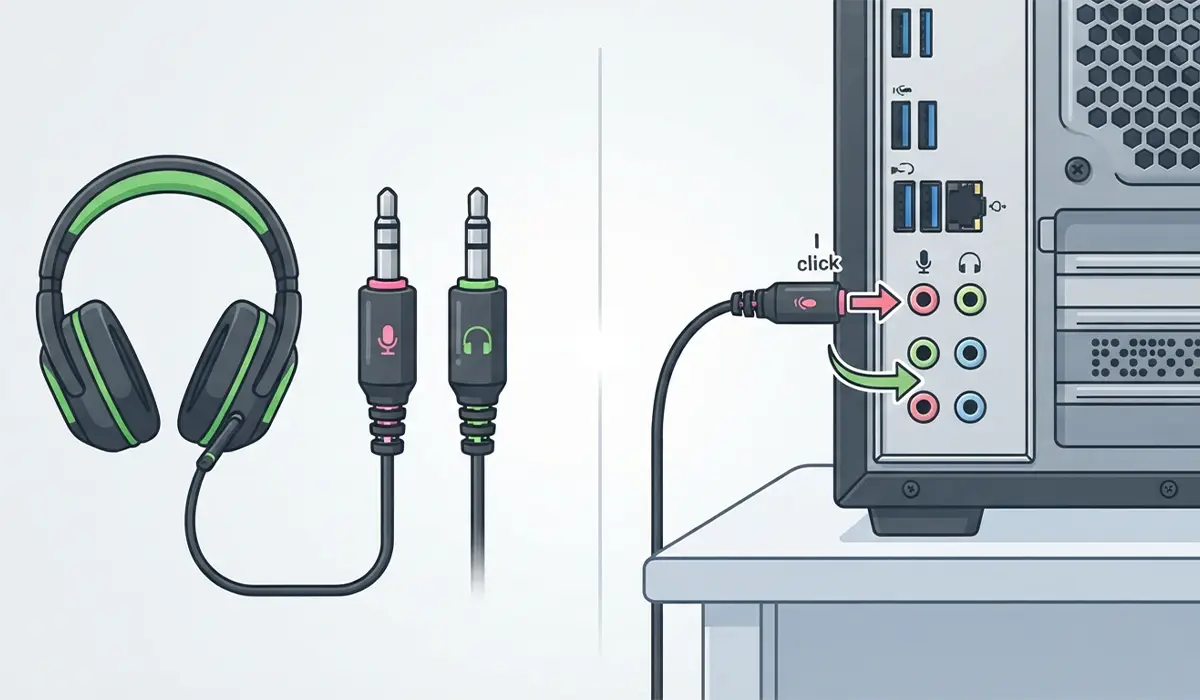
Tip: If the front ports have never worked with any headset, check the case’s audio header cable is fully connected to the motherboard, since a loose header is often the actual cause rather than a settings problem.
Setting Up on a Laptop with a Combo Jack
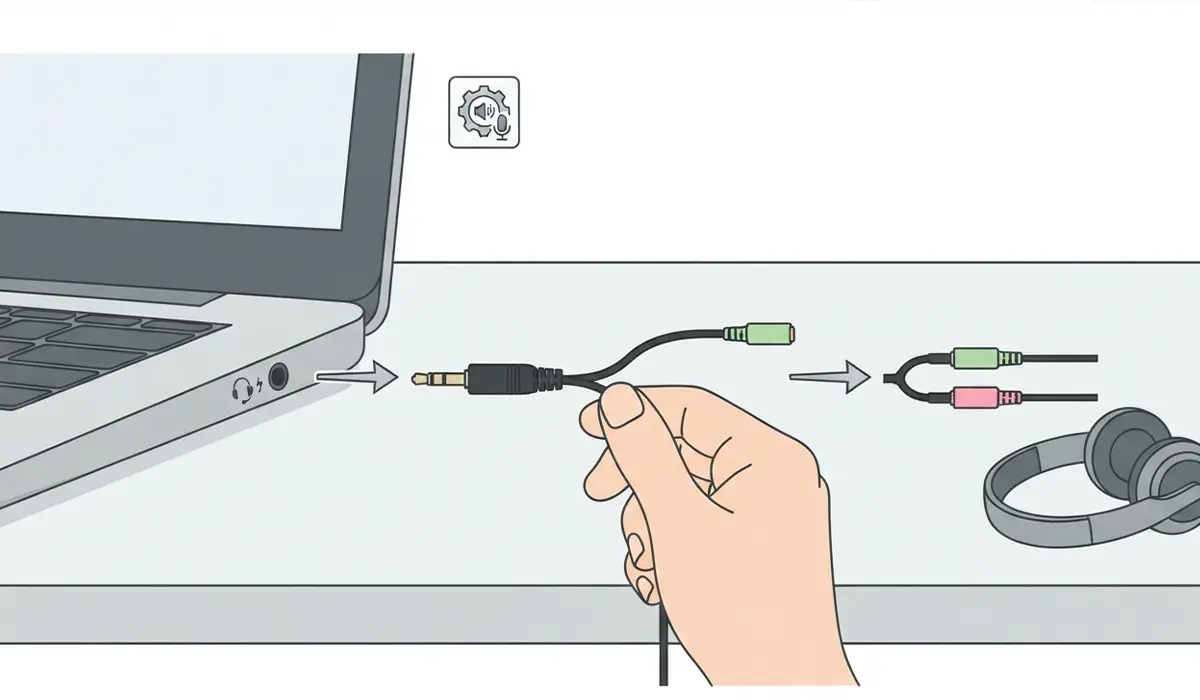
- Step 1: Check the laptop for a single audio port, usually marked with a combined headphone and microphone icon. This is standard on most modern laptops.
- Step 2: Connect a 3.5mm headset splitter adapter to that port. One end of the adapter plugs into the laptop and the other end has two separate ports for the headset’s plugs.
- Step 3: Plug the headset’s pink microphone connector and green audio connector into the matching ends of the splitter.
- Step 4: Windows should recognize both the playback and recording device automatically. If it does not, unplug the adapter, wait a few seconds, and plug it back in to force detection.
Confirming the Setup in Windows
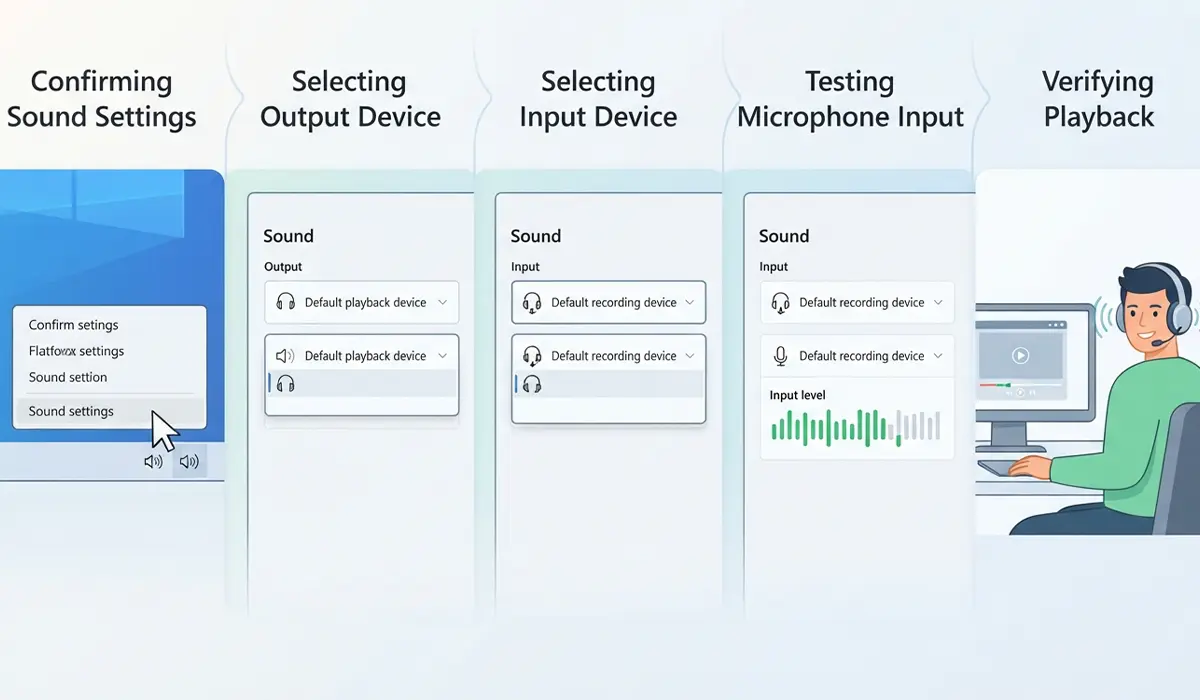
- Step 1: Right-click the speaker icon in the taskbar and select Sound settings.
- Step 2: Under Output, choose the headset as the default playback device.
- Step 3: Under Input, choose the headset microphone as the default recording device.
- Step 4: Use the Test feature under Input to speak and watch the input level bar move, confirming the microphone is being picked up.
- Step 5: Play any audio, such as a video or a test sound, to confirm output is coming through the headphones rather than the computer’s built-in speakers.
Common Problems and Fixes
Most issues with a separate-jack headset trace back to a specific port, cable, or setting rather than a faulty headset.
- Microphone plugged in but not detected: confirm the pink plug is in the pink port and not swapped with the audio port, then set it as the default recording device in Sound settings.
- Only audio works, no mic: this is usually a splitter or combo jack issue on a laptop. Try a different splitter adapter, since a low quality one can fail to carry the mic signal.
- Front panel ports do not work at all: switch to the rear ports to confirm the headset itself is fine, then check the front panel audio header connection inside the case.
- Static or crackling sound: reseat both plugs fully, and try a different port, since a worn or dusty jack can cause interference.
- Sound plays from speakers instead of the headset: the wrong playback device is set as default. Reopen Sound settings and select the headset manually.
Frequently Asked Questions
Why does a headset have two separate jacks instead of one?
Separate jacks send the microphone and audio signals through two dedicated cables instead of combining them, which some headset makers prefer for signal clarity, particularly on gaming and studio headsets.
Which color jack is for the microphone?
The pink jack is the standard color for a microphone, while the green jack is used for headphone or headset audio output.
Can a headset with separate jacks work on a laptop with only one audio port?
Yes, using a 3.5mm headset splitter adapter allows both plugs to connect through the laptop’s single combo jack.
Why does only one side of the headset work after connecting it?
This usually means one plug is not fully inserted, plugged into the wrong port, or the wrong device is selected as default in Windows Sound settings.
Do front panel audio jacks on a desktop always work the same as the rear ports?
Not always. Front panel jacks depend on a cable connection inside the case and sometimes need to be enabled in the audio driver software before they function.
Why is the microphone too quiet even after it is detected?
The input volume may be set too low. Adjusting the microphone level and boost setting in Windows Sound settings under the device properties usually resolves this.
Is a headset splitter adapter the same as a USB sound card?
No, a splitter adapter simply separates a combo jack into two analog ports, while a USB sound card is a separate device that adds its own dedicated audio hardware.
Can outdated audio drivers stop a properly connected headset from working?
Yes, an outdated or corrupted driver can prevent Windows from recognizing a headset even when the cables are connected correctly, so updating the driver is worth trying early in troubleshooting.
Why does Windows show the microphone as connected but it still does not pick up sound?
This typically means the wrong recording device is set as default, or the input volume is muted. Checking both settings under Sound Control Panel usually fixes it.
Should a desktop computer use the front or rear audio ports for a headset?
Either works when wired correctly, but rear ports are generally more reliable since they connect directly to the motherboard without depending on an internal header cable.
