
A flickering screen with an NVIDIA GPU is one of the most common display complaints, and it almost always traces back to a handful of predictable culprits. Whether the flicker shows up as a quick flash, a rolling shimmer, or a full blackout that lasts a second, the fixes below work through the causes in the order most likely to solve it.
Key Takeaways
- Outdated or corrupted NVIDIA drivers cause most flickering issues and a clean reinstall resolves the majority of cases.
- A mismatched refresh rate between the monitor and Windows display settings is a frequent hidden cause.
- Loose or damaged HDMI and DisplayPort cables produce flicker that looks identical to a driver problem.
- G-Sync, V-Sync, and overlay software like GeForce Experience or Discord can conflict with the display output.
- Ruling out the monitor and cable early saves time before assuming the GPU itself is at fault.
Common Causes of NVIDIA GPU Screen Flickering
Before jumping into fixes, it helps to understand what typically triggers this. The most frequent causes include a driver that installed incorrectly or has leftover files from a previous version, a refresh rate setting that does not match what the monitor actually supports, a cable connection that is loose or starting to fail, and background software such as overlays or RGB lighting utilities that hook into the display pipeline. Less commonly, an unstable overclock or a failing power supply can also produce flicker, since the GPU needs a steady voltage to render frames consistently.
Step-by-Step Fixes
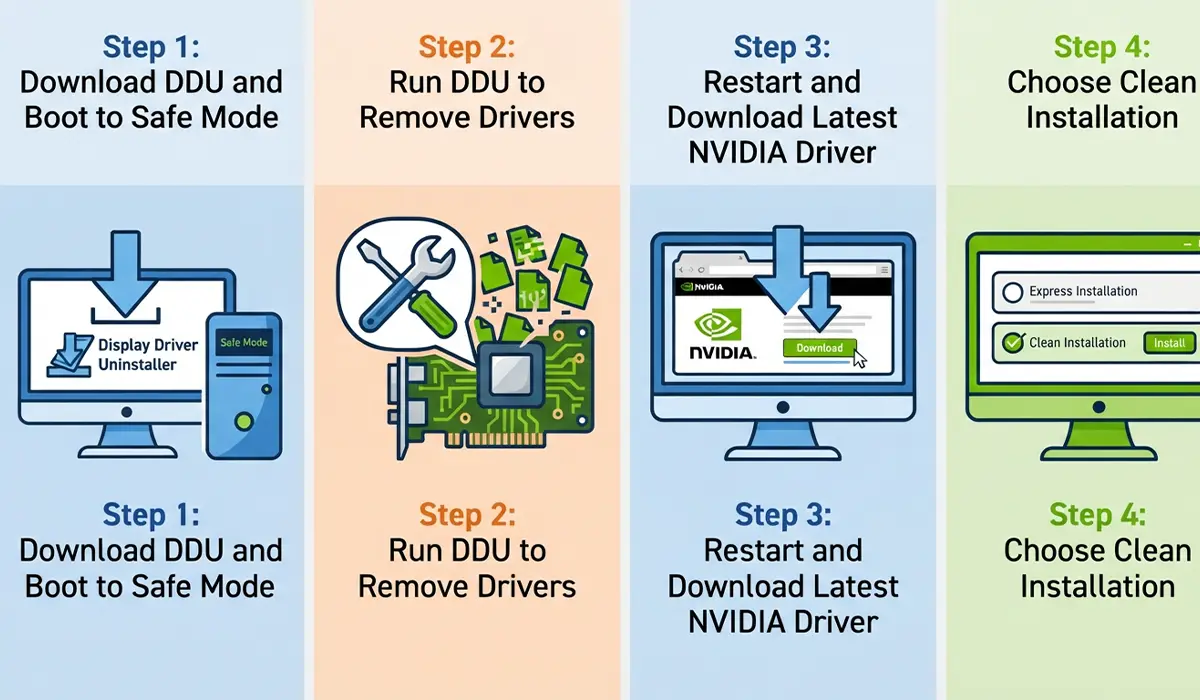
Step 1: Reseat and Test the Display Cable
- Step 1: Power down the monitor and PC, then unplug the video cable from both ends.
- Step 2: Inspect the cable for bent pins, fraying, or a loose connector shell.
- Step 3: Reconnect the cable firmly and, if a spare HDMI or DisplayPort cable is available, swap it in to see if the flicker disappears.
- Step 4: If possible, try a different port on the GPU itself, since a single port can develop a fault while the others still work fine.
Tip: This is the fastest way to rule out hardware, since a bad cable is far more common than people expect and costs nothing to test.
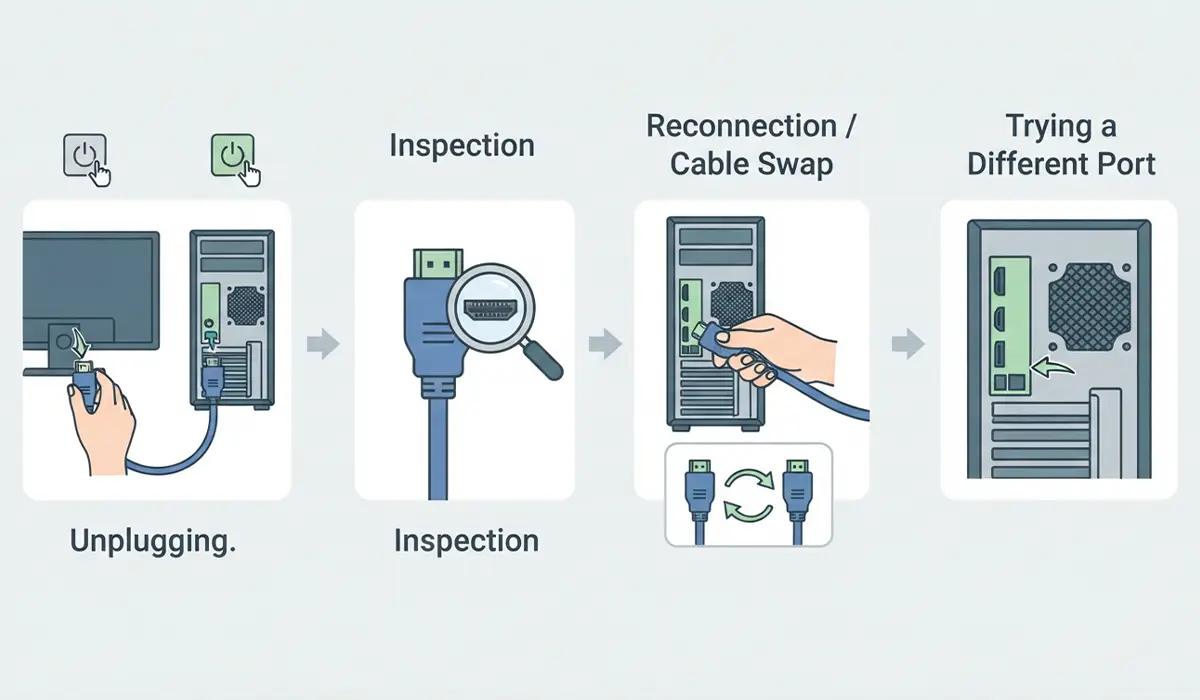
Step 2: Perform a Clean NVIDIA Driver Reinstall
- Step 1: Download Display Driver Uninstaller and boot into Safe Mode.
- Step 2: Run the tool to fully remove all existing NVIDIA driver files, not just uninstall through Windows.
- Step 3: Restart normally and download the latest driver directly from NVIDIA’s website for the specific GPU model.
- Step 4: Choose a clean installation when prompted during setup rather than an express update.
This works best when the flicker started right after a driver update, since leftover files from the old version are a frequent source of conflicts.
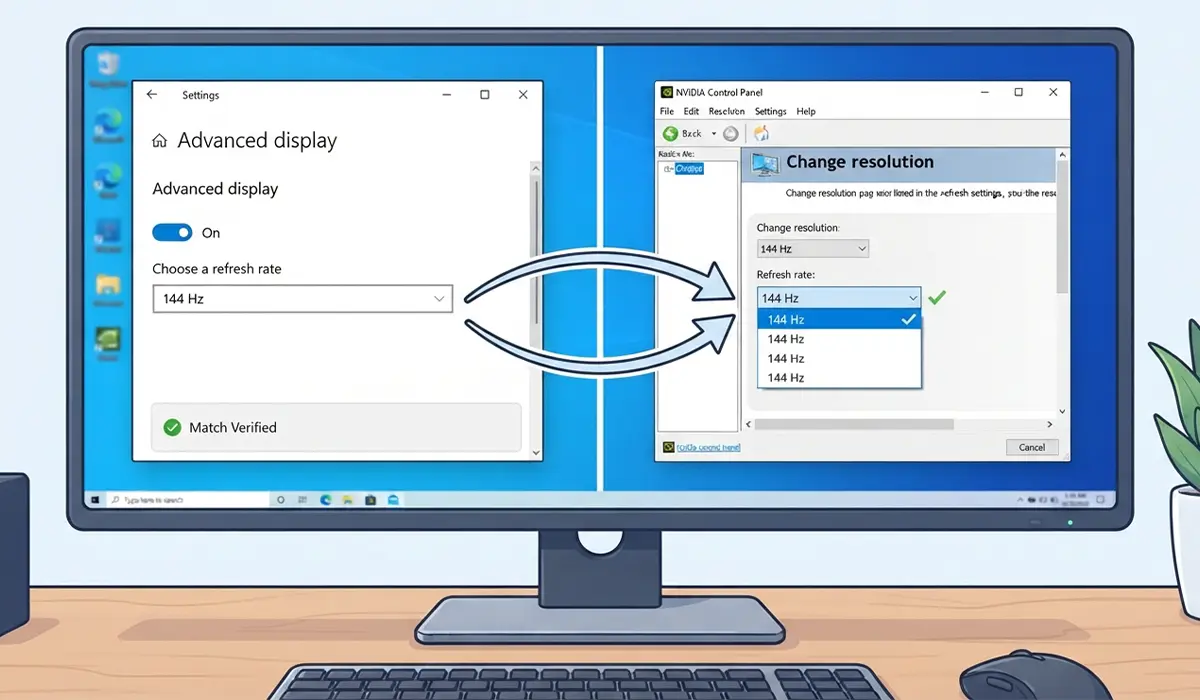
Step 3: Match the Refresh Rate in Windows and the NVIDIA Control Panel
- Step 1: Right-click the desktop and open Display Settings, then confirm the refresh rate listed under Advanced Display settings matches the monitor’s rated maximum.
- Step 2: Open the NVIDIA Control Panel and go to Change Resolution to verify the same refresh rate is selected there.
- Step 3: If a custom resolution or refresh rate was ever created, delete it and revert to the monitor’s native, standard setting.
Step 4: Disable G-Sync, V-Sync, and Overlays Temporarily
- Step 1: Open the NVIDIA Control Panel, select Set Up G-Sync, and turn it off.
- Step 2: Turn off V-Sync under Manage 3D Settings to see if the flicker relates to frame synchronization.
- Step 3: Close background overlays such as GeForce Experience’s in-game overlay, Discord’s overlay, and any RGB lighting software, since these inject rendering layers that can occasionally clash with the display output.
Most people find that reintroducing these features one at a time, after confirming the flicker is gone, quickly identifies which one was actually responsible.
Step 5: Check for an Unstable Overclock
- Step 1: Open any overclocking utility being used for the GPU and reset all clock offsets and voltage curves to default.
- Step 2: Test the display for flickering with the GPU running at stock settings.
- Step 3: If the flicker stops, reapply the overclock in smaller increments to find a stable point.
Common Problems and Fixes
Flicker only happens during gaming, not on the desktop: this usually points to G-Sync, V-Sync, or an overlay rather than the driver itself, so revisit Step 4 first.
Flicker returns after every Windows update: Windows updates sometimes reinstall a generic display driver over the NVIDIA one, so check Device Manager and reinstall the correct driver afterward.
Screen goes completely black for a second instead of flickering: this pattern is more closely associated with a cable or port issue than software, so re-test with a different cable and port before anything else.
Flicker appears only at certain resolutions: the monitor may not fully support that resolution and refresh rate combination over the current cable type, so try a lower refresh rate or a different cable standard.
Frequently Asked Questions
Why does my screen flicker only when I open certain apps?
Some applications force a refresh rate or color format change when they open, which can briefly interrupt the display signal and appear as a flicker.
Can a bad power supply cause screen flickering?
Yes, if the power supply cannot deliver stable voltage to the GPU under load, it can cause visual artifacts and flickering that mimic a driver problem.
Does updating Windows fix GPU flickering?
Sometimes, since Windows updates occasionally include display-related fixes, but they can also overwrite the NVIDIA driver with a generic one, so check the driver afterward.
Is flickering more common with HDMI or DisplayPort?
Both can flicker if the cable or port is faulty, though DisplayPort is generally more tolerant of higher refresh rates and bandwidth demands.
Should G-Sync be left on permanently?
G-Sync can stay on for most users, but temporarily disabling it is a useful troubleshooting step when diagnosing flicker.
Can a laptop’s integrated graphics cause flickering on an external monitor connected through the NVIDIA GPU?
Yes, on laptops with switchable graphics, a conflict between the integrated GPU and the NVIDIA GPU handling the display can occasionally produce flicker, so checking the graphics switching settings is worthwhile.
Does reseating the GPU help with flickering?
If the GPU is not fully seated in the PCIe slot, it can cause display instability, so reseating it is a reasonable check if driver and cable fixes do not help.
How long does a clean driver reinstall take?
A full clean reinstall using Display Driver Uninstaller typically takes fifteen to twenty minutes including the restart and new driver download.
Can old monitor firmware cause flickering?
Yes, some monitors receive firmware updates that address flicker and compatibility issues, so checking the manufacturer’s support page is worth doing if other fixes do not resolve it.
