
Knowing how to update BIOS safely can save a computer from serious problems, since a botched update can leave a system unable to boot at all. This guide walks through the entire process in a clear, low-risk order, from checking the current version to confirming the update installed correctly.
Key Takeaways
- Always confirm the exact motherboard or laptop model and current BIOS version before downloading anything.
- Only download BIOS files from the official manufacturer support page, never from a third-party mirror.
- A stable, uninterrupted power source is non-negotiable during the flash process.
- Most modern systems offer a built-in flash utility that is safer for most users than manual DOS-based flashing.
- Back up important files first, since a failed update occasionally requires a full system reset to recover.
Before You Start
BIOS updates do not require opening the case in most situations, but a few precautions still matter. Skipping them is the most common reason a BIOS flash goes wrong.
- Plug a laptop directly into wall power and confirm the battery is charged above 50 percent, even while plugged in.
- On a desktop, connect it to a surge protector or, better, a UPS if one is available, and avoid updating during a storm or known power instability.
- Close unnecessary programs and disable sleep or automatic updates that could interrupt the process.
- Back up documents, photos, and any important files to an external drive or cloud storage as a precaution.
- Note the current BIOS version, motherboard or laptop model number, and serial number somewhere safe before starting.
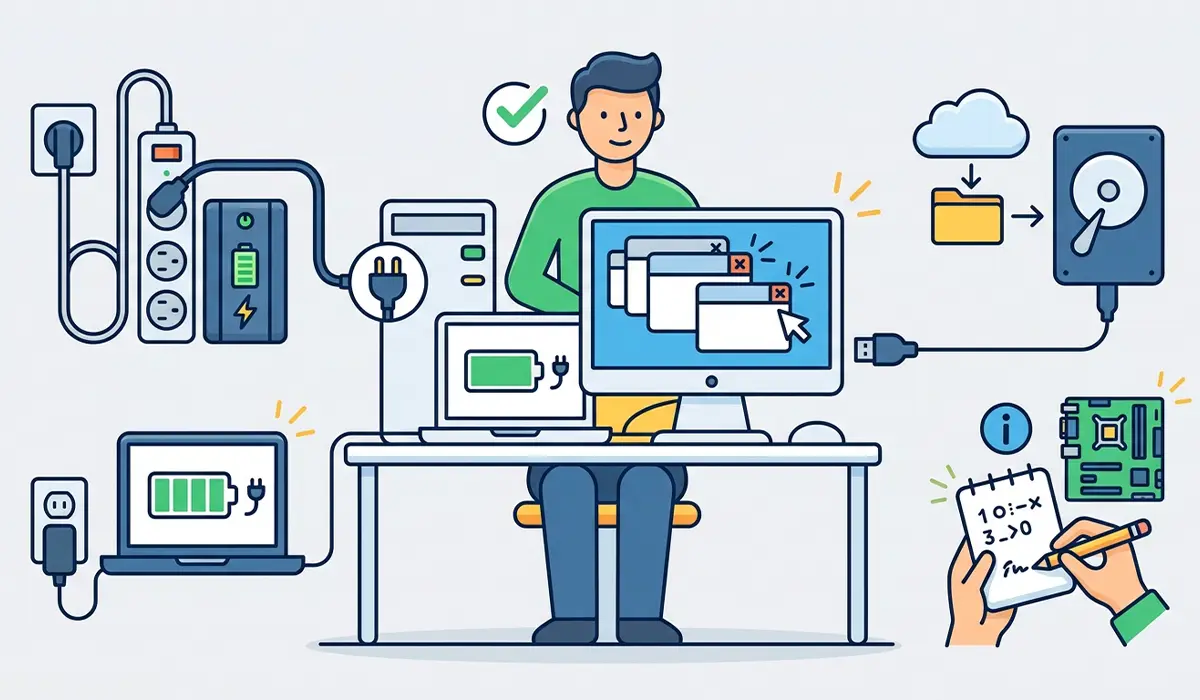
Tip: A laptop that shuts off mid-flash because of a drained battery is one of the few ways a BIOS update turns into a real repair job, so the power check is worth doing twice.
How to Update BIOS Safely, Step by Step
- Step 1: Open the System Information tool in Windows, or check the manufacturer’s diagnostic app, to confirm the exact model number and the currently installed BIOS version.
- Step 2: Visit the official support page for that specific manufacturer and model. Search by the exact model number rather than a general product line, since BIOS files are model-specific.
- Step 3: Locate the BIOS or firmware section of the downloads page and read the changelog for each version listed above the current one. This shows whether the update addresses a real issue or is purely optional.
- Step 4: Download the correct BIOS file along with any flash utility the manufacturer provides. Avoid downloading from forums, file-sharing sites, or anywhere other than the official domain.
- Step 5: If the manufacturer offers a Windows-based update tool, such as one built into the motherboard’s companion app or the laptop’s support assistant, run that tool directly. This method usually handles the flash automatically and is the safest option for most users.
- Step 6: If a USB-based flash is required instead, format a USB flash drive as FAT32, copy the BIOS file to the root of the drive, and rename it exactly as instructed in the manufacturer’s readme file.
- Step 7: Restart the computer and enter the BIOS or UEFI setup screen, then locate the flash or update utility, often labeled something like EZ Flash, M-Flash, Q-Flash, or a similar brand-specific name. Select the BIOS file from the USB drive when prompted.
- Step 8: Let the update run completely without touching the keyboard, mouse, or power button. The screen may flicker, go black, or show a progress bar, and this is normal.
- Step 9: Once the system restarts on its own, enter BIOS setup again and confirm the version number now matches the one just installed.
- Step 10: Check that boot order, storage mode (AHCI or RAID), and any custom settings are still correct, since some updates reset BIOS settings to default.
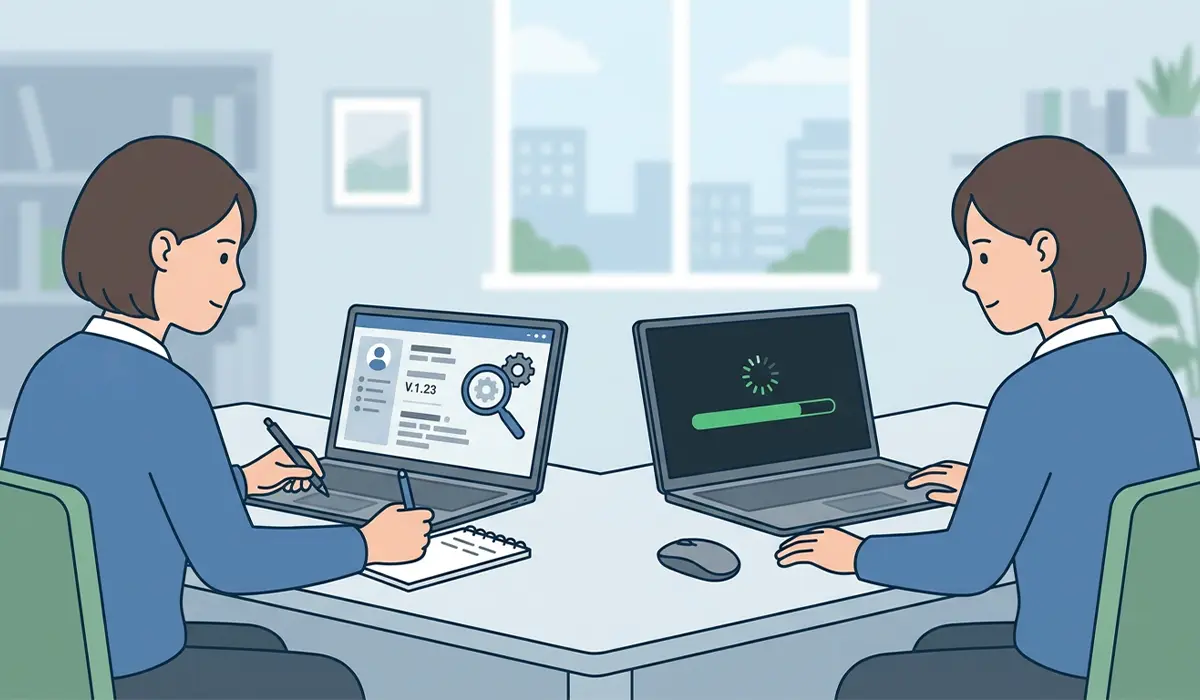
Tip: If the motherboard has a dual BIOS or backup BIOS chip, that safety net is worth confirming before starting. It allows recovery even if the main flash fails partway through.
Common Problems and Fixes
The computer will not boot after the update
Try clearing CMOS by locating the reset jumper on the motherboard or removing the CMOS battery for a minute, which restores default settings. On a laptop, a dedicated BIOS recovery key combination, often listed in the manual, can reflash from a backup copy.
The flash utility does not detect the USB drive or file
Reformat the drive as FAT32 rather than NTFS or exFAT, and double-check the file name matches exactly what the manufacturer’s instructions specify, since some utilities are case-sensitive.
The system boots to a black screen after updating
Reseat the monitor cable and try a different video output if the motherboard has integrated graphics, since a new BIOS occasionally changes the default display output. Allow a minute or two for POST before assuming the worst.
Custom BIOS settings reset after the update
This is expected behavior for most updates. Reapply settings such as boot order, XMP or memory profiles, and fan curves manually afterward, ideally using the notes taken before starting.
The update process appears frozen
Give it several extra minutes before assuming failure, since some flashes intentionally pause at certain stages. Only consider a hard reset as a last resort, and only after confirming the manufacturer’s documentation does not describe a normal pause at that point.
Frequently Asked Questions
What does a BIOS update actually change?
A BIOS or UEFI update changes the low-level firmware that controls how hardware initializes before the operating system loads. It can add support for new hardware, fix stability issues, patch security vulnerabilities, or improve compatibility with newer components.
Is it risky to update BIOS?
There is some risk involved, mainly from power loss or using the wrong file, but following the correct process and using an official update tool makes the process reliable for the vast majority of systems.
How do I know if a BIOS update is actually needed?
Check the changelog on the manufacturer’s site. If it mentions a fix for a problem being experienced, such as compatibility with a new CPU or memory kit, or a known stability issue, it is worth installing. Otherwise, it is optional.
Can updating BIOS improve performance?
Occasionally, yes. Some updates improve memory compatibility or fix throttling behavior, though most BIOS updates focus on stability and compatibility rather than raw speed gains.
What happens if the power goes out during a BIOS update?
This is the main cause of a failed or corrupted BIOS. Some motherboards recover automatically using a backup chip, while others require a manual recovery procedure or, in rare cases, professional repair.
Does every BIOS update require a USB drive?
No. Many current motherboards and laptops include a Windows-based update tool or an in-BIOS internet-based updater that skips the USB step entirely.
How long does a BIOS update usually take?
Most updates finish within a few minutes, though the exact time depends on the file size and the specific flash method used.
Will updating BIOS delete files or programs?
No. A BIOS update does not affect the operating system, installed programs, or personal files stored on the drive.
Do BIOS settings need to be reconfigured after updating?
Often, yes. Many updates restore default settings, so boot order, memory profiles, and any custom fan or overclocking settings should be checked and reapplied afterward.
How often should BIOS be updated?
There is no fixed schedule. Checking a few times a year, or whenever a specific hardware compatibility or stability issue comes up, is a reasonable approach rather than updating on every release.
