
Knowing how to upgrade laptop RAM is one of the most cost-effective ways to speed up an aging machine, and for many laptops it is a task that takes less time than a coffee break. This guide covers checking compatibility, opening the laptop safely, installing the new module, and fixing the issues that sometimes pop up afterward.
Key Takeaways
- Not every laptop allows a RAM upgrade – some models have memory soldered directly to the motherboard.
- Checking the laptop’s supported memory type and maximum capacity before buying prevents wasted money on incompatible sticks.
- Laptop RAM uses a smaller SO-DIMM form factor, which installs at an angle rather than straight down like a desktop module.
- Static discharge and improper seating cause most post-upgrade problems, not defective memory.
- Opening the bottom panel may affect the laptop’s warranty, so checking the manufacturer’s policy first is worth the extra minute.
Before You Start
Shut the laptop down completely rather than just closing the lid, then unplug the charger. If the battery is user-removable, take it out before opening the case. On laptops with an internal, non-removable battery, hold the power button for about fifteen seconds after unplugging to drain any residual charge. Ground out static electricity by touching a bare metal surface, or wear an anti-static wrist strap clipped to an unpainted metal part of the chassis. Let the laptop cool for a few minutes if it was just running, since the area around the memory slots sits close to the processor and can retain heat.
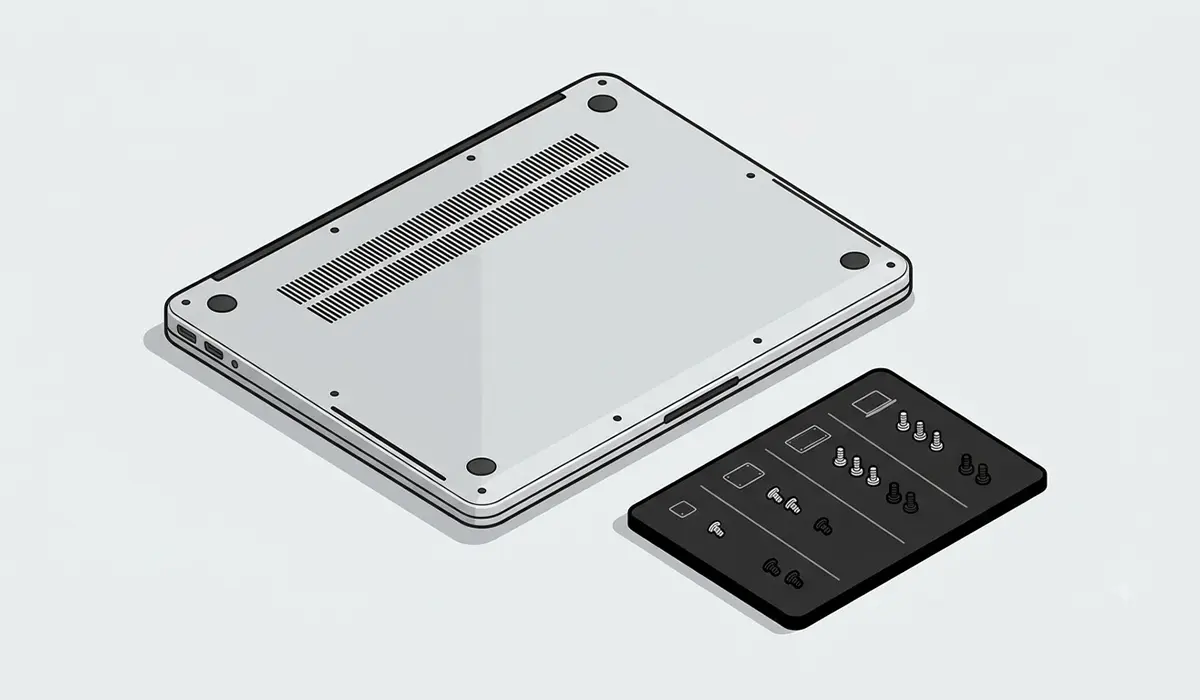
The tools needed for this job are simple: a small Phillips screwdriver that matches the panel screws, a plastic pry tool for separating the bottom cover, an anti-static wrist strap, and a small container to keep the removed screws organized, since laptop screws often come in different lengths.
Not every laptop is designed for a memory upgrade. Some ultra-thin models solder the RAM directly to the motherboard, which means no amount of skill or tools makes an upgrade possible. Checking the exact laptop model’s specifications before buying memory or opening the case avoids a wasted afternoon. If the bottom panel uses tamper-evident stickers or the process feels more involved than expected, stopping and consulting a professional technician is the safer call, and it is worth confirming the manufacturer’s warranty terms before removing any panel.
How to Upgrade Laptop RAM Step by Step
Checking Compatibility First
Before ordering anything, confirming the laptop’s supported memory type, whether that is DDR4 or DDR5, along with its maximum supported capacity and number of slots, saves a return trip to the store. The manufacturer’s support page or a system information tool typically lists this information clearly. Laptops with two slots benefit from installing matched pairs, since running memory in dual-channel mode generally performs better than an equivalent single stick.
Opening the Laptop and Installing the New Module
- Step 1: Flip the laptop over and remove all the screws holding the bottom panel in place, keeping them organized since sizes can vary between screw locations.
- Step 2: Use a plastic pry tool to gently separate the panel from the chassis, working around the edges rather than prying from one spot. Metal tools risk scratching the case or damaging internal clips.
- Step 3: Locate the memory slots, which usually sit near the center of the board and hold the SO-DIMM modules at a slight angle when installed.
- Step 4: If replacing an existing module, spread the small metal retention clips on each side of the slot outward. The module will pop up to an angle on its own, and it can then be slid out gently.
- Step 5: Align the notch on the new module with the notch in the slot, since it only fits one orientation. Insert it at the same angle the old module came out at.
- Step 6: Press the module down firmly until the retention clips snap into place on both sides, locking it flat against the board.
- Step 7: Reattach the bottom panel and its screws, reinsert the battery if it was removed, and power the laptop back on to confirm the new memory total appears correctly.
Tip: Handle the new module by its edges only, avoiding contact with the gold connector pins or the memory chips themselves, since oils and static from bare fingers can cause intermittent errors later.
Verifying the Upgrade Worked
Once the laptop boots normally, checking the system information panel or task manager confirms the full new capacity is recognized. Running a memory diagnostic tool, such as the one built into Windows or a dedicated tool like MemTest86, over a few passes helps catch a marginal module before it causes random issues weeks down the line.
Common Problems and Fixes
Laptop Will Not Power On After the Upgrade
This almost always points to a seating problem rather than a bad module. Power down, unplug, discharge static again, and reopen the panel to confirm the module clicked fully flat with both retention clips engaged. A module sitting at an angle instead of lying flush will prevent the laptop from powering on.
System Shows Less Memory Than Installed
If a 16GB module shows up as a smaller amount, reseating it usually resolves the issue, since partial seating can cause the system to detect only part of the module. On laptops with both onboard and slot-based memory, this is also worth double-checking, since some models combine soldered memory with one additional upgradeable slot.
Laptop Beeps or Shows a Blank Screen on Startup
A series of beeps or a black screen with no display often signals the memory is not seated correctly. Powering down and reseating the module firmly resolves this in most cases. If the same beep pattern continues with a single module tried in different slots, the module itself may be defective and worth testing in another compatible machine if one is available.
New RAM Causes the Laptop to Feel Warmer
Adding memory does not meaningfully increase heat output on its own, but a loose bottom panel or a fan vent accidentally blocked during reassembly can trap heat. Confirming all screws are properly tightened and that vents remain clear resolves this in nearly every case.
Frequently Asked Questions
How do you know if a laptop’s RAM can be upgraded?
Checking the exact model number against the manufacturer’s official specifications page is the most reliable way to confirm this. Some manufacturers also publish a maintenance or service manual that states clearly whether the memory is soldered or slot-based.
Does upgrading laptop RAM void the warranty?
Warranty policies vary by manufacturer, and some explicitly allow user-accessible memory upgrades while others do not. Checking the specific warranty terms before opening the bottom panel avoids any surprises.
Can laptop RAM be mixed between different brands?
Mixing brands can work as long as the type, speed, and capacity are closely matched, since the system will run all installed modules at the speed of the slowest one. Using a matched kit designed to work together remains the more reliable option for guaranteed stability.
What size screwdriver is needed to open a laptop for a RAM upgrade?
Most laptops use a small Phillips head screw, though some models use a Torx or Pentalobe screw instead. Checking the screw head shape before starting, or consulting the laptop’s service manual, prevents stripping a screw with the wrong tool.
Is it necessary to remove the battery before upgrading laptop RAM?
Removing a user-accessible battery adds an extra layer of safety by fully cutting power to the board. On laptops with an internal, non-removable battery, unplugging the charger and holding the power button briefly achieves a similar result.
Why does a new RAM module not fit into the slot?
RAM only fits one way, and forcing a module that seems to resist is a sign the notch is misaligned or the wrong memory type was purchased. Double-checking the module’s compatibility with the laptop’s supported memory type resolves this in most cases.
How much RAM is enough for a laptop upgrade?
Needs vary by use case, but general browsing and office work run comfortably with a moderate amount, while gaming, video editing, and heavy multitasking benefit from a higher capacity. Checking current memory usage in the task manager during typical activity helps determine whether an upgrade is worthwhile.
Can a single RAM module be upgraded to two modules later?
This depends on how many slots the laptop has and whether one is already occupied. A laptop with two slots and one module installed can usually accept a second matching module later to enable dual-channel mode.
