
Learning how to upgrade desktop RAM is one of the simplest ways to breathe new life into a sluggish computer without spending a fortune. Whether the goal is smoother multitasking, faster load times in games, or fewer freezes when dozens of browser tabs pile up, adding memory usually delivers a noticeable difference. This guide walks through the entire process, from checking compatibility to installing the new modules correctly.
Key Takeaways
- Check the motherboard’s supported RAM type, speed, and maximum capacity before buying anything.
- Match new modules to the existing RAM when possible, or replace the full set for the best stability.
- Power down, unplug, and ground the system before touching any internal components.
- RAM installs into slots at an angle and locks flat with an audible click.
- Confirm the upgrade worked by checking installed memory in the operating system after boot.
Before You Start
A little preparation prevents most of the problems people run into during a memory upgrade. Gather what is needed and set up a clean, well-lit workspace before opening the case.
- Power off the desktop completely and unplug the power cable from the wall or power supply.
- Press and hold the power button for a few seconds after unplugging to release any remaining charge in the system.
- Touch a bare metal part of the case, or use an anti-static wrist strap, to discharge static electricity before handling any components.
- Work on a hard, flat surface and avoid carpet, which can build up static charge.
- Have the new RAM modules on hand, along with a Phillips screwdriver if the case requires one to open.
Tip: Avoid touching the gold connector pins on the bottom of the RAM sticks. Skin oils and static can affect the connection over time.
Step-by-Step: How to Upgrade Desktop RAM
Check Compatibility First
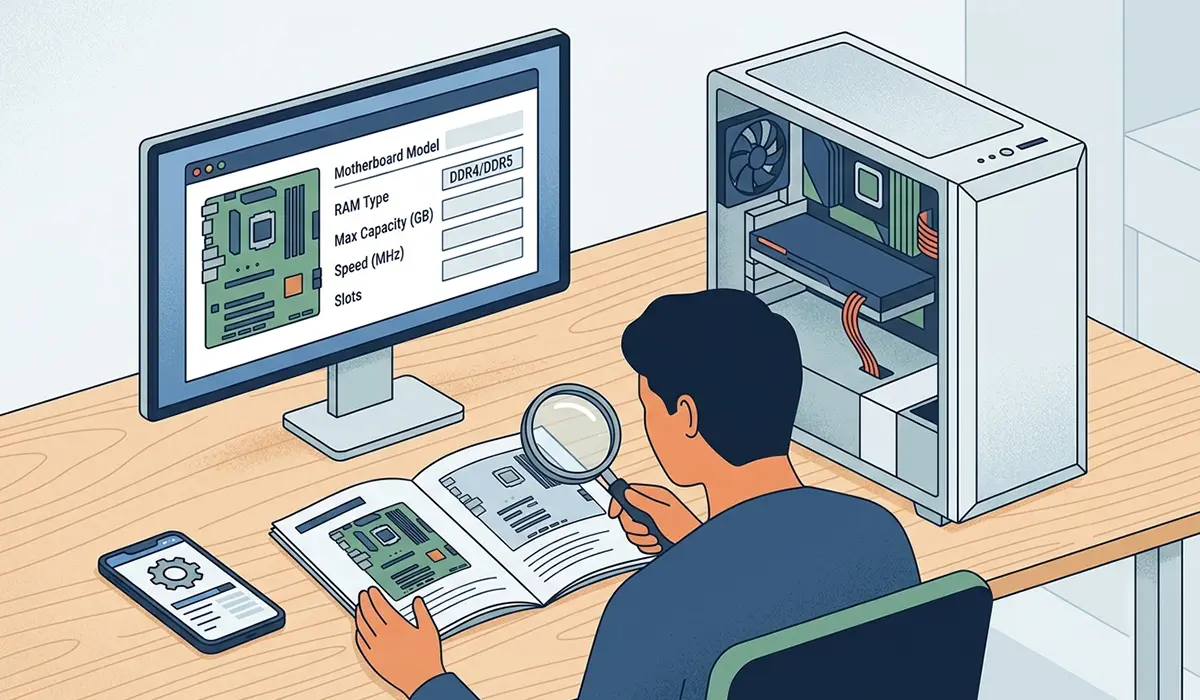
Before ordering new memory, confirm what the motherboard actually supports. This single step avoids the most common upgrade headache: buying RAM that simply will not work in the system.
- Step 1: Identify the motherboard model, either from the manual, the manufacturer’s website, or a system information tool built into the operating system.
- Step 2: Check the supported memory type, such as DDR4 or DDR5, since these are not physically interchangeable.
- Step 3: Note the maximum supported capacity and the number of memory slots available on the board.
- Step 4: Check the maximum supported speed, measured in MHz, and understand that RAM will run at the motherboard’s supported speed even if the modules are rated higher.
Install the New Memory Modules
- Step 5: Open the computer case by removing the side panel, usually secured with thumbscrews or standard screws.
- Step 6: Locate the RAM slots on the motherboard, typically positioned near the processor.
- Step 7: If replacing existing modules, push down on the retention clips at each end of the slot until the stick pops up slightly, then lift it straight out.
- Step 8: Align the notch on the new RAM stick with the notch in the slot, since the module only fits one way.
- Step 9: Press down firmly and evenly on both ends of the module until the retention clips snap into place on their own.
- Step 10: Repeat for any additional sticks, keeping matched pairs in the slot colors recommended by the motherboard manual for dual-channel performance.
- Step 11: Close the case, reconnect the power cable, and power on the system.
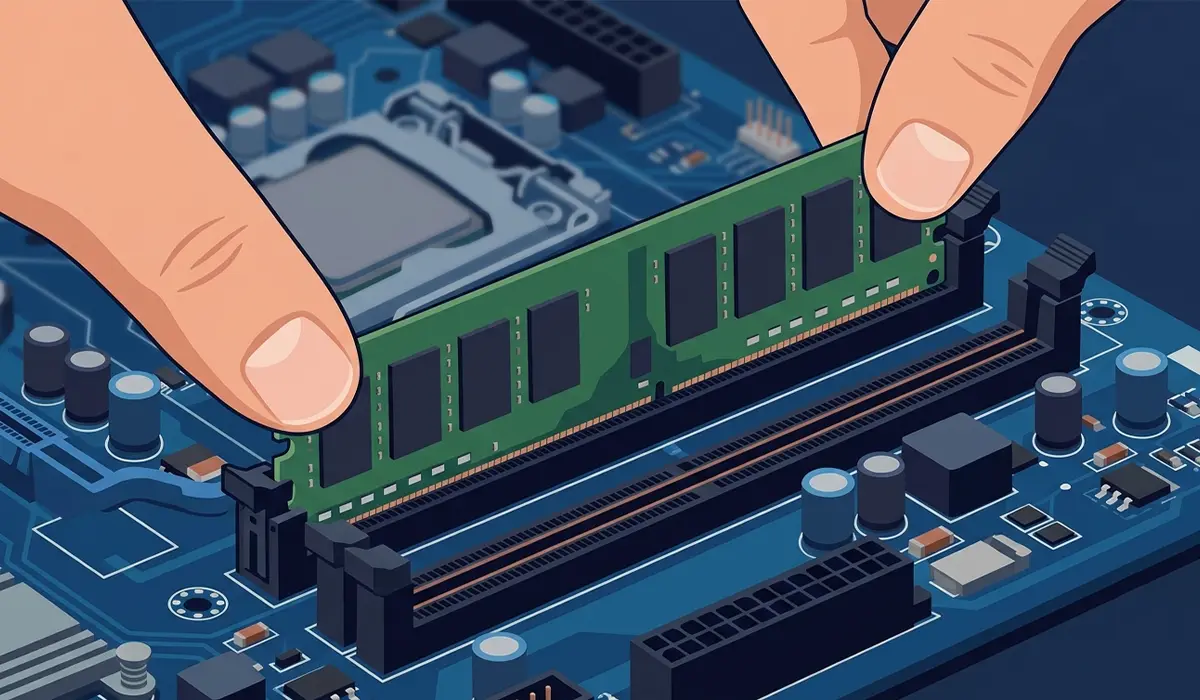
Tip: When installing two or more sticks, check the motherboard manual for the correct slot pairing. Populating the wrong slots can prevent dual-channel mode from working, even if the computer still boots.
Confirm the Upgrade Worked
- Step 12: Watch the boot screen for the total memory count, which usually appears briefly before the operating system loads.
- Step 13: Once in the operating system, open the system information panel to confirm the installed capacity matches expectations.
- Step 14: If the system supports it, enable XMP or EXPO in the motherboard’s firmware settings so the RAM runs at its rated speed instead of a default lower speed.

Common Problems and Fixes
Computer Will Not Boot After Installing RAM
This usually points to a seating issue rather than a defective stick. Power down, remove each module, and reinstall it, pressing down until both retention clips lock fully. A module that is not seated evenly is one of the most frequent causes of a black screen after a memory upgrade.
System Only Shows Part of the Installed Capacity
This can happen when a module is not fully seated, when mismatched RAM is installed, or on some systems with integrated graphics that reserve a portion of memory. Reseat each stick individually and check the total again after each one.
Beeping Sounds on Startup
Many motherboards use beep codes to signal a memory problem, such as a stick that is not detected. Power down, reseat the modules one at a time, and test with a single stick to isolate which one, if any, is causing the issue.
New RAM Runs Slower Than Its Rated Speed
By default, most systems run memory at a conservative baseline speed. Enabling XMP or EXPO in the firmware settings tells the system to run the RAM at the speed printed on the module, as long as the motherboard and processor support it.
Frequently Asked Questions
Can different brands of RAM be mixed in the same computer?
Mixing brands can work if the type, speed, and capacity are closely matched, but stability is more reliable when all modules are identical or purchased as part of the same matched kit.
Does adding more RAM improve gaming performance?
It can, especially if the system was previously running short on memory and swapping data to the storage drive. Once a system has enough RAM for its workload, adding more delivers diminishing returns for gaming specifically.
How much RAM does a typical desktop need?
Needs vary by use case. General browsing and office work run comfortably on lower amounts, while gaming, video editing, and heavy multitasking benefit from higher capacities. Checking current usage in the task manager during normal activity helps determine whether an upgrade is worthwhile.
Is it necessary to remove old RAM before installing new sticks?
Only if the slots are full or if mixing significantly different modules risks instability. Many systems allow adding sticks into empty slots alongside existing ones, as long as the total stays within the motherboard’s supported capacity.
What happens if RAM is installed in the wrong slots?
The system may still boot, but dual-channel performance benefits could be lost. Checking the motherboard manual for the recommended slot configuration before installing multiple sticks avoids this issue.
Can RAM be upgraded on a laptop the same way as a desktop?
Some laptops have accessible RAM slots, while others use memory soldered directly to the motherboard, which cannot be upgraded. Checking the specific laptop model’s documentation confirms which situation applies.
Is it safe to touch RAM without an anti-static wrist strap?
It can be done safely by regularly touching a bare metal part of the case to discharge static, though a wrist strap offers more consistent protection, especially in dry environments or on carpeted rooms.
Will upgrading RAM void the computer’s warranty?
On most desktop towers built for consumer upgrades, opening the case and adding standard RAM does not void the warranty. Prebuilt systems and some laptops may have different policies, so checking the manufacturer’s warranty terms beforehand is worthwhile.
How long does a RAM upgrade typically take?
For a desktop with easy case access, the physical installation usually takes a matter of minutes once the correct modules are on hand. Most of the overall time investment goes into researching compatible RAM beforehand.
What should be done if the new RAM is not detected at all?
Reseat the module firmly, try it in a different slot, and test it alone without other sticks installed. If it still is not detected, the module itself may be faulty and worth testing in another compatible system before ruling it out entirely.
